
1. Inleiding
Thank you for choosing the RAZEAK RM-X18 Wired Gaming Mouse. This manual provides detailed instructions to help you set up, operate, and customize your new gaming mouse. Please read this manual thoroughly before use to ensure optimal performance and longevity of your device.
2. Produk verbyview
The RAZEAK RM-X18 is a high-performance wired gaming mouse designed for PC gamers, featuring programmable buttons, adjustable DPI, and customizable RGB lighting.
2.1 Pakketinhoud
- RAZEAK RM-X18 Wired Gaming Mouse
- Gebruikershandleiding
2.2 Muisfunksies
- 8 programmeerbare knoppies: Customize functions, DPI settings, RGB lighting, and record macros via software.
- 2 Using Modes: Switch between Gaming and Office modes by pressing the middle and right buttons simultaneously.
- 9 RGB Backlight Modes: Enhance gaming atmosphere with 16 million customizable colors.
- 6 Adjustable DPI Levels: Default settings of 500/1000/1500/2000/3000/4000 DPI, with software customization for numerical values and indicator colors.
- Ergonomiese ontwerp: Provides a comfortable grip for extended use.
2.3 Knoppie-uitleg
Refer to the image below for the button identification on your RAZEAK RM-X18 mouse.
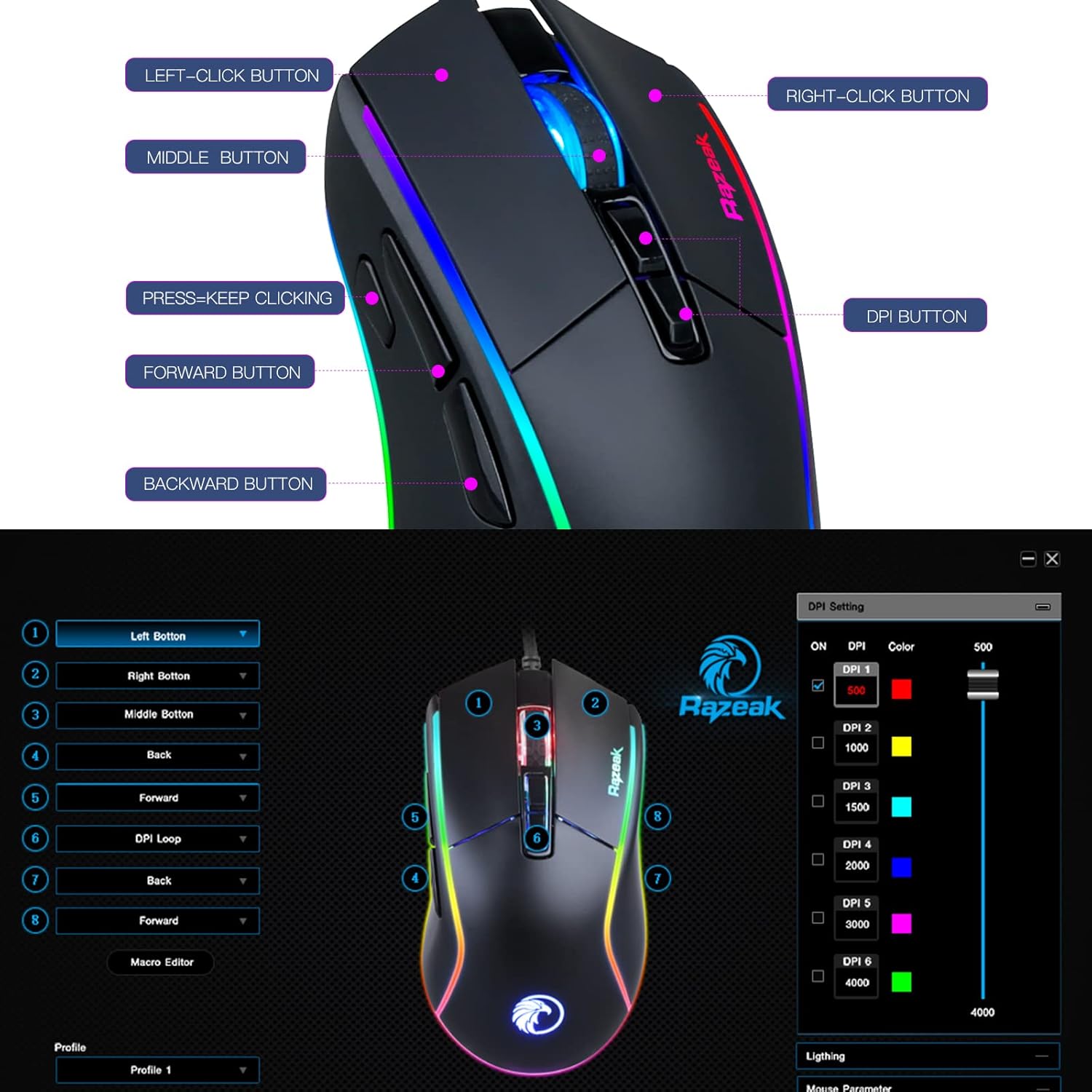
Image: RAZEAK RM-X18 Gaming Mouse with labels for Left-Click, Right-Click, Middle Button, Press-Keep Clicking, Forward Button, Backward Button, and DPI Button.
3. Opstelling
The RAZEAK RM-X18 mouse is a plug-and-play device for basic functionality. For advanced customization, software installation is required.
3.1 Die muis koppel
- Vind 'n beskikbare USB-poort op jou rekenaar.
- Plug the USB connector of the RAZEAK RM-X18 mouse into the USB port.
- The mouse will be automatically recognized by your operating system. Basic functions will be immediately available.
3.2 Software Installation (Optional, for advanced features)
To unlock the full potential of your RAZEAK RM-X18, including programmable buttons, macro recording, and advanced RGB customization, download and install the official RAZEAK software from the manufacturer's website. A link to the software can typically be found on the product page or by searching for "RAZEAK RM-X18 software".

Image: Screenshot of the RAZEAK RM-X18 software interface showing DPI settings and button assignments.
4. Bedryfsinstruksies
4.1 Aanpassing van DPI (Punkte per Duim)
The RAZEAK RM-X18 features 6 default DPI levels for quick sensitivity adjustments. The DPI button is located on the top of the mouse, behind the scroll wheel.
- Druk die DPI knoppie to cycle through the preset DPI levels: 500, 1000, 1500, 2000, 3000, and 4000.
- Each DPI level is typically indicated by a different color on the mouse logo or lighting strip.
- For precise DPI customization and to assign specific indicator colors, use the RAZEAK software.
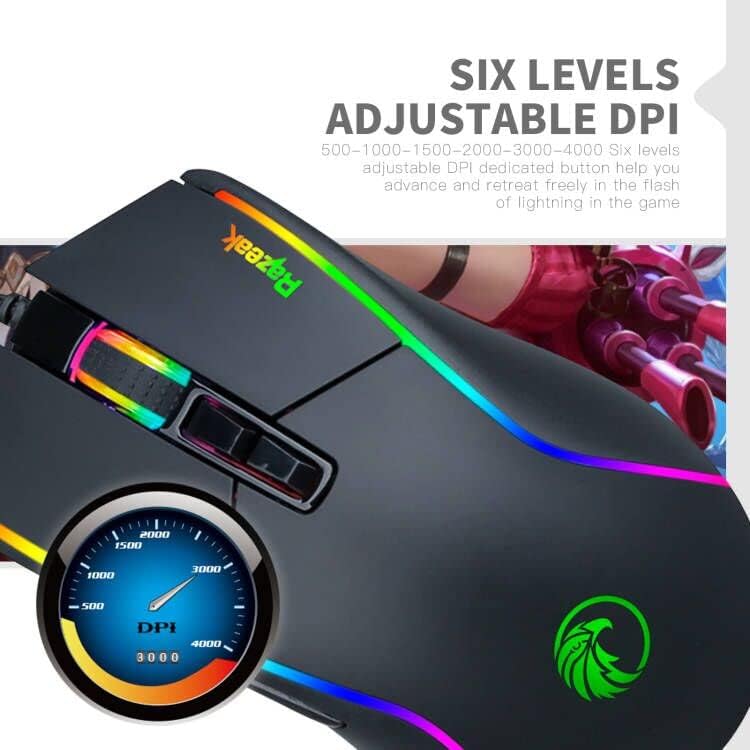
Image: Close-up of the RAZEAK RM-X18 mouse highlighting the DPI button and a graphic showing DPI levels from 500 to 4000.
4.2 Customizing RGB Backlight
The mouse features 9 cool RGB backlight modes and 16 million colors to personalize your gaming setup.
- To adjust the lighting effect, press the Left-Click button en die DPI knoppie simultaneously. This action cycles through various preset lighting modes.
- Alternatiewelik, gebruik die scroll wheel key en die terug sleutel simultaneously to change the light effect.
- For full customization of colors, effects, and speed, use the RAZEAK software.
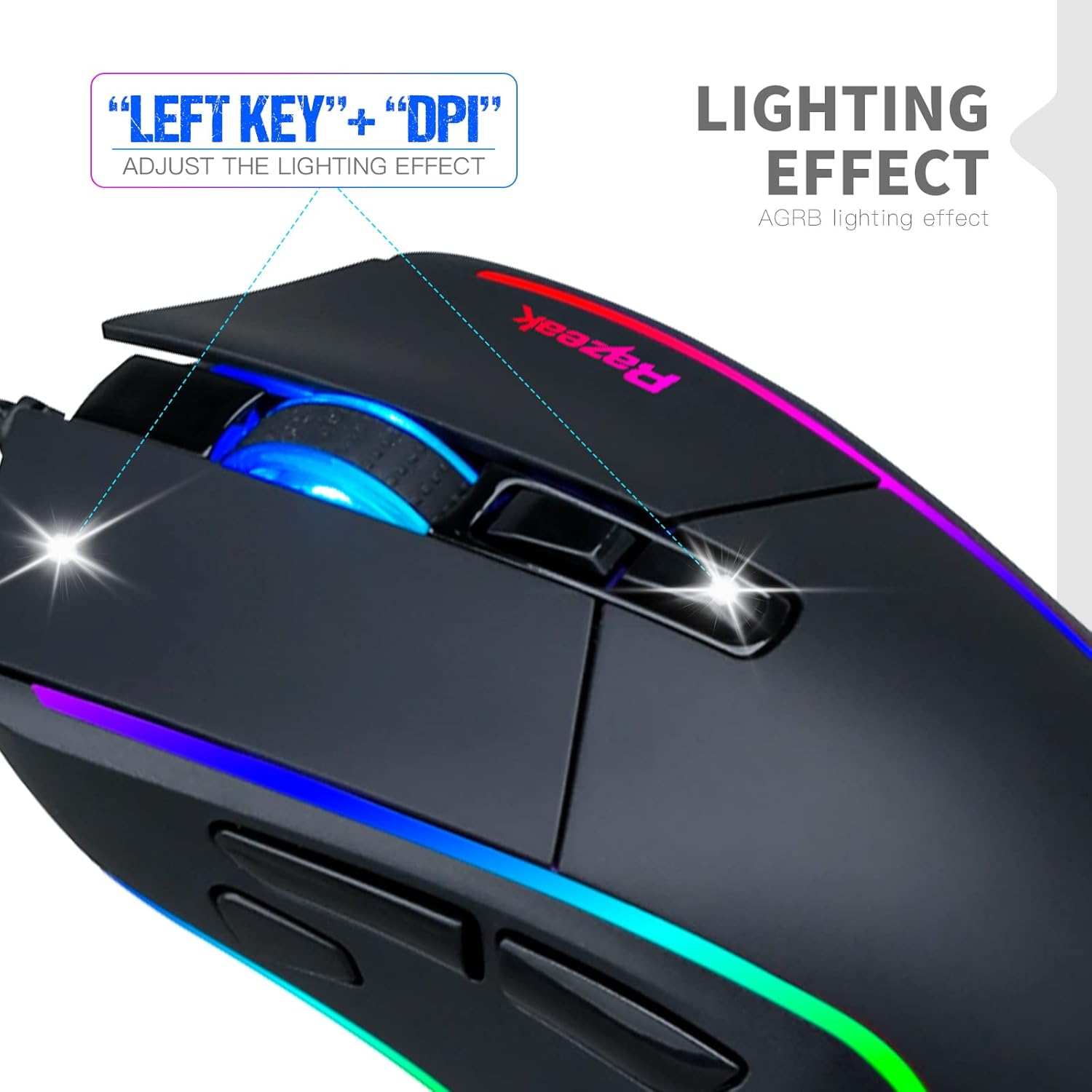
Image: A hand demonstrating how to adjust the lighting effect on the RAZEAK RM-X18 mouse by pressing the Left-Click and DPI buttons.

Image: Screenshot of the RAZEAK RM-X18 software interface showing lighting effect customization options.
4.3 Programmeerbare knoppies en makro's
The RAZEAK RM-X18 features 8 buttons that can be customized for various functions, including macro recording, through the dedicated software.
- Download and install the RAZEAK software (refer to Section 3.2).
- Open the software to access the button assignment interface.
- Select each button and assign desired functions, keyboard shortcuts, or complex macros.
- Stoor jou profiles vir verskillende speletjies of toepassings.

Image: Screenshot of the RAZEAK RM-X18 software interface displaying options for programming the 8 mouse buttons.
4.4 Switching Between Gaming and Office Modes
The mouse supports two distinct usage modes: Gaming and Office. These modes can be switched quickly without software.
- Om van modusse te wissel, druk die Middle button (scroll wheel click) en die Right-Click button gelyktydig.
- This allows for quick adaptation of mouse settings to different tasks.
4.5 Produkdemonstrasievideo
Watch this official product video for a visual guide on the features and functionality of the RAZEAK RM-X18 Wired Gaming Mouse.
Video: An official demonstration of the RAZEAK RM-X18 Wired Gaming Mouse, showcasing its RGB lighting, DPI settings, and programmable buttons.
5. Onderhoud
Proper maintenance ensures the longevity and performance of your RAZEAK RM-X18 mouse.
- Skoonmaak: Gebruik 'n sagte, droë lap om die oppervlak van die muis af te vee. Vir hardnekkige vuiligheid, vee dit effens af.ampMaak die lap skoon met water of 'n sagte skoonmaakoplossing. Vermy harde chemikalieë.
- Sensor skoonmaak: Occasionally clean the optical sensor on the bottom of the mouse with a cotton swab to ensure accurate tracking.
- Kabelversorging: Vermy skerp buigings of oormatige trek aan die USB-kabel om skade te voorkom.
- Berging: Bêre die muis in 'n skoon, droë omgewing wanneer dit nie gebruik word nie.
6. Probleemoplossing
If you encounter issues with your RAZEAK RM-X18 mouse, refer to the following common solutions:
| Probleem | Oplossing |
|---|---|
| Die muis reageer nie. |
|
| DPI- of RGB-beligting verander nie. |
|
| Programmable buttons are not working. |
|
| Mouse cursor movement is erratic or inaccurate. |
|
7. Spesifikasies
| Kenmerk | Detail |
|---|---|
| Handelsmerk | RAZEAK |
| Model Naam | RM-X18 |
| Verbindingstegnologie | USB (bedraad) |
| Bewegingsopsporingstegnologie | Opties |
| DPI-vlakke | Adjustable 6 levels: 500/1000/1500/2000/3000/4000 |
| Aantal knoppies | 8 (Programmeerbaar) |
| Hand Oriëntasie | Reg |
| RGB-agterlig | 9 modes, 16 million colors |
| Versoenbare toestelle | Persoonlike rekenaar (rekenaar) |
| Item gewig | 137 gram |
| Kragbron | Elektries met koord |
8. Waarborg en Ondersteuning
RAZEAK offers a comprehensive warranty and customer support for your RM-X18 Wired Gaming Mouse.
- Waarborg: This product comes with a 2-YEAR manufacturer warranty.
- Kliëntediens: For any questions, technical support, or warranty claims, please contact RAZEAK customer service. Messages are typically replied to within 24 hours.
- Kontakinligting: Refer to the RAZEAK official website or your purchase documentation for the most up-to-date contact details.