
1. Inleiding
The AIRZONE Aidoo WiFi Control (Model AZAI6WSCGM1) transforms your air conditioning unit into a smart device, enabling remote control of temperature and fan speed directly from your smartphone. This device is designed for precise and independent control of a single AC unit, offering enhanced comfort and energy management. It is compatible with various AC unit types, including split, floor, and ceiling systems, and integrates with popular voice assistants like Amazon Alexa and Google Home.
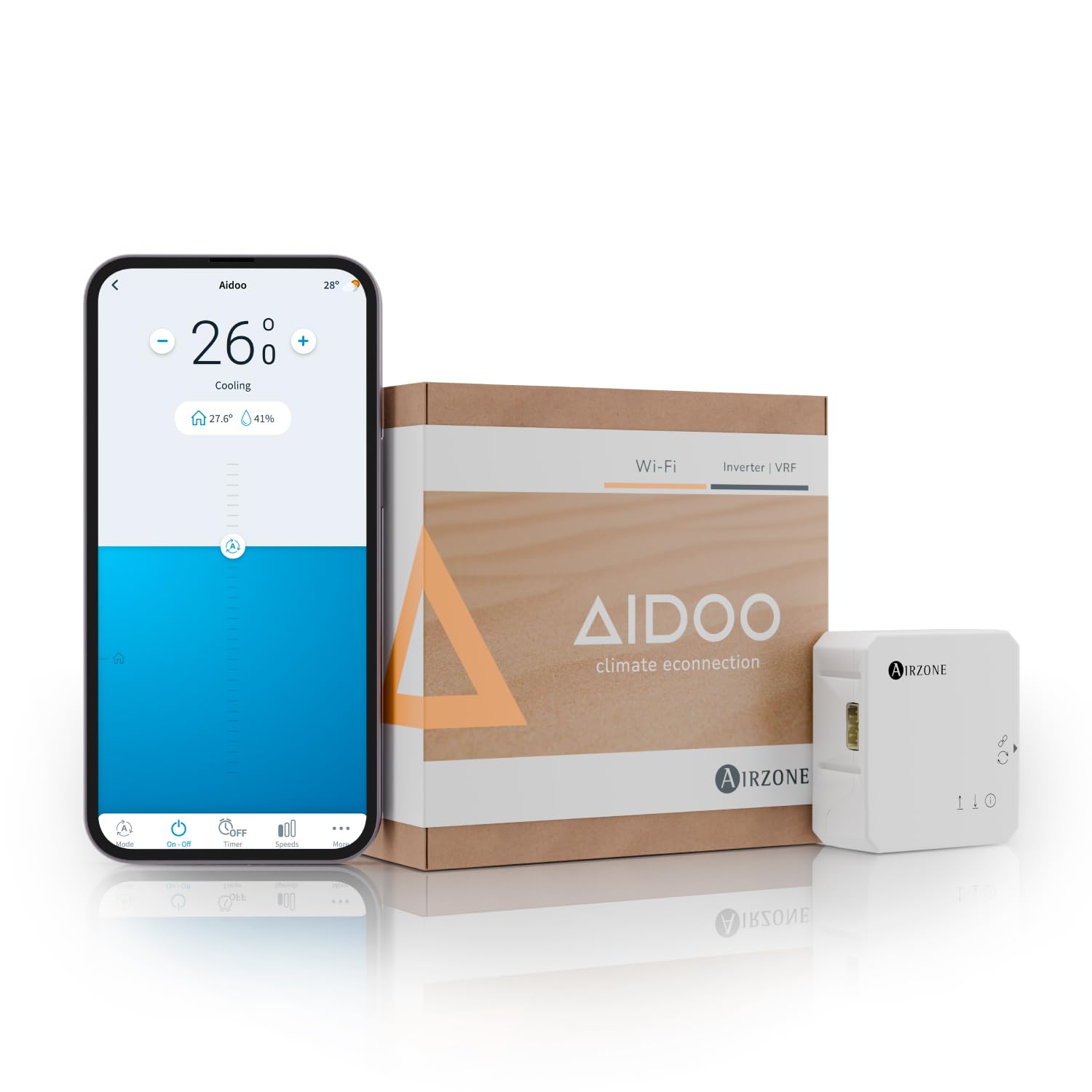
Image: The AIRZONE Aidoo WiFi Control device, a compact white unit designed for smart air conditioning management.
2. Verenigbaarheid
The Aidoo AZAI6WSCGM1 is compatible with various air conditioning systems, including split, floor, and ceiling units. To ensure proper functionality, it is crucial to verify compatibility with your specific AC unit model before purchase and installation. Each Aidoo device is designed to manage one AC unit.
2.1 How to Check Compatibility
To determine the correct Aidoo Wi-Fi reference for your AC unit, follow these steps:
- Locate the external sticker on your wall-mounted split unit, or access the false ceiling for cassette and ducted units to find your AC unit's brand and model information.
- Scan the QR code provided in the image below or visit the Airzone Cloud compatibility webwebwerf.
- Enter your equipment brand and model into the tool. The system will then provide the specific Aidoo Wi-Fi Controller model you need.

Image: Visual guide on locating the model information for different types of air conditioning units (splits, ducted, cassettes).

Image: A smartphone displaying the Airzone compatibility check interface, including a QR code for quick access to the tool.
The unit controller must operate in parallel with your Aidoo, and its operating mode should be set to "Sub AC". If your indoor unit has an IR receiver module installed, configure it as "Sub RC". Refer to the instruction manual for detailed configuration steps.
2.2 Supported Unit Types
- Gesplete Eenhede: Common in homes and offices, composed of an indoor and outdoor unit.
- Floor Systems: Installed at the base of a wall.
- Ceiling-Mounted Systems: Includes ducted or cassette type units installed overhead.
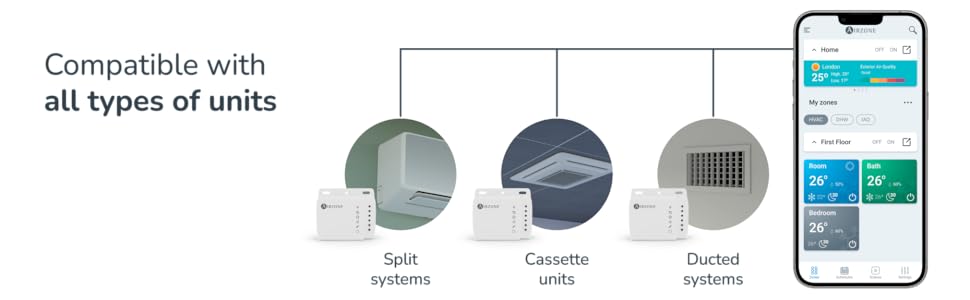
Image: An illustration demonstrating the Aidoo's compatibility with various air conditioning unit types: split, cassette, and ducted systems.
3. Pakketinhoud
Upon opening your Aidoo package, you should find the following items:
- Aidoo Wi-Fi Controller device
- Instruksie Handleiding
- Installation Kit (includes screws and double-sided adhesive tape for assembly)
- Connection Cable to the indoor unit

Image: The Aidoo product box, illustrating the main components included: the Aidoo device, instructions, an installation kit, and a connection cable.
4. Installasie
The Aidoo device connects directly to your air conditioner via a wired connection, which helps prevent communication errors. For detailed installation instructions, please refer to the official installation video provided by AIRZONE.
4.1 Installasievideogids
Video: This video demonstrates the step-by-step process of installing the Airzone Aidoo Smart Control device into an air conditioning unit. It covers identifying the AC unit type, checking compatibility, and the physical connection of the Aidoo module.
The video above, titled "Airzone Aidoo Air Conditioner Smart Control," provides a visual walkthrough of the installation process. It is recommended to watch this video before attempting installation.
5. App Setup and Wi-Fi Connection
Once the Aidoo device is physically installed, the next step is to connect it to the Airzone Cloud app and your Wi-Fi network.
5.1 Downloading the Airzone Cloud App
The Airzone Cloud app is available for both iOS and Android devices. Download it from your respective app store.

Image: A smartphone screen showing the Airzone Cloud app, with icons for Google Play and Apple App Store, indicating availability on both platforms.
5.2 Koppel aan Wi-Fi
- Maak seker dat Bluetooth en liggingsdienste op jou slimfoon geaktiveer is.
- Open the Airzone Cloud app and select the option to add a new device.
- Choose your Aidoo device from the list of available devices.
- Connect the Aidoo to your home Wi-Fi network by selecting your SSID and entering the password.
After successful connection, you can group multiple Aidoo devices into zones and assign custom names for easy management within the app.
6. Bedryfsinstruksies
The Aidoo WiFi Control allows you to manage your air conditioning unit remotely and efficiently through the Airzone Cloud app or via voice commands.
6.1 App-beheerfunksies
The Airzone Cloud app provides comprehensive control over your AC unit:
- Aan/af beheer: Turn your AC unit on or off from anywhere.
- Temperatuurbeheer: Adjust the desired temperature with precision.
- Moduskeuse: Switch between cooling, heating, fan, or auto modes.
- Aanpassing van waaierspoed: Control the fan speed for optimal comfort.
- Skeduleer: Set custom schedules for your AC to turn on or off automatically based on your routine, optimizing energy usage.
- Multi-User Management: Manage multiple accounts within the app, ideal for families or office environments.
- Real-time System Information: Monitor your AC unit's status and performance.
- Notifications & Alerts: Receive important updates and alerts regarding your system.
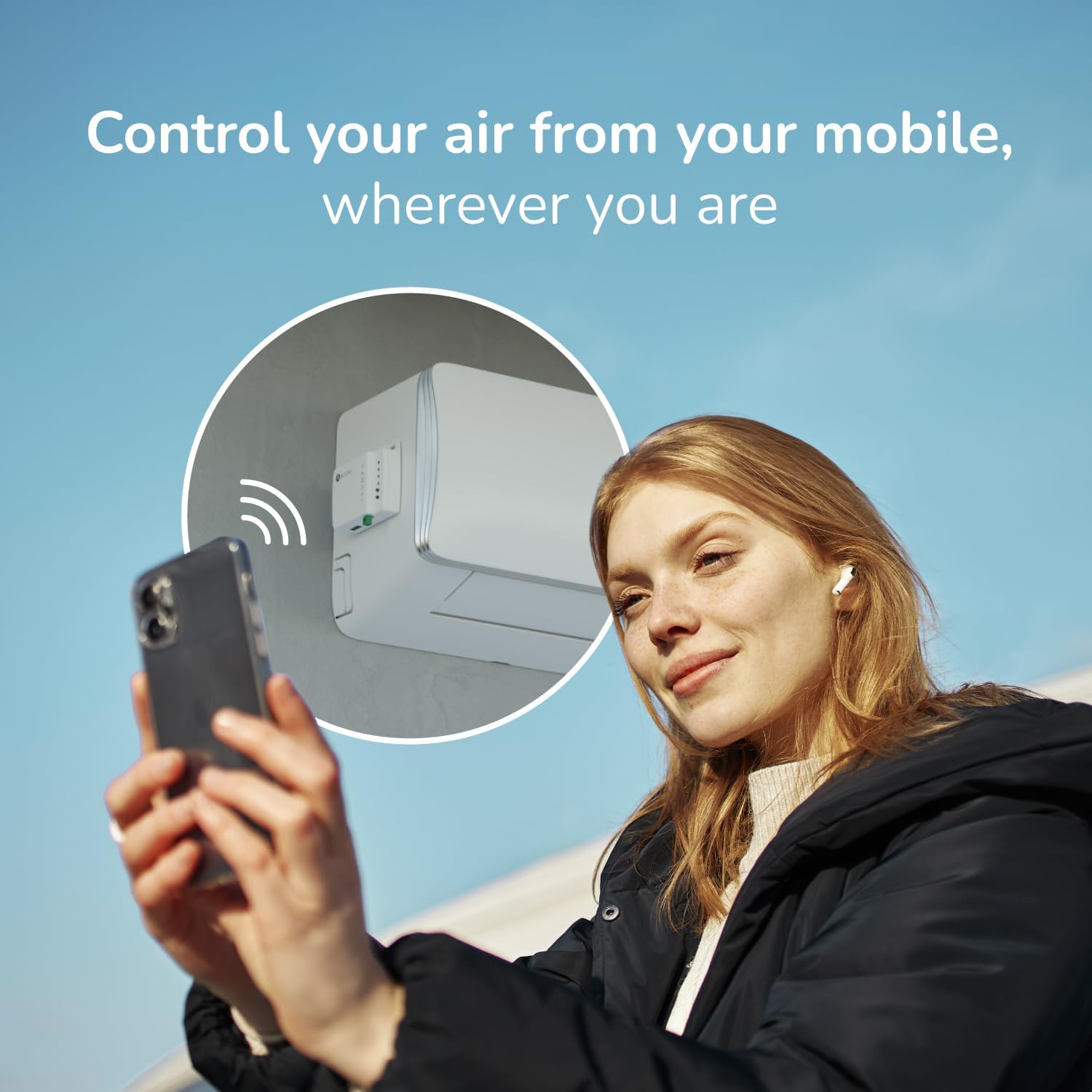
Image: A woman using her smartphone to control her air conditioning unit remotely, highlighting the convenience of mobile access.

Image: A visual representation of the smart technology features available through the Aidoo, including on/off, temperature control, mode selection, scheduling, and remote access.
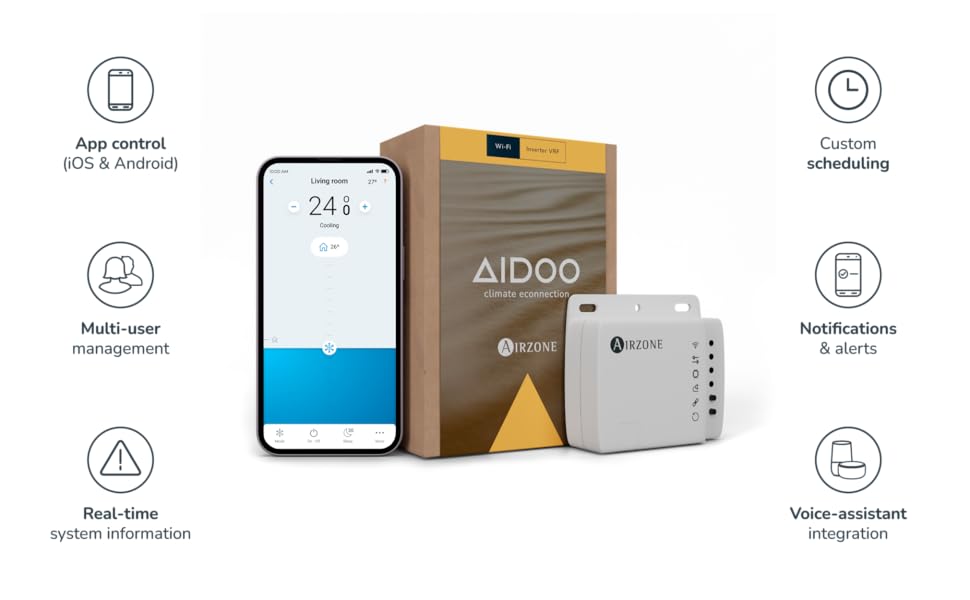
Image: A comprehensive graphic detailing the key features of the Aidoo system, such as app control, custom scheduling, multi-user management, and voice assistant integration.
6.2 Stemassistent-integrasie
The Aidoo is compatible with Amazon Alexa and Google Home, allowing you to control your AC unit using simple voice commands. Link your Airzone Cloud account to your preferred voice assistant through their respective apps.

Image: A woman working on a laptop, with Amazon Alexa and Google Home logos visible, signifying the Aidoo's compatibility with these voice assistant platforms.
7. Onderhoud
The AIRZONE Aidoo WiFi Control device requires minimal maintenance. Keep the device clean and free from dust. Ensure the area around the device and your AC unit is clear to allow for proper airflow and signal transmission. Regularly check for app updates to ensure you have the latest features and security enhancements.
8. Probleemoplossing
If you encounter issues with your Aidoo device, consider the following troubleshooting steps:
- No Connection to AC Unit: Verify that the wired connection between the Aidoo and your AC unit is secure. Ensure the AC unit's operating mode is correctly set to "Sub AC" or "Sub RC" as per the installation manual.
- Wi-Fi-verbindingskwessies: Check your home Wi-Fi network to ensure it is active and stable. Restart your router and the Aidoo device. Confirm that your Wi-Fi password was entered correctly during setup.
- Program reageer nie: Close and reopen the Airzone Cloud app. Ensure your smartphone's operating system and the app itself are updated to the latest versions.
- Stemassistent-probleme: Confirm that your Aidoo is properly linked to Amazon Alexa or Google Home. Check the settings within the voice assistant's app for any connection errors or disabled skills.
- Verkeerde temperatuurlesings: Ensure the Aidoo device is not obstructed or placed near heat sources that could affect its temperature sensor.
For further assistance, refer to the detailed support resources on the Airzone webwebwerf of kontak kliëntediens.
Video: Hierdie video bied 'n oorsigview of the Airzone Aidoo WiFi controller, demonstrating its features and how it integrates with various AC systems for smart control. It also touches upon the ease of use and setup.
The video above, titled "AIRZONE / Aidoo WIFI," offers additional insights into the device's functionality and may help in resolving common issues.
9. Spesifikasies
| Kenmerk | Detail |
|---|---|
| Handelsmerk | LUGSONE |
| Model Naam | AZAI6WSCGM1 |
| Modelnommer | AZAI6WSC |
| Kleur | Wit |
| Verbindingstegnologie | Wi-Fi |
| Versoenbare toestelle | Air Conditioners (Split, Floor, Ceiling Units) |
| Maksimum aantal ondersteunde toestelle | 1 (per Aidoo unit) |
| Tipe beheerder | Amazon Alexa, Android, Google Home, iOS |
| Knoppie Hoeveelheid | 3 |
| Item gewig | 285 gram |
| Vervaardiger | Corporación Empresarial Altra S.L. |
10. Waarborg en Ondersteuning
For information regarding product warranty, please refer to the documentation included with your purchase or visit the official AIRZONE website. For technical support, installation queries, or troubleshooting assistance, please contact AIRZONE customer service through their official channels.
Online resources and FAQs can often be found on the Airzone Support Page.