
1. Inleiding
The Feker IK75 Pro is a versatile 75% gasket-mounted mechanical keyboard kit designed for customization. It supports three connectivity modes: wired (USB-C), 2.4GHz wireless, and Bluetooth, offering flexibility for various setups. This kit provides a foundation for building a personalized mechanical keyboard, allowing users to choose their preferred switches and keycaps.
This manual provides detailed instructions for assembling, operating, and maintaining your Feker IK75 Pro keyboard kit.
2. Pakketinhoud
Before proceeding with assembly, please verify that all components are present in your package:
- Feker IK75 Pro Keyboard Barebones Kit (PCB, Plate, Case, Gaskets)
- USB-C-kabel
- 2.4GHz Wireless Receiver (often stored in the keyboard case)
- Sleutelkap trekker
- Skakelaartrekker (indien ingesluit)
- Gebruikershandleiding (hierdie dokument)

Image: Contents of the Feker IK75 Pro keyboard kit package, including the barebones keyboard, USB-C cable, and tools.
3. Sleutel kenmerke
- 75% Uitleg: Compact design with 83 keys, including a dedicated function row and navigation keys.
- Pakkingbevestigingstruktuur: Provides a flexible and cushioned typing experience, reducing harsh bottom-out feel.
- Drievoudige modus konnektiwiteit:
- Bedraad (USB-C)
- 2.4 GHz draadloos
- Bluetooth (up to 3 devices)
- Hot-Swappable Sockets: Compatible with 3-pin and 5-pin mechanical switches, allowing for easy switch changes without soldering.
- RGB-agterbeligting: Per-key RGB lighting with multiple customizable effects.
- Programmeerbaar: Supports custom key assignments and macro creation.
- Volumeknop: Multi-function rotary knob for volume control and other customizable actions.
- Geïntegreerde battery: Hoëkapasiteitsbattery vir langdurige draadlose gebruik.

Image: The Feker IK75 Pro barebones keyboard kit, illustrating its key features such as 2.4GHz, Type-C, USB-C, Mute Cotton, 8000 mAh battery, Gasket mount, Programmable, and Bluetooth connectivity.
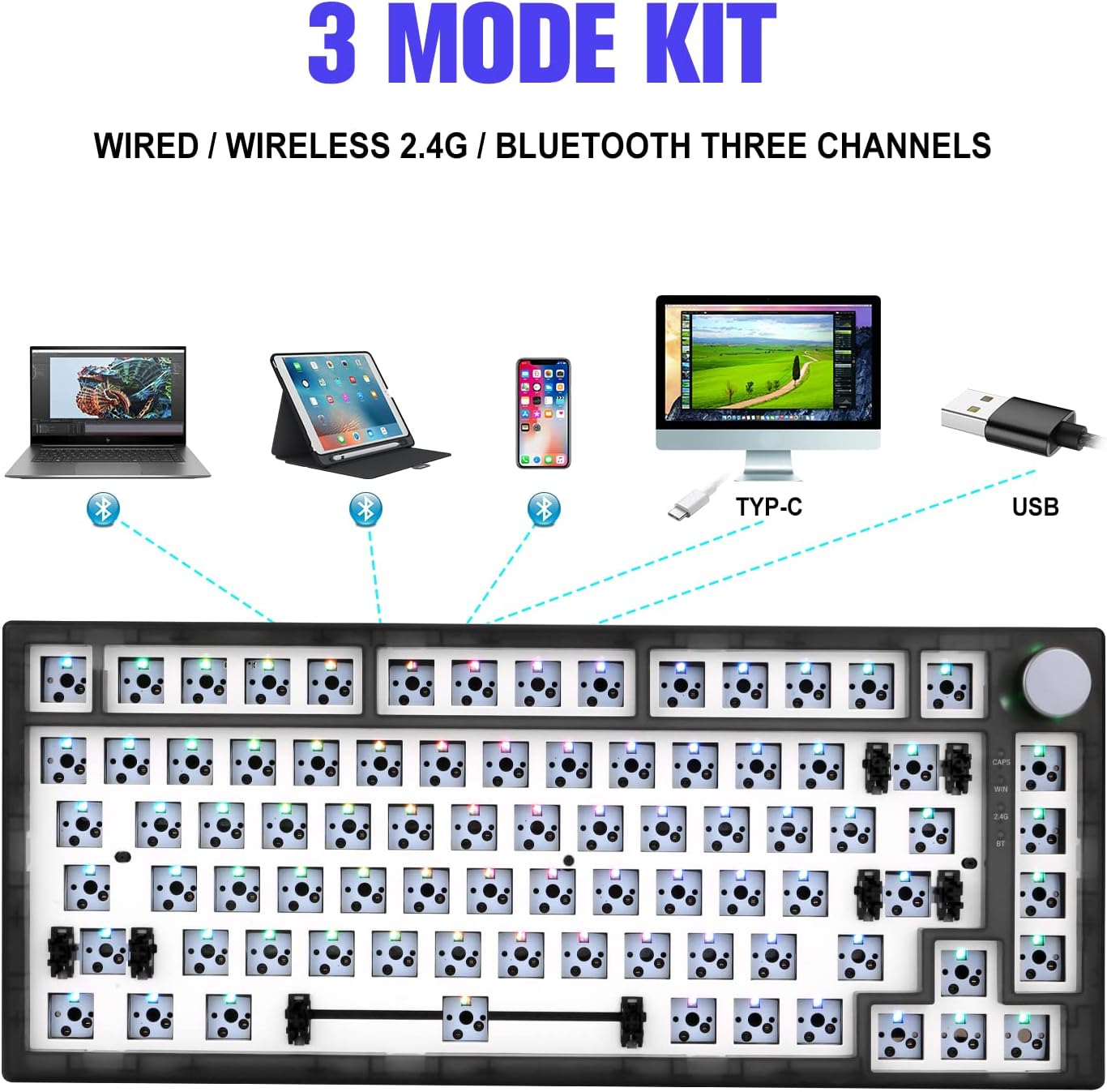
Image: Diagram showing the three connectivity modes of the Feker IK75 Pro: Wired (Type-C/USB), 2.4G Wireless, and Bluetooth, connecting to various devices like laptops, tablets, and smartphones.
4. Opstelling en samestelling
4.1 Keyboard Assembly
The Feker IK75 Pro is a DIY kit, requiring the installation of mechanical switches and keycaps. Follow these steps for proper assembly:
- Berei komponente voor: Ensure you have your chosen 3-pin or 5-pin mechanical switches and keycaps ready.
- Installeer skakelaars: Align the pins of each mechanical switch with the corresponding holes on the PCB (Printed Circuit Board). Gently press the switch until it clicks into place. Ensure the switch is fully seated and the pins are not bent.
- Installeer stabiliseerders: (If not pre-installed) Ensure stabilizers for larger keys (Spacebar, Shift, Enter, Backspace) are properly clipped into the PCB.
- Installeer sleutelkappe: Once all switches are installed, carefully press each keycap onto its corresponding switch stem. Ensure they are firmly attached.

Image: Step-by-step visual guide for installing components into the Feker IK75 Pro keyboard kit, including the PCB, switches, and keycaps.

Image: A fully assembled Feker IK75 Pro keyboard with colorful keycaps and RGB backlighting activated.
4.2 Konnektiwiteitsmodusse
The Feker IK75 Pro supports three connection types. Use the switch located on the back or side of the keyboard to select your desired mode.
4.2.1 Bedrade modus (USB-C)
- Koppel die meegeleverde USB-C-kabel aan die sleutelbord se USB-C-poort en die ander kant aan jou rekenaar se USB-poort.
- Die sleutelbord sal outomaties deur jou bedryfstelsel herken word.
- This mode also charges the keyboard's internal battery.

Beeld: Nabyskoot view of the USB-C port on the Feker IK75 Pro keyboard, used for wired connection and charging.
4.2.2 2.4GHz Draadlose Modus
- Locate the 2.4GHz USB receiver, typically stored in a compartment on the keyboard's underside.
- Koppel die ontvanger in 'n beskikbare USB-poort op jou rekenaar.
- Switch the keyboard to 2.4GHz mode using the selector switch.
- Die sleutelbord behoort outomaties te koppel.
4.2.3 Bluetooth-modus
- Switch the keyboard to Bluetooth mode using the selector switch.
- Maak Bluetooth-instellings op jou toestel (rekenaar, tablet, slimfoon) oop en soek vir nuwe toestelle.
- The keyboard should appear as "Feker IK75 Pro" or similar. Select it to pair.
- The keyboard can typically store up to three Bluetooth profiles. Refer to the keyboard's specific key combinations (e.g., Fn + 1, Fn + 2, Fn + 3) to switch between paired devices.

Image: A visual representation of the Feker IK75 Pro connecting to various devices via Bluetooth, 2.4GHz wireless, and wired USB-C.
5. Operasie
5.1 Volumeknop-funksionaliteit
The rotary knob located on the top right of the keyboard serves multiple functions:
- Draai kloksgewys: Verhoog volume.
- Draai teen die kloksgewys: Verminder volume.
- Druk af: Demp/Ontdemp klank.
Additional functions may be programmable via the keyboard's software.

Image: Close-up of the Feker IK75 Pro's multi-function volume knob, showing its rotation and press actions for volume control.

Beeld: Gedetailleerd view of the Feker IK75 Pro's volume knob, highlighting its design and placement on the keyboard.
5.2 RGB-beligtingsbeheer
The Feker IK75 Pro features customizable RGB backlighting. Use the following key combinations to control the lighting effects:
- Fn + \: Blaai deur verskillende beligtingseffekte.
- Fn + ↑ / ↓: Pas helderheidsvlakke aan.
- Fn + ← / →: Adjust lighting speed or direction.
- Fn + Del: Change lighting colors (for static modes).
For advanced customization, including per-key lighting and macro programming, download the official Feker software from the manufacturer's webwebwerf.

Image: The Feker IK75 Pro keyboard showcasing its vibrant RGB backlighting with various colors illuminating the key switches.
5.3 Programmeerbare sleutels
The Feker IK75 Pro supports key remapping and macro creation through its dedicated software. This allows users to personalize their typing and gaming experience. Refer to the software's user guide for detailed instructions on programming keys.
6. Onderhoud
6.1 Maak jou sleutelbord skoon
- Sleutelkappe: Gebruik die meegeleverde sleutelhouer om die sleutelhouers te verwyder. Maak hulle skoon met 'n sagte seepoplossing en 'n sagte lap, spoel hulle dan deeglik af en droog hulle deeglik af voordat jy hulle weer vasmaak.
- Switches and Plate: Use compressed air to remove dust and debris from between the switches. A soft brush can also be used. Avoid spraying liquids directly onto the PCB.
- Geval: Vee die sleutelbordkas af met 'n sagte, damp lap. Vermy harde chemikalieë.
6.2 Batterysorg
To prolong the life of your keyboard's battery:
- Vermy om die battery gereeld heeltemal te ontlaai.
- Laai die sleutelbord met die meegeleverde USB-C-kabel.
- As jy die sleutelbord vir 'n lang tydperk bêre, laai dit tot ongeveer 50% en bêre dit op 'n koel, droë plek.

Image: Illustration of a battery icon, representing the Feker IK75 Pro's integrated rechargeable battery.
7. Probleemoplossing
| Kwessie | Moontlike oorsaak | Oplossing |
|---|---|---|
| Sleutelbord reageer nie (bedraad) | Loose cable, faulty USB port, driver issue. |
|
| 2.4GHz wireless not connecting | Receiver not plugged in, keyboard not in 2.4GHz mode, interference. |
|
| Probleme met Bluetooth-paring | Keyboard not in pairing mode, device Bluetooth off, too many paired devices. |
|
| Sleutels registreer nie | Loose switch, faulty switch, software issue. |
|
| RGB-beligting werk nie | Beligting afgeskakel, sagtewarekonflik. |
|
8. Spesifikasies
| Kenmerk | Detail |
|---|---|
| Model | IK75 |
| Uitleg | 75% (83 sleutels) |
| Konnektiwiteit | Bedraad (USB-C), 2.4GHz Draadloos, Bluetooth |
| Skakelaarversoenbaarheid | 3-pin/5-pin Hot-swappable |
| Agterlig | RGB |
| Battery kapasiteit | 8000 mAh (as per product image, actual may vary) |
| Materiaal | Acrylonitrile Butadiene Styrene, Plastic, Stainless Steel |
| Item gewig | 2.68 pond (ongeveer 1.22 kg) |
| Pakket afmetings | 15.75 x 7.09 x 2.32 duim |
9. Waarborg en Ondersteuning
For warranty information, technical support, or to download the latest software and drivers, please visit the official Feker webwebwerf of kontak u kleinhandelaar. Bewaar u aankoopbewys vir waarborgeise.
Vervaardiger: Feker
Handelsmerk: HELOIA
10. Videogids
Watch the official video guide for a visual overview of the Feker IK75 Pro keyboard kit, including assembly and feature demonstrations.
Video: An official video demonstrating the Feker IK75 Pro Keyboard DIY Kit, showcasing its features, assembly process, and RGB lighting effects. This video is provided by HELOIA-US.