
1. Inleiding
This manual provides comprehensive instructions for the setup, operation, and maintenance of your Cherry MW 9100 Wireless Rechargeable Mouse. The MW 9100 is a compact, versatile mouse offering dual connectivity options (Bluetooth or 2.4 GHz USB receiver) and a convenient rechargeable battery.
Sleutel kenmerke sluit in:
- Compact design with charging functionality.
- Flexible operation: use while charging via USB-C cable.
- Dual connectivity: Bluetooth or 2.4 GHz USB receiver.
- Magnetic storage for the USB receiver, ideal for travel.
- Adjustable DPI settings for varied usage.
2. Pakketinhoud
Verifieer dat alle items in die pakket teenwoordig is:
- Cherry MW 9100 Wireless Rechargeable Mouse
- USB-C-laaikabel
- 2.4 GHz USB-ontvanger
- Beskermende sakkie
- Instructiehandleiding (hierdie dokument)
3. Opstelling
3.1 Laai die muis
The Cherry MW 9100 mouse features a built-in rechargeable battery. Before initial use, or when the battery is low, connect the included USB-C cable to the mouse and to a USB power source (e.g., computer USB port, USB wall adapter). The mouse can be used normally while charging.

Prent 3.1: Top view of the Cherry MW 9100 mouse, showing the charging indicator light.
3.2 Die muis koppel
The MW 9100 offers two connection methods: 2.4 GHz wireless via USB receiver or Bluetooth.
3.2.1 2.4 GHz Draadlose Verbinding
- Locate the USB receiver. It is magnetically stored in a compartment on the underside of the mouse.
- Plaas die USB-ontvanger in 'n beskikbare USB-poort op jou rekenaar.
- On the underside of the mouse, slide the switch to the "RF" position.
- Die muis behoort outomaties aan jou rekenaar te koppel.
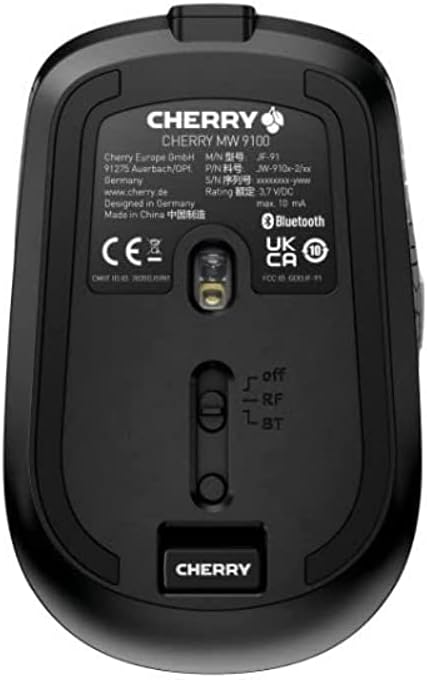
Prent 3.2: Underside of the Cherry MW 9100 mouse, highlighting the USB receiver storage and the connection mode switch.
3.2.2 Bluetooth-verbinding
- On the underside of the mouse, slide the switch to the "BT" (Bluetooth) position.
- Press and hold the small pairing button located near the connection switch on the underside of the mouse until the LED indicator on the mouse starts blinking, indicating pairing mode.
- Maak Bluetooth-instellings op jou rekenaar of toestel oop en soek vir nuwe toestelle.
- Select "Cherry MW 9100" from the list of available devices to complete the pairing process.
4. Bedryfsinstruksies
4.1 Basiese Funksies
The Cherry MW 9100 mouse features standard left and right click buttons, a scroll wheel (which also functions as a middle click button), and two side buttons for navigation (typically forward/back).
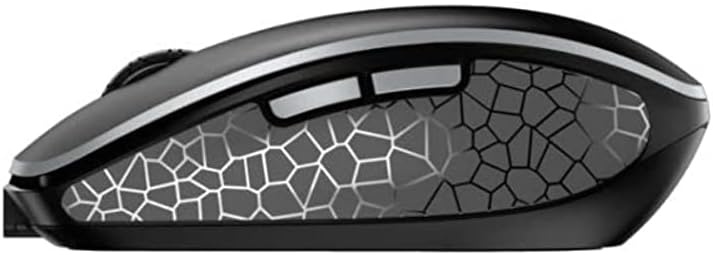
Prent 4.1: Kant view of the Cherry MW 9100 mouse, illustrating the ergonomic design and side buttons.
4.2 DPI-aanpassing
The mouse includes a DPI (Dots Per Inch) button, usually located near the scroll wheel, allowing you to adjust the cursor sensitivity. Press this button to cycle through different DPI settings to match your preference or task requirements.

Prent 4.2: A hand demonstrating the comfortable grip on the Cherry MW 9100 mouse during use.
5. Onderhoud
To ensure optimal performance and longevity of your Cherry MW 9100 mouse:
- Skoonmaak: Gebruik 'n sagte, droë lap om die muisoppervlak skoon te maak. Vir hardnekkige vuiligheid, gebruik 'n effens droë lap.amp cloth can be used, but ensure no moisture enters the device. Avoid harsh chemicals or abrasive materials.
- Berging: When not in use, especially during travel, store the mouse in the provided protective pouch to prevent scratches and damage.
- Batterysorg: Avoid fully discharging the battery frequently. Recharge the mouse when the low battery indicator appears.
6. Probleemoplossing
| Probleem | Moontlike oorsaak | Oplossing |
|---|---|---|
| Muis reageer nie | Low battery, incorrect connection mode, USB receiver not connected, Bluetooth not paired. |
|
| Intermittent connection (Bluetooth) | Interference, device driver issues, distance from device. |
|
| Wyserbeweging is wisselvallig of stadig | Dirty optical sensor, low battery, incorrect DPI setting. |
|
7. Spesifikasies
| Kenmerk | Detail |
|---|---|
| Handelsmerk | Kersie |
| Modelnommer | JW-9100US-2 |
| Verbindingstegnologie | Bluetooth, 2.4 GHz USB Wireless |
| Bewegingsopsporing | Opties |
| Spesiale kenmerke | Lightweight, Portable, Rechargeable |
| Produk afmetings | 4 x 3 x 2 duim |
| Item gewig | 6.4 onse |
| Kleur | Swart |
8. Waarborg en Ondersteuning
For warranty information and technical support, please refer to the official Cherry website or contact Cherry customer service directly. Keep your proof of purchase for warranty claims.
Vervaardiger: KERS
Webwebwerf: www.cherry.de