
Baseus SUYT-D0G
Baseus Mobile Gimbal User Manual
Model: SUYT-D0G
Inleiding
Thank you for choosing the Baseus Mobile Gimbal. This 3-axis handheld stabilizer is designed to enhance your smartphone videography and photography by providing smooth, stable footage. Its compact, foldable design makes it highly portable, while intelligent features like automatic tracking and one-key switching between horizontal and vertical shooting offer versatile creative possibilities. Please read this manual carefully before use to ensure proper operation and maintenance.
Produk verbyview
Familiarize yourself with the components of your Baseus Mobile Gimbal.

Figuur 1: The Baseus Mobile Gimbal with a smartphone securely mounted, showcasing its compact and ergonomic design. This image highlights the primary use case of the device.
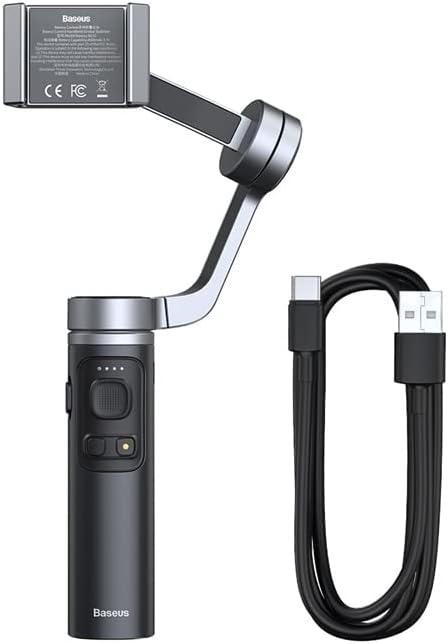
Figuur 2: The Baseus Mobile Gimbal alongside its included USB-C charging cable. This illustrates the complete package contents, ready for charging and use.
Sleutelkomponente:
- Slimfoonhouer: Securely holds your smartphone (58mm - 92mm width).
- 3-As Stabiliseringstelsel: Utilizes pitch, roll, and transverse axes to eliminate shakes.
- Beheerpaneel: Buttons for power, mode switching, joystick for camera control.
- Hanteer: Ergonomiese greep vir gemaklike vashou.
- Tipe C-laaipoort: For charging the built-in 4500mAh battery.
- Opvoubare arm: Laat kompakte berging en draagbaarheid toe.
Opstelling
1. Laai die Gimbal
- Connect the provided Type-C charging cable to the gimbal's charging port.
- Connect the other end of the cable to a 5V/1.5A power adapter (not included).
- The indicator lights will show charging status. A full charge takes approximately 2.5 hours.
- Once fully charged, the gimbal can operate for up to 12 hours.
2. Unfolding and Mounting Your Smartphone
- Gently unfold the gimbal arm until it locks into position.
- Extend the smartphone holder and carefully place your smartphone in it, ensuring it is centered and secure. The holder supports phones between 58mm and 92mm in width.
- Ensure the phone is balanced. If the phone tilts heavily to one side, adjust its position slightly within the holder until it is as level as possible before powering on the gimbal.

Figuur 3: This diagram illustrates the three axes of stabilization (Roll, Pitch, and Transverse) that the gimbal uses to counteract involuntary hand movements, ensuring smooth video recording.

Figuur 4: The Baseus Mobile Gimbal in its folded state, easily fitting into a backpack pocket. This image emphasizes its portability and compact design for convenient transport.
3. Downloading the Baseus Control App
For full functionality and intelligent features, download the "Baseus Control" app from your smartphone's app store.
- Vir iOS-toestelle: Vereis iOS 10.0 of hoër. Laai af op die App Store (Link is illustrative, please search for "Baseus Control" in your app store).
- Vir Android-toestelle: Vereis Android 6.0 of hoër. Kry dit op Google Play (Link is illustrative, please search for "Baseus Control" in your app store).
After installation, open the app and follow the on-screen instructions to connect your gimbal via Bluetooth 4.0.
Bedryf die Gimbal
Krag aan/af
- Krag aan: Press and hold the power button for a few seconds until the indicator lights illuminate.
- Skakel af: Druk en hou die aan/af-knoppie weer in totdat die aanwyserligte afskakel.
Basiese kontroles
- Joysticks: Beheer die pan- en kantelbewegings van die gimbal.
- Modusknoppie: Cycles through different operating modes (e.g., Pan Follow, Lock Mode, POV Mode). Refer to the app for detailed mode descriptions.
- Ontspanknop: Press once to take a photo, press and hold to start/stop video recording (requires app connection).
Intelligent Features (via Baseus Control App)
- Smart Automatic Tracking: Select a face or object on your screen, and the gimbal will automatically follow it, keeping it in frame.
- One-Key Switch for Horizontal/Vertical Shooting: Easily switch between landscape and portrait orientations for different content needs (e.g., vlogs, TikTok).
- Time-lapse & Panorama: Create dynamic time-lapse videos or expansive panoramic photos.
- Zoembeheer: Use the app interface to zoom in/out.

Figuur 5: This image demonstrates the gimbal's ability to switch between horizontal (landscape) and vertical (portrait) shooting modes with a single key, catering to various content formats like vlogs or live streams.

Figuur 6: An illustration of the smart follow feature, where the gimbal uses facial recognition or object tracking to keep the subject in frame automatically, ideal for dynamic shots like skateboarding.

Figuur 7: This image showcases various creative applications of the gimbal, including capturing wide group photos, recording travel experiences smoothly, and achieving stable low-angle shots.
Onderhoud
- Skoonmaak: Gebruik 'n sagte, droë lap om die gimbal skoon te maak. Moenie vloeibare skoonmaakmiddels of oplosmiddels gebruik nie.
- Berging: When not in use, fold the gimbal and store it in a cool, dry place away from direct sunlight and extreme temperatures.
- Batterysorg: To prolong battery life, charge the gimbal at least once every three months if not used regularly. Avoid completely draining the battery.
- Vermy oorlading: Do not mount smartphones heavier than the recommended weight or outside the specified width range (58mm - 92mm).
Probleemoplossing
| Probleem | Moontlike oorsaak | Oplossing |
|---|---|---|
| Gimbal skakel nie aan nie. | Lae battery. | Charge the gimbal fully. |
| Gimbal shakes or vibrates. | Phone not balanced; Gimbal not calibrated. | Ensure phone is centered in the holder. Calibrate the gimbal via the Baseus Control app. |
| Kan nie via Bluetooth aan die toepassing koppel nie. | Bluetooth off; App not updated; Interference. | Ensure Bluetooth is enabled on your phone. Restart both gimbal and phone. Update the app to the latest version. Try connecting in a different location. |
| Knoppe reageer nie. | Firmware issue; Low battery. | Charge the gimbal. Check for firmware updates via the app. Restart the gimbal. |
Spesifikasies
| Kenmerk | Detail |
|---|---|
| Konnektiwiteit | Bluetooth 4.0 |
| Battery Tipe | Li-ion |
| Battery kapasiteit | 3.7V 4500mAh |
| Invoer | 5V / 1.5A |
| Laaipoort | Tipe-C |
| Werkstyd | Tot 12 uur |
| Laai tyd | Ongeveer 2.5 uur |
| Slimfoonhouerbreedte | 58 mm - 92 mm |
| Afmetings (gevou) | 140 mm x 115 mm x 64 mm |
| Afmetings (Ongevou) | 263 mm x 129 mm x 46 mm |
| Materiaal | PC + Aluminum alloy |
| Ondersteunde stelsels | iOS 10.0 of hoër, Android 6.0 of hoër |
| Gewig | 330g |
Waarborg en Ondersteuning
Your Baseus Mobile Gimbal comes with a standard manufacturer's warranty. Please refer to the warranty card included in your product packaging for specific terms and conditions.
For technical support, troubleshooting assistance, or warranty claims, please contact Baseus customer service through their official webwebwerf of die kontakinligting wat in u produkdokumentasie verskaf word.
- Amptelike Baseus Webwebwerf: www.baseus.com (Illustrative link)
- Kliëntediens-e-pos: support@baseus.com (Illustrative email)
Please have your product model (SUYT-D0G) and purchase details ready when contacting support.
Ask a question about this manual
Ask about setup, troubleshooting, compatibility, parts, safety, or missing instructions. Manuals+ will review the question and use this page’s manual context to help answer it.