
1. Welkom
Welcome to the BYYBUO SmartPad T10 user manual. This guide provides detailed instructions on setting up, operating, maintaining, and troubleshooting your new Android 12 tablet. Please read this manual thoroughly to ensure optimal performance and longevity of your device.
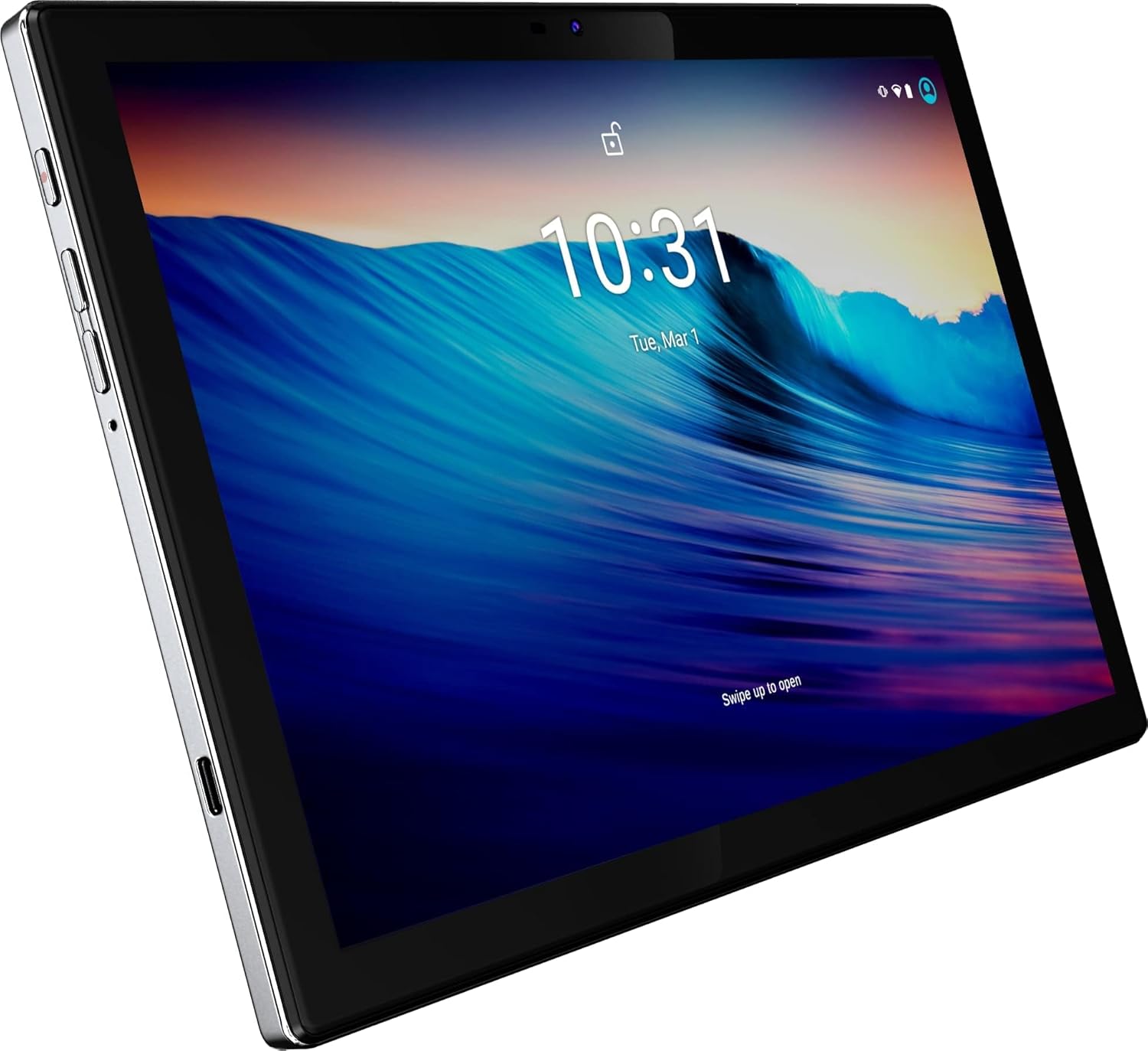
Figuur 1: Voorkant view of the BYYBUO SmartPad T10 Tablet.
2. Produk verbyview
2.1 Komponente
- 10.1-duim Full HD IPS-skerm: High-resolution touchscreen for clear visuals.
- Voorste kamera: Vir video-oproepe en selfies.
- Agterste kamera: Vir die neem van foto's en video's.
- Kragknoppie: Om die toestel aan/af te skakel of dit in slaapmodus te plaas.
- Volume knoppies: Om klankvlakke aan te pas.
- USB-C-poort: Vir laai en data-oordrag.
- 3.5 mm koptelefoonaansluiting: Vir oudio-uitvoer.
- MicroSD/TF Card Slot: Vir uitbreibare berging.
- Dubbele luidsprekers: Vir verbeterde klankervaring.

Figuur 2: Kant view highlighting ports and buttons.
2.2 Sleutelkenmerke
- High-Performance Octa-Core Processor: Ensures smooth operation and efficient multitasking.
- Android 12-bedryfstelsel: Provides a user-friendly interface and access to the latest apps.
- 7000mAh batterykapasiteit: Offers extended usage time for entertainment and productivity.
- 64GB Internal Storage (Expandable to 512GB): Ample spasie vir programme, foto's en video's.
- 1920x1200 IPS Display: Delivers vibrant colors and sharp details for an immersive viewondervinding.
- Dual-band Wi-Fi (2.4G+5G): For fast and stable internet connectivity.
- Bluetooth 4.2: Vir die koppeling van draadlose bykomstighede.
- Ingeboude GPS: For navigation and location-based services.
- Dual Cameras (5MP Front, 13MP Rear): For capturing memories and video calls.
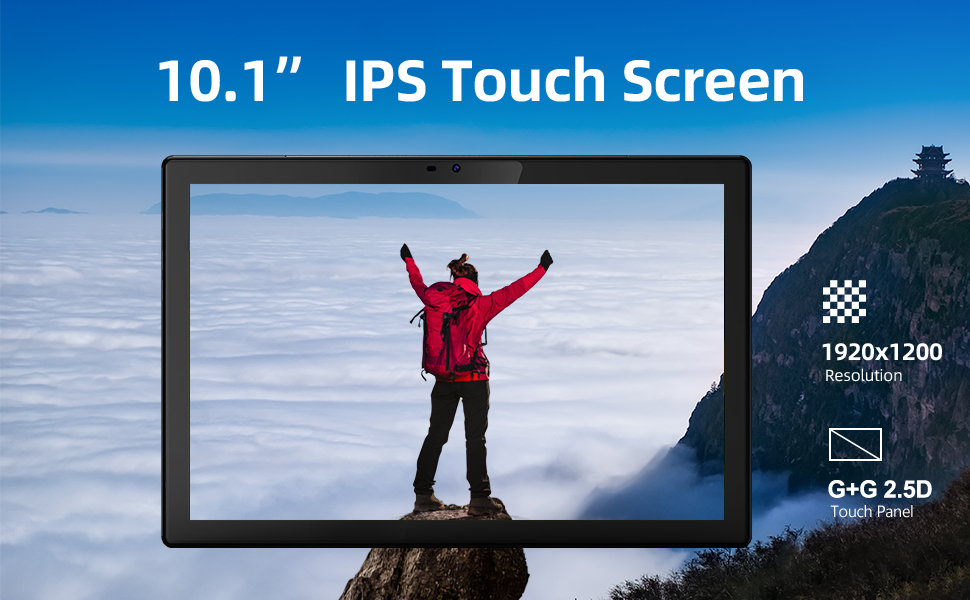
Figuur 3: Visuele voorstelling van sleutelkenmerke.
3. Opstelgids
3.1 Aanvanklike heffing
Before first use, fully charge your SmartPad T10 using the provided USB-C cable and charger. The battery indicator on the screen will show charging progress.

Figure 4: The tablet's large battery capacity ensures long usage.
3.2 Krag aan/af
- Om aan te skakel: Press and hold the Power button on the side of the tablet until the BYYBUO logo appears.
- Om af te skakel: Press and hold the Power button until a menu appears. Select 'Power off' and confirm.
- Om te slaap/wakker te word: Druk kortliks die Power-knoppie.
3.3 Wi-Fi-verbinding
- Gaan na 'Instellings' > 'Netwerk en internet' > 'Wi-Fi'.
- Skakel Wi-Fi 'Aan'.
- Kies jou verlangde Wi-Fi-netwerk uit die lys.
- Voer die wagwoord in indien gevra en tik op 'Verbind'.
3.4 Google-rekeningopstelling
Upon first power-on or after a factory reset, you will be guided through the initial setup process, including connecting to Wi-Fi and signing in with your Google account. A Google account is required to download apps from the Google Play Store.
3.5 Stooruitbreiding
The SmartPad T10 supports MicroSD/TF cards up to 512GB for expanded storage. Locate the card slot on the side of the tablet. Use the provided tool to open the tray, insert the card, and close the tray securely.

Figure 5: Expandable storage for more content.
4. Operating Your SmartPad
4.1 Navigasie
The SmartPad T10 features a highly responsive touchscreen. Use standard Android gestures such as tap, swipe, pinch-to-zoom, and long-press to navigate the interface and interact with apps.

Figure 6: The Android 12 interface on the SmartPad T10.
4.2 Toepassingsbestuur
- Programme aflaai: Open the 'Play Store' app, search for your desired app, and tap 'Install'.
- Deïnstallering van programme: Long-press the app icon on the home screen or app drawer, then drag it to 'Uninstall' or select 'Uninstall' from the pop-up menu. Alternatively, go to 'Settings' > 'Apps' > select the app > 'Uninstall'.
4.3 Kameragebruik
Access the camera app from the home screen or app drawer. You can switch between the front (5MP) and rear (13MP) cameras. Tap the shutter button to take photos or switch to video mode to record.
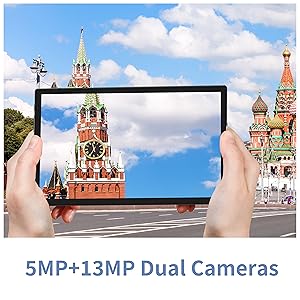
Figure 7: The tablet features dual cameras for versatile photography.
4.4 Media-terugspeel
Enjoy videos and music on your SmartPad T10. The 1920x1200 IPS display provides a clear viewing experience, and dual speakers offer quality audio. You can download streaming apps like Netflix and YouTube from the Play Store.

Figure 8: The Full HD display is ideal for media consumption.
Video 1: Amptelike produkvideovertoningasing the BYYBUO SmartPad T10's features and usage scenarios.
4.5 Bluetooth -koppeling
- Gaan na 'Instellings' > 'Verbonde toestelle' > 'Bluetooth'.
- Skakel Bluetooth 'Aan'.
- Maak seker dat jou Bluetooth-toestel in paringsmodus is.
- Select the device from the 'Available devices' list and follow on-screen prompts to pair.
4.6 GPS-funksionaliteit
The built-in GPS allows for accurate location tracking and navigation. Use pre-installed map applications or download your preferred navigation apps from the Google Play Store.
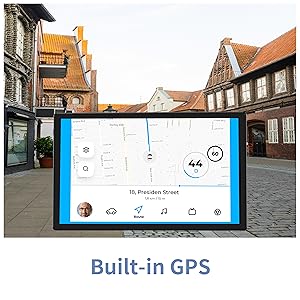
Figure 9: Built-in GPS for reliable navigation.
5. Onderhoud en versorging
5.1 Skoonmaak
Gebruik 'n sagte, pluisvrye lap om die skerm en liggaam van die tablet skoon te maak. Vermy die gebruik van harde chemikalieë of skuurmiddels wat die oppervlak kan beskadig.
5.2 Batterysorg
- Vermy uiterste temperature, aangesien dit die batterylewe kan verminder.
- Moenie die battery gereeld heeltemal laat leegloop nie.
- Gebruik slegs die meegeleverde laaier of 'n gesertifiseerde versoenbare laaier.
5.3 Sagteware-opdaterings
Periodically check for system updates to ensure your tablet has the latest features and security patches. Go to 'Settings' > 'System' > 'System update'.
5.4 Bergingbestuur
Maak gereeld onnodige dinge skoon files, cache data, and uninstall unused apps to free up storage space and maintain optimal performance. You can manage storage in 'Settings' > 'Storage'.
6. Probleemoplossing Algemene kwessies
| Probleem | Moontlike Oplossing |
|---|---|
| Toestel sal nie aanskakel nie | Maak seker dat die battery gelaai is. Koppel die laaier aan en wag 'n paar minute voordat jy weer probeer aanskakel. |
| Wi-Fi-verbindingskwessies | Restart the tablet and your Wi-Fi router. Check Wi-Fi settings to ensure correct network and password. Try forgetting and re-connecting to the network. |
| Programme wat vasval of vries | Clear the app's cache and data (Settings > Apps > [App Name] > Storage). If the issue persists, uninstall and reinstall the app. Ensure sufficient free storage space. |
| Stadige prestasie | Close unused background apps. Clear cache and temporary files. Consider a factory reset if performance issues persist after other troubleshooting steps. |
| Battery raak vinnig leeg | Reduce screen brightness. Disable unused features like Bluetooth or GPS. Close background apps. Check for apps consuming excessive battery in Settings > Battery. |
7. Tegniese spesifikasies
| Kenmerk | Spesifikasie |
|---|---|
| Handelsmerk | BYYBUO |
| Model Naam | T10 |
| Skerm grootte | 10.1 duim |
| Skermresolusie | 1920 x 1200 piksels (Volle HD IPS) |
| Verwerker | Octa-Core 2.0 GHz (MediaTek) |
| RAM | 4 GB |
| Interne berging | 64 GB |
| Uitbreidbare berging | Up to 512 GB (MicroSD/TF) |
| Bedryfstelsel | Android 12 |
| Battery kapasiteit | 7000mAh (Litiumpolimeer) |
| Gemiddelde batterylewe | 12 ure |
| Draadlose tipe | 802.11b/g/ac (2.4G+5G WiFi) |
| Bluetooth | Bluetooth 4.2 |
| Kameras | Agter: 13 MP, Voor: 5 MP |
| Item gewig | 1.23 pond |
| Afmetings (LxBxH) | 0.01 x 0.31 x 0.01 duim |
8. Waarborg en Ondersteuning
8.1 Waarborginligting
For specific warranty details, please refer to the warranty card included in your product packaging or contact BYYBUO customer support directly. Keep your proof of purchase for warranty claims.
8.2 Kliëntediens
If you encounter any issues or have questions not covered in this manual, please contact BYYBUO customer support. You can find contact information on the official BYYBUO website or through your purchase platform. BYYBUO offers 24-hour online support.
Visit the official BYYBUO Store: BYYBUO Amazon Store
For community support and updates, you may also check the BYYBUO Facebook page: BYYBUO Facebook


