
Logitech 960-001441
Logitech Brio 300 Volle HD Webcam gebruikershandleiding
Model: 960-001441 | Handelsmerk: Logitech
1. Inleiding
Die Logitech Brio 300 is 'n Full HD-skerm. webcam designed to enhance your video meeting experience. It features 1080p resolution for natural image quality, RightLight 2 auto light correction to adapt to various lighting conditions, and a noise-reducing microphone for clear audio. The integrated privacy shutter provides instant control over your camera's visibility. This webcam is certified for popular video conferencing platforms such as Zoom, Microsoft Teams, and Google Meet, ensuring seamless integration and hassle-free meetings.
2. Wat is in die boks
- Logitech Brio 300 Webcam (Off-White)
- Integrated USB-C Cable (5 ft / 1.5 m)
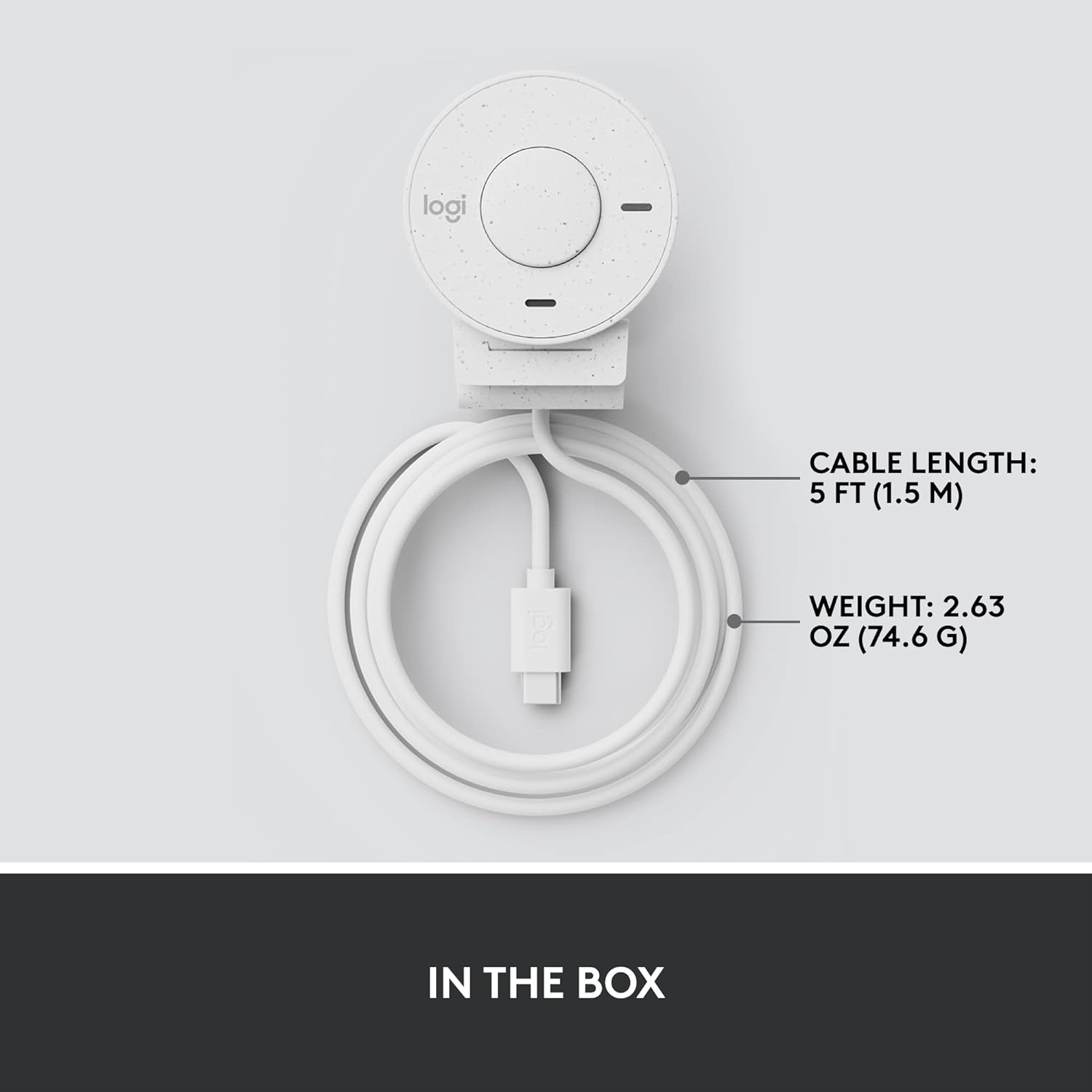
Figuur 2.1: Logitech Brio 300 webcam with its integrated USB-C cable, showing the compact design and cable length.
3. Opstelling
3.1. plasing
Position the Logitech Brio 300 webcam on your monitor or laptop screen. The integrated mounting clip is designed to securely fit various screen thicknesses without scratching, thanks to its rubberized pads.

Figure 3.1: The Logitech Brio 300 webcam, showing its design and how it sits on a monitor.
3.2. Verbinding
Koppel die geïntegreerde USB-C-kabel vanaf die webcam directly to an available USB-C port on your computer. The webcam is plug-and-play, meaning it should be automatically recognized by your operating system (Windows, macOS, Chrome OS).
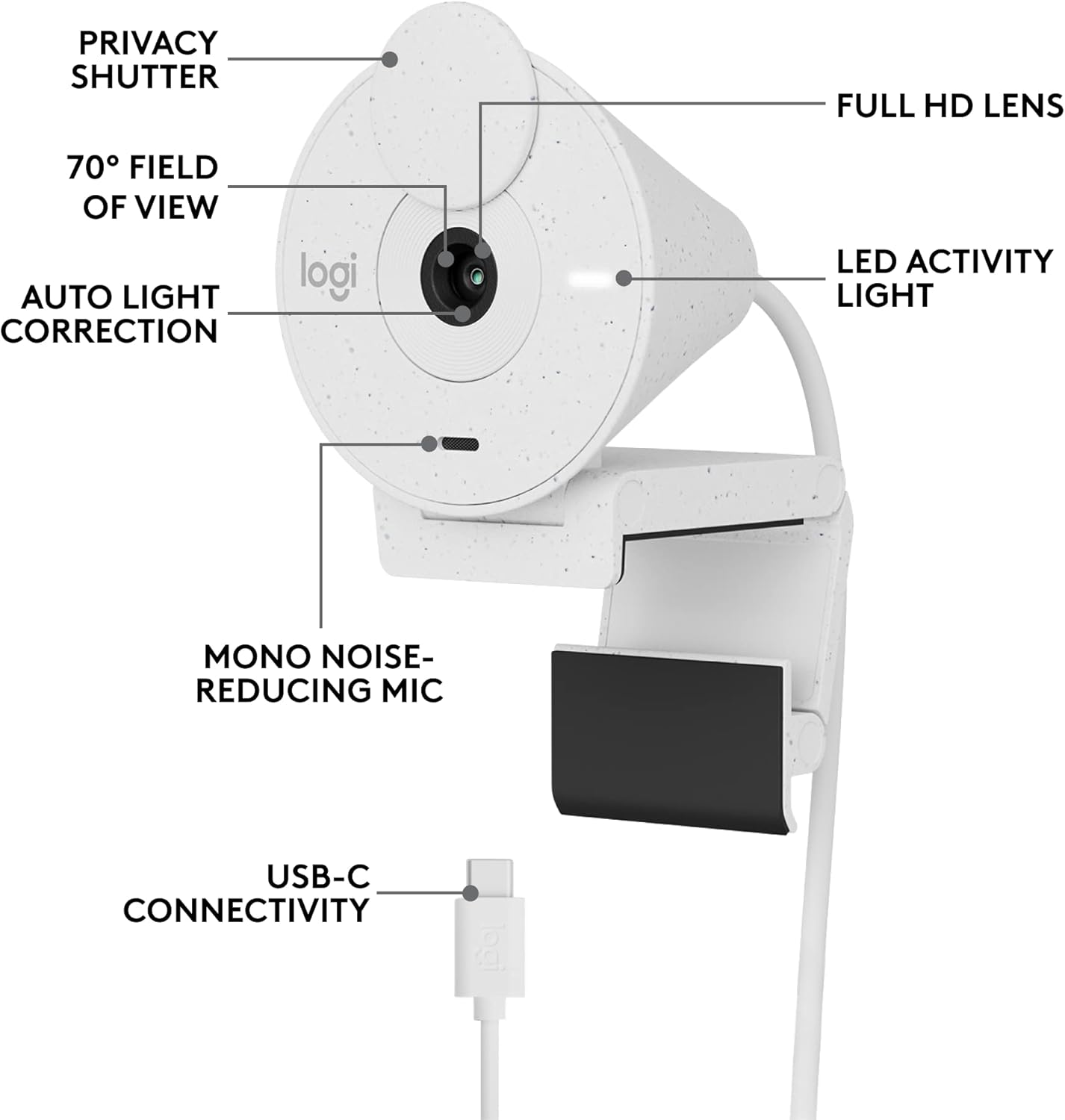
Figuur 3.2: Gedetailleerd view of the Logitech Brio 300, highlighting its USB-C connectivity and other key components.
3.3. Sagteware-installasie (Opsioneel maar aanbeveel)
For advanced customization and optimal performance, download and install the free Logi Tune application from the official Logitech website. Logi Tune allows you to adjust color, image quality, and other settings for your webkam.
Besoek Logitech Logi Tune om die sagteware af te laai.
4. Bedryf die Webnok
4.1. Privaatheid Shutter
The Brio 300 features an integrated privacy shutter. To cover the lens and ensure privacy, simply spin the circular cover over the lens. Spin it back to uncover the lens when you are ready to use the camera.
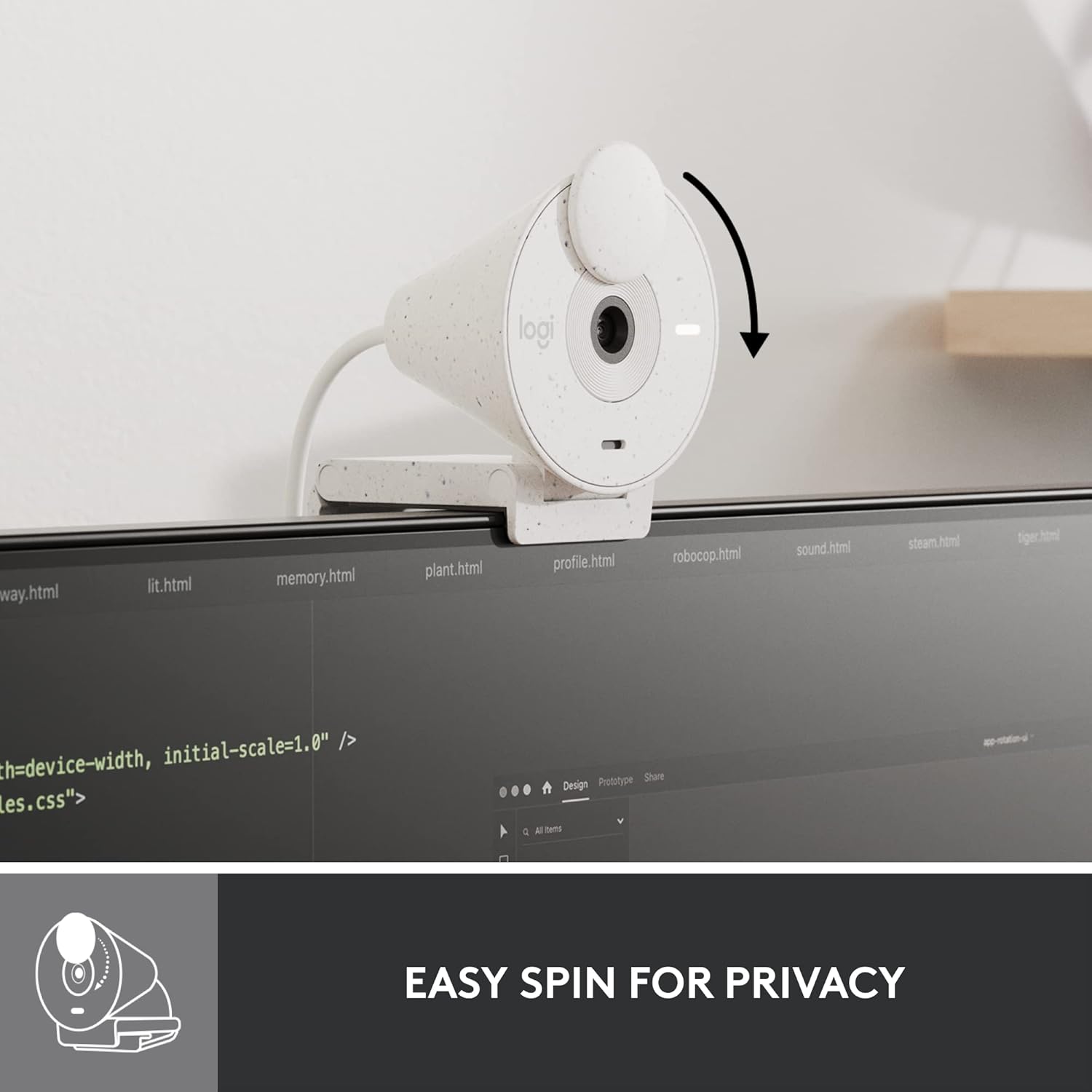
Figure 4.1: Demonstrating the easy-to-use spin privacy shutter on the Brio 300.
4.2. Auto Light Correction (RightLight 2)
Die webcam is equipped with RightLight 2 technology, which automatically adjusts to poor lighting conditions. This ensures you appear clear and well-lit, even in dim environments.

Figure 4.2: Visual representation of the Brio 300's auto light correction feature improving image quality in low light.
4.3. Geraasverminderingsmikrofoon
The integrated mono microphone features noise reduction, suppressing background sounds to ensure your voice is heard clearly during calls.
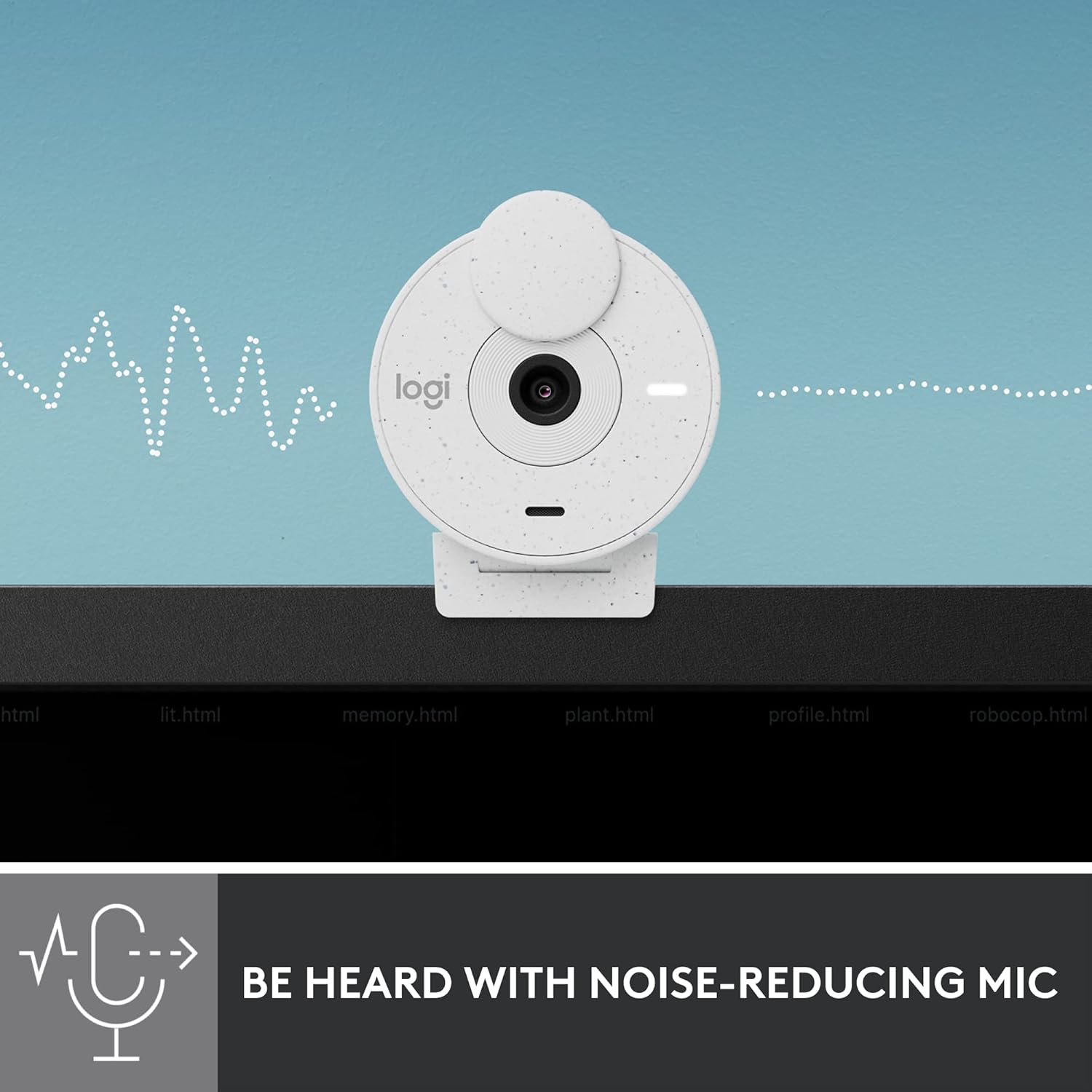
Figure 4.3: Illustration of the Brio 300's noise-reducing microphone capturing clear audio.
4.4. Verenigbaarheid
The Brio 300 is certified for Zoom, Microsoft Teams, and Google Meet, ensuring broad compatibility with most video conferencing platforms.

Figure 4.4: The Brio 300 is certified for major meeting platforms, including Zoom, Microsoft Teams, and Google Meet.
5. Onderhoud
Om die lang lewensduur en optimale werkverrigting van jou Logitech Brio 300 te verseker webkamera, volg hierdie eenvoudige onderhoudsriglyne:
- Maak die lens skoon: Vee die kameralens liggies af met 'n sagte, pluisvrye lap. Vir hardnekkige vlekke, vee dit effens af.ampen the cloth with a lens cleaning solution. Avoid abrasive materials or harsh chemicals.
- Maak die liggaam skoon: Gebruik 'n sagte, droë lap om die liggaam skoon te maak webkamera. Moenie vloeibare skoonmaakmiddels direk op die toestel gebruik nie.
- Berging: When not in use, especially during travel, ensure the privacy shutter is closed to protect the lens. Store the webkamera op 'n skoon, droë plek weg van uiterste temperature.
6. Probleemoplossing
If you encounter issues with your Logitech Brio 300, try the following troubleshooting steps:
- Geen video/klank:
- Maak seker dat die USB-C-kabel stewig aan beide die webkamera en jou rekenaar.
- Kontroleer of die privaatheidssluiter oop is.
- Verifieer dat die webcam is selected as the primary video and audio device in your video conferencing application settings (e.g., Zoom, Microsoft Teams, Google Meet).
- Probeer om die webkamera aan 'n ander USB-C-poort of 'n ander rekenaar om poort- of stelselprobleme uit te sluit.
- Swak videogehalte:
- Ensure adequate lighting in your environment. While RightLight 2 helps, sufficient ambient light is crucial for optimal image quality.
- Maak die kameralens skoon soos beskryf in die Onderhoud-afdeling.
- Dateer jou op webcam drivers and the Logi Tune software to the latest version.
- Check your internet connection speed, as a slow connection can affect video streaming quality.
- Swak oudiogehalte:
- Maak seker dat die mikrofoon nie geblokkeer word nie.
- Minimaliseer agtergrondgeraas in jou omgewing.
- Adjust microphone levels in your computer's sound settings or Logi Tune.
7. Spesifikasies
| Kenmerk | Detail |
|---|---|
| Maksimum skermresolusie | FHD (1080p) |
| Video-opname-resolusie | 1080p |
| Fotosensortegnologie | CMOS |
| Verbindingstegnologie | USB-C |
| Spesiale kenmerk | Low Light Correction (RightLight 2) |
| Mikrofoon | Mono, Noise Reduction |
| Privaatheidsfunksie | Integrated Privacy Shutter |
| Item gewig | 3.99 onse |
| Produk afmetings | 4.6 x 3.5 x 2.7 duim |
| Materiaal | Minimum 48% Post-Consumer Recycled Plastic |
8. Waarborg en Ondersteuning
Die Logitech Brio 300 webcam comes with a limited hardware warranty. For detailed warranty information, technical support, and frequently asked questions, please visit the official Logitech support website or refer to the full user manual available in PDF format.
Amptelike gebruikershandleiding (PDF): Laai hier af
For software support and customization, download the Logi Tune application.