
TomTom 1YB5.002.20
TomTom GO Expert Truck Sat Nav User Manual
Model: 1YB5.002.20
Inleiding
This manual provides essential information for setting up, operating, maintaining, and troubleshooting your TomTom GO Expert Truck Sat Nav. Please read it carefully to ensure optimal performance and safe use of your device.
The TomTom GO Expert is designed for professional large vehicle navigation, offering custom routing and POIs for buses, trucks, and coaches, along with live alerts for various road restrictions.
Wat is in die boks
Nadat u die verpakking oopgemaak het, maak seker dat alle komponente teenwoordig is:
- TomTom GO Expert Device
- Motorlaaier
- Click-and-Drive Mount
- Vinnige Begingids

Beeld: Voorkant view of the TomTom GO Expert Sat Nav device, showing its 5-inch capacitive screen and the TomTom logo at the bottom.
Opstelling
1. Monteer die toestel
- Maak die voorruit skoon: Ensure the area where you intend to mount the device is clean and dry.
- Heg die montering aan: Securely attach the Click-and-Drive mount to your windshield or dashboard. Press the suction cup firmly against the surface and flip the lever to lock it in place.
- Koppel die toestel: Slide the TomTom GO Expert device onto the mount until it clicks securely.
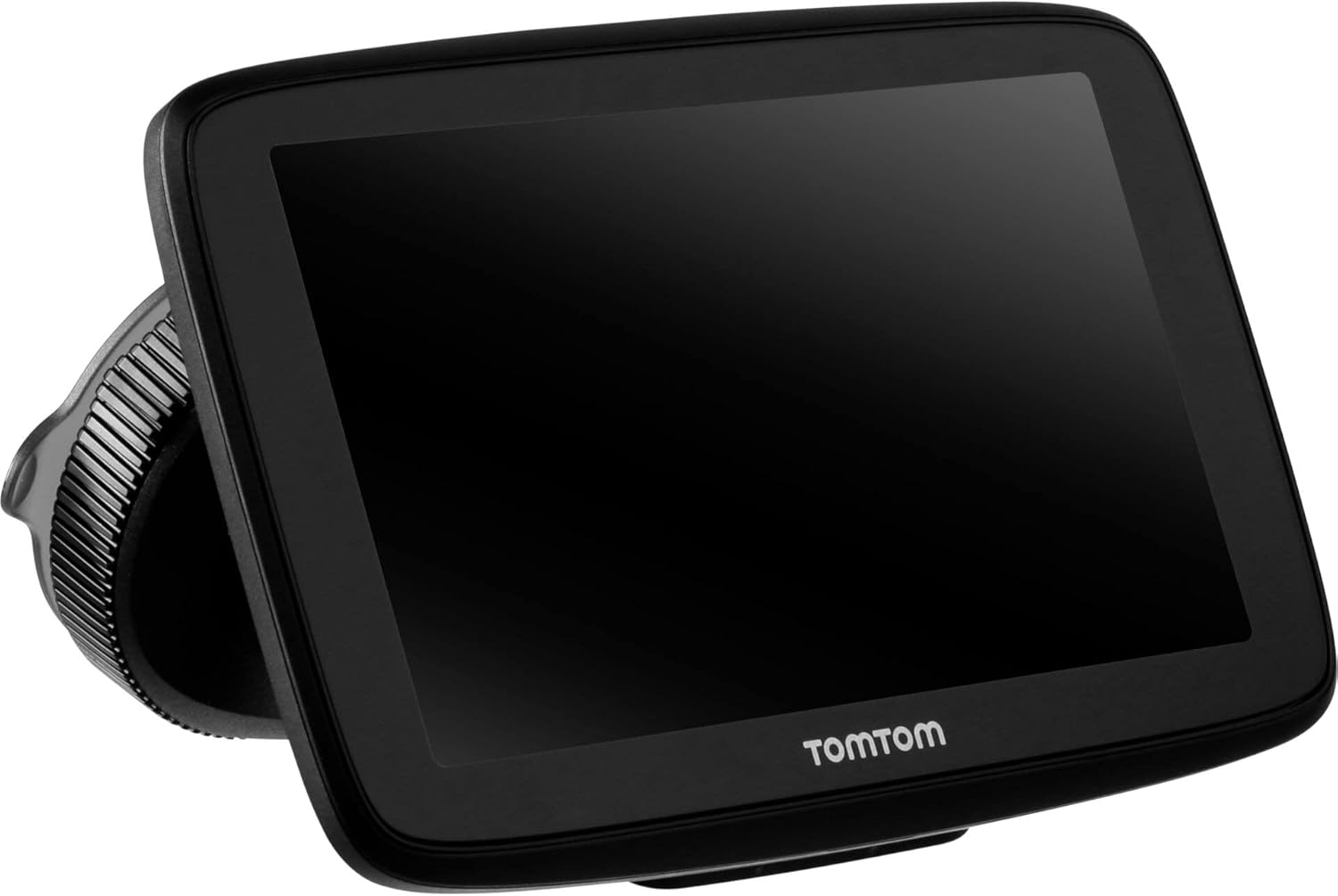
Image: The TomTom GO Expert Sat Nav device attached to its Click-and-Drive mount, viewed from an angle, showing the suction cup base.
2. Skakel aan en laai
- Connect the Car Charger: Steek die motorlaaier in jou voertuig se 12V-kragaansluiting.
- Koppel aan toestel: Connect the other end of the charger to the TomTom GO Expert device.
- Aanvanklike heffing: Allow the device to charge for at least 30 minutes before first use, or until the battery indicator shows sufficient charge.

Beeld: Syprofile of the TomTom GO Expert Sat Nav device, showing its slim design and how it connects to the Click-and-Drive mount.
3. Aanvanklike opstelling en Wi-Fi-verbinding
- Volg die aanwysings op die skerm om jou taal en streek te kies.
- Connect to a Wi-Fi network for quick map updates and traffic information. Navigate to Instellings > Wi-Fi and select your network.
- Configure your vehicle profile (truck, bus, coach) by entering dimensions, weight, and other relevant details. This is crucial for custom routing.
Bedien jou toestel
Navigasie basiese beginsels
- 'n Bestemming invoer: Tap the search icon on the main menu and enter an address, POI, or coordinates.
- Gepasmaakte roetering: The device will automatically calculate routes based on your configured vehicle profile, avoiding unsuitable roads for large vehicles.
- Live Traffic Updates: With an active Wi-Fi connection, the device provides real-time traffic information to help you avoid delays.
- Lane Guidance: The device displays clear lane guidance to help you prepare for exits and turns.
- Stembeheer: Use voice commands for hands-free operation. Refer to the on-screen guide for available commands.
Map Updates and Services
Your TomTom GO Expert receives 3X faster updates via Wi-Fi. Ensure your device is connected to a stable Wi-Fi network to download the latest maps and software updates conveniently and at no extra cost.
- Kaartopdaterings: Navigeer na Instellings > Opdaterings en nuwe items to check for and install map updates.
- Spoedkamera-waarskuwings: The device includes 1 year of speed camera alerts. Ensure this service is active for safer driving.
Onderhoud
- Skoonmaak: Use a soft, lint-free cloth to clean the screen and device casing. Moenie skuurmiddels of oplosmiddels gebruik nie.
- Sagteware-opdaterings: Regularly check for and install software updates via Wi-Fi to ensure optimal performance and access to new features.
- Batterysorg: To prolong battery life, avoid exposing the device to extreme temperatures. If storing for an extended period, ensure the battery is partially charged.
- Berging: When not in use, store the device in a cool, dry place, away from direct sunlight.
Probleemoplossing
Algemene kwessies en oplossings
- Toestel skakel nie aan nie:
- Ensure the car charger is securely connected to both the device and the vehicle's power outlet.
- Kontroleer die voertuig se kragaansluiting vir funksionaliteit.
- Try resetting the device by holding the power button for 15-20 seconds.
- Geen GPS-sein:
- Maak seker die toestel het 'n duidelike view of the sky. Obstructions like tall buildings or tunnels can block the signal.
- Move to an open area and allow the device a few minutes to acquire satellites.
- Check for any pending software updates that might improve GPS performance.
- Map Not Updating:
- Verify that the device is connected to a stable Wi-Fi network.
- Ensure there is sufficient storage space on the device for the new map data.
- Restart the device and try the update again.
- Raakskerm reageer nie:
- Voer 'n sagte terugstelling uit deur die aan/af-knoppie in te hou totdat die toestel herbegin.
- Maak seker dat die skerm skoon en vry van puin is.
Spesifikasies
| Kenmerk | Detail |
|---|---|
| Produk afmetings | 5.51 x 0.79 x 3.54 duim |
| Item gewig | 12.7 onse |
| Modelnommer | 1YB5.002.20 |
| Batterye | 1 Litium-ioonbattery benodig (ingesluit) |
| Bedryfstelsel | Windows (internal OS) |
| Verbindingstegnologieë | Bluetooth, Draadloos (Wi-Fi) |
| Spesiale kenmerke | Bluetooth, Lane Assist, Touchscreen |
| Menslike koppelvlak-invoer | Raakskerm |
| Kleur | Swart |
| Voertuigdiens tipe | Bus, Truck |
| Skerm grootte | 5 duim |
| Kaarttipe | Wêreldwyd |
| Klankuitvoermodus | Spreker |
Waarborg en Ondersteuning
For detailed warranty information and technical support, please visit the official TomTom support webwebwerf of verwys na die waarborgkaart wat by u produk ingesluit is.
Aanlyn ondersteuning: www.tomtom.com/support
Ensure you have your device's serial number and model number (1YB5.002.20) ready when contacting support.
Ask a question about this manual
Ask about setup, troubleshooting, compatibility, parts, safety, or missing instructions. Manuals+ will review the question and use this page’s manual context to help answer it.