
1. Inleiding
This manual provides detailed instructions for the safe and efficient operation of your InFocus P120 INL412 Multimedia Projector (Model INL4128). Please read this manual thoroughly before using the projector and keep it for future reference. This projector is designed for high-quality image projection, suitable for various applications including presentations, home entertainment, and gaming.
2. Veiligheidsinligting
Neem die volgende veiligheidsmaatreëls in ag om skade aan die projektor te voorkom en gebruikersveiligheid te verseker:
- Ventilasie: Ensure adequate ventilation around the projector. Do not block ventilation openings. Maintain a minimum distance of 30 cm (12 inches) from walls or other objects.
- Kragbron: Gebruik slegs die gespesifiseerde kragtoevoer en volumetage. Connect the power cord securely.
- Hitte: The projector generates heat during operation. Do not touch the projector's vents or exhaust areas directly after use.
- Lig uitset: Moenie direk in die projektorlens kyk wanneer die lamp aan is, aangesien die intense lig oogskade kan veroorsaak.
- Plasing: Place the projector on a stable, level surface. Avoid placing it in direct sunlight, near heat sources, or in areas with high humidity or dust.
- Skoonmaak: Ontkoppel die kragkabel voor skoonmaak. Gebruik 'n sagte, droë lap. Moenie vloeibare of aërosol skoonmaakmiddels gebruik nie.
- Diens: Moenie probeer om die projektor self te diens nie. Verwys alle diens na gekwalifiseerde dienspersoneel.
3. Produk verbyview
3.1 Top Panel and Lens Area
The top panel features the control buttons for basic operation and the lens area with focus and zoom adjustments.

Figuur 3.1: Bo view of the InFocus P120 INL412 projector, highlighting the control panel on the right and the lens adjustment area on the left. The InFocus logo is visible on the top surface.
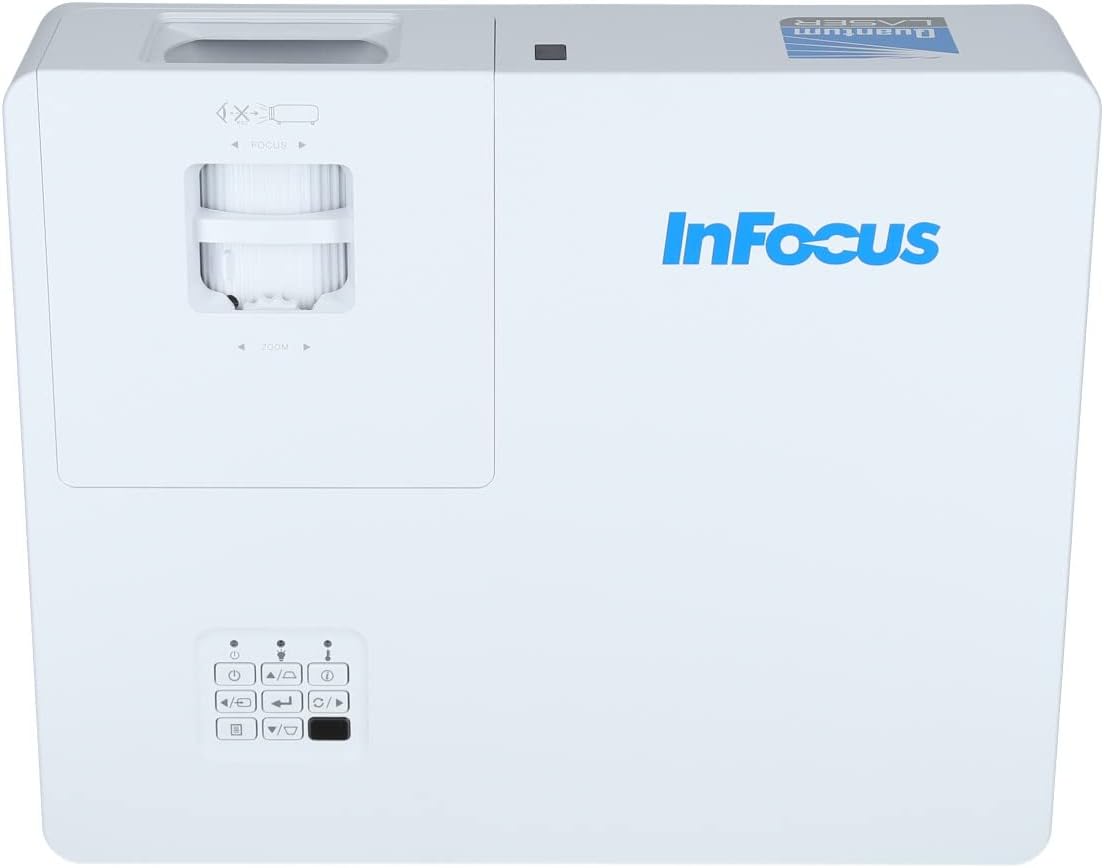
Figuur 3.2: 'n Nader view of the projector's top panel, showing the focus and zoom rings near the lens opening and the array of control buttons for power, menu, source selection, and navigation.
3.2 Agterpaneelverbindings
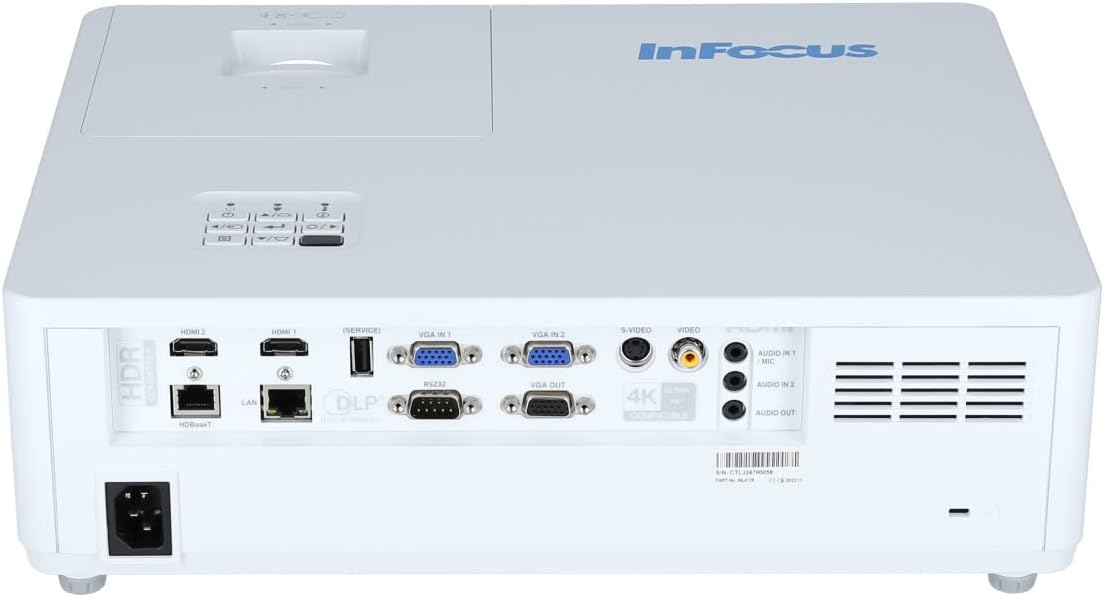
The rear panel provides various input and output ports for connecting external devices.

Figure 3.3: Rear panel of the InFocus P120 INL412 projector, displaying a comprehensive array of connectivity options including HDMI (x2), USB, S-Video, Ethernet (LAN), VGA In (x2), VGA Out, RS232, and Audio In/Out ports. The power input is located on the bottom left.
Belangrike hawens sluit in:
- HDMI 1 en 2: For connecting high-definition digital video and audio sources.
- USB: For connecting USB devices, potentially for media playback or firmware updates.
- S-video: For connecting older video sources.
- VGA IN 1 & 2: For connecting computers or other devices with VGA output.
- VGA UIT: Vir die koppeling aan 'n eksterne monitor.
- Ethernet (LAN): Vir netwerkkonnektiwiteit en beheer.
- Audio IN 1 & 2 / Audio OUT: Vir analoog klankverbindings.
- RS232: Vir seriebeheer.
- Kragtoevoer: Vir die koppeling van die wisselstroomkabel.
3.3 Front and Side Panels
The front panel houses the projection lens and front ventilation, while the side panels feature additional ventilation grilles.

Figuur 3.4: Voorkant view of the InFocus P120 INL412 projector, displaying the main projection lens on the right and the extensive front ventilation grille on the left, crucial for heat dissipation.
Figuur 3.5: Kant view of the InFocus P120 INL412 projector, illustrating the side ventilation grilles that contribute to maintaining optimal operating temperature.
4. Opstelling
4.1 Projektorplasing
Position the projector on a stable, flat surface or mount it securely. Ensure the projector is within the optimal projection distance for your screen size. Maintain clear space around the projector for proper ventilation.
4.2 Koppel toestelle
Before connecting any cables, ensure the projector and all source devices are powered off.
- HDMI-verbinding: Connect an HDMI cable from your source device (e.g., laptop, Blu-ray player, gaming console) to either the HDMI 1 or HDMI 2 port on the projector.
- VGA-verbinding: Connect a VGA cable from your computer to either VGA IN 1 or VGA IN 2. For audio, connect a separate audio cable from your computer's audio output to the corresponding Audio IN port on the projector.
- USB-verbinding: Insert a USB drive into the USB port for media playback (if supported by firmware) or service functions.
- Ethernet (LAN) Connection: Connect an Ethernet cable to the LAN port for network control or updates.
- Oudio-uitvoer: If using external speakers, connect an audio cable from the Audio OUT port on the projector to your audio system.
4.3 Kragverbinding
Connect the power cord to the projector's power input and then plug the other end into a grounded electrical outlet.
5. Bedryfsinstruksies
5.1 Aan-/afskakel
- Krag aan: Druk die Krag button on the projector's control panel or the remote control. The power indicator light will change.
- Skakel af: Druk die Krag button again. A confirmation message may appear. Press the button a second time to confirm shutdown. Allow the projector to cool down before unplugging it.
5.2 Adjusting Focus and Zoom
Rotate the focus ring around the lens until the image appears sharp and clear. Use the zoom ring to adjust the image size to fit your screen.
5.3 Kies van Invoerbron
Druk die Bron button on the control panel or remote control to cycle through available input sources (HDMI 1, HDMI 2, VGA 1, VGA 2, S-Video, USB). Select the input corresponding to your connected device.
5.4 Spyskaartnavigasie
Gebruik die Spyskaart button to access the on-screen display (OSD) menu. Use the arrow buttons to navigate through menu options and the Voer in button to select. Press Spyskaart weer om uit te gaan.
6. Onderhoud
6.1 Skoonmaak van die lens
Gently wipe the lens with a soft, lint-free cloth specifically designed for optical surfaces. Do not use abrasive cleaners or excessive force, as this can scratch the lens.
6.2 Cleaning the Projector Exterior
Gebruik 'n sagte, droë lap om die projektor se skerm skoon te maak.asing. Vir hardnekkige vuiligheid, dampen the cloth slightly with water, then wipe dry immediately. Avoid getting liquids into the projector's openings.
6.3 Ventilation Care
Regularly check the projector's ventilation grilles for dust accumulation. Use a soft brush or a vacuum cleaner with a brush attachment to gently remove dust from the vents to ensure proper airflow and prevent overheating.
7. Probleemoplossing
7.1 Geen beeld vertoon nie
- Ensure the projector is powered on and the power indicator light is solid.
- Verify that the video cable (HDMI, VGA, etc.) is securely connected to both the projector and the source device.
- Maak seker dat die korrekte invoerbron op die projektor gekies is.
- Confirm that the source device (laptop, player) is powered on and outputting a signal.
7.2 Beeld is vaag of buite fokus
- Verstel die fokusring op die projektorlens totdat die beeld skerp is.
- Maak seker dat die projektor op die korrekte afstand van die skerm is.
- Clean the projector lens if it appears dirty.
7.3 Geen klank nie
- If using HDMI, ensure the source device's audio output is set to HDMI.
- If using VGA, ensure a separate audio cable is connected from the source to the projector's Audio IN port.
- Kontroleer die volume-instellings op beide die projektor en die brontoestel.
- If using external speakers, ensure they are properly connected to the Audio OUT port and powered on.
8. Spesifikasies
| Kenmerk | Detail |
|---|---|
| Handelsmerk | InFokus |
| Vervaardiger | In Fokus |
| Model Naam | P120 INL412 |
| Modelnommer | INL4128 |
| Jaar | 2023 |
| Hardeware-koppelvlak | Ethernet, HDMI, S-Video, USB |
| Aantal items | 1 |
| Aspekverhouding | 16:9 |
| Wattage | 341 watt |
| Batterye Ingesluit | Nee |
| Batterye benodig | Nee |
| Vormfaktor | Desktop |
| Montage tipe | Tafelmontering |
| Afstandbeheer ingesluit | Ja |
| Produk afmetings | 56.13 x 46.48 x 25.15 cm |
| Item gewig | 5.5 kg |
| Maksimum beeldgrootte | 308.28 duim |
| Minimum beeldgrootte | 910.63 millimeter |
| Eerste Beskikbare Datum | 5 Januarie 2022 |
9. Waarborg en Ondersteuning
For warranty information and technical support, please refer to the documentation included with your purchase or visit the official InFocus webwebwerf. Bewaar u bewys van aankoop vir waarborgeise.