
1. Inleiding
Thank you for choosing the InFocus P120 INL412 Multimedia Projector. This manual provides essential information for the safe and efficient operation of your projector. Please read it thoroughly before using the device and retain it for future reference. The InFocus P120 INL412 is designed for versatile multimedia presentations, offering clear and vibrant images for various applications.
2. Veiligheidsinligting
To ensure safe operation and prevent damage to the projector, please observe the following safety precautions:
- Moenie die ventilasie-openinge blokkeer nie. Maak seker dat daar voldoende spasie rondom die projektor is vir behoorlike lugvloei om oorverhitting te voorkom.
- Vermy om direk in die projektorlens te kyk wanneer die lamp aan is, aangesien die helder lig oogskade kan veroorsaak.
- Do not place the projector on an unstable cart, stand, or table. The projector may fall, causing serious injury to a child or adult, and serious damage to the unit.
- Disconnect the power cord from the wall outlet if the projector will not be used for an extended period.
- Verwys alle diens na gekwalifiseerde dienspersoneel. Moenie probeer om die projektor self oop te maak of te herstel nie.
- Keep the projector away from water or moisture. Do not expose it to rain or immerse it in liquid.
- Use only the power cord supplied with the projector or an authorized replacement.
3. Pakketinhoud
Verify that all items listed below are included in your projector package:
- InFocus P120 INL412 Multimedia Projector
- Kragkoord
- Afstandbeheer met batterye
- VGA-kabel
- Gebruikershandleiding (hierdie dokument)
- Vinnige Begingids
4. Produk verbyview
Familiarize yourself with the main components of your InFocus P120 INL412 projector.
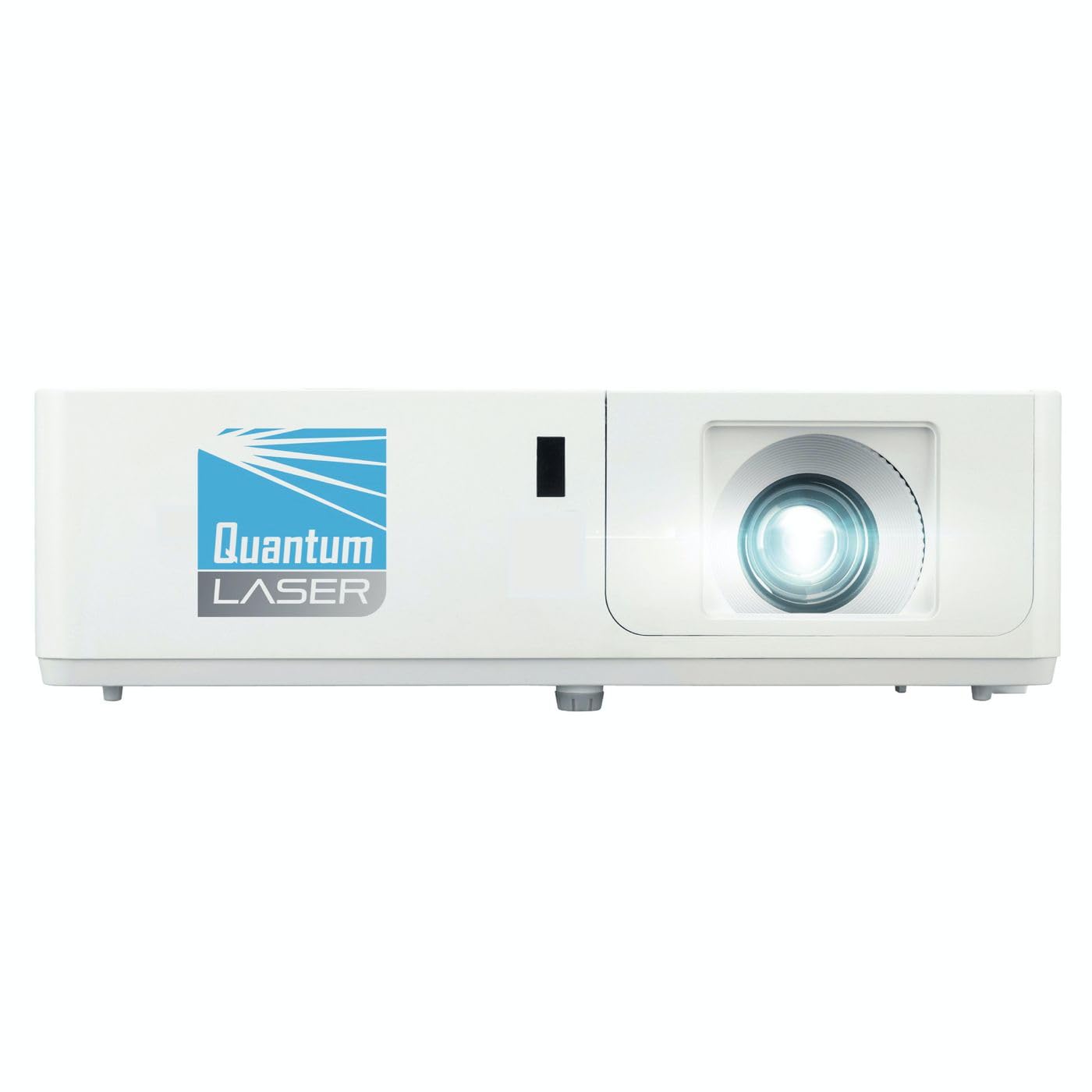
Beeld 1: Voorkant view of the InFocus P120 INL412 Multimedia Projector, showing the lens and ventilation grilles.
4.1 Voorpaneel
- Projeksie lens: Stuur die beeld op die skerm uit.
- Fokusring: Pas die helderheid van die geprojekteerde beeld aan.
- Zoemring: Pas die grootte van die geprojekteerde beeld aan.
- IR -ontvanger: Ontvang seine van die afstandsbediening.
4.2 Boonste paneel
- Beheerpaneel: Buttons for power, menu navigation, source selection, and keystone correction.
- Aanwyserligte: Display the projector's status (e.g., power, lamp, temperature).
4.3 Agterpaneel (Konnektiwiteit)
- HDMI -invoer: Connects to HDMI-enabled devices (laptops, Blu-ray players).
- VGA-invoer: Koppel aan rekenaars met VGA-uitset.
- USB-poort: For service or connecting USB devices (if supported by model).
- Oudio in/uit: Vir die koppeling van eksterne klankbronne of luidsprekers.
- Kraginlaat: Verbind die kragkabel.
5. Opstelling
Volg hierdie stappe vir die aanvanklike opstelling van jou projektor:
- Plasing: Place the projector on a stable, flat surface or mount it securely. Ensure the projector is positioned at an appropriate distance from the screen to achieve the desired image size.
- Kragverbinding: Koppel die kragkabel aan die projektor se kragtoevoer en dan aan 'n geaarde elektriese aansluiting.
- Koppel brontoestel: Connect your source device (e.g., laptop, DVD player) to the projector using an appropriate cable (HDMI, VGA, etc.). Ensure the cable is securely connected to both the source and the projector.
- Krag aan: Press the power button on the projector's control panel or the remote control to turn on the projector. The power indicator light will illuminate.
- Adjust Focus and Zoom: Once an image is projected, rotate the focus ring on the lens until the image is sharp and clear. Use the zoom ring to adjust the image size to fit your screen.
- Keystone-korreksie: If the image appears trapezoidal, use the keystone correction function (either via buttons on the projector/remote or through the on-screen menu) to square the image.
6. Bedryfsinstruksies
6.1 Krag aan/af
- Om aan te skakel: Press the power button once. The projector will go through a warm-up sequence.
- Om af te skakel: Press the power button twice. The first press will prompt a shutdown confirmation; the second press will initiate shutdown. Allow the projector to cool down completely before unplugging.
6.2 Bronkeuse
Press the 'Source' button on the projector or remote control to cycle through available input sources (HDMI, VGA, etc.) until your desired source is displayed.
6.3 Spyskaartnavigasie
Press the 'Menu' button to access the on-screen display (OSD) menu. Use the arrow buttons to navigate through options and 'Enter' or 'OK' to select. Use the 'Exit' or 'Menu' button to close the OSD.
- Prentinstellings: Adjust brightness, contrast, color, aspect ratio, and picture mode.
- Vertoon opsies: Configure keystone, projection mode (front/rear, desktop/ceiling), and resolution.
- Oudio-instellings: Control volume and audio output options.
- Stelselinstellings: Manage language, timer, power-saving modes, and factory reset.
7. Onderhoud
Gereelde onderhoud verseker optimale werkverrigting en verleng die lewensduur van jou projektor.
- Lens skoonmaak: Vee die projektorlens liggies af met 'n sagte, pluisvrye lap wat spesifiek vir optiese oppervlaktes ontwerp is. Moenie skuurmiddels of oormatige krag gebruik nie.
- Kabinet skoonmaak: Use a soft, dry cloth to clean the projector's exterior. For stubborn marks, dampen the cloth slightly with water. Avoid using harsh chemicals.
- Skoonmaak/Vervanging van Lugfilter: Check the air filter periodically. If your model has a removable filter, clean it with a soft brush or vacuum cleaner. Replace the filter as recommended in the on-screen menu or when visibly dirty to maintain proper ventilation.
- Lamp Vervanging: Die projektor lamp het 'n beperkte lewensduur. Wanneer die lamp life indicator appears, or the image brightness significantly decreases, replace the lamp according to the instructions provided in the full service manual or by a qualified technician. Always allow the projector to cool down completely before attempting lamp vervanging.
8. Probleemoplossing
Verwys na die tabel hieronder vir algemene probleme en hul oplossings:
| Probleem | Moontlike oorsaak | Oplossing |
|---|---|---|
| Geen prent word vertoon nie | Power cord disconnected, incorrect input source, source device off. | Check power connections. Select correct input source. Ensure source device is powered on. |
| Beeld is vaag | Lens out of focus, incorrect projection distance. | Adjust the focus ring on the lens. Reposition the projector closer or further from the screen. |
| Beeld is trapesiumvormig | Projektor nie loodreg op die skerm nie. | Use keystone correction (manual or automatic) to square the image. |
| Projektor oorverhit en skakel af | Verstopte ventilasie, vuil lugfilter. | Ensure clear space around vents. Clean or replace the air filter. |
| Afstandbeheer werk nie | Dead batteries, obstruction between remote and projector, incorrect angle. | Replace batteries. Ensure clear line of sight to IR receiver. Point remote directly at the projector. |
9. Spesifikasies
Key technical specifications for the InFocus P120 INL412 Multimedia Projector:
| Kenmerk | Spesifikasie |
|---|---|
| Modelnommer | P120 INL412 (Item model number: 7296144) |
| Tipe vertoon | DLP |
| Inheemse resolusie | 1280 x 800 |
| Maksimum skermresolusie | 1280 x 800 |
| Verbindingstegnologie | USB (and other standard inputs like HDMI, VGA) |
| Produk afmetings | 5.25 x 0.31 x 1.66 duim |
| Item gewig | 6.6 pond |
| Vervaardiger | In Fokus |
10. Waarborg en Ondersteuning
The InFocus P120 INL412 Multimedia Projector comes with a standard manufacturer's warranty. Please refer to the warranty card included in your package for specific terms and conditions, including warranty duration and coverage details. For technical support, service, or further inquiries, please visit the official InFocus support webwebwerf of kontak hul kliëntediensafdeling.
Vir die mees onlangse ondersteuningsinligting, besoek asseblief: www.infocus.com/support