
Logitech 910-006346
Logitech Signature M650 L for Business Wireless Mouse User Manual
Model: 910-006346
1. Inleiding
The Logitech Signature M650 L for Business Wireless Mouse is designed to enhance productivity and comfort for users with large-sized hands. It offers versatile connectivity options, including Logi Bolt USB receiver for secure connections and Bluetooth Low Energy for cross-platform flexibility. Featuring SmartWheel technology for adaptable scrolling and SilentTouch technology for quiet clicks, this mouse aims to reduce fatigue and improve user experience.
This manual provides comprehensive instructions for setting up, operating, maintaining, and troubleshooting your Signature M650 L mouse.

Image: The Logitech Signature M650 L mouse in graphite color, displayed alongside its retail packaging, highlighting its design and key features.
2. Wat is in die boks
Upon unboxing your Logitech Signature M650 L mouse, verify that all the following components are included:
- Signature M650L Mouse
- USB Receiver (Logi Bolt)
- 1 x AA-battery (vooraf geïnstalleer of apart ingesluit)
- Instructions (this manual)

Image: A visual representation of the items included in the product package: the Signature M650 L mouse and the Logi Bolt USB receiver, alongside the product box.
3. Sleutel kenmerke
- SmartWheel-blaai: Automatically switches between line-by-line precision and super-fast free-spin mode for efficient navigation.
- Stil klik: Equipped with SilentTouch technology, reducing click noise by 90% for a quieter work environment.
- Dubbele verbinding: Connects via Logi Bolt USB receiver for robust, secure connections or via Bluetooth Low Energy for broad compatibility.
- Ergonomiese ontwerp: Contoured shape and soft thumb area provide comfort, reducing forearm muscle activity by 25% compared to a laptop touchpad.
- Aanpasbare syknoppies: Two programmable side buttons allow for personalized shortcuts and increased productivity.
- Lang batterylewe: Enjoy up to 24 months of battery life on a single AA battery.
- Multi-platform verenigbaarheid: Works seamlessly with Windows, macOS, Linux, Chrome OS, iPadOS, and Android.
- Volhoubare ontwerp: Made with certified post-consumer recycled plastic to minimize environmental impact.

Image: An annotated diagram highlighting the key features of the Logitech Signature M650 L mouse, including silent clicking, SmartWheel, Bluetooth connectivity, customizable side buttons, comfort shape & texture, and 24-month battery life.

Image: A comparison showing the relative sizes of the standard M650 mouse and the larger M650 L mouse, indicating that the product is available in two sizes to fit different hand dimensions.
4. Opstelgids
4.1. Battery Installasie
- Vind die batterykompartement aan die onderkant van die muis.
- Maak die batteryvakdeksel oop.
- Plaas die ingeslote AA-battery in en maak seker dat die polariteit (+/-) korrek is.
- Maak die batterykompartement se deksel stewig toe.
4.2. Koppel jou muis
The Signature M650 L offers two primary connection methods:
4.2.1. Logi Bolt USB Receiver (Recommended for Business Environments)
- Verwyder die Logi Bolt USB-ontvanger uit die muis se batterykompartement (indien dit daar gebêre word).
- Koppel die Logi Bolt USB-ontvanger aan 'n beskikbare USB-A-poort op jou rekenaar.
- Skakel die muis aan met die aan/uit-skakelaar aan die onderkant.
- The mouse should automatically connect to the receiver. If not, press and hold the connect button on the mouse (usually near the power switch) until the LED indicator blinks, then release.

Beeld: 'n Nabyskoot view of the Logi Bolt USB receiver plugged into the side of a laptop, illustrating its compact size and secure connection.
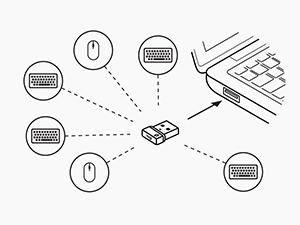
Image: A diagram illustrating how a single Logi Bolt USB receiver can connect to multiple compatible Logitech devices, including mice and keyboards, providing a unified wireless solution.
4.2.2. Bluetooth lae energie
- Skakel die muis aan met die aan/uit-skakelaar aan die onderkant.
- Press and hold the connect button on the mouse (usually near the power switch) for 3 seconds until the LED indicator blinks rapidly, indicating it's in pairing mode.
- Maak Bluetooth-instellings op jou rekenaar of toestel oop.
- Select "Logitech M650 L" from the list of available devices and follow any on-screen prompts to complete pairing.
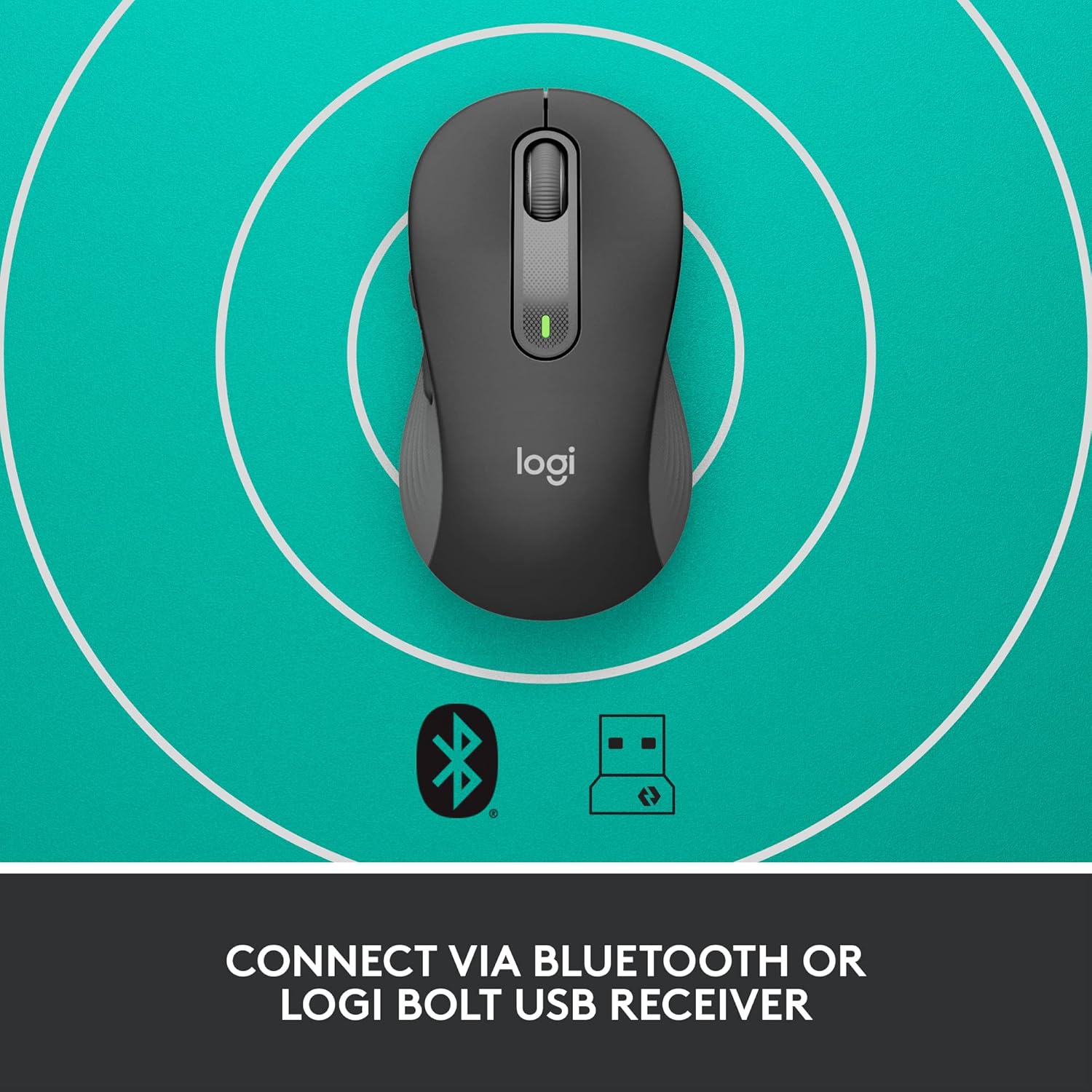
Image: The Logitech Signature M650 L mouse positioned on a surface with concentric circles, accompanied by Bluetooth and Logi Bolt icons, signifying its dual connectivity options.
5. Bediening van jou muis
5.1. Basiese funksies
- Links klik: Primêre aksie, seleksie.
- Regs klik: Kontekskieslys.
- SmartWheel: Scroll up/down. The wheel automatically switches between precise line-by-line scrolling and hyper-fast free-spin scrolling based on your scrolling speed.
- Syknoppies: By default, these buttons may perform forward/back actions in web blaaiers.
5.2. Customizing Buttons (Logitech Options Software)
To unlock the full potential of your Signature M650 L mouse, download and install the Logitech Options software from the official Logitech webwerf (www.logitech.com/software/logi-options-plus.html). This software allows you to:
- Reassign the side buttons to perform various functions (e.g., copy, paste, open applications, media controls).
- Adjust pointer speed (DPI).
- Customize SmartWheel behavior.
- View battery status.
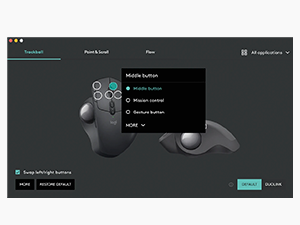
Image: A screenshot of the Logitech Options software interface, demonstrating how users can customize mouse buttons and settings for enhanced productivity.
6. Onderhoud
6.1. Maak jou muis skoon
Om optimale werkverrigting en higiëne te handhaaf, maak jou muis gereeld skoon:
- Gebruik 'n sagte, pluisvrye lap effens dampmet water of 'n elektronika-veilige skoonmaakoplossing afgespoel.
- Vee die oppervlak van die muis af.
- For optical sensor, use a dry cotton swab to gently clean any dust or debris.
- Vermy die gebruik van harde chemikalieë, skuurmiddels of die onderdompeling van die muis in vloeistof.
6.2. Battery vervanging
When the battery indicator light on your mouse turns red or the mouse becomes unresponsive, it's time to replace the AA battery. Follow the battery installation steps in Section 4.1.
7. Probleemoplossing
| Probleem | Moontlike oorsaak | Oplossing |
|---|---|---|
| Muis reageer nie | Low battery; Receiver disconnected; Bluetooth not paired; Mouse powered off. | Replace battery; Re-insert Logi Bolt receiver; Re-pair Bluetooth; Turn mouse on. |
| Cursor lag or erratic movement | Interference; Dirty optical sensor; Surface issues; Low battery. | Move mouse closer to receiver/device; Clean optical sensor; Use a mouse pad; Replace battery. |
| Syknoppies werk nie | Logitech Options not installed or configured; Software conflict. | Install/reinstall Logitech Options; Check button assignments in software; Restart computer. |
| Kan nie via Bluetooth koppel nie | Mouse not in pairing mode; Device's Bluetooth off; Interference. | Ensure mouse is in pairing mode (blinking LED); Enable Bluetooth on device; Move away from other wireless devices. |
8. Spesifikasies
| Kenmerk | Detail |
|---|---|
| Handelsmerk | Logitech |
| Model Naam | Handtekening M650 L |
| Item Modelnommer | 910-006346 |
| Verbindingstegnologie | Bluetooth Lae Energie, Logi Bolt USB Ontvanger |
| Bewegingsopsporingstegnologie | Opties |
| Kleur | Grafiet |
| Item gewig | 3.93 onse (ongeveer 111.4 gram) |
| Produkafmetings (LxBxH) | 4.65 x 2.58 x 1.64 duim (ongeveer 11.8 x 6.55 x 4.17 cm) |
| Battery Tipe | 1 x AA-battery (ingesluit) |
| Gemiddelde batterylewe | Tot 24 maande |
| Hardeware Platform | PC, Linux, Mac |
| Bedryfstelselversoenbaarheid | Windows 11, Windows 10, macOS 10.15+, Linux, Chrome OS, iPadOS 13.4+, Android 5.0+ |
| Land van oorsprong | China |
9. Waarborg en Ondersteuning
9.1. Waarborginligting
Logitech-produkte kom gewoonlik met 'n beperkte hardewarewaarborg. Verwys asseblief na die waarborgkaart wat by u produk ingesluit is of besoek die amptelike Logitech-webwerf. website for the most current and detailed warranty information applicable to your region and product model.
9.2. Kliëntediens
For technical assistance, product inquiries, or to report issues, please visit the Logitech support webwebwerf:
You may also find helpful FAQs, troubleshooting guides, and driver downloads on their support portal.
Ask a question about this manual
Ask about setup, troubleshooting, compatibility, parts, safety, or missing instructions. Manuals+ will review the question and use this page’s manual context to help answer it.