
Inleiding
Thank you for choosing the BUFFBEE Alarm Clock with Wireless Charging Station. This device combines a digital alarm clock with a versatile wireless charging stand, designed to charge your iPhone, Apple Watch, and AirPods simultaneously. It features a dimmable LED display, adjustable volume, and multiple safety protections to ensure efficient and secure charging. Please read this manual carefully before use to ensure proper operation and to maximize the lifespan of your product.
Wat is in die boks
Nadat u u pakket oopgemaak het, maak asseblief seker dat al die volgende items ingesluit is:
- BUFFBEE Alarm Clock with Wireless Charging Station
- USB-C-laaikabel
- Kragadapter
- Gebruikershandleiding (hierdie dokument)
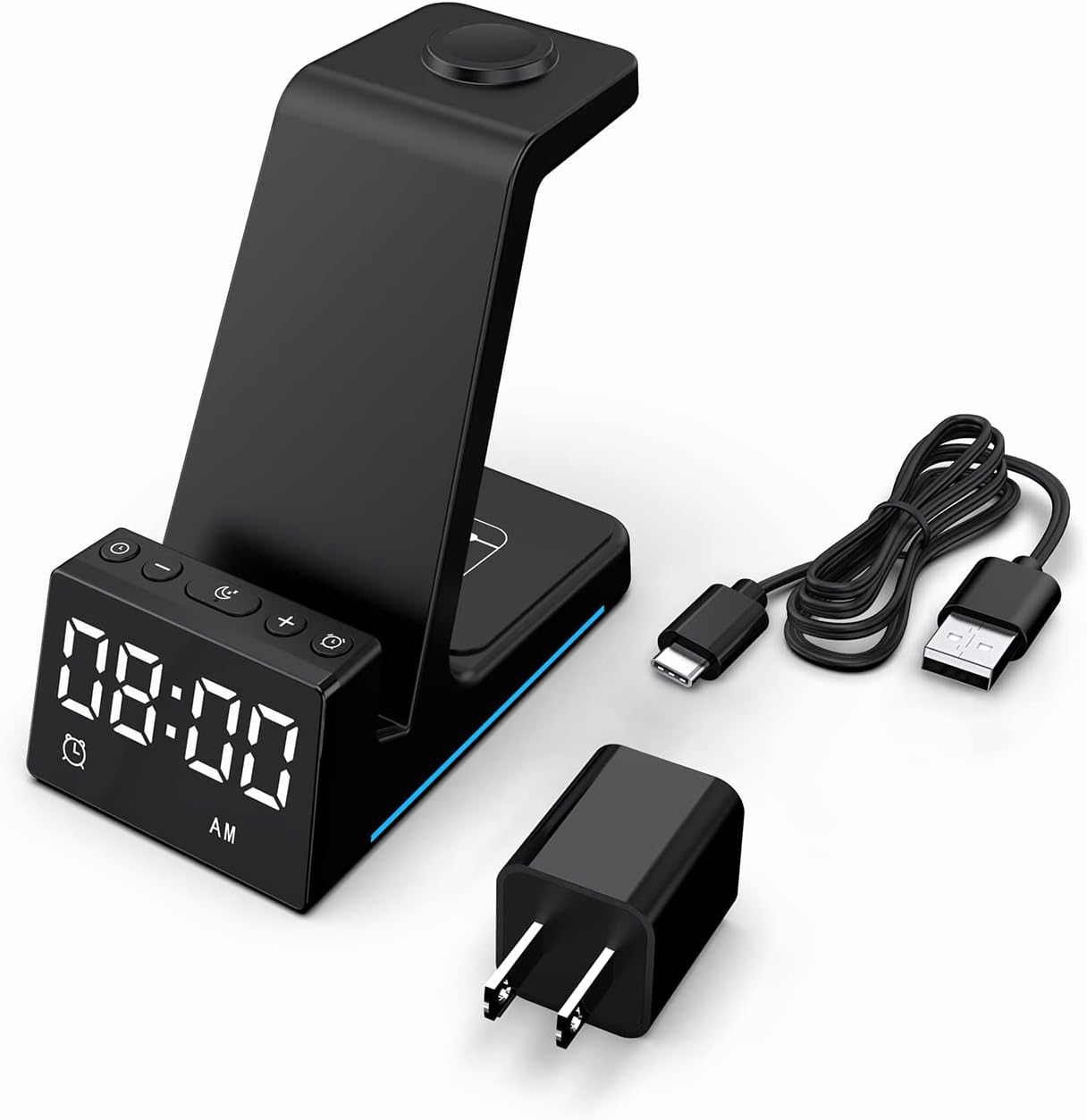
Beeld: Alle komponente is in die produkverpakking ingesluit.
Produk verbyview
The BUFFBEE Alarm Clock with Wireless Charging Station is designed for convenience and efficiency. It features dedicated charging areas for your smartphone, Apple Watch, and AirPods, alongside a clear digital clock display.
Sleutel kenmerke:
- Digitale wekker: Features adjustable brightness and volume, with 12/24 hour format options.
- Wireless Phone Charging: Supports 15W, 10W, 7.5W, and 5W output for various wireless charging enabled smartphones.
- Apple Watch Laai: Dedicated magnetic charging spot for Apple Watch Series 2-7, SE.
- AirPods Laai: Wireless charging pad for AirPods 2 (with wireless charging case), AirPods 3, and AirPods Pro.
- Veiligheidsbeskermings: Built-in overcharge, overvoltage, overheat, and overcurrent protection.

Image: The charging station with devices in place, highlighting its multi-device capability.

Image: Diagram illustrating the internal safety features and charging coils.
Opstelling
Follow these steps to set up your BUFFBEE Alarm Clock with Wireless Charging Station:
- Koppel krag: Insert the USB-C end of the charging cable into the port on the back of the charging station. Plug the other end of the cable into the provided power adapter, then plug the adapter into a wall outlet. The digital display will light up, indicating power is connected.
- Plaas toestelle:
- Slimfoon: Place your wireless charging enabled smartphone vertically or horizontally on the main charging stand. Ensure it is centered for optimal charging.
- Apple Watch: Place your Apple Watch on the magnetic charging disc at the top of the stand.
- AirPods: Place your AirPods (with wireless charging case) on the flat charging pad at the base of the unit.
- Verifieer laai: A blue indicator light will briefly illuminate when a device is correctly placed and charging. Your device's screen will also show a charging icon.
Video: Official product video demonstrating the setup and charging capabilities of the BUFFBEE Alarm Clock with Wireless Charging Station for iPhone, Apple Watch, and AirPods.

Image: Universal compatibility chart for different devices and charging wattages.
Bedryfsinstruksies
Stel die tyd in
- Druk en hou die Tyd Gestel button (usually marked with a clock icon) for 3 seconds. The hour digits will begin to flash.
- Gebruik die + en - knoppies om die uur aan te pas.
- Druk die Tyd Gestel button again to switch to minute adjustment. The minute digits will flash.
- Gebruik die + en - knoppies om die minute aan te pas.
- Druk die Tyd Gestel knoppie nog een keer om te bevestig en die tydinstellingsmodus te verlaat.
- To switch between 12-hour and 24-hour format, briefly press the Tyd Gestel knoppie wanneer dit nie in instellingsmodus is nie.
Stel die alarm
- Druk en hou die Alarmstel button (usually marked with an alarm clock icon) for 3 seconds. The alarm hour digits will flash.
- Gebruik die + en - knoppies om die wekker uur aan te pas.
- Druk die Alarmstel button again to switch to alarm minute adjustment. The alarm minute digits will flash.
- Gebruik die + en - knoppies om die alarmminute aan te pas.
- Druk die Alarmstel knoppie nog een keer om te bevestig en die alarminstellingsmodus te verlaat.
- Om die alarm te aktiveer of deaktiveer, druk kortliks die Alarmstel knoppie. 'n Alarmikoon sal op die skerm verskyn/verdwyn.
- When the alarm sounds, press any button to activate the snooze function (typically 9 minutes). To turn off the alarm completely, press and hold the Alarmstel knoppie.

Beeld: Oorview of the digital alarm clock features.
Verstel skermhelderheid
The LED display has multiple brightness levels to suit your preference, especially for nighttime use.
- Druk die Helderheid button (usually marked with a sun icon) repeatedly to cycle through the available brightness levels (e.g., 100%, 40%, 3%, 1%, 0% off).
- Select the desired brightness level. The '0% off' setting turns the display completely off for undisturbed sleep.

Image: Visual representation of the 5-level adjustable brightness settings.
Pas die alarmvolume aan
The alarm volume can be adjusted to your preferred level.
- While the alarm is sounding, or during alarm setting mode, press the Volume button (usually marked with a speaker icon) to cycle through the available volume levels.
- Kies die verlangde volume.

Image: Illustration of the 3-level adjustable volume feature.
Onderhoud
To ensure the longevity and optimal performance of your charging station, follow these maintenance guidelines:
- Skoonmaak: Disconnect the power before cleaning. Use a soft, dry cloth to wipe the surface. Do not use abrasive cleaners, solvents, or chemical sprays.
- Vermy vloeistowwe: Hou die toestel weg van water en ander vloeistowwe. Moenie met nat hande gebruik nie.
- Temperatuur: Store and operate the device in a dry environment at room temperature. Avoid extreme heat or cold.
- Hantering: Hanteer die toestel versigtig. Vermy dit om te laat val of aan harde impakte bloot te stel.
- Kragtoevoer: Only use the provided power adapter and cable. Using unauthorized power sources may damage the device and void the warranty.
Probleemoplossing
If you encounter any issues with your BUFFBEE Alarm Clock with Wireless Charging Station, please refer to the following troubleshooting guide:
| Probleem | Moontlike oorsaak | Oplossing |
|---|---|---|
| Device is not powering on. | Power cable not connected properly; Power adapter faulty; Wall outlet not working. | Ensure the USB-C cable is securely connected to both the station and the power adapter. Try a different wall outlet. Verify the power adapter is functioning. |
| Smartphone/AirPods not charging wirelessly. | Device not placed correctly; Device not wireless charging compatible; Phone case too thick; Foreign objects on charging pad. | Reposition the device to ensure it is centered on the charging pad. Remove any thick phone cases or metallic objects. Confirm your device supports Qi wireless charging. |
| Apple Watch laai nie. | Watch not placed correctly; Watch charger not making contact; Watch model not supported. | Ensure the Apple Watch is securely placed on the magnetic charging disc. Remove any watch cases that might obstruct contact. This charger supports Apple Watch Series 2-7, SE. |
| Laai is stadig of onderbroke. | Using a non-original power adapter/cable; Device overheating; Multiple devices charging simultaneously. | Use the provided power adapter and cable. Ensure the device is in a well-ventilated area. Charging multiple devices may slightly reduce individual charging speeds. |
| Alarm clock display is too bright/dim. | Helderheidinstelling benodig aanpassing. | Druk die Helderheid button to cycle through the 5 brightness levels, including 'off'. |
| Alarm is not sounding or is too quiet/loud. | Alarm not set or deactivated; Volume level too low/high. | Verify the alarm is activated (alarm icon visible). Adjust the alarm volume using the Volume knoppie. |
Spesifikasies
| Kenmerk | Detail |
|---|---|
| Produk afmetings | 6.3 x 1.5 x 3.5 duim |
| Item gewig | 15.8 onse |
| Handelsmerk | BUFFEBEE |
| Connector Tipe | Draadloos |
| Versoenbare toestelle | Cellular Phones, Apple Watch, AirPods (with wireless charging case) |
| Versoenbare telefoonmodelle | Samsung Galaxy S10 series, iPhone 8 and newer, other Qi-enabled phones |
| Spesiale kenmerk | Adjustable, Fast Charging, Wireless Charger, Wireless Charging |
| Invoer Voltage | 9 Volt |
| Totale USB-poorte | 1 (for power input) |
| Wattage | 15 watts (max output) |
| Spesifikasie Met | Qi |
| Kragbron | AC Adapter (Battery Powered refers to internal clock battery backup, not main power) |
Waarborg en Ondersteuning
Your BUFFBEE Alarm Clock with Wireless Charging Station comes with a standard manufacturer's warranty. For specific warranty details, including duration and coverage, please refer to the warranty card included in your product packaging or contact BUFFBEE customer support directly.
If you require technical assistance, have questions about product operation, or need to report a defect, please reach out to BUFFBEE customer service through the contact information provided on the product packaging or the official BUFFBEE webwebwerf. Hou asseblief u produkmodel en aankoopdatum gereed wanneer u ondersteuning kontak.