
Intel NUC11BTMi9
Intel NUC 11 Extreme Kit NUC11BTMi9 Gaming Barebone-stelsel Gebruikershandleiding
Model: NUC11BTMi9 | Handelsmerk: Intel
Produk verbyview
The Intel NUC 11 Extreme Kit (NUC11BTMi9) is a high-performance barebone mini PC designed for gaming and demanding applications. It offers uncompromised performance within a compact form factor, allowing users to customize it with their preferred RAM, storage, and operating system.

Figuur 1: Voorhoekig view of the Intel NUC 11 Extreme Kit, showcasing its compact design and the illuminated skull logo.
Pakketinhoud
Verify that all items are present in the package before proceeding with setup:
- Intel NUC 11 Extreme Kit (NUC11BTMi9) Barebone System
- Amerikaanse kragsnoer
- Dokumentasie (Vinnige Begingids, Veiligheidsinligting)
Note: Additional components such as RAM, storage drives, and operating system are sold separately and are required for full system functionality.
Opstelgids
This section outlines the steps required to set up your Intel NUC 11 Extreme Kit. As a barebone system, it requires the installation of memory (RAM) and storage (SSD) before initial use.
1. Installeer geheue (RAM)
- Unscrew and remove the top cover of the NUC chassis.
- Locate the DDR4 SO-DIMM slots on the motherboard.
- Align the notch on the SO-DIMM module with the notch in the slot.
- Insert the module at a 45-degree angle and press down firmly until the retaining clips snap into place.
- Repeat for additional memory modules if applicable.
2. Installing Storage (SSD)
The NUC 11 Extreme Kit supports M.2 NVMe SSDs.
- Vind die M.2-gleuwe op die moederbord.
- Plaas die M.2 SSD skuins in die gleuf.
- Druk die SSD liggies af en maak dit vas met die meegeleverde skroef.
- The system also supports Serial ATA/600 interface for additional storage options.
3. Aansluiting van randapparatuur
Connect your monitor, keyboard, mouse, and other peripherals to the appropriate ports. The system features 12 USB ports for extensive connectivity.
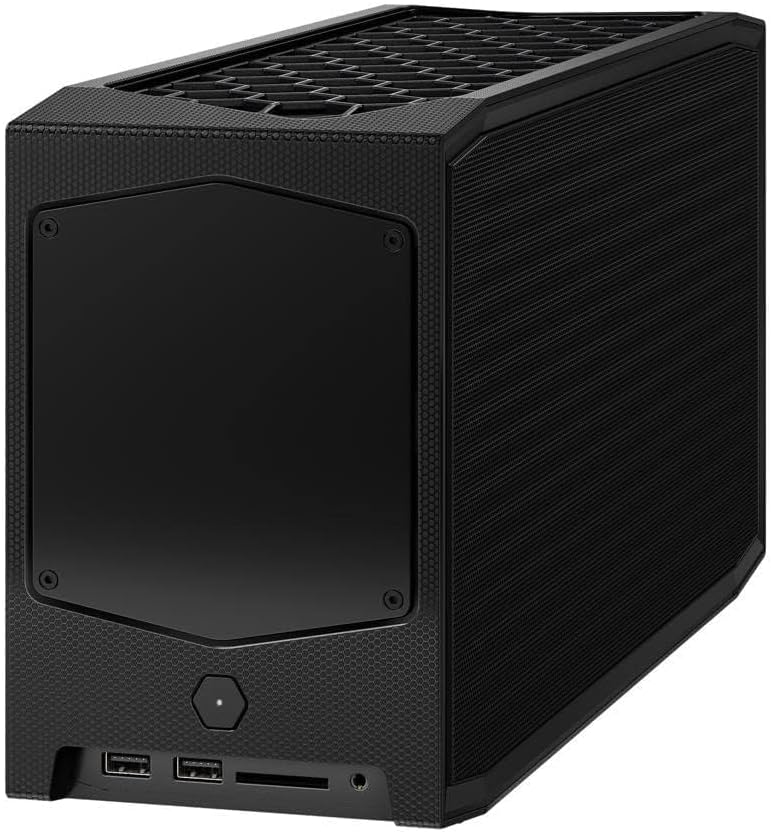
Figuur 2: Agter view of the Intel NUC 11 Extreme Kit, highlighting the array of input/output ports for connecting external devices.
- Vertoon: Connect your monitor using HDMI or DisplayPort.
- USB-toestelle: Use the available USB ports for keyboard, mouse, external drives, etc.
- Netwerk: Connect an Ethernet cable for wired network access, or use the integrated Wi-Fi.
- Oudio: Koppel luidsprekers of oorfone aan die klankaansluitings.
4. Kragverbinding
Connect the provided power cord to the NUC and then to a power outlet.
5. Installasie van bedryfstelsel
Once RAM and storage are installed, you will need to install an operating system (e.g., Windows 10, Linux) from a bootable USB drive or disc.
Bedryfsinstruksies
This section provides basic instructions for operating your Intel NUC 11 Extreme Kit.
Skakel aan/af
- Krag aan: Druk die aan/uit-knoppie aan die voorkant van die eenheid. Die aan/uit-aanwyserliggie sal aanskakel.
- Skakel af:
- Standard Shutdown: Gebruik die bedryfstelsel se afsluitfunksie.
- Gedwonge afskakeling: Press and hold the power button for 5-10 seconds until the unit powers off. Use this only as a last resort.
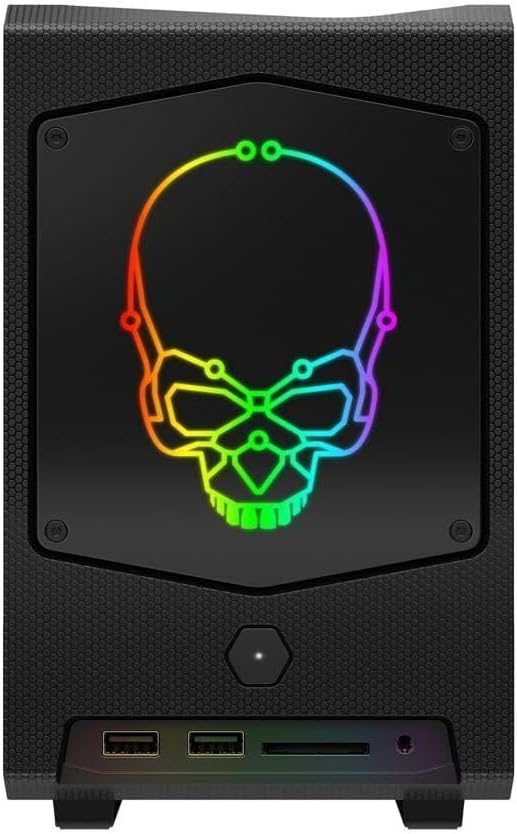
Figuur 3: Voorkant view of the Intel NUC 11 Extreme Kit, showing the power button and front panel connectivity options.
Koppel USB-toestelle
The NUC 11 Extreme Kit offers numerous USB ports (up to 12) for connecting various peripherals. Devices can be connected or disconnected without needing to shut down the system.
BIOS/UEFI Access
To access the BIOS/UEFI settings, power on the system and repeatedly press the F2 key during startup. This allows configuration of boot order, system settings, and hardware diagnostics.
Onderhoud
Proper maintenance ensures the longevity and optimal performance of your Intel NUC 11 Extreme Kit.
- Skoonmaak: Regularly clean the exterior with a soft, dry cloth. Use compressed air to clear dust from vents and fan areas to ensure proper airflow and prevent overheating. Ensure the system is powered off and unplugged before cleaning.
- Sagteware-opdaterings: Keep your operating system, drivers, and BIOS/UEFI firmware updated to the latest versions. Visit the official Intel support website for driver downloads specific to the NUC11BTMi9 model.
- Ventilasie: Ensure the NUC is placed in a well-ventilated area, away from direct sunlight or heat sources. Do not block the ventilation openings.
- Data-rugsteun: Rugsteun gereeld belangrike data na 'n eksterne skyf of wolkberging om dataverlies te voorkom.
Probleemoplossing
This section provides solutions to common issues you might encounter with your Intel NUC 11 Extreme Kit.
Geen krag / Stelsel skakel nie aan nie
- Ensure the power cord is securely connected to both the NUC and a working power outlet.
- Verifieer dat die kragaansluiting funksioneel is deur 'n ander toestel in te prop.
- If using a power strip or surge protector, ensure it is switched on.
Geen skermuitset nie
- Check that the monitor is powered on and the video cable (HDMI/DisplayPort) is securely connected to both the NUC and the monitor.
- Probeer 'n ander videokabel of monitor indien beskikbaar.
- Ensure RAM modules are properly seated in their slots. Reseat them if necessary.
Stelsel vries of stort vas
- Ensure the system has adequate ventilation and is not overheating.
- Update your operating system and device drivers to the latest versions.
- Voer 'n geheuediagnostiese hulpmiddel uit om RAM-probleme na te gaan.
- Check the health of your storage drive.
Peripheral Not Detected
- Probeer om die randapparatuur aan 'n ander USB-poort te koppel.
- Maak seker dat die randapparatuur se drywers geïnstalleer en op datum is.
- Herbegin die stelsel.
Tegniese spesifikasies
Below are the key technical specifications for the Intel NUC 11 Extreme Kit (NUC11BTMi9).

Figuur 4: Kant view of the Intel NUC 11 Extreme Kit, illustrating its physical dimensions.
| Kenmerk | Spesifikasie |
|---|---|
| Modelnommer | NUC11BTMi9 |
| Verwerker | Intel Core i9-11900KB Octa-core (8 Core) @ 3.3 GHz |
| Memory (RAM) Type | DDR4 SDRAM (Barebone - user installable) |
| Berging-koppelvlak | M.2 (SSD), Serial ATA/600 |
| Grafiese medeverwerker | Intel UHD-grafika |
| Grafiese kaart Ram Grootte | 8 GB (Integrated) |
| Draadlose konneksie | Bluetooth, WiFi |
| USB-poorte | 12 |
| Operating System (Pre-installed) | None (Supports Windows 10) |
| Item gewig | 5 pond |
| Pakket afmetings | 21.1 x 15 x 13.6 duim |
| Kleur | Swart |
| Eerste Beskikbare Datum | 13 Oktober 2021 |
Waarborg en Ondersteuning
Intel provides a limited warranty for its NUC products. For detailed warranty information, technical support, driver downloads, and troubleshooting resources, please visit the official Intel support webwebwerf.
You can typically find support by searching for "Intel NUC support" or by visiting Intel's Official Support Page.
When contacting support, please have your product model number (NUC11BTMi9) and serial number ready.
Ask a question about this manual
Ask about setup, troubleshooting, compatibility, parts, safety, or missing instructions. Manuals+ will review the question and use this page’s manual context to help answer it.