
Inleiding
This manual provides detailed instructions for the installation, operation, and maintenance of your AXAGON ADSA-ST USB 3.0 Docking Station. This device is designed to connect 2.5" and 3.5" SATA SSDs and HDDs to your computer via a USB 3.0 interface, offering fast data transfer speeds.
Lees asseblief hierdie handleiding deeglik deur voordat u die produk gebruik om behoorlike funksionaliteit te verseker en skade te voorkom.
Pakketinhoud
Verifieer dat alle komponente in die pakket teenwoordig is:
- AXAGON ADSA-ST Docking Station
- USB 3.0 Type-A to Micro-B cable
- Kragadapter
- Gebruikershandleiding (hierdie dokument)

Image: The AXAGON ADSA-ST Docking Station shown alongside its retail packaging, illustrating the product and its box.
Sleutel kenmerke
- Supports 2.5" and 3.5" SATA I/II/III SSDs and HDDs.
- USB 3.0 (USB 3.2 Gen 1) interface with up to 5 Gbps transfer speed.
- SATA 6G (SATA III) support.
- UASP (USB Attached SCSI Protocol) support for enhanced performance.
- TRIM support for SSDs.
- HDD Auto Spindown function.
- LED indication for power and activity.
- Compact design with aluminum body.

Beeld: A view of the AXAGON ADSA-ST Docking Station highlighting its 5 Gbps USB 3.2 Gen 1 speed and compact size.
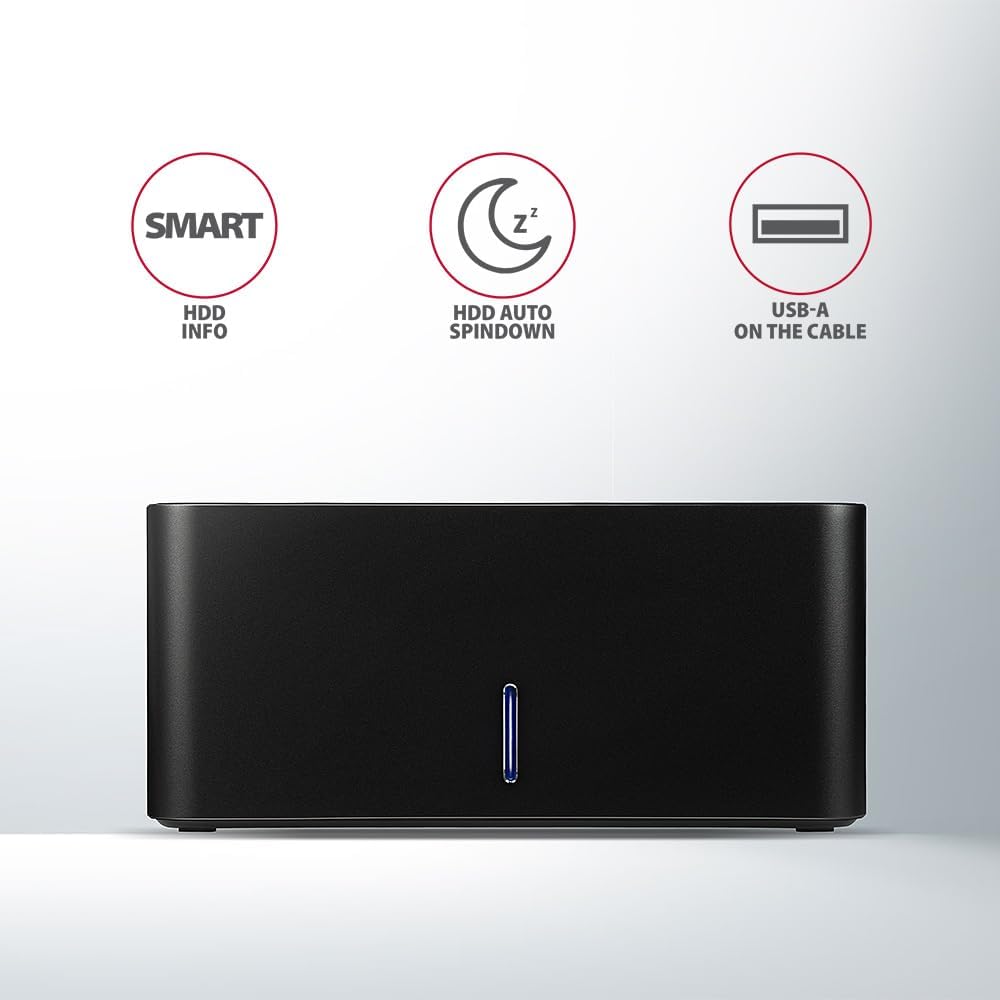
Image: The docking station from the front, indicating features like SMART HDD info, automatic HDD spindown, and USB-A connectivity.
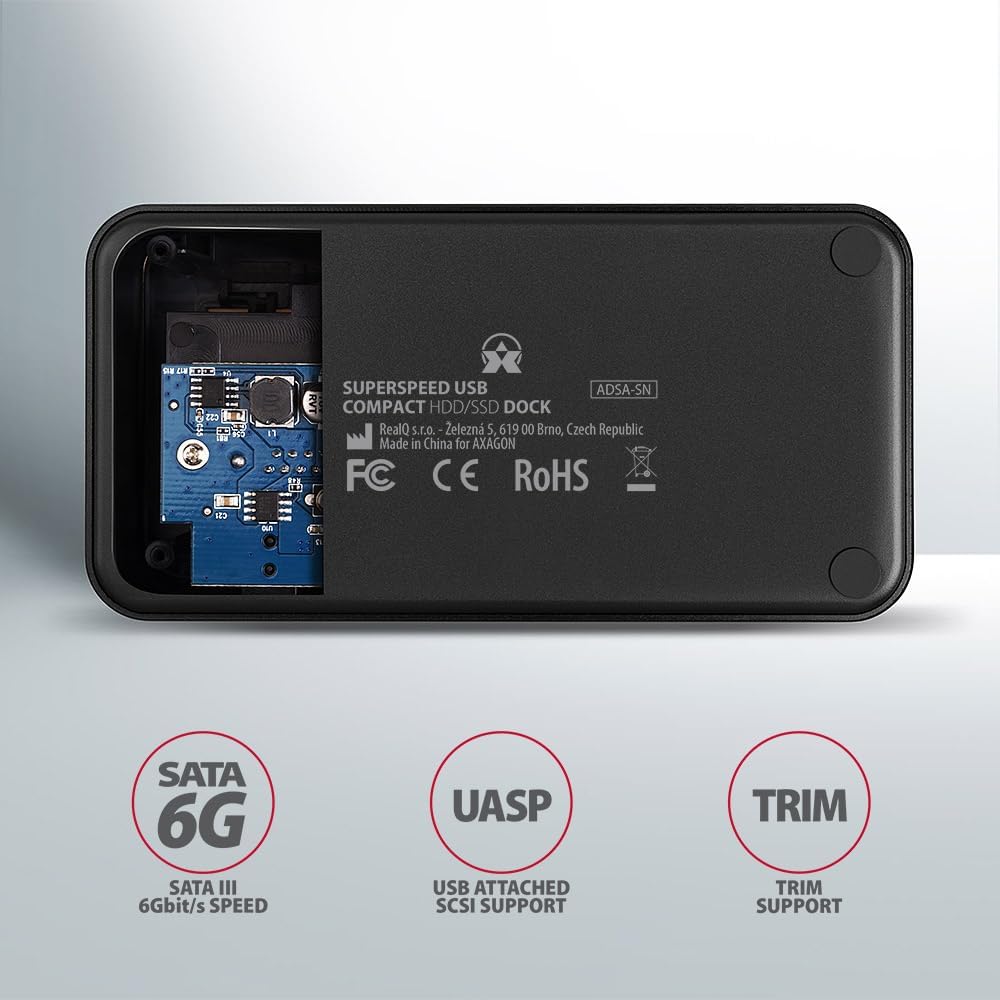
Image: The underside of the docking station, showing internal components and highlighting SATA 6G, UASP, and TRIM support.
Opstel instruksies
- Koppel kragadapter: Plug the included power adapter into the DC IN port on the back of the docking station and then into a power outlet.
- Koppel aan rekenaar: Connect the USB 3.0 cable from the docking station's Micro-B port to an available USB 3.0 (or higher) port on your computer.
- Plaas HDD/SSD in:
- For 2.5" SSD/HDD: Gently slide the 2.5" drive into the slot until it connects firmly with the SATA connector.
- For 3.5" HDD: Gently slide the 3.5" drive into the slot until it connects firmly with the SATA connector.
Ensure the drive is inserted correctly with the SATA connector facing the correct direction. Do not force the drive.

Image: A 2.5-inch SSD being inserted into the docking station, demonstrating compatibility with smaller drives.
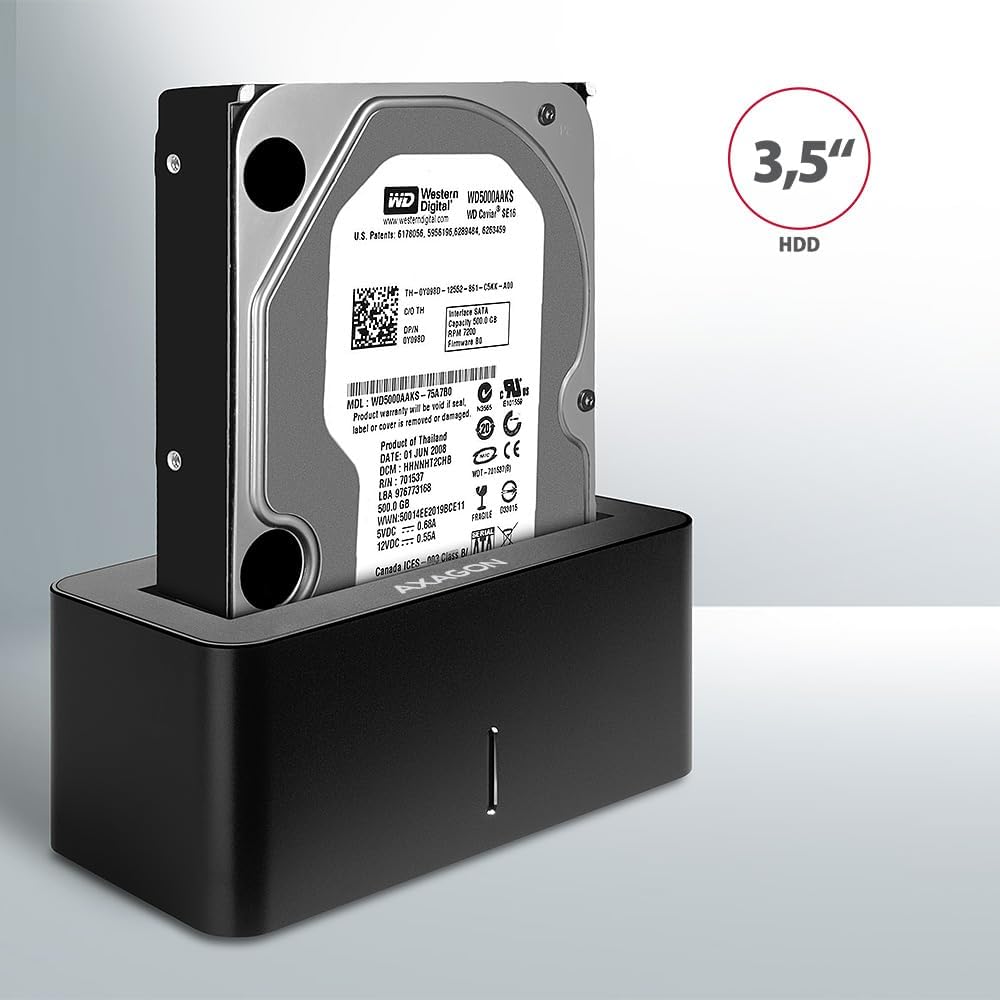
Image: A 3.5-inch HDD being inserted into the docking station, demonstrating compatibility with larger drives.
- Krag aan: Press the power button located on the back of the docking station. The LED indicator on the front will illuminate.
Image: The rear panel of the docking station, showing the power button, USB Micro-B port, and power input for connection.
Bedryfsinstruksies
Ryherkenning
Once powered on and connected, your operating system should automatically detect the inserted drive. If it's a new drive, you may need to initialize and format it through Disk Management (Windows) or Disk Utility (macOS) before it appears in File Verkenner/Vinder.
LED aanwyser
The LED indicator on the front of the docking station provides status information:
- Soliede blou: Power on, drive idle.
- Flitsende blou: Drive activity (reading or writing data).
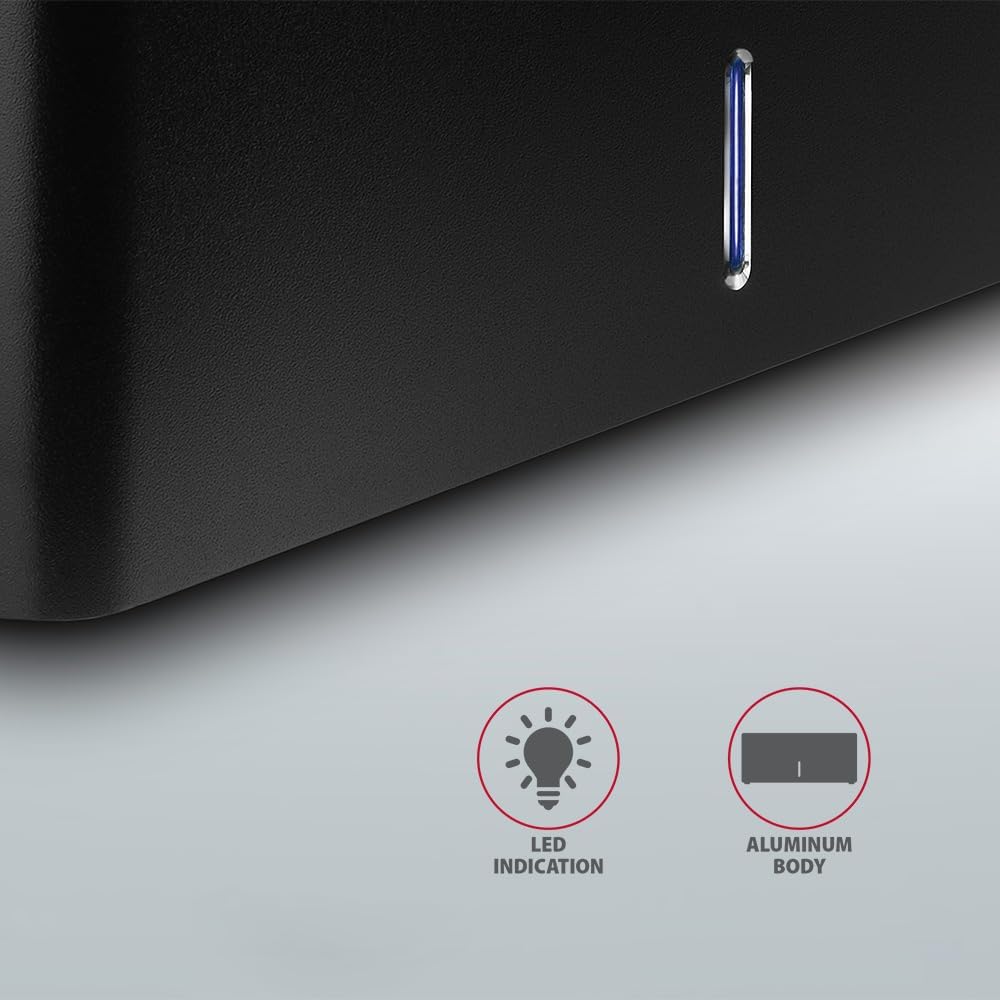
Beeld: 'n Nabyskoot view of the docking station's front panel, highlighting the LED indicator light.
Removing a Drive
Before removing a drive, always safely eject it from your operating system to prevent data corruption. After ejection, gently pull the drive straight out of the docking station slot.
HDD Outomatiese Afdraai
The docking station supports automatic spindown of the HDD when it is idle for a certain period, conserving power and extending drive lifespan. This feature is managed by the operating system or the drive itself.
Onderhoud
- Hou die dokstasie skoon en stofvry. Gebruik 'n sagte, droë lap vir skoonmaak.
- Vermy die blootstelling van die toestel aan uiterste temperature, humiditeit of direkte sonlig.
- Moenie probeer om die toestel self uitmekaar te haal of te herstel nie. Raadpleeg gekwalifiseerde dienspersoneel.
- Ensure proper ventilation around the docking station during operation.
Probleemoplossing
- Drive not detected:
- Maak seker dat die kragadapter stewig gekoppel is en dat die dokstasie aangeskakel is.
- Verify the USB cable is properly connected to both the docking station and the computer.
- Probeer 'n ander USB-poort op jou rekenaar.
- Ensure the HDD/SSD is fully seated in the docking station's slot.
- Check Disk Management (Windows) or Disk Utility (macOS) to see if the drive is recognized but uninitialized/unformatted.
- Test with a different HDD/SSD to rule out a drive issue.
- Stadige oordragspoed:
- Ensure the docking station is connected to a USB 3.0 (or higher) port on your computer. USB 2.0 ports will limit speeds.
- Verifieer dat jou bedryfstelsel en drywers op datum is.
- The actual speed depends on the drive's performance and your computer's USB controller.
- Drive disconnects randomly:
- Gaan alle kabelverbindings na.
- Ensure the power adapter is providing stable power.
- Disable USB power saving features in your computer's operating system settings.
Tegniese spesifikasies
| Kenmerk | Detail |
|---|---|
| Handelsmerk | AXAGON |
| Modelnommer | ADSA-SN |
| Hardeware Platform | PC |
| Versoenbare toestelle | Skootrekenaar, tafelrekenaar |
| Drive-versoenbaarheid | 2.5" / 3.5" SATA I/II/III SSD/HDD |
| Koppelvlak | USB 3.0 (USB 3.2 Gen 1) |
| Data-oordragtempo | Up to 5 Gbps (USB 3.0), 6 Gbps (SATA III) |
| Totale USB-poorte | 1 (Micro-B) |
| Aantal Drive Bays | 1 |
| Kleur | Swart |
| Item gewig | 2.2 pond (ongeveer 1 kg) |
| Pakket afmetings | 3.94 x 0.79 x 0.39 duim (ongeveer 10 x 2 x 1 cm) |
| Datum Eerste Beskikbaar | 30 Maart 2021 |
Waarborg en Ondersteuning
For warranty information and technical support, please refer to the official AXAGON webwebwerf of kontak u plaaslike verspreider. Bewaar u bewys van aankoop vir waarborgeise.