
Inleiding
The Logitech POP Mouse is a compact, wireless mouse designed for enhanced productivity and personal expression. Featuring SilentTouch Technology for quiet clicks, a customizable top button for emojis or shortcuts, and a SmartWheel that shifts between precision and speed scrolling, it offers a versatile user experience. This mouse supports multi-device connectivity via Bluetooth, allowing seamless switching between up to three devices. It is built with durability in mind, offering up to 24 months of battery life and auto-sleep power-saving features.
Wat is in die boks
- Logitech POP Mouse
- 1 x AA Battery (pre-installed)
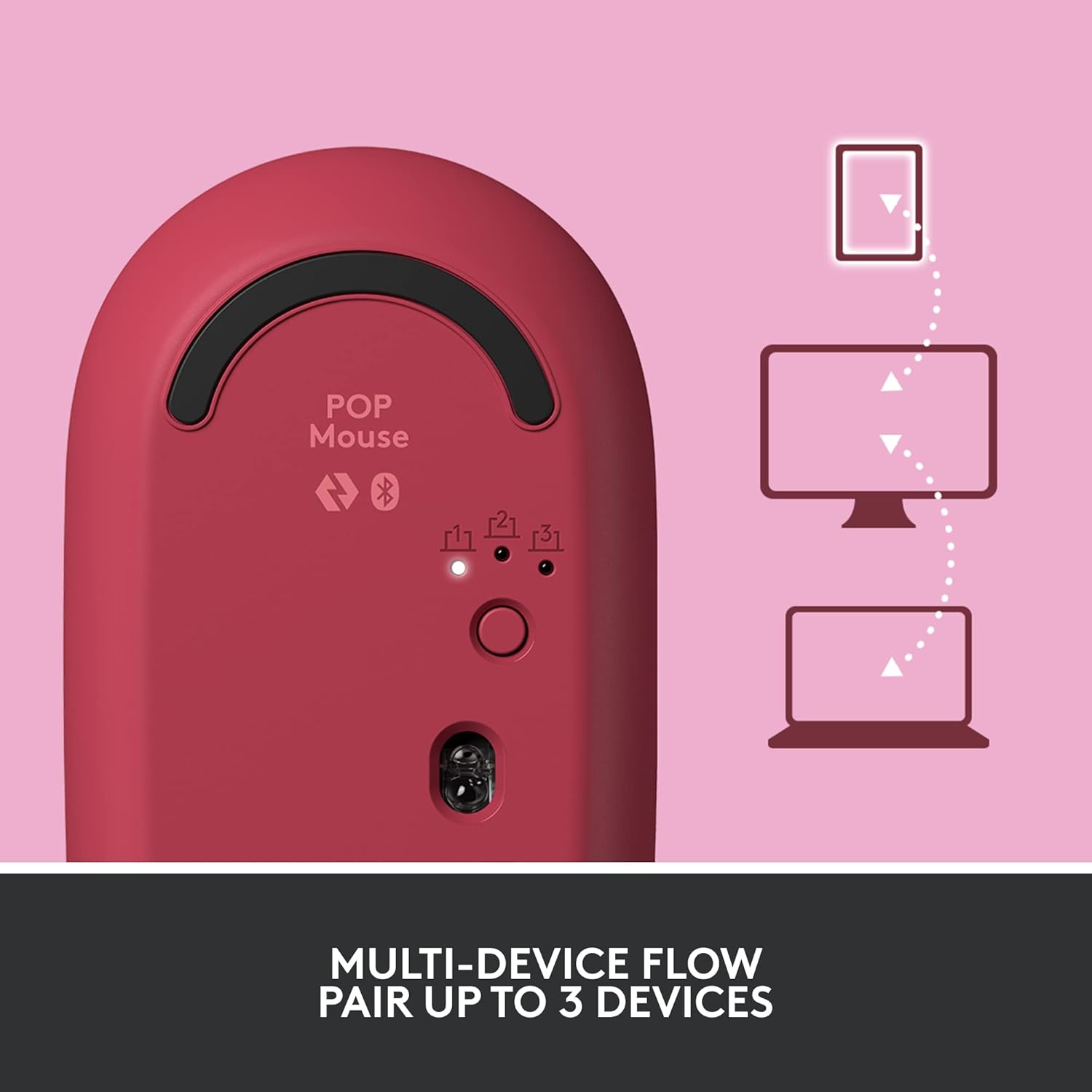
Image: The Logitech POP Mouse and an included AA battery, as typically found in the product packaging.
Opstelling
1. Battery Installasie
- Vind die batterykompartement aan die onderkant van die muis.
- Gently slide the top cover of the mouse backward to remove it.
- Plaas die ingeslote AA-battery in en maak seker dat die polariteit (+/-) korrek is.
- Replace the top cover by aligning it and sliding it forward until it clicks into place.
2. Skakel aan
- Flip the mouse over. Locate the On/Off switch on the bottom of the mouse.
- Slide the switch to the 'On' position (usually indicated by green color).
3. Device Pairing (Bluetooth)
- On the bottom of the mouse, press and hold the Easy-Switch button (labeled with 1, 2, or 3) for 3 seconds until the LED light starts blinking rapidly. This indicates pairing mode.
- On your computer, tablet, or phone, open your Bluetooth settings.
- Select "Logitech POP Mouse" from the list of available devices.
- Follow any on-screen prompts to complete the pairing process. The LED light on the mouse will turn solid for 5 seconds when connected.
4. Skakel tussen verskeie toestelle
- The POP Mouse can be paired with up to three devices. To switch between paired devices, simply press the Easy-Switch button on the bottom of the mouse. The corresponding LED (1, 2, or 3) will light up to indicate the active device.
Image: The Logitech POP Mouse can seamlessly connect and switch between up to three different devices, such as a tablet, desktop computer, and laptop.
Bediening van die muis
1. Basiese funksies
- Links klik: Primêre seleksie en interaksie.
- Regs klik: Kry toegang tot kontekstuele spyskaarte.
- Rolwiel: Blaai vertikaal deur dokumente en web bladsye.
2. SmartWheel Technology
- The SmartWheel automatically shifts between high-precision scrolling for detailed work and super-fast scrolling for quickly navigating long documents or web bladsye.

Image: The SmartWheel on the Logitech POP Mouse dynamically adjusts its scrolling mode for precision or speed.
3. SilentTouch Technology
- Enjoy a quiet working environment with SilentTouch Technology, which significantly reduces click noise without compromising tactile feedback.

Image: SilentTouch Technology ensures a quiet and comfortable user experience.
Pasmaak
1. Customizable Top Button
- The top button, located below the scroll wheel, is customizable. By default, it opens an emoji menu for quick access to your favorite emojis.

Image: The customizable top button allows for quick access to an emoji menu on your screen.
2. Logi Options+ App
- Laai die af Logi Options+ App (Windows and macOS only) to personalize your POP Mouse.
- You can reassign the top button to perform various shortcuts, such as Snip Screen, Mic Mute, Voice-to-Text, or any other function you desire.
- The app also allows you to adjust pointer speed, scroll speed, and enable Flow for cross-computer control.
Onderhoud
- Skoonmaak: Gebruik 'n sagte, damp cloth to clean the exterior of the mouse. Avoid harsh chemicals or abrasive materials.
- Battery vervanging: Replace the AA battery when the low battery indicator light appears.
- Berging: When not in use for extended periods, turn off the mouse using the On/Off switch to conserve battery life.
Probleemoplossing
- Muis koppel nie: Ensure the mouse is powered on and within range of your device. Check your device's Bluetooth settings to confirm it's enabled and the mouse is paired. Try re-pairing the mouse.
- Vertraging of onreëlmatige beweging: Replace the battery if it's low. Ensure there are no obstructions between the mouse and your device. Avoid using the mouse on highly reflective or uneven surfaces.
- Custom button not working: Verify that the Logi Options+ App is installed and running on your computer. Check the button assignments within the app.
Spesifikasies
| Handelsmerk | Logitech |
| Modelnommer | 910-006545 |
| Verbindingstegnologie | Bluetooth 5.1 |
| Wireless Range | 32.81 voet (10 m) |
| sensor Tegnologie | Logitech High Precision Optical Tracking |
| Aantal knoppies | 4 (Left/Right click, Scroll wheel click, Top button) |
| Aanpasbare knoppie | Yes (Top button, via Logi Options+ App) |
| Battery Tipe | 1 x AA battery |
| Batterylewe | Tot 24 maande (kan wissel na gelang van gebruik) |
| Bedryfstelselversoenbaarheid | Windows 10 of later, macOS 10.15 of later, iPadOS, Chrome OS, Android |
| Item gewig | 2.89 onse |
| Produkafmetings (LxBxH) | 4.3 x 2.6 x 1.7 duim |
| Materiaal | Plastic parts include certified post-consumer recycled plastic (Heartbreaker Rose: 29%) |
Waarborg en Ondersteuning
Vir waarborginligting en tegniese ondersteuning, besoek asseblief die amptelike Logitech-ondersteuning website or refer to the warranty card included with your product. You can find detailed FAQs, troubleshooting guides, and contact options for customer service.
- Aanlyn ondersteuning: Besoek support.logi.com
- Produkregistrasie: Registreer jou produk om opdaterings en ondersteuning te ontvang.