
1. Inleiding
This manual provides instructions for the Keychron K14 mechanical keyboard. The K14 is a 70% layout, 72-key keyboard designed for both Mac and Windows operating systems, offering both Bluetooth wireless and USB wired connectivity. It features an RGB backlight, an aluminum frame, and Gateron G Pro Brown mechanical switches.

Beeld: Oorview of the Keychron K14 mechanical keyboard highlighting its 70% layout, wireless/wired modes, multi-device connectivity, Gateron G Pro switches, RGB lighting, Mac/Windows compatibility, and USB-C plug.
2. Pakketinhoud
Verify that all items are present in your Keychron K14 package:
- Keychron K14 Meganiese Sleutelbord
- USB Type-C kabel
- Sleutelkap trekker
- Switch Puller (if hot-swappable version)
- Extra Keycaps for Windows/Mac operating systems
- Gebruikershandleiding
3. Produkkenmerke
3.1. 70% Layout and Key Cluster
The K14 features a compact 70% layout with 72 keys, providing a smaller footprint while retaining essential navigation keys such as Home, End, and Arrow keys, similar to a tenkeyless keyboard.

Beeld: 'n Nabyskoot view of the Keychron K14 keyboard, illustrating its 70% layout which includes dedicated navigation keys such as Insert, Home, End, Delete, Page Up, Page Down, and arrow keys.
3.2. Gateron G Pro Brown Switches
The keyboard is equipped with Gateron G Pro Brown mechanical switches, known for their tactile feedback. These switches offer a durable lifespan of up to 50 million keystrokes.

Image: Specifications for the Gateron G Pro mechanical Brown Switch, detailing operating force (55±15gf), pre-travel (2±0.6mm), tactile behavior, gentle sound level, pre-lubed status (Yes), and a lifespan of up to 50 million keystrokes.
3.3. Ergonomiese ontwerp
The K14 features two-level adjustable feet, allowing for typing angles of 6º and 9º. This design, combined with an inclined bottom frame, provides ergonomic support for extended typing comfort.

Beeld: 'n Kant view of the Keychron K14 keyboard, illustrating its two-level adjustable feet that allow for typing angles of 6 and 9 degrees, enhancing ergonomic support.
4. Opstelling
4.1. Koppel die sleutelbord
The Keychron K14 supports both Bluetooth wireless and USB Type-C wired connections.
4.1.1. Bluetooth-verbinding
- Ensure the keyboard's mode switch (located on the side) is set to "BT" (Bluetooth).
- Press and hold the "Fn" + "1" (or "2" or "3") keys for 4 seconds to enter pairing mode. The backlight will flash rapidly.
- On your device (smartphone, laptop, iPad), enable Bluetooth and search for "Keychron K14".
- Select the keyboard to pair. The backlight will stop flashing upon successful connection.
- The keyboard can connect to up to 3 devices. Use "Fn" + "1", "Fn" + "2", or "Fn" + "3" to switch between paired devices.
4.1.2. Bedrade verbinding
- Ensure the keyboard's mode switch is set to "Cable".
- Koppel die meegeleverde USB Tipe-C-kabel vanaf die sleutelbord aan jou rekenaar se USB-poort.
- The keyboard will automatically be recognized and function as a wired keyboard.

Image: The Keychron K14 keyboard shown connecting wirelessly to a desktop computer, laptop, and smartphone, indicating compatibility with Mac and Windows operating systems.

Image: The Keychron K14 keyboard displayed with icons representing its dual connectivity options: wireless Bluetooth and wired USB-C.
4.2. Bedryfstelselskakelaar
The K14 includes a switch to toggle between Mac and Windows layouts. Locate the OS switch on the side of the keyboard and set it to the appropriate operating system for optimal key functionality.
4.3. Aanpassing van sleutelbordhoek
The keyboard features two-level adjustable feet. Flip out the feet to select between 6º and 9º typing angles to suit your ergonomic preference.
5. Operasie
5.1. Agterligbeheer
The Keychron K14 features RGB backlighting with 19 different types of lighting effects. Use the dedicated backlight key (often marked with a lightbulb icon) or function key combinations to cycle through effects, adjust brightness, and change colors.
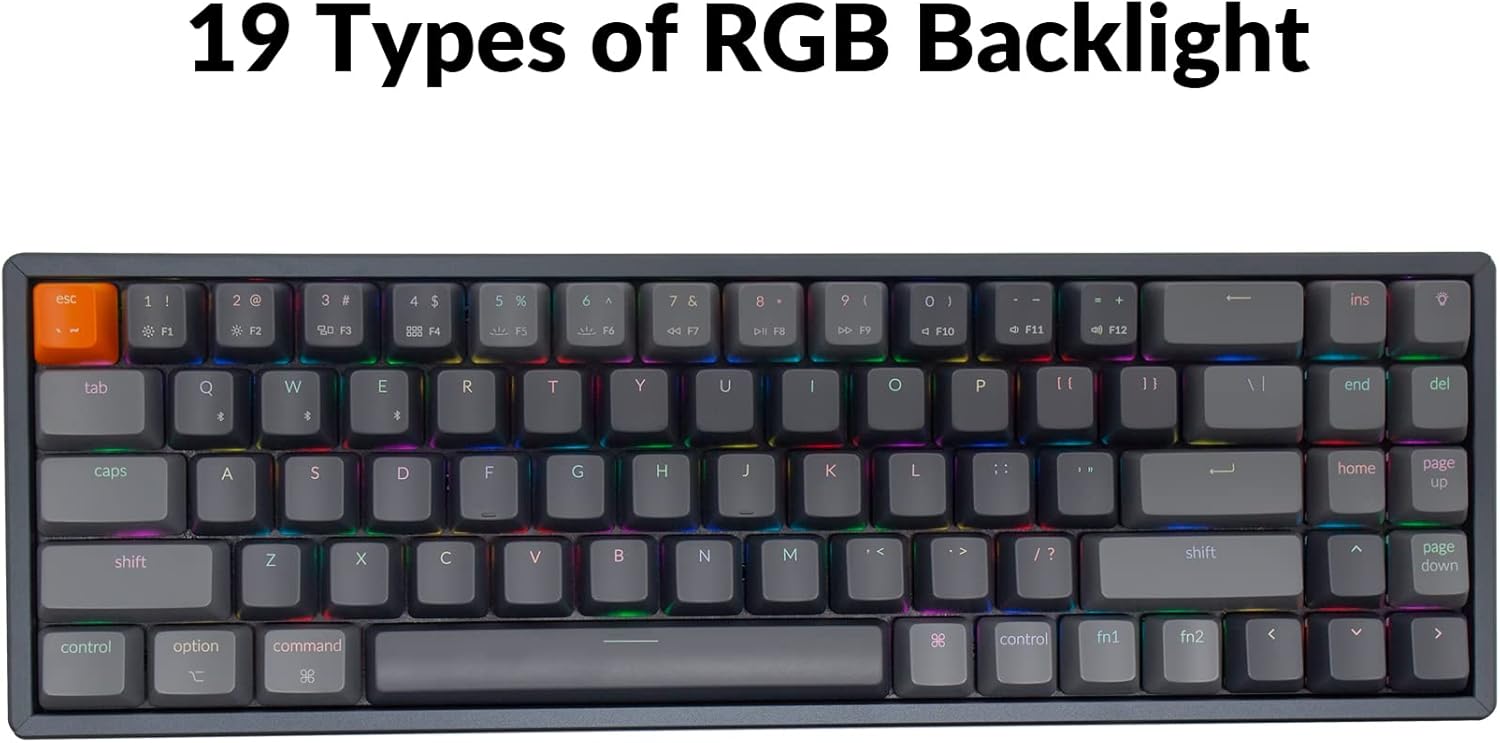
Image: The Keychron K14 keyboard illuminated with a multi-color RGB backlight, demonstrating its various lighting capabilities.
5.2. Multimediasleutels
Access multimedia functions (e.g., volume control, play/pause) using the Fn key in combination with the designated function row keys. Refer to the keycap legends for specific functions.
5.3. N-Key Rollover (NKRO)
The K14 supports N-key rollover (NKRO) in wired mode, allowing all keys to be registered simultaneously. In wireless mode, it supports 6-key rollover (6KRO).
6. Batterybestuur
The Keychron K14 is equipped with a 4000 mAh battery, providing up to 240 hours of usage with the backlight off. Connect the keyboard via the USB Type-C cable to charge the battery. The charging indicator will show the charging status.

Image: A close-up of the Keychron K14 keyboard with a prominent overlay indicating its 4000 mAh battery capacity.
7. Onderhoud
To ensure the longevity and optimal performance of your Keychron K14 keyboard, follow these maintenance guidelines:
- Skoonmaak van sleutelkappe: Gebruik 'n sleutelhouer om sleutelhouers te verwyder. Maak hulle skoon met 'n sagte seepoplossing en 'n sagte lap. Maak seker dat hulle heeltemal droog is voordat jy hulle weer vasmaak.
- Skoonmaak van die sleutelbordliggaam: Use a soft, dry, lint-free cloth to wipe the aluminum frame and other surfaces. For stubborn dirt, a slightly damp lap kan gebruik word, maar vermy oormatige vog.
- Stofverwydering: Gebruik saamgeperste lug om stof en puin tussen die sleutelbord en skakelaars te verwyder.
- Berging: Wanneer dit nie vir lang tye gebruik word nie, bêre die sleutelbord op 'n droë, koel plek weg van direkte sonlig en uiterste temperature.
- Vermy vloeistowwe: The keyboard is not water-resistant. Keep liquids away to prevent damage.
8. Probleemoplossing
If you encounter issues with your Keychron K14 keyboard, refer to the following common solutions:
8.1. Sleutelbord reageer nie
- Kontroleer verbinding: Ensure the USB cable is securely connected or that Bluetooth is properly paired.
- Batteryvlak: If using Bluetooth, check if the battery is charged. Connect the USB cable to charge.
- Modusskakelaar: Verify the keyboard's mode switch is set correctly (BT for Bluetooth, Cable for wired).
- Herbegin: Try restarting your computer or device and the keyboard.
8.2. Bluetooth Disconnection Issues
- Inmenging: Beweeg die sleutelbord nader aan jou toestel en weg van ander draadlose toestelle wat steuring kan veroorsaak.
- Herpaar: Unpair the keyboard from your device's Bluetooth settings and then re-pair it.
- Firmware: Check the official Keychron website for any available firmware updates for your K14 model.
8.3. Keys Not Registering or Double Typing
- Clean Switches: Dust or debris under the keycap or switch can cause issues. Use compressed air.
- Skakelaarvervanging: If you have a hot-swappable version, try replacing the problematic switch with a spare one.
8.4. Agterlig werk nie
- Helderheid: Ensure the backlight brightness is not set to the lowest level.
- Funksie sleutels: Try cycling through backlight modes and brightness levels using the designated function key combinations.
9. Spesifikasies
| Kenmerk | Detail |
|---|---|
| Handelsmerk | Keychron |
| Modelnommer | K14C3 |
| Uitleg | 70% (72 Sleutels) |
| Konnektiwiteit | Bluetooth 5.1 & USB Type-C Wired |
| Skakelaars | Gateron G Pro Bruin Meganies |
| Agterlig | RGB (19 tipes) |
| Raammateriaal | Aluminium |
| Battery kapasiteit | 4000 mAh |
| Batterylewe | Up to 240 hours (backlight off) |
| Verstelbare voete | Yes (6º and 9º) |
| N-sleutel omrol | NKRO (Wired), 6KRO (Wireless) |
| Versoenbare toestelle | Skootrekenaar, slimfoon, tablet |
| Bedryfstelsels | Mac, Windows |
10. Waarborg en Ondersteuning
Keychron products are covered by a limited warranty. For specific warranty terms, duration, and support inquiries, please refer to the official Keychron webwebwerf of kontak hul kliëntediens direk. Bewaar u bewys van aankoop vir waarborgeise.
Amptelik Webwebwerf: www.keychron.com