
Intel NUC10i5FNKN
Intel NUC 10 Performance NUC10i5FNKN Barebone System User Manual
Model: NUC10i5FNKN
1. Inleiding
This manual provides comprehensive instructions for setting up, operating, maintaining, and troubleshooting your Intel NUC 10 Performance NUC10i5FNKN Barebone System. The Intel NUC (Next Unit of Computing) is a small form factor PC kit designed for flexibility and customization. As a barebone system, it requires the user to install memory (RAM), storage (SSD/HDD), and an operating system to become fully functional.
Please read this manual carefully before beginning the installation process to ensure proper setup and operation.

Figuur 1: Intel NUC 10 Performance NUC10i5FNKN Barebone System. This image shows the compact design of the NUC, featuring a black chassis with various ports on the front and ventilation on the side.
2. Wat is in die boks
Verifieer dat alle items in die pakket teenwoordig is:
- NUC 10 Performance kit - NUC10i5FNKN
- US Cord (Power Adapter)
Note: Memory, storage, and operating system are not included and must be purchased separately.
3. Opstelling en installering
This section guides you through the physical installation of components and initial setup.
3.1. Installeer geheue (RAM)
- Unscrew the bottom cover of the NUC chassis.
- Locate the DDR4 SO-DIMM slots on the motherboard.
- Align the notch on the SO-DIMM module with the notch in the slot.
- Insert the module at a 45-degree angle and push down until the retaining clips snap into place.
- Repeat for additional memory modules if applicable.
3.2. Installing Storage (SSD/HDD)
The NUC10i5FNKN supports both M.2 SSDs and 2.5-inch SATA drives.
3.2.1. M.2 SSD-installasie
- Vind die M.2-gleuf op die moederbord.
- Remove the small screw at the end of the M.2 slot.
- Plaas die M.2 SSD skuins in die gleuf.
- Druk die SSD liggies af en maak dit met die skroef vas.
3.2.2. 2.5-inch SATA Drive Installation
- Mount the 2.5-inch drive into the drive bay bracket (if provided).
- Connect the SATA data and power cables from the motherboard to the drive.
- Secure the drive bay bracket within the chassis.
After installing memory and storage, reattach the bottom cover.
3.3. Aansluiting van randapparatuur
Connect your monitor, keyboard, mouse, and other necessary devices to the NUC.

Figuur 2: Front panel ports of the Intel NUC 10. This image highlights the front USB 3.1 Gen2 ports (Type-A and Type-C) for connecting various peripherals, along with the power button and headphone jack.

Figuur 3: Rear panel ports of the Intel NUC 10. This image displays the power input (19V), HDMI port, Ethernet port, two USB 3.1 Gen2 Type-A ports, and a USB-C port with Thunderbolt 3 support, allowing for diverse connectivity options.
- Monitor: Connect your display to the HDMI port on the rear panel. The NUC supports up to 4096x2304 resolution.
- Sleutelbord/muis: Connect to any available USB ports (front or rear).
- Netwerk: Koppel 'n Ethernet-kabel aan die RJ45-poort vir bedrade netwerktoegang.
- Krag: Connect the power adapter to the 19V DC input on the rear panel, then plug the power cord into an electrical outlet.
3.4. Installasie van bedryfstelsel
Once all hardware is installed and peripherals are connected, you will need to install an operating system (e.g., Windows 10, Linux). Refer to the operating system's installation guide for detailed steps. You may need to create a bootable USB drive for installation.
4. Bedryfsinstruksies
4.1. Skakel aan/af
- Krag aan: Press the power button located on the front panel. The power button will illuminate when the system is on.
- Skakel af: Gebruik die bedryfstelsel se afsluitprosedure. Alternatiewelik, druk en hou die aan/af-knoppie vir 4 sekondes in om 'n afskakeling te forseer (gebruik slegs wanneer nodig).

Figuur 4: Close-up of the Intel NUC 10 front panel, showing the illuminated power button. This button is used to turn the system on and off.
4.2. Using the SD Card Slot
The NUC 10 Performance features an SDXC card slot with UHS-II support on the left side panel. This allows for easy transfer of photos, videos, and other data from compatible memory cards.
- Insert the SD card into the slot until it clicks into place.
- To eject, push the card in slightly until it springs out.
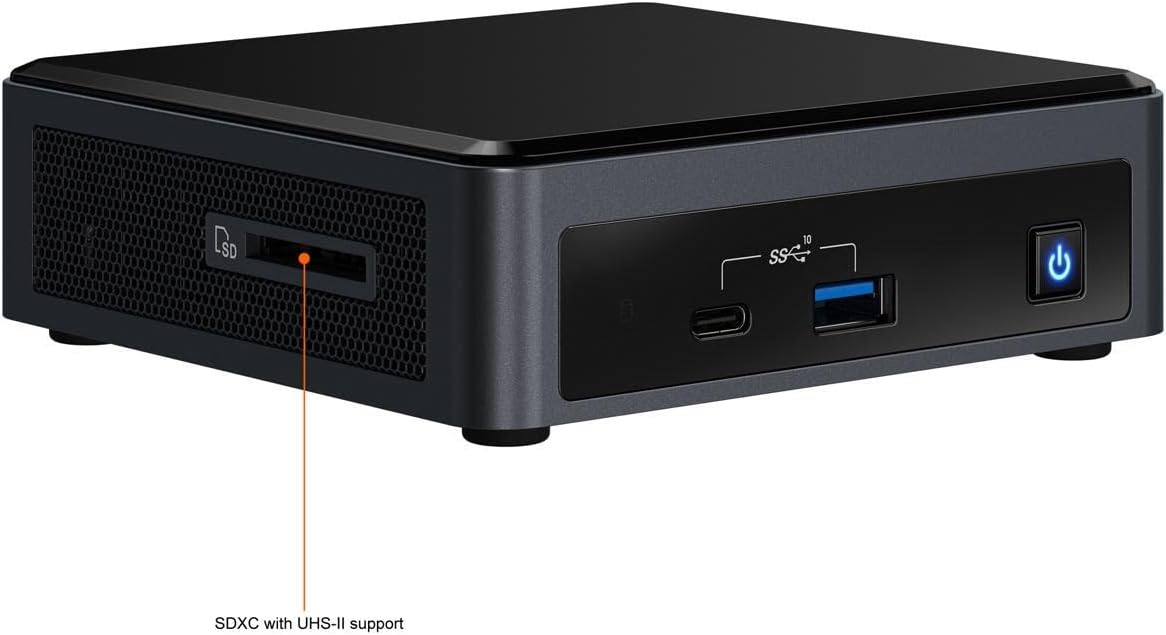
Figuur 5: Kant view of the Intel NUC 10, highlighting the SDXC card slot with UHS-II support. This slot provides convenient access for reading and writing data from SD cards.
4.3. BIOS/UEFI-instellings
To access the BIOS/UEFI settings, press the F2 key repeatedly during startup. This allows configuration of boot order, system settings, and advanced features.
5. Onderhoud
Proper maintenance ensures the longevity and optimal performance of your NUC.
5.1. Skoonmaak
- Keep the NUC in a clean, dust-free environment.
- Periodically clean the exterior with a soft, dry cloth.
- Use compressed air to gently clear dust from ventilation openings to maintain proper airflow and cooling. Ensure the system is powered off before cleaning.
5.2. Sagteware-opdaterings
- Regularly update your operating system, drivers, and BIOS/UEFI firmware. Visit the official Intel support website for the latest drivers and firmware for your NUC model.
- Keeping software up-to-date improves system stability, security, and performance.
6. Probleemoplossing
Hierdie afdeling spreek algemene probleme aan wat jy mag teëkom.
6.1. Geen krag
- Ensure the power adapter is securely connected to both the NUC and a working electrical outlet.
- Verify the power cord is fully inserted into the power adapter.
- Toets die elektriese aansluiting met 'n ander toestel.
6.2. Geen skermuitvoer nie
- Check that the monitor is powered on and the video cable (HDMI) is securely connected to both the NUC and the monitor.
- Maak seker dat die monitor op die korrekte invoerbron ingestel is.
- If using multiple monitors, try connecting only one.
- Reseat the RAM modules to ensure they are properly installed.
6.3. Operating System Not Booting
- Verify that the storage drive (SSD/HDD) is correctly installed and detected in the BIOS/UEFI settings.
- Check the boot order in BIOS/UEFI to ensure the correct drive is selected as the primary boot device.
- If you recently installed a new OS, ensure the installation media was created correctly.
Vir verdere hulp, verwys na die Intel-ondersteuning webwebwerf of kontak kliëntediens.
7. Spesifikasies
Key technical specifications for the Intel NUC 10 Performance NUC10i5FNKN:
| Kenmerk | Detail |
|---|---|
| Modelnommer | NUC10i5FNKN |
| Verwerker | Intel Core i5-10210U (10th Gen, 2.5 GHz) |
| Grafika | Intel UHD Grafika (Geïntegreerd) |
| Maksimum skermresolusie | 4096x2304 |
| Tipe RAM | DDR4 SDRAM (SO-DIMM slots) |
| Berging-koppelvlak | SATA/600 (for 2.5" drives), M.2 (for SSDs) |
| USB-poorte | 7 (including USB 3.1 Gen2 Type-A and Type-C) |
| Ethernet | Gigabit Ethernet |
| Afmetings (LxBxH) | 6 x 5 x 4 duim |
| Gewig | 2.55 pond |
| Operating System (Supported) | Windows 10 (en ander versoenbare bedryfstelsels) |
8. Waarborg en Ondersteuning
8.1. Produkwaarborg
This Intel NUC product is covered by Intel's standard limited warranty. For specific terms, conditions, and duration of your warranty, please refer to the warranty information included with your purchase or visit the official Intel webwebwerf. Bewaar u bewys van aankoop vir waarborgeise.
8.2. Tegniese Ondersteuning
For technical assistance, driver downloads, firmware updates, and additional documentation, please visit the official Intel Support webwebwerf:
When contacting support, have your product model number (NUC10i5FNKN) and serial number ready.