
Inleiding
Thank you for choosing the Tera Pro Series L0013B-OG 1D Wireless Barcode Scanner. This manual provides detailed instructions for setting up, operating, and maintaining your device. Please read this manual thoroughly before use to ensure optimal performance and longevity of your scanner.
Opstelling
1. Verbindingsopsies
The Tera L0013B-OG scanner offers two primary connection methods: Bluetooth and Wired USB.
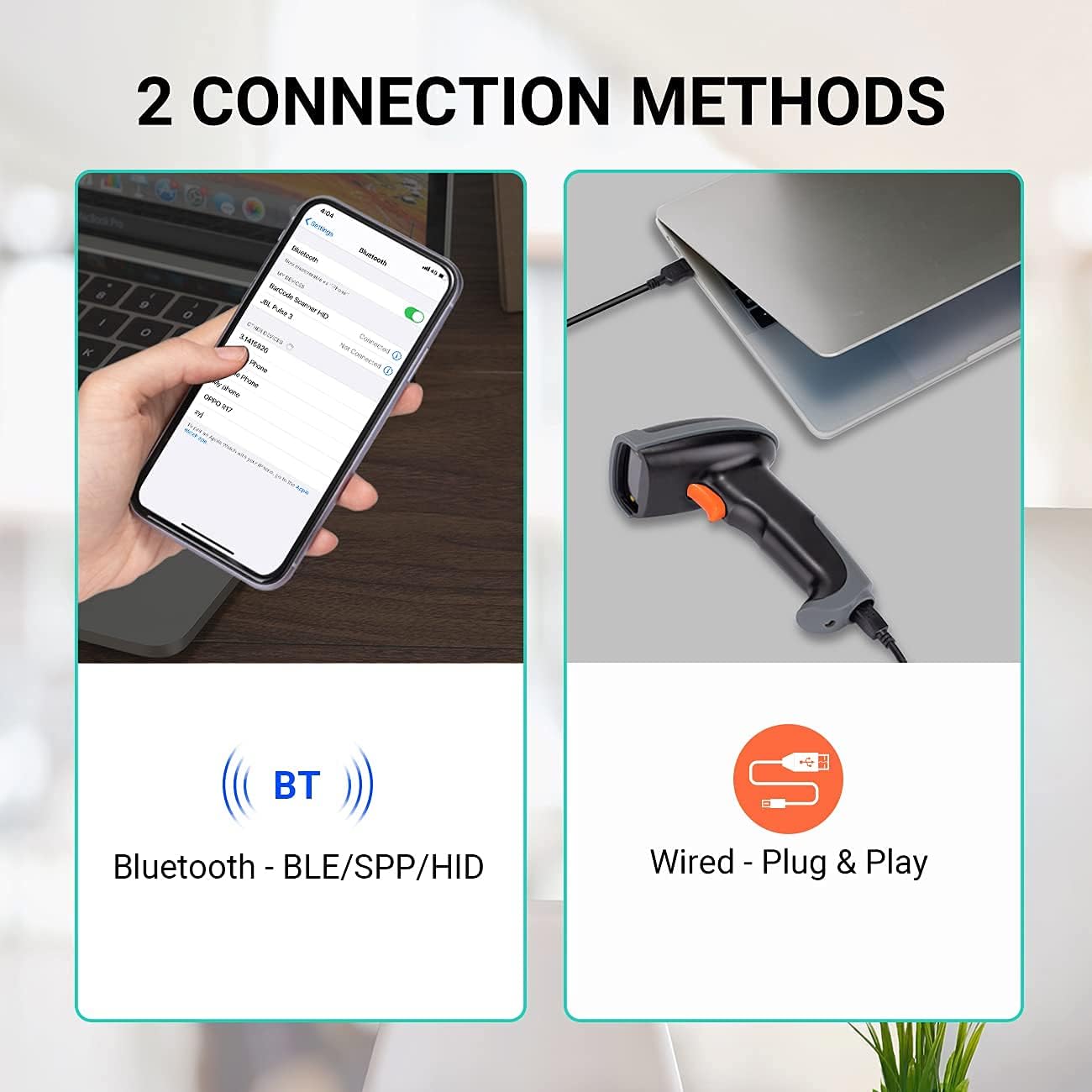
This image illustrates the two connection methods: Bluetooth for wireless pairing with devices like smartphones, and wired USB for direct connection to computers. The scanner supports both for versatile use.
Bluetooth-verbinding:
- Ensure the scanner is charged.
- Skakel die skandeerder aan.
- Scan the Bluetooth pairing barcode (refer to the quick start guide or the scanner's internal settings for this barcode).
- On your host device (e.g., smartphone, tablet, laptop), enable Bluetooth and search for available devices.
- Select "Tera L0013B" or a similar device name from the list to pair.
- Die skandeerder sal suksesvolle paring aandui (bv. 'n piep of LED-verandering).
- Bluetooth transmission range is up to 50 meters in an accessible environment.
Bedrade USB-verbinding:
- Connect the USB cable to the scanner and to an available USB port on your computer.
- Die skandeerder is plug-and-play; geen drywerinstallasie is nodig nie.
- The scanner will be recognized as a keyboard input device.
2. Scan Modes
The scanner supports three operational scan modes:
- Deurlopende skanderingsmodus: The scanner continuously emits a laser beam, scanning barcodes automatically as they are presented.
- Handmatige snellermodus: The scanner only scans when the trigger button is pressed.
- Sensor Scan Mode: The scanner activates the laser beam and scans when it detects a barcode in its field of view.

This image illustrates the scanner in operation, emphasizing the availability of three distinct scan modes: Continuous, Manual Trigger, and Sensor Scan Mode, allowing users to choose the most suitable method for their workflow.
3. Data-oplaaimodusse
The scanner offers two data upload modes:
- Real-Time Upload Mode: Barcodes are transmitted to the host device immediately after scanning.
- Memory (Storage) Upload Mode: Scanned barcodes are saved in the scanner's internal memory. Data can be uploaded to the host device later when connectivity is established or restored. This mode is useful when the scanner is out of Bluetooth range.

This image demonstrates the two data upload modes: Real Time Mode, where data is uploaded instantly, and Storage Mode, where barcodes are saved internally for later upload, particularly useful when out of range.
4. Ondersteuning vir sleutelbordtaal
The scanner supports multiple keyboard languages to ensure compatibility with various regional setups. You can configure the scanner to match your system's keyboard layout (e.g., English, Spanish, German, Japanese, French, Italian).

This image highlights the scanner's support for multiple keyboard languages, including English, Spanish, German, Japanese, French, and Italian, ensuring broad compatibility with international systems.
5. Toestel- en stelselversoenbaarheid
The Tera L0013B-OG barcode scanner is designed for wide compatibility with various devices and operating systems.
- Versoenbare toestelle: Computers, Laptops, Mobile Phones, Tablets.
- Versoenbare bedryfstelsels: iOS, Android, Windows, Mac OS, POS, Linux, Raspberry Pi.

This image illustrates the broad compatibility of the scanner with various devices such as PCs, laptops, iPads, and iPhones, and operating systems including Windows, iOS, Linux, Android, and Mac OS.
Bedryfsinstruksies
Skandeer strepieskodes
The Tera L0013B-OG scanner provides superior 1D decoding capabilities, handling various barcode conditions efficiently.
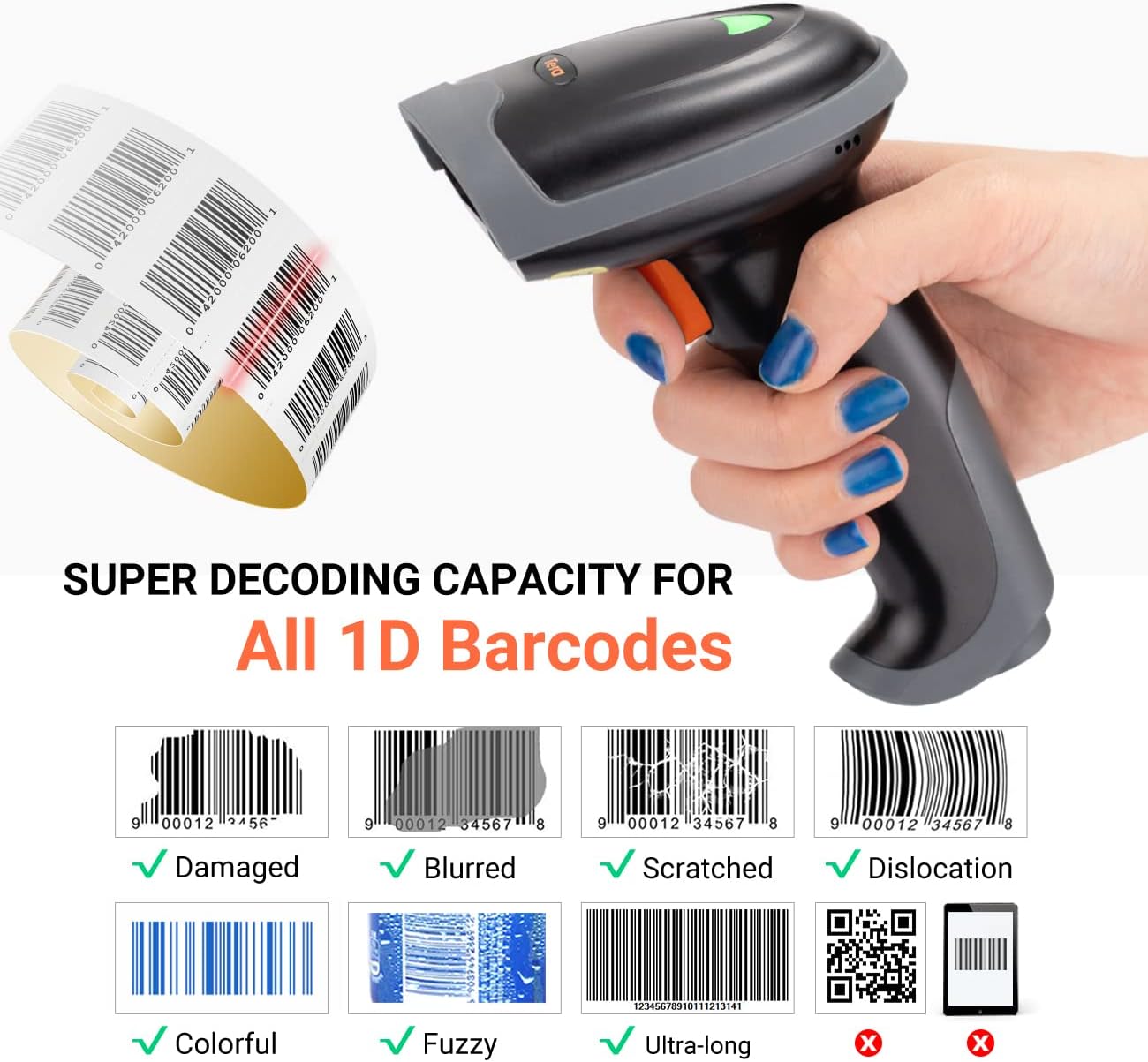
This image demonstrates the scanner's advanced 1D decoding capability, showing its ability to read damaged, blurred, scratched, dislocated, colorful, fuzzy, and ultra-long 1D barcodes. Please note that 2D/QR codes are not supported by this model.
- Ensure the scanner is powered on and connected to your host device via Bluetooth or USB.
- Point the scanner's light beam at the barcode you wish to scan.
- Depending on your selected scan mode (Continuous, Manual Trigger, or Sensor), either wait for the automatic scan or press the trigger button.
- A successful scan will typically be indicated by a beep and/or an LED indicator change.
- The scanned data will appear in the active application on your host device (e.g., a text editor, spreadsheet, or POS system).
Supported 1D Barcode Types:
The scanner supports most common 1D barcodes, including:
- CODE39, CODE39 Full ASCII, CODE128, CODE 32, CODEBAR, CODE93, EAN13, CODE11, EAN-128, EAN-8, EAN-13, UPC-A, UPC-E, MSI, ISBN, ISBN 13, Industrial 2/5, ITF14, Interleaved 2/5, Standard 2/5, Matrix 2/5, GS1.
NOTE: This scanner does NOT support 2D or QR codes.
Onderhoud
Proper maintenance ensures the longevity and optimal performance of your barcode scanner.
- Skoonmaak: Gebruik 'n sagte, droë lap om die buitekant van die skandeerder skoon te maak. Vir die skanderingsvenster, gebruik 'n pluisvrye lap wat liggies gevryf word.ampmet 'n sagte, nie-skurende skoonmaakmiddel behandel. Vermy harde chemikalieë of skuurmiddels.
- Berging: Bêre die skandeerder op 'n koel, droë plek weg van direkte sonlig en uiterste temperature.
- Batterysorg: For models with rechargeable batteries, avoid fully discharging the battery frequently. Charge the device regularly, even if not in constant use, to maintain battery health.
- Kabelversorging: Inspect USB cables for any signs of wear or damage. Replace damaged cables immediately to prevent connectivity issues.
Probleemoplossing
If you encounter issues with your Tera L0013B-OG scanner, refer to the following common troubleshooting steps:
Skandeerder reageer nie:
- Kontroleer krag: Ensure the scanner is charged and powered on.
- Kontroleer verbinding:
- USB: Verify the USB cable is securely connected to both the scanner and the computer. Try a different USB port or cable.
- Bluetooth: Ensure Bluetooth is enabled on your host device and the scanner is paired. If already paired, try unpairing and re-pairing the device. Make sure the scanner is within the 50-meter Bluetooth range.
- Reset Scanner: Refer to the quick start guide for instructions on how to perform a factory reset, if available.
Kan nie strepieskodes skandeer nie:
- Streepkode tipe: Confirm that you are scanning a 1D barcode. This scanner does not support 2D or QR codes.
- Barcode Condition: Ensure the barcode is not severely damaged, blurred, or too small/large for the scanner's read range.
- Beligting: Adjust ambient lighting if necessary. Avoid direct glare on the barcode.
- Skandeermodus: Verify the scanner is in the correct scan mode (e.g., Manual Trigger requires pressing the button).
Scanned Data Appears Incorrectly:
- Sleutelbordtaal: Ensure the scanner's configured keyboard language matches your host device's keyboard layout. Refer to the quick start guide for instructions on changing the keyboard language.
- Application Focus: Make sure the target application (e.g., text editor) is active and has focus to receive input.
Spesifikasies
| Kenmerk | Detail |
|---|---|
| Handelsmerk | Tera |
| Modelnommer | L0013B |
| Kleur | Oranje |
| Verbindingstegnologie | Bluetooth, USB (Wired) |
| Versoenbare toestelle | Laptop, Tablet, Desktop Computer, Mobile Phones |
| Versoenbare bedryfstelsels | iOS, Android, Windows, Mac OS, POS, Linux, Raspberry Pi |
| Skandeertempo | 100 rame per sekonde |
| Kragbron | Kabel Elektries |
| Dekodeervermoë | 1D Barcodes (CODE39, CODE128, EAN13, UPC-A, etc.) |
| 2D/QR Code Support | Nee |
| Bluetooth-oordragreeks | Up to 50 meters (accessible environment) |
| Data Upload Modes | Real-Time, Memory (Storage) |
| Land van oorsprong | China |
| Onderdele Beskikbaarheid | Inligting nie beskikbaar nie |
| Gewaarborgde sagteware-opdaterings tot | Inligting nie beskikbaar nie |
Waarborg en Ondersteuning
For warranty information, please refer to the documentation included with your purchase or contact your retailer. For technical support or further assistance, please reach out to Tera customer service.

This image depicts customer service representatives ready to assist with any inquiries or support needs regarding the product.
While specific details on spare parts availability and guaranteed software updates are not provided, Tera is committed to providing quality products and support.