
1. Inleiding
This manual provides detailed instructions for the setup, operation, and maintenance of your Bytech BYMCWC101BLK PC Web Camera. Please read this manual thoroughly before using the product to ensure proper functionality and longevity.
2. Pakketinhoud
Verifieer dat al die items wat hieronder gelys word, in u produkpakket ingesluit is:
- Bytech BYMCWC101BLK PC Web Kamera
- Gebruikershandleiding (hierdie dokument)
- Geïntegreerde USB-kabel
3. Opstelling
Follow these steps to set up your Bytech BYMCWC101BLK PC Web Kamera:
- Plasing: Plaas die webcam on top of your computer monitor, laptop screen, or a flat surface. The adjustable clip allows for secure attachment.
- Koppel aan rekenaar: Plug the integrated USB cable from the webcam na 'n beskikbare USB-poort op jou rekenaar.
- Bestuurder installasie: Die webcam is typically plug-and-play. Your operating system (Windows, macOS, Linux) should automatically detect and install the necessary drivers. Wait for the installation to complete.
- Verifikasie: Open a video conferencing application (e.g., Zoom, Skype, Microsoft Teams) or your computer's camera application to confirm the webcam is recognized and displaying video.
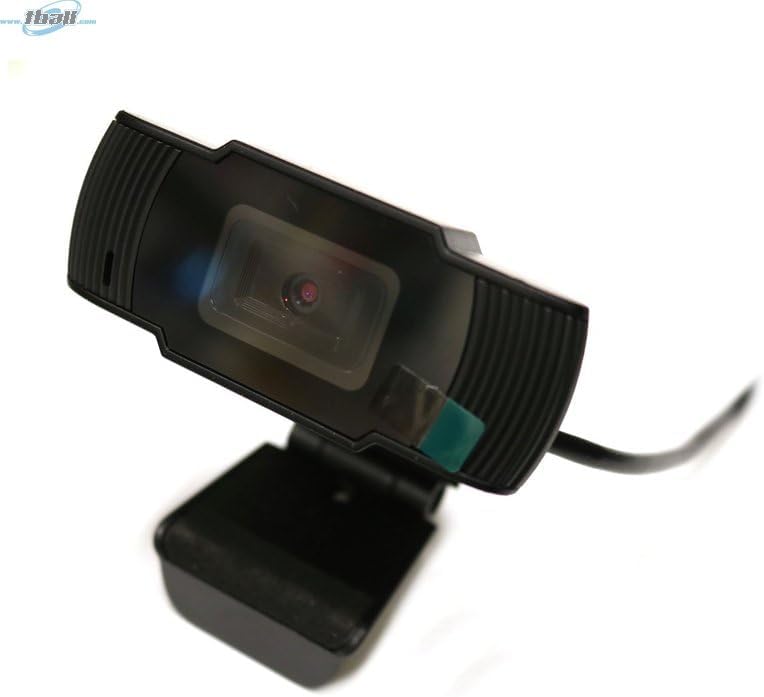
Image: The Bytech BYMCWC101BLK PC Web Camera securely mounted on top of a computer monitor, demonstrating its adjustable clip design.
4. Bedryfsinstruksies
Once installed, the Bytech BYMCWC101BLK PC Web Camera can be used with various applications:
- Videokonferensies: Select the Bytech webcam as your video input device within your preferred video conferencing software (e.g., Zoom, Skype, Google Meet).
- Stroom: For live streaming platforms, configure the webcam as your primary video source in your streaming software (e.g., OBS Studio).
- Opname: Use your computer's built-in camera application or third-party software to record video.
- Lae lig prestasie: Die webcam features BSI CMOS photo sensor technology and is designed to perform effectively in low-light conditions, providing clear video even with limited ambient lighting.
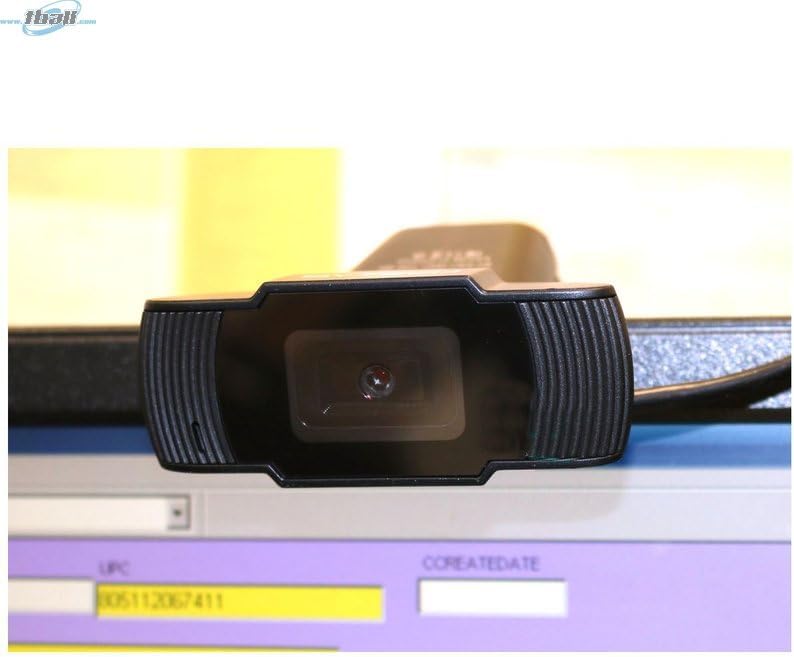
Beeld: 'n Nabyskoot view of the Bytech BYMCWC101BLK PC Web Camera's lens, highlighting its design and integrated privacy cover (if applicable, otherwise just lens).
5. Onderhoud
To ensure optimal performance and extend the lifespan of your webkamera:
- Skoonmaak: Vee die lens liggies af met 'n sagte, pluisvrye lap. Vermy die gebruik van harde chemikalieë of skuurmiddels.
- Berging: Stoor die as dit nie gebruik word nie webcam in a clean, dry environment away from direct sunlight and extreme temperatures.
- Kabelversorging: Moenie die USB-kabel te veel buig of krimp nie.
6. Probleemoplossing
As jy probleme ondervind met jou webkamera, verwys na die volgende algemene probleme en oplossings:
- Geen Beeld/Video:
- Maak seker dat die USB-kabel stewig aan beide die webkamera en jou rekenaar.
- Probeer die webcam na 'n ander USB-poort.
- Herbegin jou rekenaar.
- Check your application settings to ensure the Bytech webDie kamera is as die video-invoertoestel gekies.
- Swak videogehalte:
- Sorg vir voldoende beligting in jou omgewing.
- Maak die webkameralens met 'n sagte lap.
- Check your application's video settings for resolution and frame rate.
- Microphone Not Working (if applicable):
- Verifieer dat die webcam's microphone is selected as the audio input device in your computer's sound settings and within your application.
- Maak seker dat die mikrofoon nie in jou stelsel of toepassing gedemp is nie.
7. Spesifikasies
| Kenmerk | Detail |
|---|---|
| Model Naam | BYMCWC101BLK |
| Handelsmerk | Bytech |
| Verbindingstegnologie | USB |
| Fotosensortegnologie | BSI CMOS |
| Video-opname-formaat | MP4 |
| Spesiale kenmerk | Lae lig |
| Kleur | Swart |
| Item gewig | 4.9 onse |
| Pakket afmetings | 7.76 x 4.65 x 2.44 duim |
8. Waarborg en Ondersteuning
For warranty information or technical support, please refer to the documentation included with your purchase or contact your retailer. Keep your proof of purchase for warranty claims.