
1. Inleiding
This manual provides comprehensive instructions for the setup, operation, and maintenance of your DIGITUS 2D Barcode Scanner (Model: DA-81002). This device is designed for efficient and accurate scanning of 1D and 2D barcodes, including QR codes, supporting bi-directional scanning at 200 scans/sec. Please read this manual thoroughly before using the scanner to ensure proper functionality and longevity.
2. Wat is in die boks
Nadat u die verpakking oopgemaak het, maak asseblief seker dat alle komponente teenwoordig en onbeskadig is:
- 1 x 2D barcode hand scanner, QR code compatible
- 1 x scanner holder
- 1 x cable, USB - RJ45, 2 m
- 1 x Vinnige installasiegids (VIG)
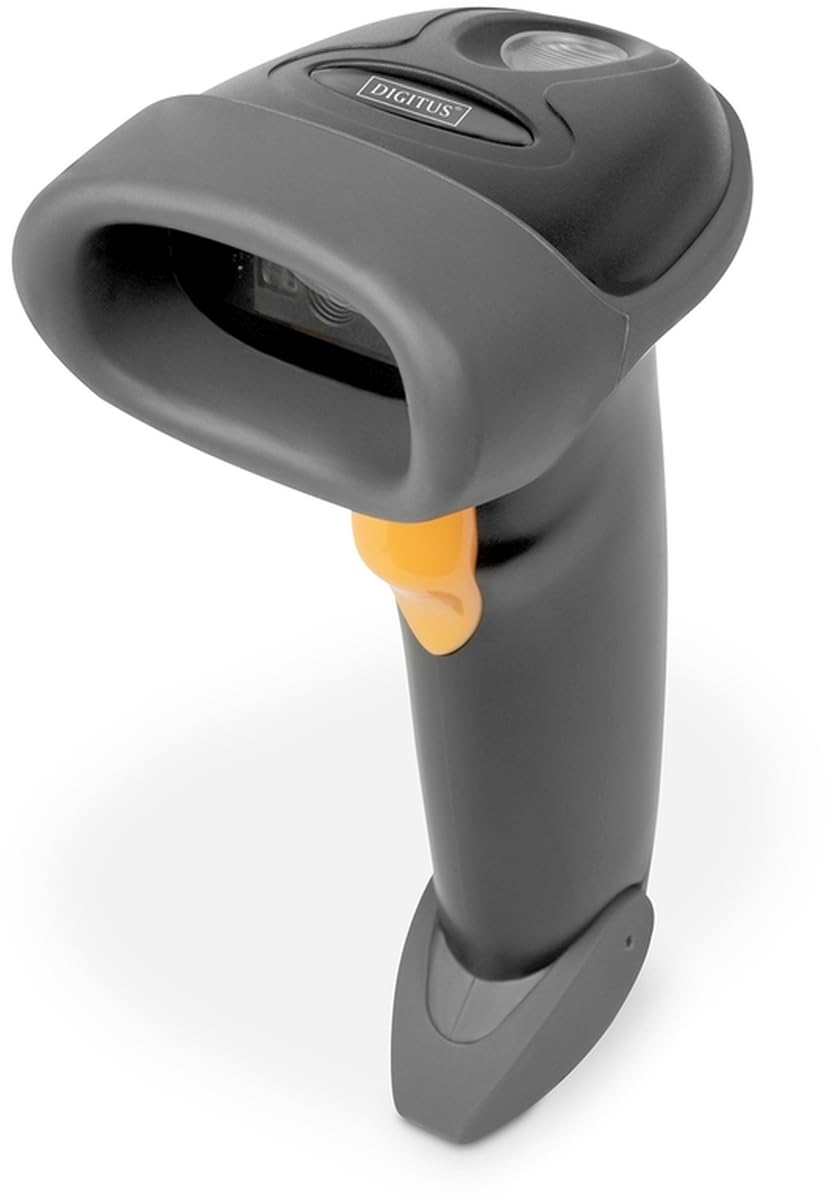
Image: The DIGITUS 2D Barcode Scanner, shown with its included stand and USB-RJ45 cable. The scanner is dark grey with an orange trigger button.
3. Opstelling
- Koppel die kabel: Insert the RJ45 end of the provided cable into the port at the base of the barcode scanner. Ensure it clicks securely into place.
- Koppel aan gasheertoestel: Plug the USB end of the cable into an available USB port on your computer or point-of-sale (POS) system.
- Drywerinstallasie (Plug & Play): The scanner is typically plug-and-play and should be recognized automatically by most operating systems (Windows, macOS, Linux). No specific driver installation is usually required. If prompted, allow the system to install necessary drivers.
- Position the Scanner: Place the scanner in its holder for hands-free operation, or hold it comfortably for handheld scanning.
- Test Scan: Open a text editor (e.g., Notepad, Word) or a compatible application. Scan a known barcode. The data should appear in the open application.
4. Bedryfsinstruksies
The DIGITUS 2D Barcode Scanner is designed for ease of use. Follow these steps for effective scanning:
- Krag aan: The scanner powers on automatically when connected to a powered USB port. A successful power-on is usually indicated by a short beep and/or a light indicator.
- Mik: Point the scanning window towards the barcode you wish to scan. Ensure the entire barcode is within the scanner's field of view.
- Skandeer: Press and hold the trigger button (orange button on the handle). A red aiming beam or illumination light will appear. Position the scanner so the aiming beam crosses the center of the barcode.
- Successful Scan: Upon a successful scan, the scanner will emit a short beep and/or the indicator light will flash. The scanned data will be transmitted to your connected device as if typed via a keyboard.
- Bi-Directional Scanning: The scanner supports bi-directional scanning, meaning it can read barcodes regardless of their orientation, improving scanning efficiency.
- QR Code Compatibility: This scanner is fully compatible with QR codes, allowing for versatile data capture.
5. Onderhoud
Proper maintenance ensures the longevity and optimal performance of your barcode scanner:
- Cleaning the Scanning Window: Regularly clean the scanning window with a soft, lint-free cloth. For stubborn smudges, slightly dampen the cloth with water or a mild, non-abrasive cleaner. Avoid harsh chemicals or abrasive materials that could scratch the window.
- Algemene skoonmaak: Wipe the exterior of the scanner with a soft, dry cloth to remove dust and dirt.
- Kabelversorging: Vermy om die USB-kabel te veel te buig of te draai, aangesien dit die interne drade kan beskadig.
- Berging: When not in use, store the scanner in a clean, dry environment, away from extreme temperatures and direct sunlight.
- Vermy druppels: While designed for durability, avoid dropping the scanner, as impact can damage internal components.
6. Probleemoplossing
If you encounter issues with your DIGITUS 2D Barcode Scanner, refer to the following common problems and solutions:
| Probleem | Moontlike oorsaak | Oplossing |
|---|---|---|
| Die skandeerder skakel nie aan nie. | No power from USB port; loose cable connection. | Ensure USB cable is securely connected to both scanner and host device. Try a different USB port or host device. |
| Scanner does not read barcodes. | Barcode damaged/unreadable; incorrect aiming; scanner not configured for barcode type. | Ensure barcode is clear and undamaged. Aim the scanner correctly. Refer to the QIG for advanced configuration options if specific barcode types are not recognized. |
| Geskandeerde data is verkeerd of onvolledig. | Partial scan; software/application issue. | Ensure the entire barcode is within the scanning area. Test with a simple text editor to rule out application-specific issues. |
| Scanner beeps but no data appears. | Host device not receiving data; application not in focus. | Ensure the cursor is active in the target input field. Restart the application or host device. |
7. Spesifikasies
Key technical specifications for the DIGITUS 2D Barcode Scanner (Model: DA-81002):
- Produk afmetings: 1.1 x 9.7 x 6.5 duim
- Item gewig: 3.88 onse
- Item Modelnommer: DA-81002
- Vervaardiger: SYFER
- Versoenbare toestelle: Scanner (general purpose)
- Kragbron: Koord Elektries (via USB)
- Verbindingstegnologie: USB kabel
- Skanderingstempo: 200 rame per sekonde (fps)
- Streepkodeversoenbaarheid: 1D and 2D barcodes, including QR Code
- Kabellengte: 2 meters (USB - RJ45)
8. Waarborg en Ondersteuning
For warranty information and technical support, please refer to the Quick Installation Guide (QIG) included in your product package or visit the official Digitus webwebwerf. Bewaar u aankoopbewys as bewys van aankoop vir waarborgeise.
For further assistance, you may contact Digitus customer support through their official channels. Details are typically provided in the product documentation or on the manufacturer's webwebwerf.