
1. Inleiding
The Elecom MR-LC201WH Card Reader is designed to facilitate direct data transfer between your iPhone, iPad, and SD/microSD cards without requiring a computer. It also functions as a versatile card reader for Mac and Windows computers using the included USB cables and adapters. This manual provides detailed instructions for setup, operation, and troubleshooting to ensure optimal use of your device.
This device supports both SD Memory Card Series and Micro SD Memory Card Series directly. For miniSD Memory Card Series, a separate adapter is required.
2. Pakketinhoud
- Elecom MR-LC201WH Card Reader (with Lightning cable)
- USB cable for computer connection (USB 2.0 Micro-B to USB 2.0 Standard-A)
- USB Type-C conversion adapter (USB 2.0 USB Type-C to USB 2.0 Standard-A)
3. Opstelling en verbinding
3.1 Connecting to iPhone/iPad
To connect the card reader to your iPhone or iPad:
- Insert an SD or microSD card into the appropriate slot on the card reader.
- Connect the Lightning connector of the card reader directly to your iPhone or iPad.
- Download and install the exclusive "ELECOM EXtorageLink" application from the App Store. This application is essential for managing data transfers.

Beskrywing vir gebruikers wat nie kan nie view beeld: The image shows the white Elecom MR-LC201WH card reader with a blue SD card inserted, connected via its integrated Lightning cable to an iPhone. Graphics indicate data flowing between the iPhone and the SD card, and also between the iPhone and a cloud icon, symbolizing data backup and storage. This setup allows for direct data exchange without a computer.
3.2 Connecting to a Computer (Mac/Windows)
To connect the card reader to a computer:
- Connect the included USB cable (USB 2.0 Micro-B to USB 2.0 Standard-A) to the card reader's Micro-B port and your computer's USB-A port.
- If your computer only has USB Type-C ports, use the included USB Type-C conversion adapter. Connect the USB-A end of the cable to the adapter, then connect the adapter to your computer's USB Type-C port.
- The computer will recognize the card reader as an external storage device.

Beskrywing vir gebruikers wat nie kan nie view beeld: The image displays the white Elecom MR-LC201WH card reader connected to a laptop. A white USB cable extends from the card reader, connecting to a white USB Type-C adapter, which is then plugged into the laptop's USB-C port. This demonstrates the product's compatibility with both USB-A and USB-C computer ports.
4. Bedryfsinstruksies
4.1 Inserting SD/microSD Cards
The card reader features clearly marked slots for SD and microSD cards. Ensure the card is inserted in the correct orientation. The body of the reader has indicators on both sides to guide the card's direction.

Beskrywing vir gebruikers wat nie kan nie view beeld: This image consists of four panels demonstrating the correct way to insert SD and microSD cards. The top two panels show an SD card being inserted into the larger slot, with an icon indicating the correct direction. The bottom two panels show a microSD card being inserted into the smaller slot, also with an icon for proper orientation. The card reader's design includes visual cues for easy insertion.
4.2 Using the ELECOM EXtorageLink App (for iPhone/iPad)
The "ELECOM EXtorageLink" app provides a user-friendly interface for managing data on your iPhone/iPad and connected memory cards.
- Data-oordrag: Oordrag files between your iPhone/iPad and the SD/microSD card. This allows you to free up space on your device or access content stored on the card.
- Data-rugsteun: Back up data from your device to the memory card.
- Data Restore: Restore data from the memory card to your device.
- Mediaspeel: Play videos and music files directly from the SD/microSD card. Note that the app does not support continuous playback for media files.
- Kapasiteitsbestuur: View remaining capacity on your card.

Beskrywing vir gebruikers wat nie kan nie view beeld: The image displays a smartphone screen showing the "ELECOM EXtorageLink" app. The app's interface includes options for "Data Transfer," "Data Backup," "Data Restore," and "Media Playback" (represented by icons for photos, music, and video). It also shows indicators for "Card Remaining Capacity" and "Card Data Confirmation."
4.3 Charging While Connected
You can charge your iPhone or iPad while using the card reader. Connect the included USB cable to an AC charger (not included) and then to the card reader's Micro-B port. This allows simultaneous data transfer and device charging.
5. Ondersteunde media
The Elecom MR-LC201WH Card Reader supports a wide range of memory card types:
- SD Memory Cards: SD, SD (HighSpeed, ProHighSpeed, Class 2, 4, 6, 10), Wii, DSi, SDHC (Class 2, 4, 6, 10, UHS-I, UHS-II*1), SDXC (Class 10, UHS-I).
- miniSD Memory Cards: miniSD*2, miniSDHC (Class 2, 4, 6) *2.
- microSD Memory Cards: TransFlash, microSD, microSDHC (Class 2, 4, 6, 10, UHS-I), microSDXC (UHS-I).
*1) Data transfer rates for UHS-II are achieved when reading and writing with UHS-II compatible SDHC memory cards.
*2) miniSD and miniSDHC cards require a dedicated adapter (not included).

Beskrywing vir gebruikers wat nie kan nie view beeld: The image shows a close-up of the card reader's slots, with two large icons below it. One icon represents an SD card, labeled "SD, SDHC, SDXC." The other icon represents a microSD card, labeled "microSD, microSDHC." This visually confirms the types of memory cards compatible with the device.
6. Spesifikasies
| Kenmerk | Detail |
|---|---|
| Koppelvlak | USB2.0 / USB1.1 |
| Connector Shape (Body) | Lightning, USB Micro-B |
| Connector Shape (Computer Connection) | USB 2.0 Micro-B to USB 2.0 Standard-A (cable), USB 2.0 Type-C to USB 2.0 Standard-A (adapter) |
| Aantal slots | 2 (SD slot, microSD slot) |
| Supported OS (iOS) | iOS 16/15/14.2 and later |
| Supported OS (iPadOS) | iPad OS 16/15/14.2 and later |
| Supported OS (Windows) | Windows 11/Windows 10 |
| Supported OS (macOS) | macOS Ventura 13/macOS Monterey 12/macOS Big Sur 11.0/macOS Catalina 10.15 |
| Kleur | Wit |
| External Dimensions (excluding cable) | Approx. W 1.4 x D 2.0 x H 0.4 inches (36.0 x 51.0 x 10.0 mm) |
| Cable Length (Lightning) | Approx. 2.2 inches (5.5 cm) (excluding connector) |
| Cable Length (PC Connection) | Approx. 3.7 inches (9.5 cm) (excluding connectors) |
| Bedryfsomgewing | Temperature 5-40°C, Humidity 30-80% (without condensation) |
| Item gewig | 2.11 onse |
| Produkafmetings (LxBxH) | 2.01 x 1.42 x 0.39 duim |
Note: Installation of device drivers or specific software may be required depending on the operating system.
7. Probleemoplossing en belangrike notas
- Programvereiste: For iPhone/iPad data transfer, the exclusive "ELECOM EXtorageLink" app is mandatory.
- SD Card Lock Function: The card reader does not support the SD card lock function.
- Kopieregbeskermde inhoud: Copyrighted protection is not supported. Data purchased through iTunes or other subscription systems cannot be transferred.
- Multiple Media: This product cannot connect multiple media simultaneously. Only one card (SD or microSD) can be accessed at a time.
- Beskermende gevalle: While designed to be used with protective cases attached, compatibility is not guaranteed for all types of cases.
- RAW Data: Some users have reported issues with RAW data recognition via the app, treating it as a generic file rather than a photo. Ensure your workflow accounts for this.
- Initial Data Scan: Upon connecting, the device may initiate a data scan, which can take time depending on the card's capacity. Avoid disconnecting during this process.
8. Onderhoud
To ensure the longevity and proper functioning of your Elecom MR-LC201WH Card Reader:
- Hou die toestel skoon en vry van stof en puin. Gebruik 'n sagte, droë lap vir skoonmaak.
- Vermy om die toestel aan uiterste temperature of humiditeit bloot te stel.
- Moenie probeer om die toestel self uitmekaar te haal of te herstel nie.
- Store the device in a safe place when not in use to prevent physical damage to the connectors or slots.
9. Waarborg en Ondersteuning
9.1 Waarborginligting
Hierdie produk kom met 'n 6 maande waarborgperiode vanaf die aankoopdatum. Bewaar asseblief u bewys van aankoop vir waarborgeise.
9.2 Kliëntediens
For product inquiries or technical assistance, please contact the Elecom General Information Center:
- Telefoon: 0570-084-465
- Faks: 0570-050-012
- Reception Time: 10:00 - 19:00 (Plaaslike Tyd)
As part of Elecom's commitment to environmental protection, this product includes a "pay-less instruction manual." Detailed manuals and further support information may be available on the official Elecom webwebwerf.
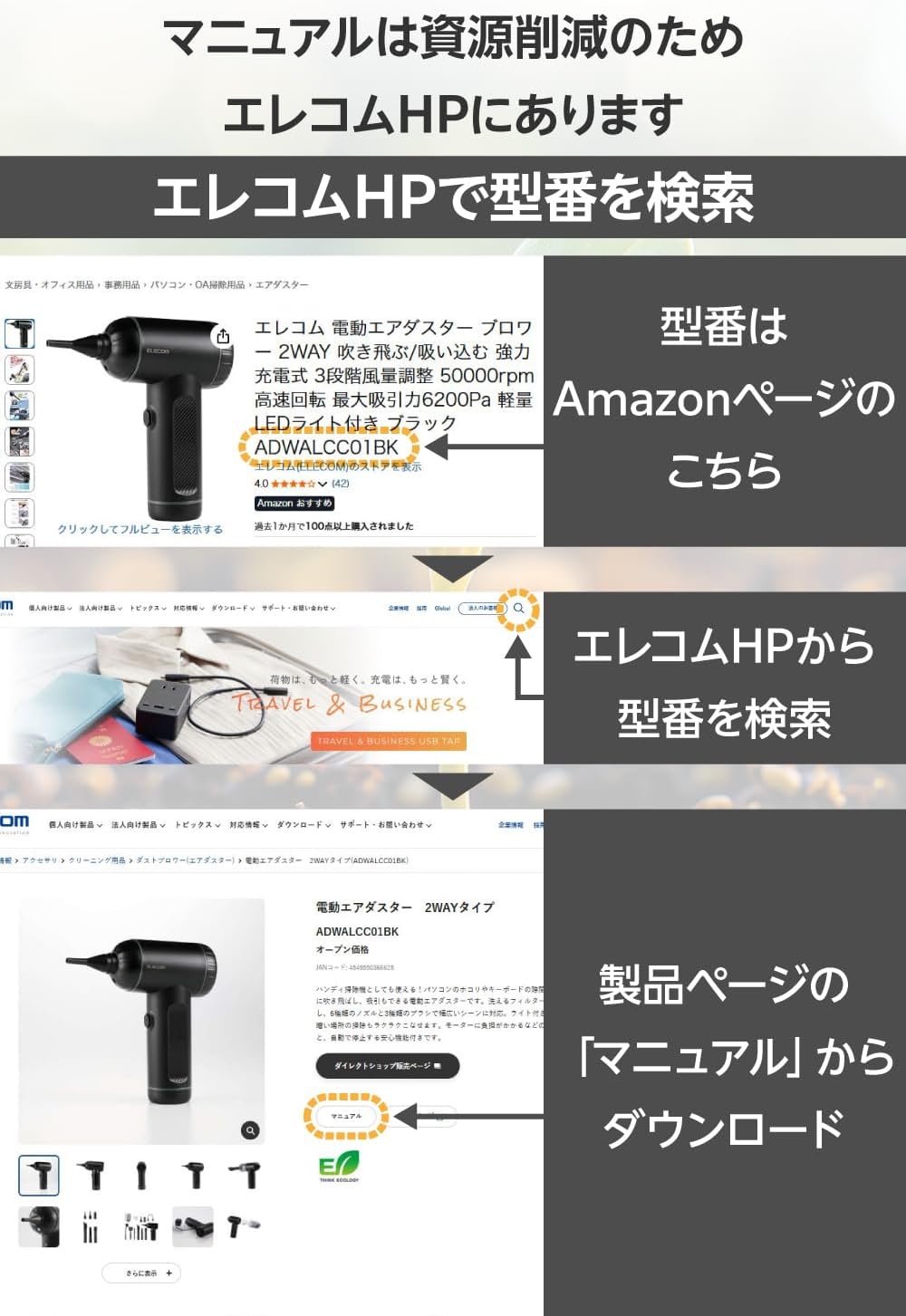
Beskrywing vir gebruikers wat nie kan nie view beeld: The image shows a multi-panel graphic illustrating how to find product manuals on the Elecom website. It highlights searching for the model number (e.g., "ADWALCC01BK" as an example) on the Amazon product page to identify the model, then using that model number to search on the Elecom HP, and finally downloading the manual from the product's page.
10. Omgewingsverbintenis
Elecom is committed to environmental sustainability. This product meets internal environmental certification standards and displays the "THINKECOLOGY" mark. Efforts have been made to reduce waste, including the use of a pay-less instruction manual and reducing the weight of plastic in the packaging by over 20% compared to standard products. The packaging container is made solely of paper and poly bags.