
Logitech R500s
Logitech Draadlose Aanbieder R500s Gebruikershandleiding
Model: R500s (910-006518) | Brand: Logitech
Inleiding
The Logitech Wireless Presenter R500s is designed to help you deliver impactful presentations with ease. Its intuitive controls and bright red laser pointer allow for seamless navigation and highlighting of key points, boosting your confidence during any presentation. With 2.4 GHz wireless connectivity, you can move freely up to 20 meters from the receiver, engaging with your audience without being tethered to your computer. The plug-and-play design ensures quick setup, making it ready for use whenever you are.
Sleutel kenmerke
- Intuïtiewe kontroles: Easy-to-find touch-keys for smooth slideshow navigation (forward/backward).
- Bright Red Laser Pointer: Class 1 laser for clear highlighting against most backgrounds.
- Uitgebreide draadlose reeks: Up to 20 meters (65 feet) for freedom of movement.
- Plug-en-speel-verbinding: No software installation required; simply plug the USB receiver into a port.
- Dubbele verbinding: Connects via USB-A receiver or Bluetooth.
- Ergonomiese ontwerp: Comfortable to hold for extended periods.
- Smart Automatic On/Off: Help om batterylewe te bespaar.
- Storable USB Receiver: Conveniently stores inside the presenter.
- Lang batterylewe: Up to 12 months on a single set of AAA batteries.
- Universele verenigbaarheid: Works with Windows 10, 11 or later, macOS, and iOS.
Opstelgids
1. Installeer batterye
The R500s requires two AAA batteries. Open the battery compartment, insert the batteries according to the polarity indicators, and close the compartment securely.

Image: The Logitech R500s Wireless Presenter shown with its accompanying USB receiver.

Image: The R500s presenter with the USB receiver detached, ready for connection.
2. Connect the USB Receiver
Remove the USB receiver from its storage slot within the presenter. Plug the USB receiver into an available USB-A port on your computer. The system will automatically detect and install the necessary drivers. No additional software is required for basic functionality.
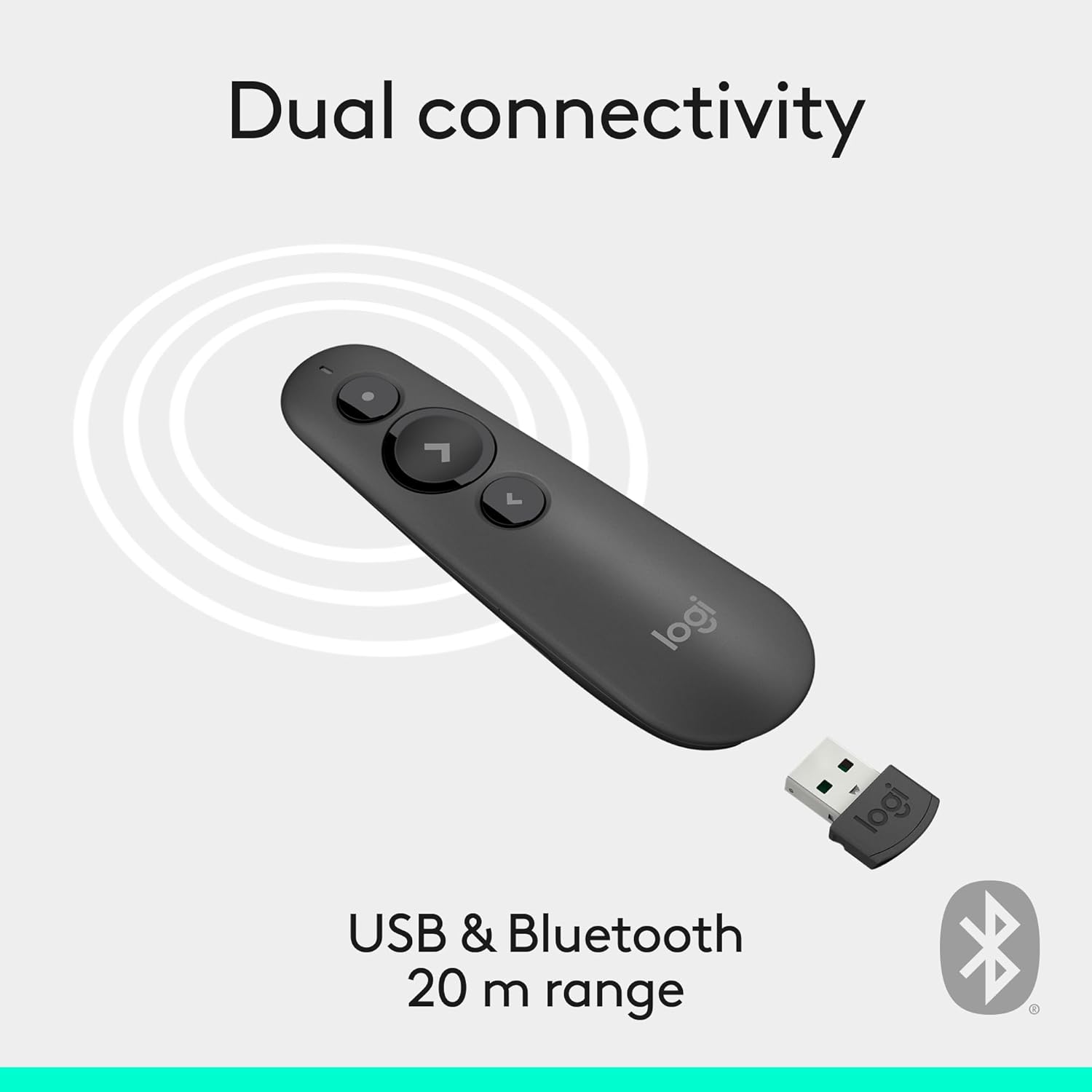
Image: Illustration of the R500s offering dual connectivity options: USB and Bluetooth.
3. Power On the Presenter
Locate the power switch on the side of the presenter and slide it to the 'On' position. The presenter is now ready for use.

Image: The R500s presenter positioned near a laptop, demonstrating its smart automatic on/off feature.
Bedryfsinstruksies
Slide Navigation
The R500s features intuitive buttons for controlling your presentation slides:
- Forward Button (Large Arrow): Druk om na die volgende skyfie te gaan.
- Backward Button (Small Arrow): Druk om terug te keer na die vorige skyfie.

Image: A hand comfortably holding the R500s presenter, highlighting its ergonomic design and button placement.
Laser Pointer Usage
To activate the red laser pointer, press and hold the dedicated laser button (usually a small dot icon). Release the button to turn off the laser.

Image: The R500s presenter projecting its red laser pointer onto a presentation graph, illustrating its use for highlighting.
Aanpasbare knoppies
The R500s offers customizable buttons for enhanced control. You can configure long-press actions for specific functions such as starting a presentation or blacking out the screen. Refer to the Logitech Presentation Software (available for download from the official Logitech website) for detailed customization options.

Image: A laptop screen displaying the Logitech software interface for customizing the R500s buttons and timer settings.
Onderhoud
Battery vervanging
When the battery indicator on the presenter or in the Logitech software shows low power, replace the two AAA batteries. Ensure correct polarity when inserting new batteries.
Skoonmaak
Wipe the presenter with a soft, dry cloth. Avoid using abrasive cleaners or solvents.
Probleemoplossing
- Aanbieder reageer nie:
- Maak seker dat die USB-ontvanger stewig in 'n werkende USB-poort ingeprop is.
- Check if the presenter is powered on.
- Vervang die batterye as hulle laag of leeg is.
- Probeer om die USB-ontvanger in 'n ander USB-poort te koppel.
- For Bluetooth connection, ensure Bluetooth is enabled on your computer and the presenter is paired.
- Laserwyser werk nie:
- Ensure the laser button is being pressed firmly.
- Gaan batteryvlak na.
- Note that laser visibility can vary on different screen types (e.g., some projection screens or large TVs may reduce visibility).
- Intermitterende verbinding:
- Ensure you are within the 20-meter wireless range.
- Minimize obstructions between the presenter and the receiver.
- Avoid strong electromagnetic interference from other devices.
Spesifikasies
| Handelsmerk | Logitech |
| Model Naam | R500's |
| Item Modelnommer | 910-006518 |
| Verbindingstegnologie | 2.4GHz RF Wireless, Bluetooth |
| Wireless Range | Tot 20 meter (65 voet) |
| Laser tipe | Class 1 Red Laser |
| Battery Tipe | 2 x AAA-batterye (ingesluit) |
| Gemiddelde batterylewe | 12 maande |
| Bedryfstelselversoenbaarheid | Windows 10, 11 or later; macOS; iOS |
| Hardeware Platform | PC, Mac |
| Item gewig | 0.2 onse |
| Produkafmetings (LxBxH) | 1 x 1.4 x 4.9 duim |
Waarborg en Ondersteuning
Logitech-produkte kom gewoonlik met 'n beperkte hardewarewaarborg. Vir spesifieke waarborgbesonderhede, registrasie en tegniese ondersteuning, besoek asseblief die amptelike Logitech-ondersteuning. website or refer to the warranty card included with your product. You can also find FAQs and troubleshooting guides online.
Vir bykomende hulp, besoek die Logitech Winkel op Amazon.
Ask a question about this manual
Ask about setup, troubleshooting, compatibility, parts, safety, or missing instructions. Manuals+ will review the question and use this page’s manual context to help answer it.