
1. Inleiding
The Twinkly Flex 6.5ft LED Tube is a flexible, app-controlled RGB LED light tube designed for customizable indoor lighting. It offers a wide range of colors and effects, and can be integrated with smart home systems like Alexa and Google Home.
2. Wat is in die boks
Verifieer dat alle komponente teenwoordig is:
- Twinkly Flex 6.5ft LED Tube
- Slim beheerder
- Power Adapter (Type A plug)
- Mounting Kit (includes clips and templates)
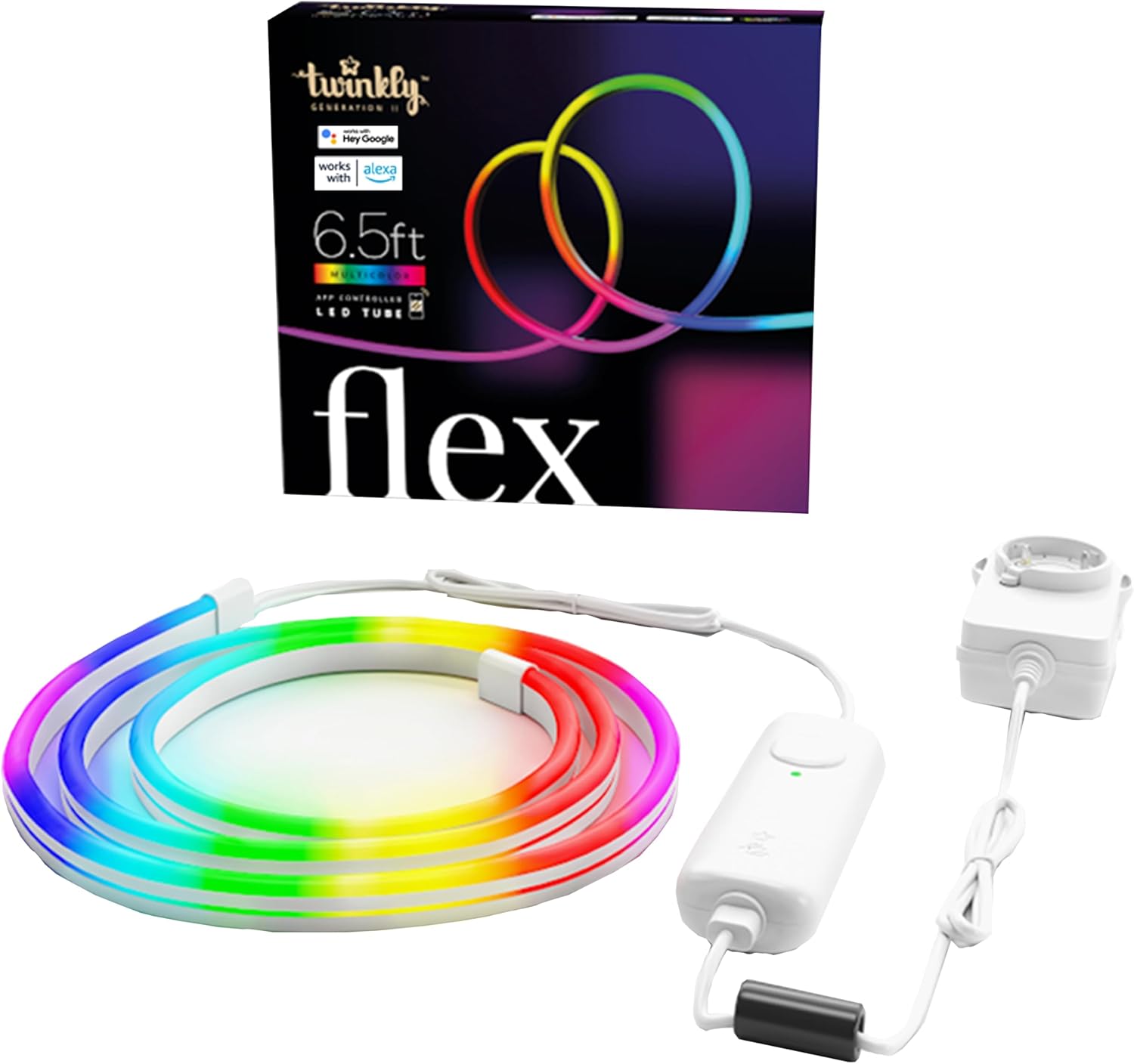
Image: Twinkly Flex LED Tube, smart controller, and power adapter.
3. Opstelinstruksies
3.1 Fisiese installasie
- Beplan jou ontwerp: Before mounting, decide on the desired shape or pattern for your Twinkly Flex. The tube is flexible but requires mounting clips to hold its shape on a surface.
- Use Templates (Optional): The included mounting kit may contain templates to assist in creating specific designs. Position the template on your desired surface.
- Montageklemme: Secure the mounting clips to the surface using the provided screws or adhesive. Ensure the clips are spaced appropriately to support the desired shape of the LED tube. The kit includes various clips for different angles (e.g., 90-degree and 180-degree mounts).
- Plaas LED Tube in: Carefully press the Twinkly Flex LED tube into the mounted clips, following your planned design.
- Koppel krag: Connect the LED tube to the smart controller, and then connect the smart controller to the power adapter. Plug the power adapter into a suitable electrical outlet.

Image: A user installing the flexible LED tube onto a wall using mounting clips.
Video: 'n Oorview of the Twinkly Flex LED tube and its installation process.
3.2 App-installasie en -verbinding
- Laai die Twinkly-app af: Download the official Twinkly app from the App Store (iOS) or Google Play Store (Android).
- Skep 'n rekening: Maak die toepassing oop en volg die instruksies op die skerm om 'n nuwe gebruikersrekening te skep of aan te meld as jy reeds een het.
- Voeg toestel by: Select "Add Device" or similar option within the app. Choose "Twinkly Flex" from the list of available devices.
- Connect via Bluetooth/Wi-Fi: The app will guide you through connecting the Twinkly Flex via Bluetooth for initial setup, then to your local Wi-Fi network (2.4GHz recommended).
- Map Lights: Once connected, the app will prompt you to "Map Lights." This feature uses your phone's camera to understand the physical layout of your Twinkly Flex, enabling precise and dynamic lighting effects. Follow the in-app instructions for accurate mapping.

Image: The Twinkly app interface displaying color options for mood creation.

Image: The Twinkly app demonstrating the light mapping feature for advanced effects.
4. Operasie
4.1 Basic Controls (Smart Controller)
- Krag aan/af: Press the button on the smart controller once to turn the lights on. To turn off, you must use the Twinkly app or a connected smart home assistant.
- Cycle Effects: Press the button repeatedly to cycle through pre-set lighting effects.
4.2 Twinkly App Features
- Kleurkeuse: Choose from over 16 million colors to customize your lighting.
- Effects & Animations: Apply pre-set effects, create custom animations using the FX Wizard, or download new effects from the online gallery.
- Helderheidbeheer: Pas die helderheidsvlak van die ligte aan.
- Aftellers: Set schedules for the lights to turn on and off automatically.
- Groepering: Group multiple Twinkly devices virtually for synchronized scenes and multi-object decorations.

Image: The Twinkly app displaying a wide range of color palettes and effects.
4.3 Slimhuis-integrasie
The Twinkly Flex is compatible with various smart home ecosystems:
- Amazon Alexa: Enable the Twinkly skill in the Alexa app to control your lights with voice commands (e.g., "Alexa, turn on Twinkly").
- Google Tuis: Link your Twinkly account in the Google Home app to use voice commands (e.g., "Hey Google, set Twinkly to blue").
- Razer Chroma RGB & OMEN Light Studio: Integrate for enhanced gaming lighting experiences.
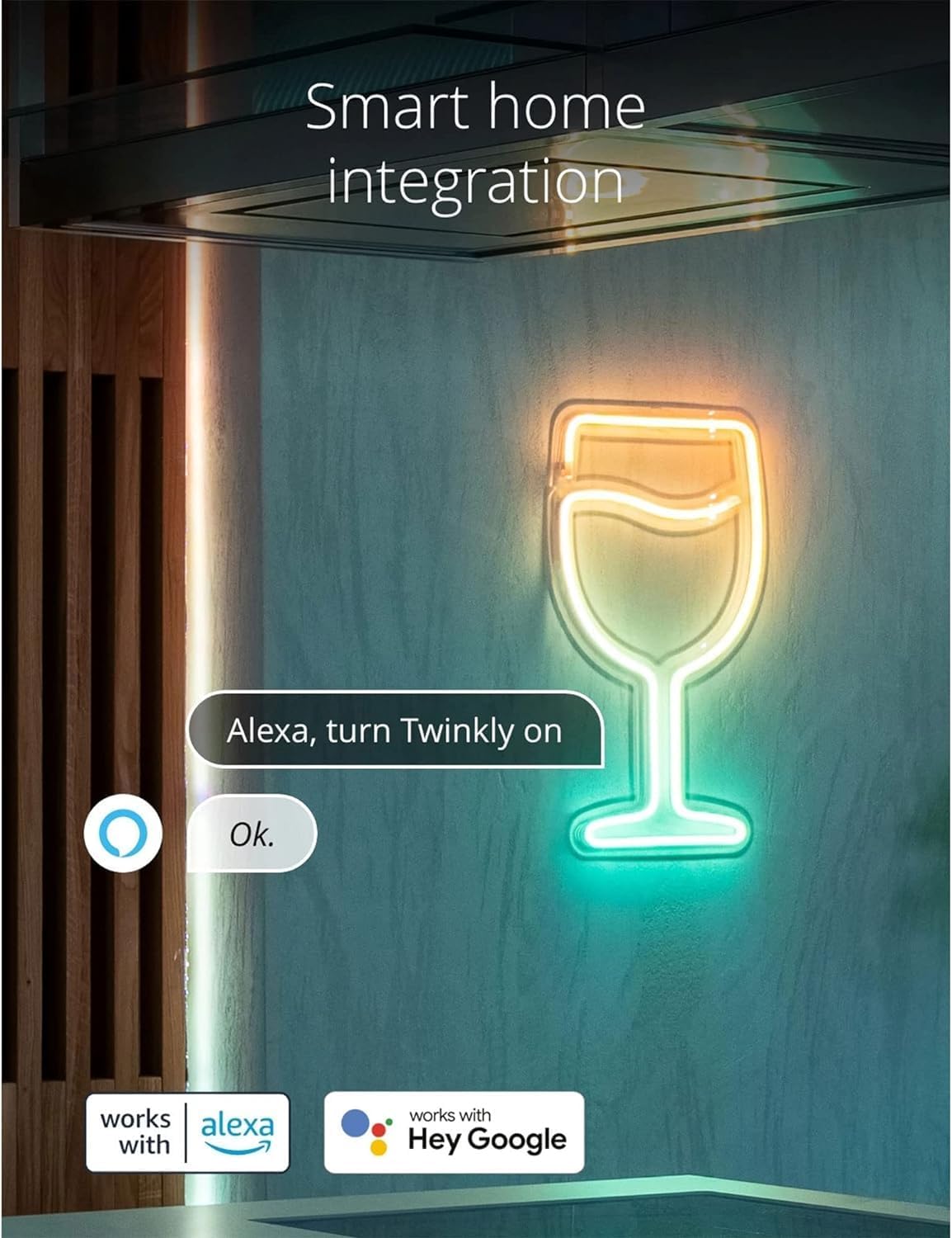
Image: Twinkly Flex lights responding to an Alexa voice command.

Image: Twinkly Flex lights enhancing a gaming setup with Razer Chroma RGB integration.
4.4 Music Sync (Optional Accessory)
For a synchronized audio-visual experience, the Twinkly Music dongle (sold separately) can be paired with the Twinkly Flex. This accessory allows the lights to react to ambient sounds and music.

Image: Twinkly Flex lights displaying effects synchronized with music.
Video: A demonstration of the Twinkly Flex LED tube's flexible nature and various lighting effects.
5. Onderhoud
- Skoonmaak: Gently wipe the LED tube with a soft, dry cloth. Do not use harsh chemicals or abrasive cleaners.
- Waterweerstand: The Twinkly Flex is designed for indoor use and is not water-resistant. Avoid exposure to water or high humidity environments.
- Berging: When not in use, store the Twinkly Flex in a cool, dry place, away from direct sunlight and extreme temperatures.
6. Probleemoplossing
| Probleem | Oplossing |
|---|---|
| Ligte gaan nie aan nie. |
|
| Cannot connect to the Twinkly app. |
|
| Lights do not hold desired shape. |
|
| Cannot turn off lights using the smart controller button. |
|
7. Spesifikasies
- Modelnommer: TWFL200STW-WUS
- Lengte: 6.5 voet (2 meter)
- Ligbrontipe: LED
- Ligte kleur: Multicolor (RGB, 16M+ colors)
- Kragbron: Elektries met koord
- Wattage: 5 watt
- Beheer metode: App Control (Wi-Fi & Bluetooth)
- Slimhuisversoenbaarheid: Amazon Alexa, Google Home, Razer Chroma RGB, OMEN Light Studio
- Binne/buiteluggebruik: Binneshuise
- Materiaal: Plastiek
- Item gewig: 1.8 pond
- Prop-formaat: Tipe A
- EU-energie-effektiwiteitsetiket: Hoë doeltreffendheid
8. Waarborg en ondersteuning
For warranty information and technical support, please refer to the official Twinkly webwebwerf of kontak hul kliëntediens. Bewaar u bewys van aankoop vir waarborgeise.
Aanlyn ondersteuning: Besoek www.twinkly.com vir algemene vrae, probleemoplossingsgidse en kontakinligting.