
Inleiding
This user manual provides comprehensive instructions for the installation, operation, and maintenance of your Thinkware X1000 Dual Channel Dash Cam. The X1000 is designed to record high-quality video footage from both the front and rear of your vehicle, offering enhanced security and peace of mind. Please read this manual thoroughly before using the device to ensure proper functionality and safety.
Wat is in die boks
Verifieer dat alle komponente in die pakket teenwoordig is:
- 2K QHD Main Unit (Front Dash Cam)
- 2K QHD Rear Cam
- 32GB MicroSD-kaart
- Harde bedrading kabel
- Windshield Mount with 3M Tape
- (Optional: GPS Antenna, 12V Power Cable, Adhesive Wire Clips, Spare Mounting Tape, CS Info - may vary by package)

Image: Components included with the Thinkware X1000 Dash Cam system.
Produk verbyview
The Thinkware X1000 is a high-performance dual-channel dash cam system. Key features include:
- Dual 2K QHD Recording: Vang duidelike, gedetailleerde beelde vastage from both front and rear cameras (2560 x 1440 resolution).
- Sony STARVIS IMX335 Sensor: Ensures sharp video quality even in low-light conditions.
- Night Vision 3.0 with Real DOL HDR: Advanced technology for improved visibility and color accuracy at night.
- 3.5" IPS-aanraakskerm: Verskaf lewendige view, playback, and easy access to settings directly on the device.
- G-sensor: Automatically detects impacts and saves footage to a protected folder.
- Anti-File Corruption: Safeguards recorded video files op die microSD -kaart.
- Smart Parking Surveillance Suite: Includes motion and impact detection, Time Lapse, and Energy Saving 2.0 modes (requires hardwiring).
- Gevorderde Bestuurderbystandstelsel (ADAS): Provides alerts for Lane Departure, Forward Collision, and Front Vehicle Departure (requires optional GPS antenna).

Image: The Thinkware X1000 Dash Cam system, showing the main unit, rear camera, and hardwiring cable.

Beeld: Nabyskoot voor view of the Thinkware X1000 main unit, highlighting the QHD recorder lens.
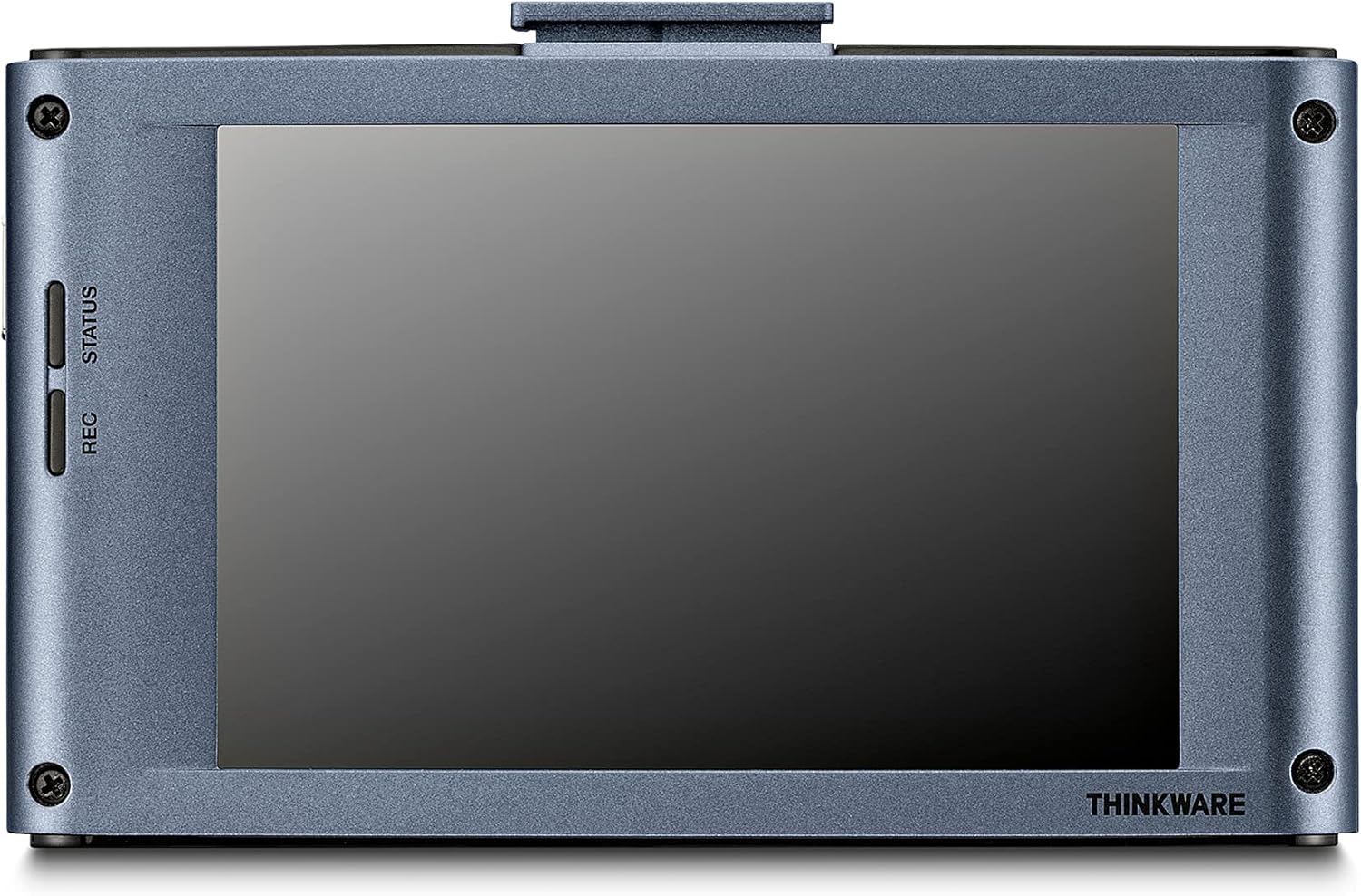
Beeld: Agter view of the Thinkware X1000 main unit, displaying its 3.5-inch IPS touchscreen.
Opstelling en installasie
1. Prepare the MicroSD Card
Before first use, it is recommended to format the included 32GB MicroSD card using the dash cam's menu or the Thinkware PC Viewer software. This ensures optimal performance and compatibility.
2. Mount the Front Dash Cam
- Maak die voorruitarea skoon waar die paneelbordkamera gemonteer sal word. Maak seker dat dit vry van stof en vet is.
- Attach the 3M adhesive tape to the windshield mount.
- Peel off the protective film from the adhesive tape and firmly press the mount onto the windshield, ideally behind the rearview spieël vir 'n onbelemmerde view. Hold for at least 30 seconds.
- Slide the main unit onto the mounted bracket.
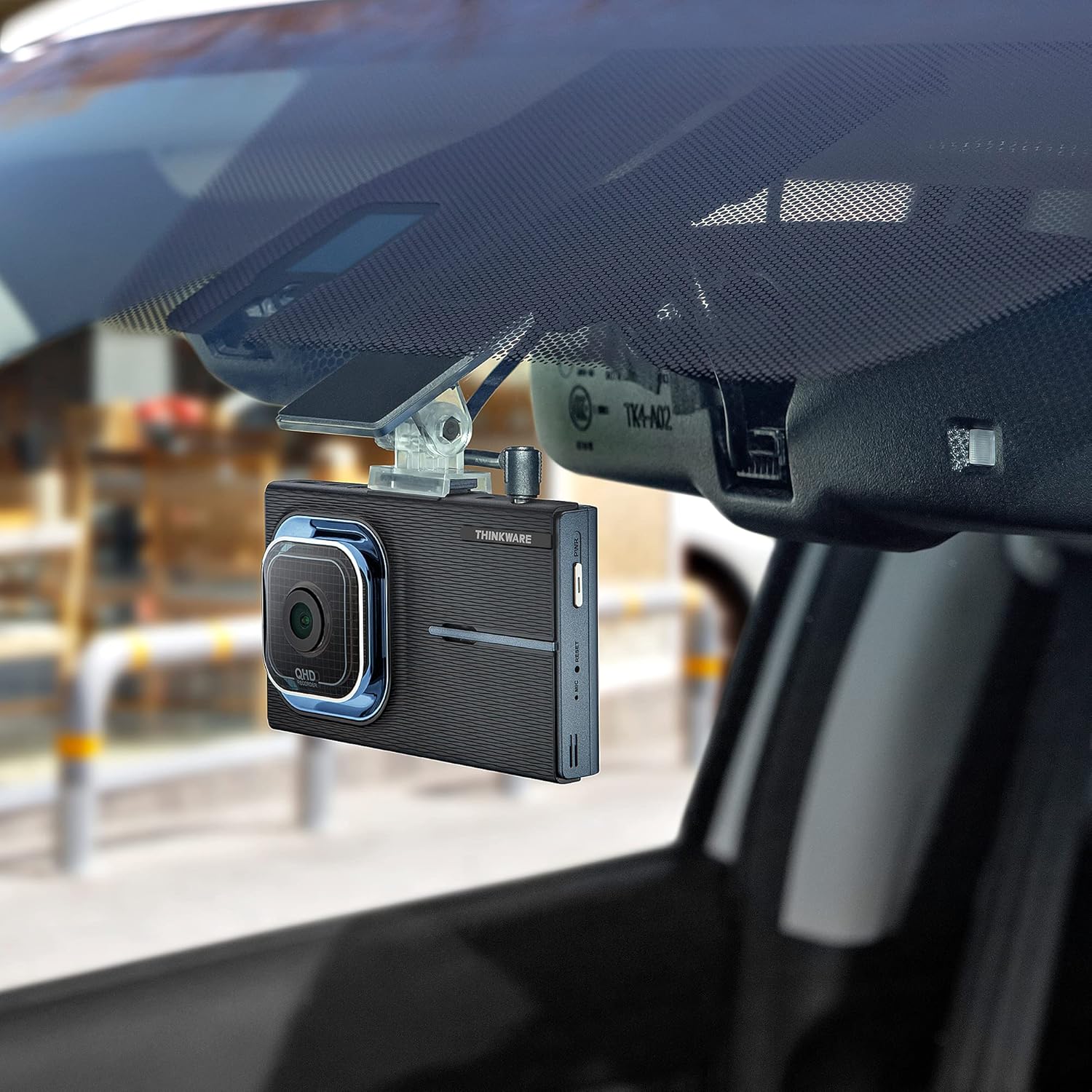
Image: The Thinkware X1000 main unit installed on a vehicle's windshield, positioned discreetly behind the rearview spieël.
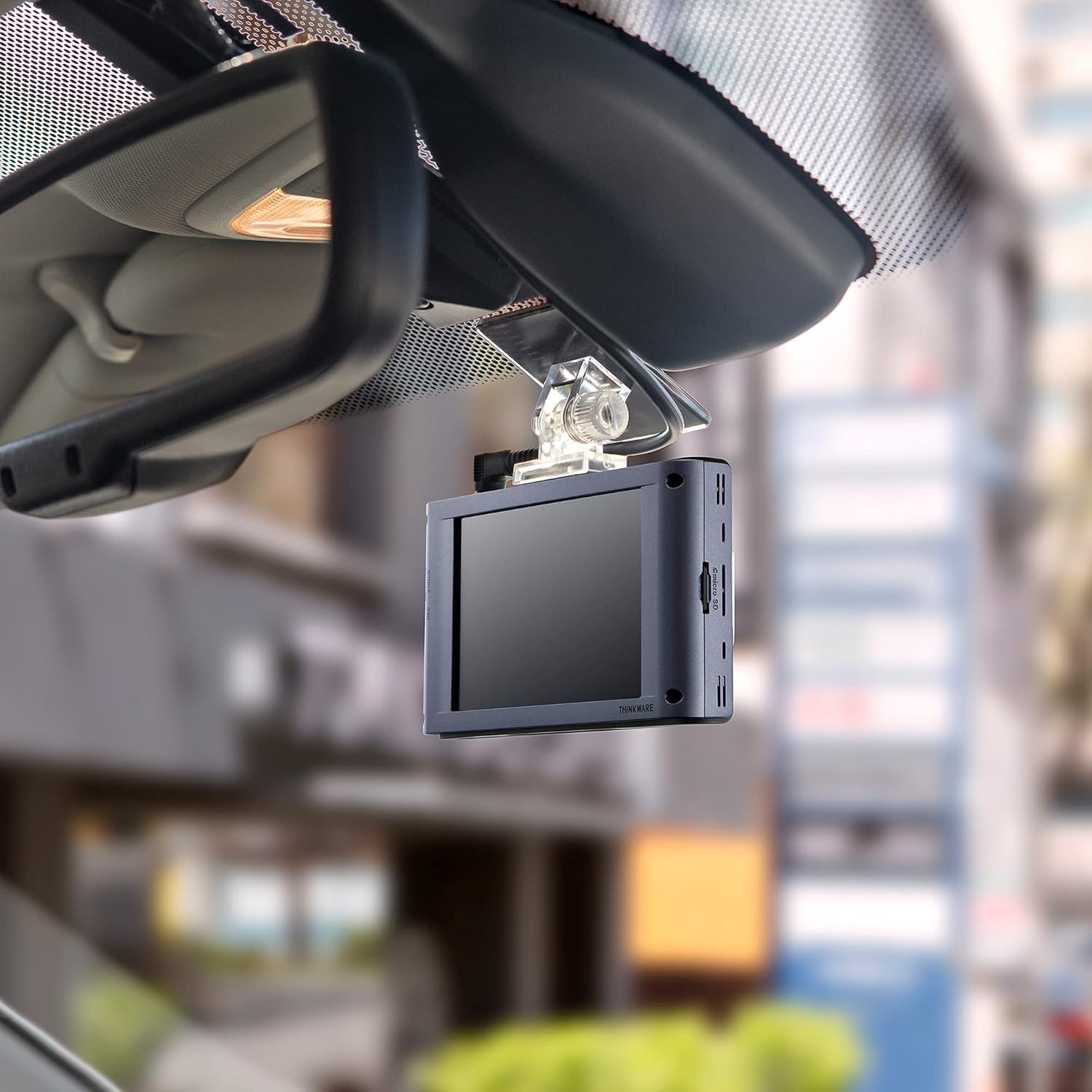
Beeld: Binnekant view of the Thinkware X1000 Dash Cam mounted on the windshield, displaying its screen.
3. Installeer die agterste kamera
- Monteer die agterste kamera op die agterste voorruit en verseker 'n duidelike view.
- Connect the rear camera cable to the rear camera and route it neatly along the vehicle's headliner and A-pillars to the main unit.
- Plug the rear camera cable into the appropriate port on the main unit (usually labeled "V-IN" or "REAR CAM").
4. Power Connection (Hardwiring)
The X1000 includes a hardwiring cable for continuous power and parking surveillance features. Professional installation is recommended for hardwiring.
- Connect the yellow wire (BATT) to a constant power fuse (always on).
- Connect the red wire (ACC) to an accessory power fuse (on when ignition is on).
- Connect the black wire (GND) to a metal ground point on the vehicle chassis.
- Plug the hardwiring cable into the DC-IN port on the main unit.
Alternatively, a 12V power cable (cigarette lighter adapter) can be used for basic recording, but parking surveillance features will not be available.

Beeld: Bo view of the Thinkware X1000 main unit, illustrating the various connection ports for power, GPS, and the rear camera.
5. Optional GPS Antenna Installation
If you have the optional GPS antenna, connect it to the GPS port on the main unit. This enables speed logging, route tracking, and ADAS features.
Bedryfsinstruksies
Skakel aan/af
- The dash cam will automatically power on when the vehicle's ignition is turned on (if hardwired) or when connected to a 12V power source.
- To manually power off, press and hold the PWR button on the side of the unit.
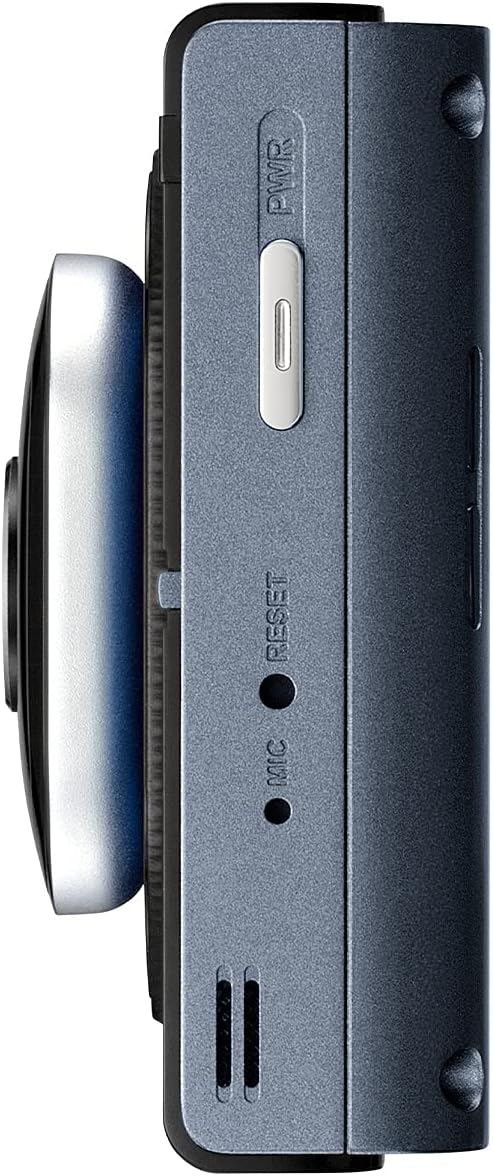
Beeld: Sykant view of the Thinkware X1000 main unit, indicating the power button and reset pinhole.
Opname Modes
The X1000 supports various recording modes:
- Deurlopende opname: Records automatically when the vehicle is in operation. Footage is saved in 1-minute segments.
- Insident opname: Triggered by the G-sensor upon impact. These files are saved in a separate, protected folder and are not overwritten by continuous recording.
- Handmatige opname: Press the REC button to manually initiate an event recording.
Gebruik die raakskerm
The 3.5-inch IPS touchscreen allows for easy control:
- Leef View: Wys intydse footage from the front and rear cameras.
- Terugspeel: Review recorded videos directly on the device. Navigate through folders (Continuous, Incident, Manual, Parking).
- Instellings: Access and adjust various settings such as recording quality, G-sensor sensitivity, parking mode options, and ADAS settings.

Image: Visual comparison demonstrating the superior viewing angles of an IPS panel compared to a standard panel, as featured on the X1000's touchscreen.
Parkeertoesigmodusse
When hardwired, the X1000 offers advanced parking surveillance features to protect your vehicle while parked:
- Bewegingsopsporing: Records 20-second video clips when motion is detected around the vehicle.
- Impakbespeuring: Records 20-second video clips when an impact is detected while parked.
- Tydsverloopopname: Records continuously at 2 frames per second, compressing hours of footage into minutes.
- Energy Saving 2.0: Extends parking coverage by putting the dash cam into a low-power standby mode, waking up to record only when an impact is detected.

Image: Depiction of the dash cam's parking surveillance mode, showing motion detection in a parking environment.

Image: A battery indicator symbolizing the energy-saving feature of the parking surveillance mode, designed to extend recording time.
Gevorderde Bestuurderbystandstelsel (ADAS)
With the optional GPS antenna, the X1000 provides ADAS features to enhance driving safety:
- Baanverlatingswaarskuwingstelsel (LDWS): Alerts you if your vehicle drifts out of its lane.
- Forward Collision Warning System (FCWS): Warns you of an impending collision with the vehicle ahead.
- Front Vehicle Departure Warning (FVDW): Notifies you when the vehicle in front starts to move from a standstill.

Image: A visual representation of the Advanced Driver Assistance System (ADAS) in action, showing alerts for lane departures and potential forward collisions.
Onderhoud
- MicroSD-kaartbestuur: Regularly format the microSD card (e.g., once a month) to prevent data corruption and ensure optimal recording performance. The X1000 features Anti-File Corruption technology, but periodic formatting is still recommended.
- Skoonmaak: Use a soft, dry cloth to clean the dash cam lens and touchscreen. Avoid abrasive cleaners or solvents.
- Firmware -opdaterings: Check the Thinkware website periodically for firmware updates to ensure your dash cam has the latest features and bug fixes.

Beeld: Sykant view of the Thinkware X1000 main unit, highlighting the microSD card slot for easy access and maintenance.

Image: A conceptual image representing the Anti-File Corruption technology, which protects recorded video files on the memory card from data loss.
Probleemoplossing
| Probleem | Moontlike oorsaak | Oplossing |
|---|---|---|
| Dashcam skakel nie aan nie. | Los kragverbinding, voertuigkragprobleem, foutiewe kabel. | Check all power cable connections. Ensure vehicle's ignition is on if using ACC power. Test with a different power source if possible. |
| Opname stop of footage is korrup. | MicroSD card error, card full, incompatible card, card wear. | Format the microSD card. Try a new, high-quality microSD card. Ensure the card is Class 10 or higher. |
| Die skerm is leeg of reageer nie. | Software glitch, power issue. | Perform a soft reset using the reset pinhole (refer to side view image). Ensure stable power supply. |
| Parkeermodus werk nie. | Not hardwired, incorrect hardwiring, low vehicle battery. | Ensure the dash cam is correctly hardwired to constant and accessory power. Check vehicle battery voltage. |
| ADAS features not active. | GPS antenna not connected or faulty, ADAS settings disabled. | Ensure the optional GPS antenna is securely connected. Enable ADAS features in the dash cam settings. |
Spesifikasies
| Kenmerk | Detail |
|---|---|
| Model Naam | TW-X1000D32H |
| Produk afmetings | 3.9 x 0.9 x 1.3 duim |
| Item gewig | 1.25 pond |
| Video-opname-resolusie | Front: 2K QHD (2560x1440p), Rear: 2K QHD (2560x1440p) |
| Veld van View | 156 grade (wye hoek) |
| Sensor | Sony STARVIS IMX335 |
| Vertoon | 3.5" IPS-aanraakskerm |
| Verbindingstegnologie | USB (vir rekenaarverbinding) |
| Spesiale kenmerke | Night Vision 3.0, Real DOL HDR, G-Sensor, Anti-File Corruption, Smart Parking Surveillance Suite (Motion/Impact Detection, Time Lapse, Energy Saving 2.0), ADAS (LDWS, FCWS, FVDW - with optional GPS) |
| Ingesluit komponente | Main Unit, Rear Cam, 32GB MicroSD Card, Hardwiring Cable, Windshield Mount with 3M Tape |
| Montage tipe | Kleefmiddel |
| Kleur | Swart |
Veiligheidsinligting
- Do not install the dash cam in a location that obstructs the driver's view or interferes with airbag deployment.
- Ensure all cables are routed safely and do not interfere with vehicle controls.
- Vermy blootstelling van die toestel aan uiterste temperature, direkte sonlig vir lang tye of oormatige vog.
- Moenie probeer om die toestel uitmekaar te haal of te wysig nie. Dit sal die waarborg ongeldig maak en kan skade veroorsaak.
- Use only genuine Thinkware accessories and power cables.
Waarborg en Ondersteuning
For warranty information and technical support, please refer to the documentation included with your product or visit the official THINKWARE webwerf. U kan ook die THINKWARE Store on Amazon vir bykomende hulpbronne en kontakbesonderhede.
The product is sold by THINKWARE USA, ensuring official support channels are available.