
Inleiding
This user manual provides detailed instructions for the installation, operation, maintenance, and troubleshooting of your Xprinter XP-K200L 80mm Thermal Receipt Printer. Please read this manual thoroughly before using the printer to ensure proper function and to extend the product's lifespan. Keep this manual for future reference.
Veiligheidsinligting
- Gebruik altyd die kragadapter wat saam met die drukker voorsien word.
- Moenie die drukker aan water of vog blootstel nie.
- Vermy die plasing van die drukker in direkte sonlig of naby hittebronne.
- Verseker behoorlike ventilasie rondom die drukker.
- Moenie probeer om die drukker self uitmekaar te haal of te herstel nie. Kontak gekwalifiseerde dienspersoneel.
- Hou buite bereik van kinders.
Pakketinhoud
Please check the package contents upon unpacking. If any items are missing or damaged, contact your vendor.
- Xprinter XP-K200L Thermal Receipt Printer
- Kragadapter
- Kragkoord
- USB kabel
- Termiese papierrol (aanvangsrol)
- Kontantlaaikabel
- Gebruikershandleiding (hierdie dokument)
Produk verbyview
Familiarize yourself with the main components of your Xprinter XP-K200L thermal receipt printer.

Figuur 1: Kant view of the Xprinter XP-K200L thermal receipt printer. On the right, the power switch is visible, and on the left, a button to open the paper cover is present.
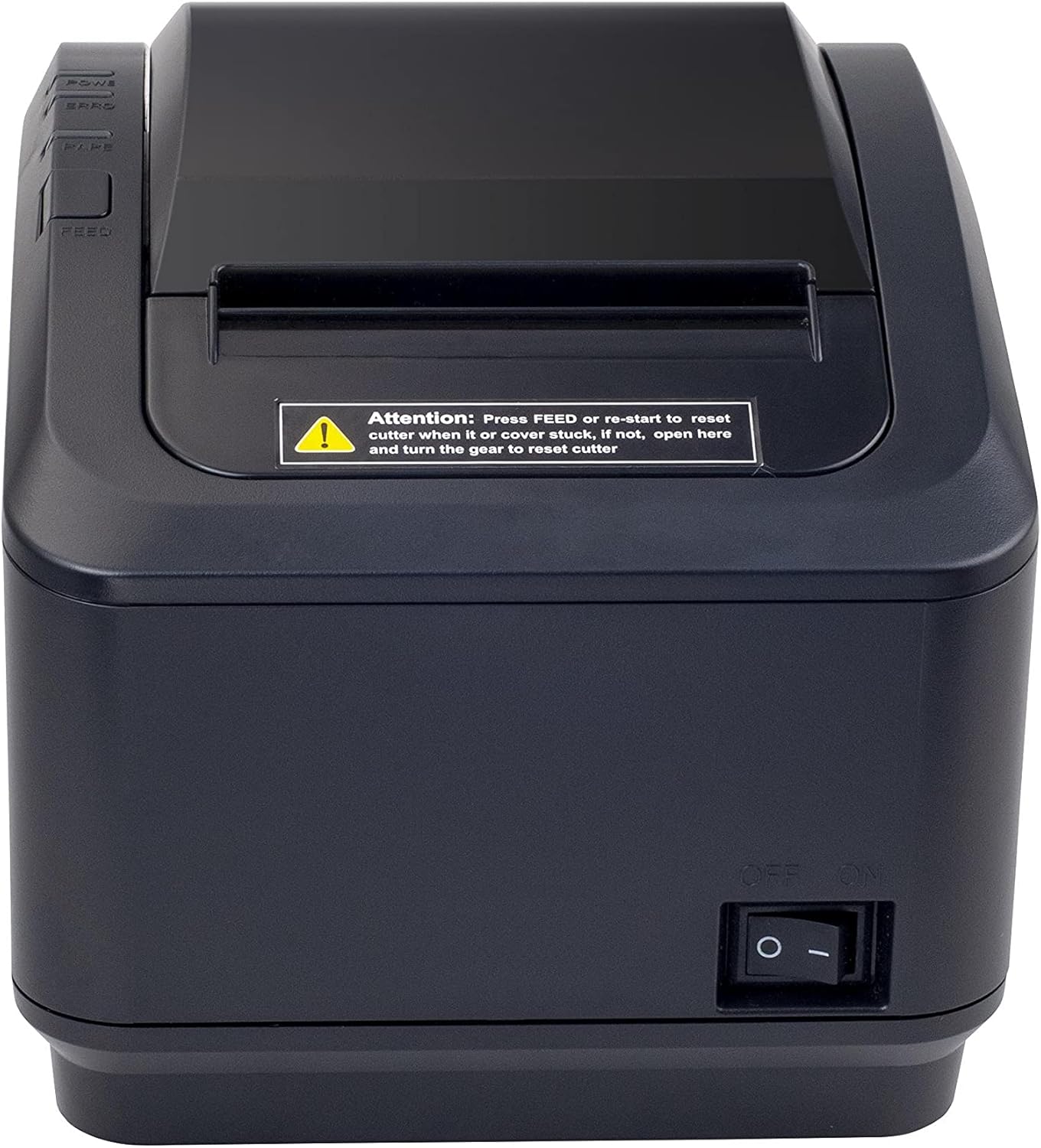
Figure 2: A front view of the Xprinter XP-K200L thermal receipt printer. The paper output slot is at the top, and below it are control buttons for functions like feed and error reset. A warning label is also visible.

Figure 3: This image displays the Xprinter XP-K200L thermal receipt printer with its top cover open, showing the internal compartment where the thermal paper roll is loaded. The print head mechanism is also visible.
Opstelling
1. Die krag aansluit
- Ensure the printer's power switch is in the AF posisie.
- Koppel die kragadapter aan die drukker se kragpoort.
- Steek die kragsnoer in 'n geskikte elektriese aansluiting.
2. Laai van termiese papier
- Press the cover open button (refer to Figure 1) to open the top cover of the printer.
- Insert a new 80mm thermal paper roll into the compartment, ensuring the paper feeds from the bottom and the leading edge extends slightly out of the printer.
- Close the top cover firmly until it clicks into place. Ensure there is no slack in the paper roll.
3. Connecting to a Computer/Network
The XP-K200L printer supports both USB and LAN (Ethernet) connectivity.
USB-verbinding:
- Koppel die een kant van die USB-kabel aan die drukker se USB-poort.
- Koppel die ander kant van die USB-kabel aan 'n beskikbare USB-poort op jou rekenaar.
- Install the printer drivers. Drivers are typically provided on a CD or can be downloaded from the manufacturer's webwebwerf. Volg die instruksies op die skerm vir installasie.
LAN (Ethernet)-verbinding:
- Connect one end of an Ethernet cable to the printer's LAN port.
- Koppel die ander kant van die Ethernet-kabel aan jou netwerkrouter of -skakelaar.
- Configure the printer's network settings (e.g., IP address) if necessary. This usually involves printing a self-test page to get the current IP address and then accessing the printer's web interface or using a utility tool provided by the manufacturer.
- Install the printer drivers on your computer, selecting the network connection option during setup.
4. Connecting a Cash Drawer
- Connect the cash drawer cable to the dedicated cash drawer port on the printer.
- Ensure your POS software is configured to send commands to open the cash drawer via the printer.
Bedryfsinstruksies
Skakel aan/af
- To power on the printer, flip the power switch (refer to Figure 1) to the ON posisie.
- To power off the printer, flip the power switch to the AF posisie.
Basiese drukwerk
Once the printer is connected and drivers are installed, you can print receipts from your POS software or any application that supports printing.
- Ensure the printer is powered on and has paper loaded.
- From your application, select the print option.
- Choose the "Xprinter XP-K200L" from the list of available printers.
- Confirm print settings and click "Print".
Self-Test Page
To print a self-test page, which provides information about the printer's settings and status:
- Ensure the printer is powered off and the paper roll is loaded.
- Druk en hou die VOER knoppie.
- Terwyl jy die VOER button, turn the power switch to ON.
- Los die VOER button after the printer starts printing.
Onderhoud
Maak die drukker skoon
- Drukkop: Gebruik 'n wattestokkie liggiesampened with isopropyl alcohol to gently wipe the thermal print head. Allow it to dry completely before use. Clean regularly to ensure print quality.
- Snyer: If the cutter becomes jammed or dirty, carefully clean it with a soft brush or cloth.
- Buitekant: Vee die buitekant van die drukker af met 'n sagte, droë lap. Moenie skuurmiddels of oplosmiddels gebruik nie.
Replacing Thermal Paper
When the paper roll is depleted or near its end, replace it following the steps in the "Loading Thermal Paper" section under Setup.
Probleemoplossing
| Probleem | Moontlike oorsaak | Oplossing |
|---|---|---|
| Drukker skakel nie aan nie. | Power cord or adapter not connected properly; power outlet issue. | Check all power connections. Try a different power outlet. |
| Geen drukwerk nie. | No paper; paper loaded incorrectly; printer offline; driver issue; incorrect connection. | Load paper correctly. Check printer status. Reinstall drivers. Verify USB/LAN connection. |
| Swak drukkwaliteit. | Dirty print head; low quality thermal paper. | Clean the print head (see Maintenance). Use recommended thermal paper. |
| Paper jam or cutter error. | Paper loaded incorrectly; debris in cutter mechanism. | As per printer label: Druk VOER or re-start to reset cutter. If the issue persists, open the top cover and carefully turn the gear to reset the cutter mechanism. Ensure paper is loaded correctly and remove any obstructions. |
| Cash drawer does not open. | Cable not connected; POS software not configured. | Check cash drawer cable connection. Verify POS software settings for cash drawer trigger. |
Spesifikasies
| Kenmerk | Detail |
|---|---|
| Handelsmerk | Xprinter |
| Model Naam | XP-K200L |
| Drukkertegnologie | Termies |
| Verbindingstegnologie | USB, LAN (Ethernet) |
| Spesiale kenmerke | Netwerk gereed |
| Kleur | Swart |
| Drukker Uitset | Monochroom |
| Item gewig | 1.5 kg |
| Produkafmetings (DxWxH) | 19.5 cm x 14 cm x 13.8 cm |
| Compatible OS/Controller Type | Android (and typically Windows/Linux via drivers) |
| Druk Media | Plain Thermal Paper |
| Druk Kleur | Swart |
| Resolusie | 576 x 512 dots per inch (or dots per line) |
| Max Print Resolution B/W | 576 dpi |
| Bykomende drukkerfunksies | Slegs druk |
| Beheer metode | Afgeleë |
| Maksimum mediagrootte | 80 mm |
| Papiergrootte | 79.5 mm |
| Krag | 60 watt |
| Ingesluit komponente | Power adapter, Cash drawer cable |
| Reeks | XP-K |
| Spesifieke gebruike | Restaurants, bars, cinemas, garages, transportation, hospitals, clinics |
| Totale USB-poorte | 1 |
Waarborg en Ondersteuning
For warranty information and technical support, please refer to the documentation provided with your purchase or contact your vendor directly. Keep your proof of purchase for warranty claims.
For driver downloads and further support resources, visit the official Xprinter webwebwerf.