
Moxee MT-T800
Moxee MT-T800 Tablet User Manual
Model: MT-T800 | Brand: Moxee
1. Inleiding
Thank you for choosing the Moxee MT-T800 Tablet. This manual provides essential information to help you get started, understand the features, and maintain your device. Please read this manual carefully before using your tablet to ensure proper operation and to maximize its lifespan.
2. Veiligheidsinligting
Om skade aan u toestel of beserings aan uself of ander te voorkom, neem asseblief die volgende veiligheidsmaatreëls in ag:
- Moenie die tablet blootstel aan uiterste temperature, direkte sonlig of hoë humiditeit nie.
- Vermy om die tablet te laat val of aan ernstige impakte bloot te stel.
- Gebruik slegs goedgekeurde laaiers en bykomstighede.
- Do not attempt to disassemble or repair the tablet yourself. Refer to qualified service personnel.
- Hou die tablet weg van mediese toestelle, aangesien dit hul werking kan belemmer.
3. Pakketinhoud
Merk asseblief die blokkie vir die volgende items:
- Moxee MT-T800 Tablet
- USB-laaikabel
- Kragadapter
- Case or Cover (if included with your specific package)
- Vinnige Begingids
Indien enige items vermis of beskadig is, kontak asseblief u kleinhandelaar.
4. Produk verbyview
Familiarize yourself with the physical features of your Moxee MT-T800 Tablet.

Figuur 4.1: Algehele view of the Moxee MT-T800 Tablet, showing both the front display and the textured back panel with the camera module.
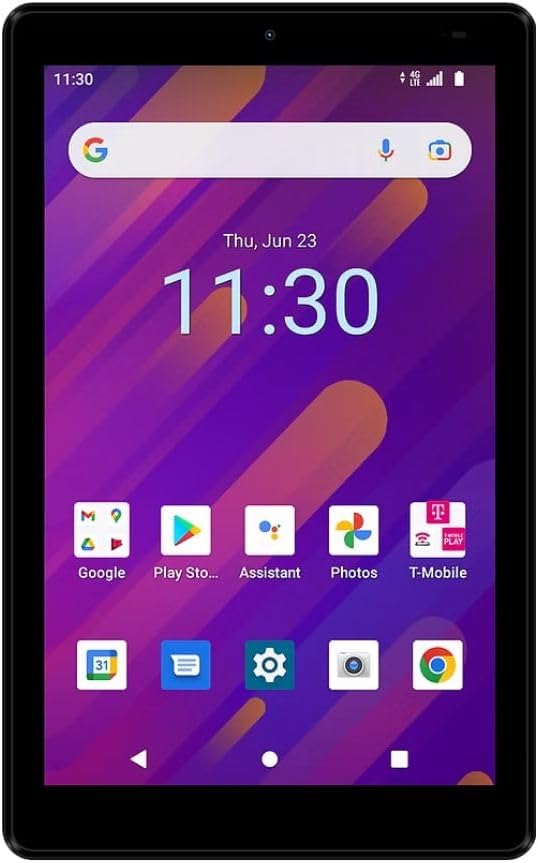
Figuur 4.2: Voorkant view of the Moxee MT-T800 Tablet, displaying the 8-inch screen with the Android interface, including app icons and the date/time.

Figuur 4.3: Agter view of the Moxee MT-T800 Tablet, highlighting the textured back panel, the 'moxee' logo, and the rear camera module with 'AI CAMERA' text.
4.1. Fisiese Komponente
- Voorste kamera: Located above the display, used for video calls and selfies.
- Vertoon: 8-inch HD+ touchscreen for interaction and content viewing.
- Kragknoppie: Typically on the side, used to turn the tablet on/off or wake/sleep the screen.
- Volume knoppies: Usually adjacent to the power button, for adjusting audio levels.
- USB-C-poort: Vir laai en data-oordrag.
- Spreker: Vir oudio-uitvoer.
- Agterste kamera: Located on the back, used for taking photos and videos.
- SIM/SD-kaartgleuf: (Location may vary) For inserting a SIM card for mobile data and an SD card for expandable storage.
5. Opstelling
5.1. Aanvanklike laai
Before first use, fully charge your tablet. Connect the USB charging cable to the tablet's USB-C port and the power adapter. Plug the adapter into a wall outlet. The charging indicator will show the charging status.
5.2. Skakel aan/af
- Om aan te skakel: Press and hold the Power button until the Moxee logo appears on the screen.
- Om af te skakel: Druk en hou die aan/af-knoppie in totdat die kragopsies-kieslys verskyn. Tik op 'Skakel af' en bevestig.
5.3. SIM-kaart en SD-kaart Installasie
The Moxee MT-T800 supports 4G LTE connectivity and expandable storage.
- Vind die SIM-/SD-kaartlaai aan die kant van die tablet.
- Insert the SIM ejector tool (or a small paperclip) into the small hole next to the tray to open it.
- Place your Nano-SIM card and/or microSD card into the designated slots on the tray, ensuring correct orientation.
- Druk die skinkbord versigtig terug in die tablet totdat dit in plek klik.
5.4. Aanvanklike Opstelling Wizard
Upon first power-on, the tablet will guide you through the initial setup process. This includes selecting your language, connecting to a Wi-Fi network, setting up your Google account, and configuring basic settings.
6. Bediening van die tablet
6.1. Aanraakskermnavigasie
The tablet's primary interaction is through its capacitive touchscreen:
- Tik: Om 'n item te kies of 'n toepassing oop te maak.
- Raak en hou: Om toegang tot kontekstuele kieslyste te verkry of items te skuif.
- Swiep: Om deur skerms of lyste te blaai.
- Knyp-om-te-Zoem: Om in of uit te zoem op beelde of web bladsye.
6.2. Wi-Fi-konneksie
Om aan 'n Wi-Fi-netwerk te koppel:
- Gaan na Instellings > Netwerk en internet > Wi-Fi.
- Skakel Wi-Fi aan.
- Kies jou verlangde netwerk uit die lys.
- Voer die wagwoord in indien gevra, en tik dan Koppel.
6.3. Mobile Data (4G LTE)
If you have an active SIM card with a data plan (for T-Mobile/Sprint Only):
- Gaan na Instellings > Netwerk en internet > Mobiele netwerk.
- Verseker Mobiele data is aangeskakel.
- Configure APN settings if necessary, as provided by your carrier.
6.4. Mobiele Hotspot
The tablet can act as a mobile hotspot, sharing its 4G LTE connection with up to 10 devices.
- Gaan na Instellings > Netwerk en internet > Warmkol en tethering.
- Tik Wi-Fi-hotspot.
- Wissel Wi-Fi-hotspot aan.
- You can configure the hotspot name (SSID) and password in this menu.
6.5. Kameragebruik
To use the tablet's cameras:
- Maak die oop Kamera aansoek.
- Tik die sluiterknoppie om 'n foto te neem.
- Wissel tussen voor- en agterkameras deur die kameraskakelaar-ikoon te gebruik.
- Kies videomodus om video's op te neem.
6.6. Bluetooth-verbinding
To connect to Bluetooth devices (e.g., headphones, speakers):
- Gaan na Instellings > Gekoppelde toestelle > Bluetooth.
- Skakel Bluetooth aan.
- The tablet will scan for available devices. Select your device from the list to pair.
7. Onderhoud
7.1. Maak jou tablet skoon
Use a soft, lint-free cloth to clean the screen and body of the tablet. Do not use abrasive cleaners or solvents.
7.2. Batteryversorging
- Vermy om die battery gereeld heeltemal te ontlaai.
- Moenie die tablet vir lang tye aan die laaier gekoppel laat nadat dit volledig gelaai is nie.
- Store the tablet in a cool, dry place if not used for a long time.
7.3. Sagteware-opdaterings
Regularly check for system updates to ensure optimal performance and security. Go to Instellings > Stelsel > Stelselopdatering.
7.4. Bergingbestuur
To free up storage space, consider:
- Deïnstallering van ongebruikte toepassings.
- Deleting old photos and videos or moving them to cloud storage/SD card.
- Clearing cached data from apps (Instellings > Toepassings en kennisgewings > kies toepassing > Berging en kasgeheue > Vee kas uit).
8. Probleemoplossing
As jy probleme met jou tablet ondervind, probeer die volgende oplossings:
8.1. Tablet Will Not Turn On
- Maak seker dat die battery gelaai is. Koppel die laaier aan en wag 'n paar minute voordat jy probeer om dit aan te skakel.
- Druk en hou die aan/af-knoppie vir ten minste 10-15 sekondes in om 'n geforseerde herbegin uit te voer.
8.2. Geen Wi-Fi-verbinding nie
- Maak seker dat Wi-Fi in Instellings geaktiveer is.
- Herbegin jou Wi-Fi-router.
- Forget the network and reconnect (Instellings > Netwerk en internet > Wi-Fi > tap network > Vergeet).
8.3. Stadige Prestasie
- Maak ongebruikte toepassings wat in die agtergrond loop toe.
- Clear app caches and manage storage as described in Section 7.4.
- Herbegin die tablet.
8.4. Laaiprobleme
- Ensure the charging cable and adapter are securely connected and undamaged.
- Probeer 'n ander kragpunt.
- Gebruik slegs die oorspronklike of gesertifiseerde versoenbare laaibykomstighede.
As probleme voortduur, kontak kliëntediens.
9. Spesifikasies
| Kenmerk | Detail |
|---|---|
| Model Naam | MT-T800 |
| Vertoon | 8-inch HD+ (1280 x 800) |
| Bedryfstelsel | Android 10 |
| Verwerker | Octa-Core Processor (Qualcomm Chipset) |
| GPU | Adreno 505 |
| RAM | 3 GB |
| Interne berging | 32 GB |
| Uitbreidbare berging | Yes (microSD) |
| Agterste kamera | 5 MP |
| Voorste kamera | 5 MP |
| Draadlose konneksie | Wi-Fi (802.11g), Bluetooth, 4G LTE (T-Mobile/Sprint Only) |
| Mobiele hotspot | Ondersteun tot 10 toestelle |
| Afmetings (LxBxH) | 8.57" x 4.89" x 0.35" (Product) / 6 x 4 x 8 inches (Shipping) |
| Gewig | 14.3 onse |
| Kleur | Swart |
| Battery | 1 Litium-ioonbattery benodig |
10. Waarborg en Ondersteuning
This Moxee MT-T800 Tablet is covered by a limited warranty. For specific warranty terms and conditions, please refer to the documentation provided at the time of purchase or contact your retailer. For technical support, troubleshooting assistance, or service inquiries, please visit the official Moxee support webwebwerf of kontak hul kliëntediens.
Ask a question about this manual
Ask about setup, troubleshooting, compatibility, parts, safety, or missing instructions. Manuals+ will review the question and use this page’s manual context to help answer it.