
Lectrus ES-KTLA133
LECTRUS Android 10 Tablet User Manual
Model: ES-KTLA133
Inleiding
This manual provides comprehensive instructions for the setup, operation, maintenance, and troubleshooting of your LECTRUS Android 10 Tablet. Please read this manual carefully before using your device to ensure optimal performance and longevity.

Figure 1: LECTRUS Android 10 Tablet (Front and Rear View)
This image displays the sleek black design of the LECTRUS Android 10 Tablet, showcasing both its front display and the rear panel with the LECTRUS branding and camera module.
Opstelgids
1. Aanvanklike laai
Before first use, fully charge your tablet. Connect the provided USB cable to the tablet's charging port and the other end to a compatible USB power adapter (not always included) or a computer's USB port. The battery indicator on the screen will show charging progress.
The tablet is equipped with a 6000 mAh polymer lithium-ion battery, providing up to 7 hours of usage time on a full charge.
2. Skakel aan/af
- Krag aan: Press and hold the Power button located on the side of the tablet until the LECTRUS logo appears on the screen.
- Skakel af: Druk en hou die aan/af-knoppie in totdat die kragopsies-kieslys verskyn. Kies "Skakel af" en bevestig.
- Herbegin: From the power options menu, select "Restart" to reboot the device.
3. Aanvanklike Opstelling Wizard
Wanneer die tablet vir die eerste keer aangeskakel word, sal dit jou deur 'n aanvanklike opstellingsproses lei. Volg die aanwysings op die skerm om:
- Kies jou taal.
- Koppel aan 'n Wi-Fi-netwerk.
- Meld aan met jou Google-rekening of skep 'n nuwe een. Dit is noodsaaklik om toegang tot die Google Play Winkel en ander Google-dienste te verkry.
- Stel skermslot op (PIN, patroon, wagwoord).
- Review en aanvaar die bepalings en voorwaardes.
4. Invoeging van 'n MicroSD-kaart (opsioneel)
The tablet supports expandable memory up to 128GB via a microSD card. To insert:
- Vind die microSD-kaartgleuf aan die kant van die tablet.
- Plaas die microSD-kaart versigtig in die gleuf met die goue kontakte na onder totdat dit vasklik.
- To remove, gently push the card inward until it pops out.

Figure 2: Tablet with App Icons and Storage Information
This image illustrates the tablet's capability to support numerous applications, highlighting its 32GB internal storage and expandability for massive app support.
Bedryfsinstruksies
1. Navigasie deur die Android 10-koppelvlak
Your LECTRUS tablet runs on the Android 10.0 operating system, offering an intuitive and user-friendly experience.
- Tuisskerm: Die hoofskerm waar jy toegang tot programme, widgets en kortpaaie kan kry.
- Kennisgewingpaneel: Swipe down from the top of the screen to access notifications and quick settings (Wi-Fi, Bluetooth, Brightness, etc.).
- App-laai: Swiep van onder af op na bo view alle geïnstalleerde toepassings.
- Navigasiebalk: Typically located at the bottom of the screen, it includes Back, Home, and Recent Apps buttons.

Figure 3: Android 10.0 Operating System Interface
This image shows the tablet's display with the "Android 10.0 OS" branding, indicating the operating system version.
2. Wi-Fi-konneksie
Om aan 'n Wi-Fi-netwerk te koppel:
- Gaan na Instellings > Netwerk en internet > Wi-Fi.
- Skakel Wi-Fi AAN.
- Kies jou verlangde netwerk uit die lys.
- Voer die wagwoord in indien gevra en tik Koppel.
3. Die gebruik van die kameras
The tablet features a 5MP rear camera and a 2MP front camera for photos and video calls.
- Maak die oop Kamera aansoek.
- Tik die kameraskakelaar-ikoon om tussen die voorste en agterste kameras te wissel.
- Tik die sluiterknoppie om 'n foto te neem of video-opname te begin/stop.

Figure 4: Capturing Moments with the Tablet Camera
This image demonstrates the tablet's camera in use, capturing a precious moment, emphasizing its ability to record memories.
4. Multimedia and Applications
The 10.1-inch high-definition screen supports 1080p video playback, providing a clear and realistic viewing experience. You can download and use various applications from the Google Play Store, including:
- Vermaak: YouTube, Netflix, games.
- Kommunikasie: Email, Facebook, Twitter, InstagRAM.
- Navigasie: GPS applications.
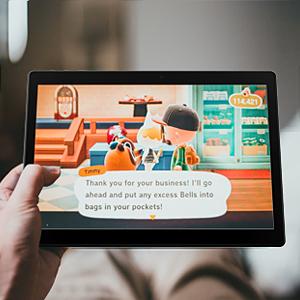
Figure 5: Tablet for Gaming
This image shows the tablet displaying a game, illustrating its use for entertainment.

Figure 6: Tablet for Navigation
This image depicts the tablet displaying a map with a route, highlighting its utility for navigation and GPS functions.
Onderhoud
1. Maak jou tablet skoon
- Gebruik 'n sagte, pluisvrye lap om die skerm en liggaam van die tablet skoon te maak.
- Vir hardnekkige vlekke, effens dampMaak die lap skoon met water of 'n skermreiniger wat vir elektronika ontwerp is.
- Vermy die gebruik van harde chemikalieë, skuurmiddels of aërosolsproei direk op die tablet.
2. Batteryversorging
- Vermy uiterste temperature, aangesien dit die batterylewe kan verminder.
- Do not leave the tablet charging for excessively long periods after it's fully charged.
- As jy die tablet vir 'n lang tydperk bêre, laai dit tot ongeveer 50% voordat jy dit afskakel.
3. Sagteware-opdaterings
Kontroleer gereeld vir sagteware-opdaterings en installeer dit om te verseker dat jou tablet die nuutste kenmerke, sekuriteitsopdaterings en prestasieverbeterings het.
- Gaan na Instellings > Stelsel > Stelselopdatering.
- Volg die instruksies op die skerm om enige beskikbare opdaterings af te laai en te installeer.
4. Data-rugsteun
It is recommended to regularly back up your important data (photos, videos, documents) to a cloud service (e.g., Google Drive) or an external storage device to prevent data loss.
Probleemoplossing
Algemene kwessies en oplossings
| Probleem | Moontlike oorsaak | Oplossing |
|---|---|---|
| Tablet skakel nie aan nie. | Lae battery; stelselongeluk. | Charge the tablet for at least 30 minutes. Press and hold the Power button for 10-15 seconds to force restart. |
| Wi-Fi-verbindingsprobleme. | Verkeerde wagwoord; routerprobleem; tablet Wi-Fi gedeaktiveer. | Ensure correct password. Restart your Wi-Fi router. Toggle Wi-Fi off and on in tablet settings. |
| Applications crashing or freezing. | Onvoldoende RAM; toepassingfout; verouderde toepassing. | Maak agtergrondprogramme toe. Vee programkas uit (Instellings > Programme > [Programnaam] > Berging > Vee kas uit). Dateer die program op vanaf die Google Play Winkel. |
| Stadige werkverrigting. | Te veel programme loop; min stoorplek; verouderde sagteware. | Maak ongebruikte programme toe. Maak stoorplek vry deur onnodige programme te verwyder. files. Check for system updates. |
| Screen not responding. | Tydelike sagtewarefout. | Force restart the tablet by holding the Power button for 10-15 seconds. |
Indien die probleem voortduur nadat u hierdie oplossings probeer het, kontak asseblief kliëntediens.
Produkspesifikasies
| Kenmerk | Detail |
|---|---|
| Handelsmerk | Lectrus |
| Modelnommer | ES-KTLA133 |
| Kleur | Swart |
| Bedryfstelsel | Android 10 |
| Verwerker handelsmerk | Allwinner |
| Verwerker beskrywing | Vierkern (1.6 GHz) |
| RAM | 2 GB |
| Interne berging (ROM) | 32 GB |
| Uitbreidbare geheue | Up to 128 GB (via Micro SD) |
| Skerm grootte | 10.1 duim |
| Skermresolusie | 1280 x 800 piksels |
| Agterste kamera | 5 MP |
| Voorste kamera | 2 MP |
| Verbindingstipe | Wi-Fi (802.11n) |
| Hardeware-koppelvlak | Bluetooth, USB, Micro SD |
| Battery kapasiteit | 6000 mAh |
| Batterylewe | Tot 7 uur |
| Itemafmetings (L x B x H) | 23.8 x 1 x 16.7 cm |
| Produk Gewig | 900 gram |
Waarborg en Ondersteuning
Waarborg inligting
Specific warranty details for your LECTRUS tablet may vary by region and retailer. Please refer to the warranty card included with your product or contact your point of purchase for detailed information regarding warranty coverage and duration.
Note: Information regarding spare parts availability and guaranteed software updates is not available at this time.
Kliënte ondersteuning
For technical assistance, troubleshooting beyond this manual, or warranty claims, please contact LECTRUS customer support through their official website or the contact information provided with your purchase. When contacting support, please have your model number (ES-KTLA133) and purchase details ready.
Ask a question about this manual
Ask about setup, troubleshooting, compatibility, parts, safety, or missing instructions. Manuals+ will review the question and use this page’s manual context to help answer it.