
1. Inleiding
The FISCHER Wireless Bicycle Computer Model 50338 is designed to provide essential cycling data without the need for cables. It features an easy-to-read LCD display and offers 18 functions to track your rides. This manual provides instructions for installation, operation, and maintenance to ensure optimal performance. The computer operates wirelessly via radio transmission, is adjustable for any wheel size, and can display distances in either kilometers or miles. It is also splash-protected, making it suitable for use in light rain.

Beeld 1: Voorkant view of the FISCHER Wireless Bicycle Computer.
2. Wat is ingesluit
The package for your FISCHER Wireless Bicycle Computer includes all necessary components for immediate use:
- Fischer Wireless Bicycle Computer Unit
- Draadlose spoedsensor
- Stuurbevestigingsbeugel
- Mounting Hardware (ties/bands)
- Batterye (vooraf geïnstalleer of apart ingesluit)

Image 2: All components of the FISCHER Wireless Bicycle Computer system.
3. Opstelling en installering
Follow these steps to correctly install your bicycle computer:
3.1. Installeer batterye
Ensure batteries are correctly inserted into both the computer unit and the wireless speed sensor. The product includes metallic lithium batteries with an average life of 200 hours.
3.2. Mount the Handlebar Bracket
- Position the handlebar mounting bracket on your bicycle's handlebar.
- Secure the bracket firmly using the provided mounting hardware (e.g., zip ties or rubber bands). Ensure it is stable and does not rotate during use.
- Slide the bicycle computer unit onto the bracket until it clicks into place.
3.3. Mount the Speed Sensor
- Attach the wireless speed sensor to the front fork of your bicycle.
- Position the sensor so that it aligns with the spokes of your wheel. The sensor detects wheel rotations.
- Secure the sensor using the provided mounting hardware. Ensure it is close enough to the wheel spokes to register rotations but does not interfere with wheel movement.
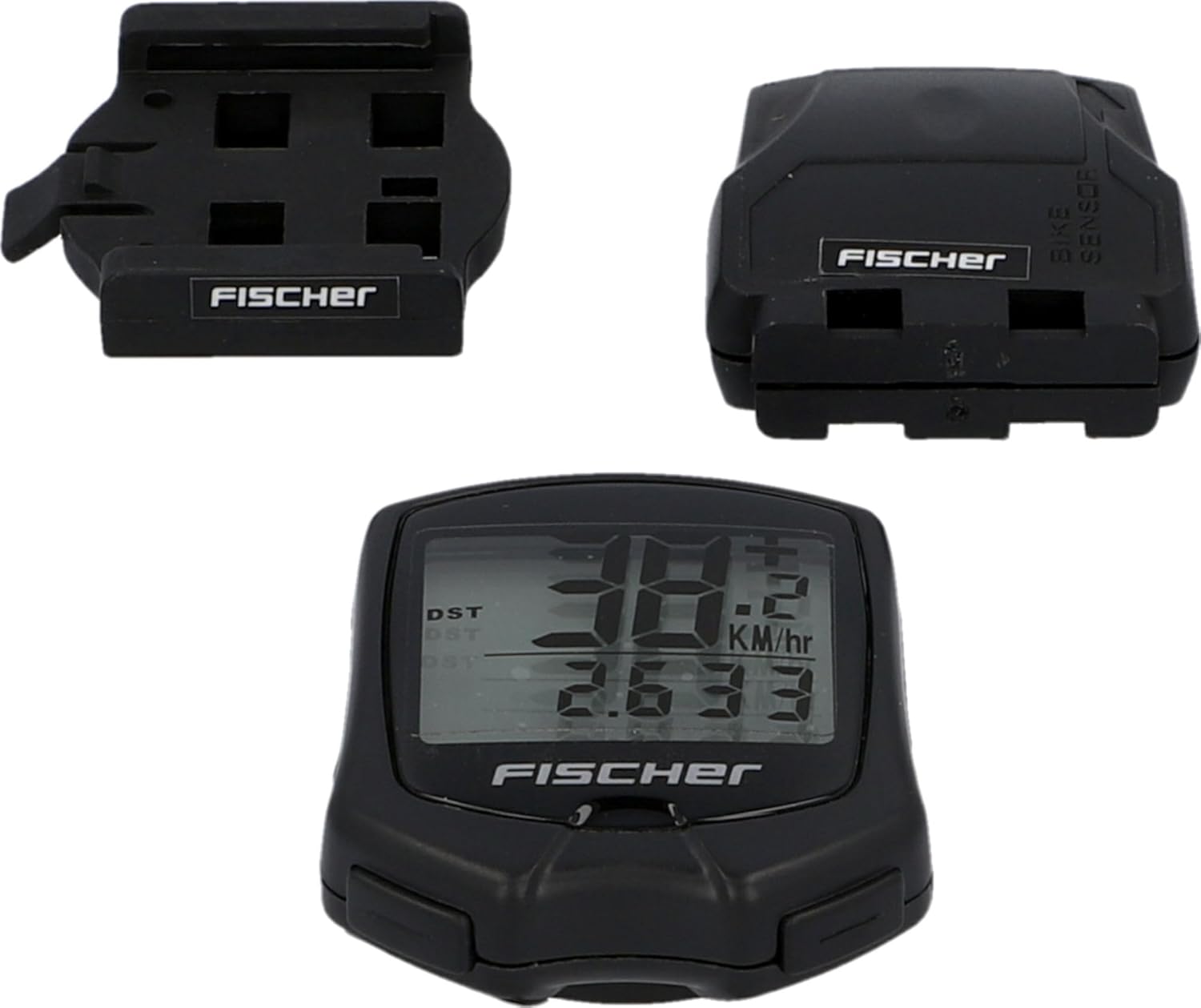
Image 3: Wireless speed sensor and handlebar mount installation overview.
3.4. Aanvanklike instellings
Na installasie, konfigureer die rekenaar vir akkurate lesings:
- Wheel Size Calibration: The computer can be adjusted for any wheel size. Refer to the specific instructions in the included quick start guide for entering your wheel circumference. This is crucial for accurate speed and distance measurements.
- Eenheidkeuse: Choose between kilometers per hour (km/h) or miles per hour (mph) for speed and distance display.
4. Operating the Bicycle Computer (18 Functions)
The FISCHER Wireless Bicycle Computer features an intuitive button interface for accessing its 18 functions. The LCD display shows multiple data points simultaneously.
4.1. Basiese navigasie
Use the buttons on the computer unit to cycle through different display modes and access settings. Typically, there are one or two buttons for mode selection and setting adjustments.
4.2. Sleutelfunksies
While the full list of 18 functions is detailed in the product's quick start guide, common functions include:
- Huidige spoed: Displays your real-time cycling speed.
- Gemiddelde spoed: Shows the average speed for your current ride.
- Maksimum spoed: Records the highest speed achieved during your ride.
- Rytyd: Tracks the duration of your current cycling activity.
- Reisafstand: Meet die afstand afgelê in jou huidige rit.
- Total Distance (Odometer): Accumulates the total distance covered over all rides.
- Horlosie: Vertoon die huidige tyd.
- Skandeermodus: Automatically cycles through various data displays.
- Temperatuur: (If available) Displays ambient temperature.
- Kalorieë verbrand: (If available) Estimates calorie consumption.
For detailed instructions on each function and how to reset trip data, please refer to the comprehensive user manual provided with the product.
5. Onderhoud
Proper maintenance ensures the longevity and accuracy of your bicycle computer.
5.1. Skoonmaak
Clean the computer unit and sensor with a soft, damp cloth. Do not use abrasive cleaners or solvents. The device is splash-protected, meaning it can withstand light rain, but it is not designed for submersion.
5.2. Battery vervanging
When the display becomes dim or functions become erratic, it's time to replace the batteries. Both the computer unit and the sensor use metallic lithium batteries. Refer to the quick start guide for specific battery types and replacement procedures. Dispose of old batteries responsibly.
6. Probleemoplossing
If you encounter issues with your FISCHER Wireless Bicycle Computer, try the following solutions:
- No Speed/Distance Display:
- Check if the speed sensor is correctly aligned with the wheel spokes and is within range of the computer unit.
- Ensure batteries in both the computer and sensor are fresh and correctly inserted.
- Verify that the wheel size setting is correctly entered.
- Onakkurate lesings:
- Recalibrate the wheel size setting.
- Ensure the sensor is securely mounted and not moving during rides.
- Kontroleer vir potensiële elektromagnetiese interferensie van ander elektroniese toestelle.
- Skerm is leeg of dof:
- Replace the batteries in the computer unit.
- Check for extreme temperatures, which can affect LCD performance.
If problems persist, contact Fischer customer support for further assistance.
7. Spesifikasies
| Modelnommer | 50338 |
| Handelsmerk | Fischer |
| Verbindingstegnologie | Wireless (Proprietary) |
| Tipe vertoon | LCD |
| Soort sensor | Spoedsensor |
| Battery samestelling | Metallic Lithium |
| Gemiddelde batterylewe | 200 uur |
| Montage tipe | Stuurstang |
| Produkafmetings (L x B x H) | 4 x 13 x 20 cm (packaging); 10L x 10W x 10H millimeters (item) |
| Gewig | 100 gram |
| Kleur | Swart |
| Waterbeskerming | Splash-protected |
| insette Interface | Knoppies |
8. Waarborg en Ondersteuning
8.1. Waarborginligting
This product is subject to a return policy with a duration of 30 days for refund or replacement, as per Amazon's policy. For specific manufacturer warranty details, please refer to the documentation included with your product or visit the official Fischer webwebwerf.
8.2. Kliëntediens
For technical assistance, troubleshooting not covered in this manual, or warranty claims, please contact Fischer customer support. Contact information can typically be found on the product packaging, the official Fischer webwebwerf, of deur jou kleinhandelaar.