
1. Inleiding
This manual provides detailed instructions for the installation, operation, and maintenance of your new ATA 43 Inch Full HD LED Smart TV, Model 43S1. Please read this manual thoroughly before using the television to ensure proper functionality and to maximize your viewondervinding. Bewaar hierdie handleiding vir toekomstige verwysing.
2. Belangrike veiligheidsinligting
- Kragbron: Maak seker dat die TV binne die gespesifiseerde volume aan 'n kragtoevoer gekoppel istage reeks.
- Ventilasie: Moenie ventilasie-openinge blokkeer nie. Laat voldoende spasie rondom die TV toe vir behoorlike lugvloei.
- Water en vog: Moenie die TV aan reën of vog blootstel nie. Vermy die plasing van voorwerpe gevul met vloeistowwe, soos vase, op die TV.
- Skoonmaak: Ontkoppel die TV voor skoonmaak. Gebruik 'n sagte, droë lap. Moenie vloeibare skoonmaakmiddels of aërosolskoonmakers gebruik nie.
- Plasing: Plaas die TV op 'n stabiele, gelyk oppervlak. Vermy dit om dit in direkte sonlig of naby hittebronne te plaas.
- Diens: Moenie probeer om hierdie produk self te onderhou nie. Verwys alle diens na gekwalifiseerde dienspersoneel.
3. Pakketinhoud
Merk asseblief die blokkie vir die volgende items:
- ATA 43 Inch Full HD LED Smart TV (Model 43S1)
- Afstandbeheer
- TV-staander (2 stukke)
- Kragkoord
- Gebruikershandleiding (hierdie dokument)
- Skroewe vir TV-staander
4. Produk verbyview
4.1. Voorkant View
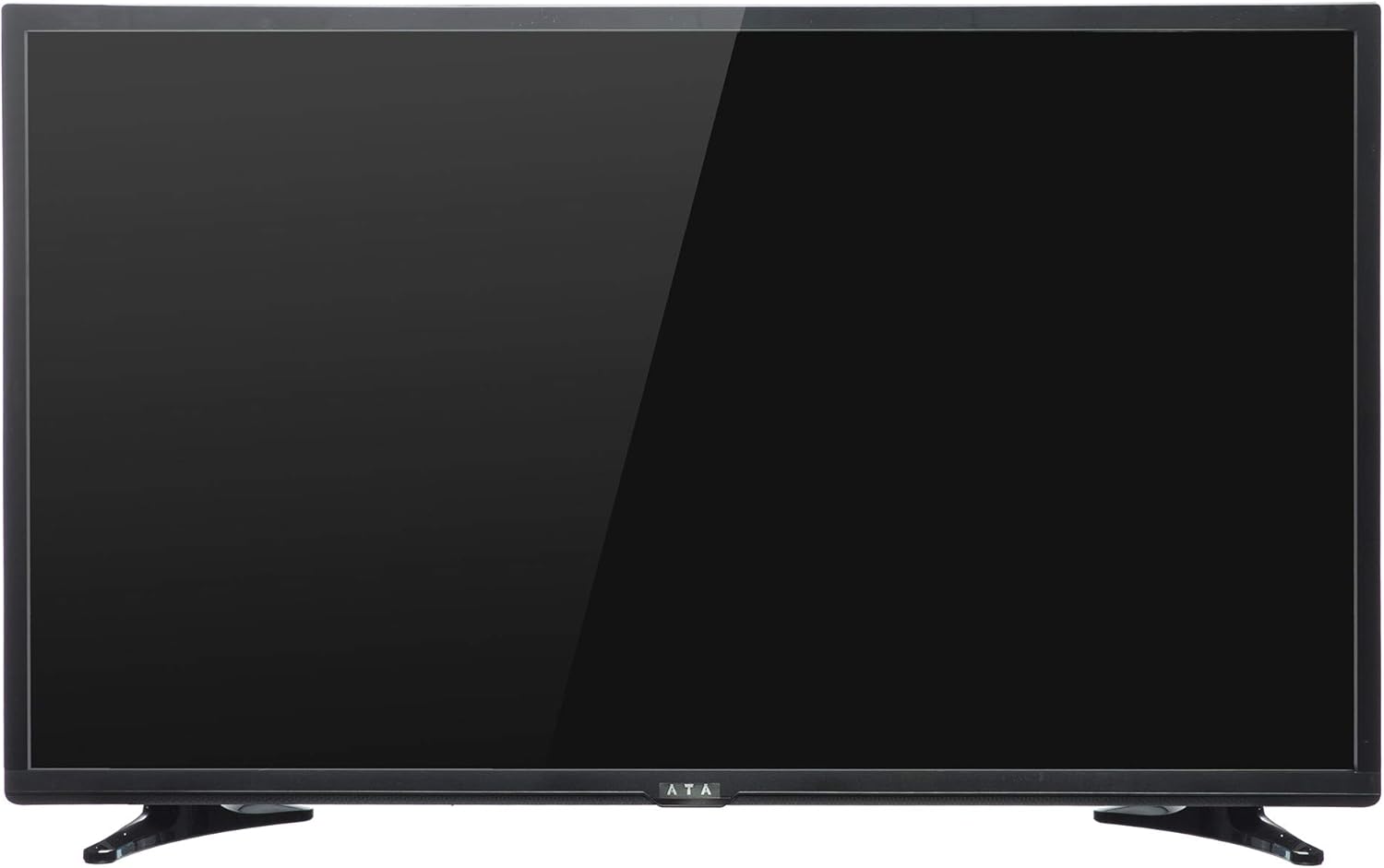
Beeld 1: Voorkant view of the ATA 43 Inch Smart TV. The screen is black, indicating it is powered off or in standby mode. The ATA logo is visible at the bottom center.
The front of the ATA 43S1 TV features a sleek design with a narrow bezel, maximizing the screen area. The ATA brand logo is centrally located at the bottom of the frame. An indicator light (not visible in image) and IR receiver for the remote control are typically located near the logo.
4.2. Agter View

Prent 2: Agter view of the ATA 43 Inch Smart TV. This image displays the back panel, including VESA mounting holes for wall installation and designated areas for input/output ports.
The rear panel of the TV includes VESA mounting points for wall installation (wall mount bracket sold separately). Various input and output ports are located on the side and bottom sections of the back panel for easy access.
4.3. Invoer-/Uitvoerpoorte
Your ATA Smart TV is equipped with a variety of ports to connect external devices.

Image 3: Close-up of the side-facing ports, showing three HDMI ports (HDMI1, HDMI2, HDMI3) and two USB ports (USB2.0, USB2.0).
- HDMI-poorte (x3): For connecting high-definition devices such as Blu-ray players, gaming consoles, and set-top boxes.
- USB-poorte (x2): Vir die koppeling van USB-bergingstoestelle om media te speel files of vir sagteware-opdaterings.

Image 4: Close-up of the bottom-facing ports, including Earphone, RJ45 (Ethernet), PC Audio, PC(VGA), Mini YPbPr, Video, L/R Audio (AV In), and Coaxial.
- RJ45 (Ethernet) Poort: Vir bedrade internetverbinding.
- PC(VGA) Port: Vir die koppeling van 'n rekenaar.
- PC oudio in: Oudio-invoer vir VGA-verbinding.
- AV In (Video, L/R Audio): Vir die koppeling van ouer toestelle met saamgestelde video- en stereo-klankuitsette.
- Mini YPbPr: Komponentvideo -invoer.
- Koaksiaal: Vir die koppeling van 'n antenna of kabeltelevisie.
- Oortelefoonaansluiting: Vir die koppeling van koptelefoon.
4.4. Afstandbeheer

Image 5: The remote control for the ATA Smart TV. It features standard TV controls, navigation buttons, and dedicated function keys.
The remote control allows you to operate all functions of your TV. It includes buttons for power, input source selection, volume control, channel navigation, menu access, smart TV functions, and media playback controls.
- STANDBY (Red Button): Skakel aan / af.
- BRON: Select input source (HDMI, AV, TV, etc.).
- Getalknoppies (0-9): Direkte kanaalkeuse.
- VOL +/-: Pas volume aan.
- CH +/-: Verander kanale.
- DEMPEL: Demp/ontdemp klank.
- SPYSKAART: Gaan na die hoofkieslys.
- INSKRYWING: Bevestig seleksie.
- Navigasieknoppies (Op/Af/Links/Regs): Navigeer deur die menu's.
- UITGANG: Verlaat huidige kieslys of funksie.
- TUIS: Kry toegang tot die Smart TV-tuisskerm.
- P.MODE / S.MODE: Picture Mode / Sound Mode.
- SUBTITLE / AUDIO / REFRESH: Specific function buttons.
- PLAY/PAUSE, STOP, FF, FB, PREV, NEXT: Media-terugspeelkontroles.
5. Opstelling
5.1. Bevestig die TV-staander
- Plaas die TV versigtig met die gesig na onder op 'n sagte, skoon oppervlak om skermskade te voorkom.
- Rig die staanderstukke met die ooreenstemmende gleuwe aan die onderkant van die TV.
- Maak die staanderstukke vas met die meegeleverde skroewe. Maak seker dat hulle stewig vasgedraai is.
- Lig die TV versigtig op en plaas dit op 'n stabiele, gelyk oppervlak.
Alternatively, you can use a VESA-compatible wall mount (not included) to mount the TV on a wall. Refer to the wall mount's instructions for installation.
5.2. Aansluitkrag
Connect the power cord to the TV's power input and then plug the other end into a wall outlet. The TV will enter standby mode.
5.3. Aanvanklike Opstelling Wizard
The first time you power on the TV, an initial setup wizard will guide you through basic settings.
- Druk die STAAN BY knoppie op die afstandsbediening om die TV aan te skakel.
- Follow the on-screen prompts to select your preferred language, country/region, and time zone.
- Netwerk konneksie:
- Wi-Fi: Kies jou Wi-Fi-netwerk uit die lys en voer die wagwoord in.
- Ethernet: If you connected an Ethernet cable to the RJ45 port, the TV should automatically detect the wired connection.
- Complete any remaining steps in the setup wizard, such as channel scanning (if connecting an antenna/cable).
6. Bedryfsinstruksies
6.1. Skakel aan/af
- To turn on the TV from standby, press the STAAN BY knoppie op die afstandbeheer.
- Om die TV in bystandmodus te plaas, druk die STAAN BY knoppie weer.
6.2. Invoerbronkeuse
To switch between connected devices (e.g., HDMI, AV, TV tuner):
- Druk die BRON knoppie op die afstandbeheer.
- Use the Navigation buttons (Op/af) to highlight the desired input source.
- Druk ENTER om jou keuse te bevestig.
6.3. Volume en Kanaalbeheer
- Druk VOL+ om volume te verhoog, VOL - om volume te verlaag.
- Druk CH + to go to the next channel, CH - om na die vorige kanaal te gaan.
- Use the Number buttons to directly enter a channel number.
- Druk DEM to temporarily turn off the sound. Press again to restore.
6.4. Smart TV Features (Android 4.4.2)
Your TV runs on Android 4.4.2, providing access to various smart features and applications.
- Druk die TUIS button on the remote to access the Smart TV home screen.
- From the home screen, you can navigate to pre-installed applications or access settings.
- Ensure your TV is connected to the internet via Wi-Fi or Ethernet to utilize online features.
- Use the Navigation buttons and ENTER to select and launch applications.
7. Onderhoud
- Skoonmaak van die skerm: Vee die skerm liggies af met 'n sagte, pluisvrye lap. Vir hardnekkige merke, vee dit effens af.ampMaak die lap skoon met water of 'n gespesialiseerde skermreiniger (moenie direk op die skerm spuit nie).
- Maak die kabinet skoon: Gebruik 'n sagte, droë lap om die TV-kas af te vee. Moenie skuurmiddels of oplosmiddels gebruik nie.
- Afstof: Stof die ventilasie-openinge aan die agterkant van die TV gereeld af om oorverhitting te voorkom.
- Kragkabel: Periodically check the power cord for any damage. If damaged, contact service personnel for replacement.
8. Probleemoplossing
| Probleem | Moontlike oorsaak | Oplossing |
|---|---|---|
| Geen krag nie | Kragkabel nie gekoppel nie; Kragaansluiting werk nie. | Maak seker dat die kragkabel stewig ingeprop is. Toets die aansluiting met 'n ander toestel. |
| Geen beeld nie, maar klank is teenwoordig | Incorrect input source selected; Backlight issue. | Druk die BRON button to select the correct input. Check picture settings. |
| Geen klank nie, maar beeld is teenwoordig | Volume is muted or too low; Audio cables not connected properly. | Druk DEM or increase volume. Check audio cable connections. |
| Afstandbeheer werk nie | Batterye is pap of verkeerd geplaas; Obstruksie tussen afstandbeheerder en TV. | Vervang batterye. Maak seker dat daar 'n siglyn na die TV se IR-ontvanger is. |
| Kan nie aan Wi-Fi koppel nie | Verkeerde wagwoord; Routerprobleem; TV te ver van router af. | Verify Wi-Fi password. Restart router. Move TV closer or use Ethernet. |
9. Spesifikasies
| Kenmerk | Detail |
|---|---|
| Handelsmerk | ATA |
| Modelnommer | 43S1 (ATA43FOS) |
| Skerm grootte | 43 duim |
| Tipe vertoon | LED FHD |
| Resolusie | 1920 x 1080 (Vol HD) |
| Herlaaitempo | 60 Hz |
| Bedryfstelsel | Android 4.4.2 |
| Verbindingstegnologie | HDMI (x3), USB (x2), VGA, Ethernet (RJ45) |
| Spesiale kenmerke | Smart TV functionality, Flat Screen |
| Produk Afmetings (D x B x H) | 9 x 96.5 x 56 cm |
| Item gewig | 6.01 kg |
| Ingesluit komponente | TV, Staanplek |
10. Waarborg en Ondersteuning
For warranty information, please refer to the warranty card included with your product or contact your local ATA authorized dealer or service center. Keep your purchase receipt as proof of purchase for warranty claims.
For technical support or service inquiries, please contact ATA customer service through their official webwebwerf of die kontakinligting wat in u produkdokumentasie verskaf word.