
1. Inleiding
This instruction manual provides detailed guidance for the installation, operation, and maintenance of your Beghelli Dom-e Wi-Fi Full HD Pan/Tilt Surveillance Camera. Please read this manual thoroughly before using the product to ensure proper functionality and safety. Keep this manual for future reference.

Figure 1: Beghelli Dom-e Wi-Fi Full HD Pan/Tilt Surveillance Camera.
2. Produk verbyview
The Beghelli Dom-e Wi-Fi Camera is a versatile surveillance device designed for indoor use, offering Full HD 1080p resolution and comprehensive monitoring capabilities. It integrates seamlessly into your smart home system via the Dom-e Beghelli application.
Sleutel kenmerke:
- Full HD 1080p-resolusie: Verskaf duidelike en gedetailleerde video footage.
- Pan- en Kantel-funksionaliteit: Motorized rotation of 355° horizontally and 85° vertically, controllable via the app.
- Nagvisie: Equipped with IR LEDs for clear visibility up to 10 meters in low-light conditions.
- Bewegingsopsporing: Sends real-time push notifications to your smartphone upon detecting movement, including specific person detection.
- Outomatiese dophou: The "Tracking" function enables the camera to automatically follow moving subjects.
- Tweerigting-klank: Built-in microphone and speaker allow for hands-free communication.
- Flexible Recording Options: Record directly to your smartphone, to a MicroSD card (up to 128GB, not included), or via optional cloud storage.
- Wi-Fi konneksie: Connects to your home Wi-Fi network (2.4 GHz).
- Data-enkripsie: Ensures the security of your video data.
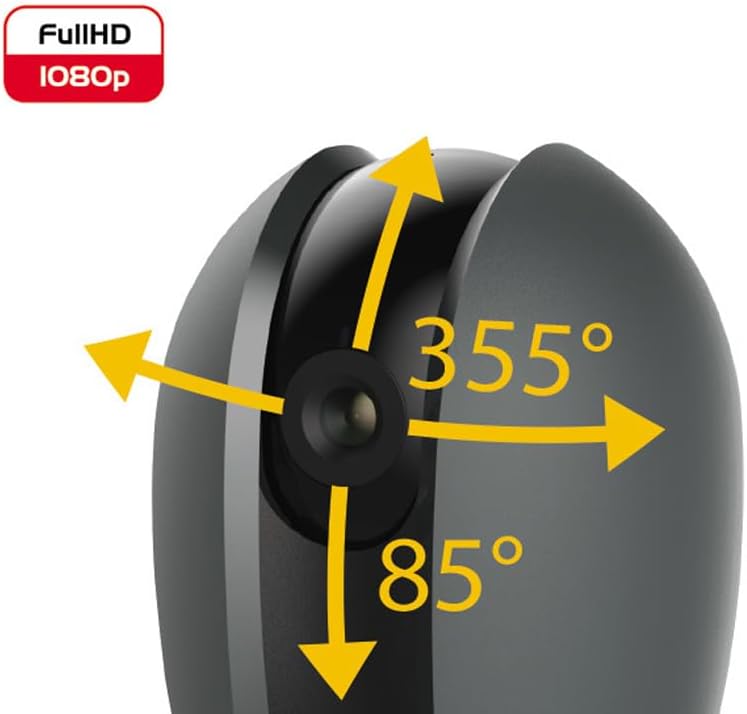
Figure 2: Camera's pan and tilt capabilities.
3. Pakketinhoud
Verifieer dat alle items in die pakket teenwoordig is:
- Beghelli Dom-e Wi-Fi Full HD Pan/Tilt Surveillance Camera
- USB Power Adapter (230V – DC 5V/1A)
- Mounting accessories (if included, not explicitly listed but implied by "wall or ceiling installation")
- Instructiehandleiding (hierdie dokument)

Figure 3: Product packaging for the Beghelli Dom-e Camera.
4. Opstelling
4.1 Aanskakeling van die kamera
- Connect the provided USB power adapter to the camera's power input.
- Plug the adapter into a standard 230V power outlet. The camera will power on and initiate its startup sequence.
4.2 Installasie van mobiele toepassings
The Beghelli Dom-e camera is controlled via the dedicated "Dom-e Beghelli" mobile application.
- Download the "Dom-e Beghelli" app from the Apple App Store (for iOS 8.0 or later) or Google Play Store (for Android 4.2 or later).
- Installeer die toepassing op u slimfoon of tablet.
- Registreer vir 'n nuwe rekening of meld aan as jy reeds een het.
4.3 Connecting to Wi-Fi and Pairing
Ensure your Wi-Fi network is 2.4 GHz (IEEE802.11 b/g/n). The camera does not support 5 GHz networks.
- Open the Dom-e Beghelli app and follow the on-screen instructions to add a new device.
- Select the Beghelli Dom-e camera from the list of available devices.
- Enter your Wi-Fi network name (SSID) and password when prompted.
- The app will guide you through the pairing process, which typically involves scanning a QR code displayed on your phone with the camera, or listening for an audio prompt.
- Once successfully paired, the camera's status indicator will change, and you will see the live feed in the app.

Figure 4: Simplified setup steps via the Dom-e Beghelli app.
4.4 Montering van die kamera
The camera can be installed on a wall or ceiling. Choose a location that provides the desired viewhoek en is binne die bereik van jou Wi-Fi-netwerk en 'n kragpunt.
- Mark the drilling points on the desired surface using the mounting template (if provided).
- Boor gate en plaas muurproppe indien nodig.
- Secure the mounting bracket (if provided) to the surface.
- Heg die kamera aan die monteerbeugel vas.
- Adjust the camera's angle manually or via the app after installation.
5. Bedryfsinstruksies
5.1 Lewendig View en Pan/Kantelbeheer
- Open the Dom-e Beghelli app and select your camera to view die lewendige voer.
- Use the directional controls within the app to pan the camera horizontally (355°) and tilt it vertically (85°) to adjust the viewing gebied.
5.2 Bewegingsopsporing en kennisgewings
- Navigate to the camera settings in the app to enable motion detection.
- Configure sensitivity levels and detection zones as needed.
- Enable push notifications to receive alerts on your smartphone when motion is detected.
- The camera also features person detection for more accurate alerts.
5.3 Tweerigting-klank
- Terwyl viewing the live feed, tap the microphone icon in the app to speak through the camera's speaker.
- The camera's built-in microphone will capture audio from the monitored area, allowing you to listen in.
5.4 Opname en berging
- MicroSD-kaartopname: Insert a MicroSD card (up to 128GB, not included) into the camera's slot for continuous recording or event-triggered recording.
- Smartphone Recording: You can manually record video clips directly to your smartphone while viewdie regstreekse uitsending.
- Wolkberging: An optional cloud storage service is available via subscription for off-site video backup. Refer to the app for details.
- Geskeduleerde opname: Set up specific times for the camera to record automatically through the app settings.
5.5 Nagvisie
The camera automatically switches to night vision mode in low-light conditions, utilizing its IR LEDs to provide clear black-and-white footage up to 10 meters.
6. Mobile Application (Dom-e Beghelli App)
The Dom-e Beghelli app is the central control interface for your camera and other compatible smart home devices. It allows for:
- Remote control of camera pan and tilt.
- Access to live video feed and recorded footage.
- Configuration of motion detection, notifications, and recording schedules.
- Tweerigting-klankkommunikasie.
- Integration with other Dom-e smart home devices (e.g., alarms, smart plugs, lighting).
- Voice control compatibility with Google Assistant and Amazon Alexa (if associated with a compatible smartphone).

Figure 5: The Dom-e Beghelli app interface for camera control.
7. Spesifikasies
| Kenmerk | Spesifikasie |
|---|---|
| Modelnommer | 60021 |
| Resolusie | Full HD 1080p (2 Megapixels) |
| Sensor | CMOS 1/2.9" |
| Lens | 3.6 mm / f2.0 / 105° |
| Sluiterspoed | 1/25 - 1/100,000 sec |
| Pan Rotasie | 355 ° horisontaal |
| Kantelrotasie | 85 ° Vertikaal |
| Nagsigreeks | Up to 10 meters (IR LEDs) |
| Oudio | Two-way, hands-free (in/out) |
| Berging | MicroSD card up to 128GB (not included), Smartphone, Cloud (optional subscription) |
| Wi-Fi Standard | IEEE802.11 b/g/n (2.4 GHz) |
| Frekwensieband | 2.4 GHz - 2.4835 GHz |
| Krag Invoer | 230V – DC 5V/1A (USB adapter included) |
| Maksimum kragverbruik | 4.5 W |
| Afmetings (L x B x H) | 63 x 58 x 96 mm (Product description) / 7 x 7 x 11 cm (Specifications) |
| Gewig | 330 gram |
| Materiaal | Plastiek |
| Bedryfstelselversoenbaarheid | Apple iPhone iOS 8.0 or later / Android 4.2 or later |
| Aanbevole gebruik | Binnenshuise sekuriteit |
Note: Some dimensions may vary slightly between product description and specifications list.
8. Onderhoud
8.1 Skoonmaak
- Ensure the camera is powered off and unplugged before cleaning.
- Gebruik 'n sagte, droë lap om die kamera se liggaam af te vee.
- For the lens, use a specialized lens cleaning cloth to avoid scratches.
- Moenie vloeibare skoonmaakmiddels, aërosols of skuurmiddels gebruik nie.
8.2 Sagteware-opdaterings
Periodically check the Dom-e Beghelli app for firmware updates. Keeping your camera's firmware updated ensures optimal performance, security, and access to new features.
9. Probleemoplossing
| Probleem | Oplossing |
|---|---|
| Kamera skakel nie aan nie | Ensure the USB power adapter is securely connected to the camera and a working power outlet. Verify the outlet has power. |
| Kan nie aan Wi-Fi koppel nie |
|
| Geen regstreekse videostroom nie |
|
| Bewegingsbespeuring werk nie |
|
| Cannot reconnect after Wi-Fi password change | If your Wi-Fi password changes, you will likely need to reset the camera and re-pair it with the app using the new Wi-Fi credentials. Refer to the app for device reset instructions. |
10. Waarborg en Ondersteuning
For warranty information and technical support, please refer to the documentation provided with your purchase or contact Beghelli customer service directly. You can typically find contact details on the Beghelli official website or within the Dom-e Beghelli application.
Manufacturer: Beghelli
Model: 60021