
Inleiding
This manual provides comprehensive instructions for the Apple iPad Air 4th Generation (2020). It covers the fundamental aspects of the iPad and its iOS operating system, detailing how various functions operate. This guide will walk you through step-by-step procedures for performing activities on your iPad Air, utilizing its embedded features, and optimizing its use. The manual includes descriptive text to clarify each step and function.
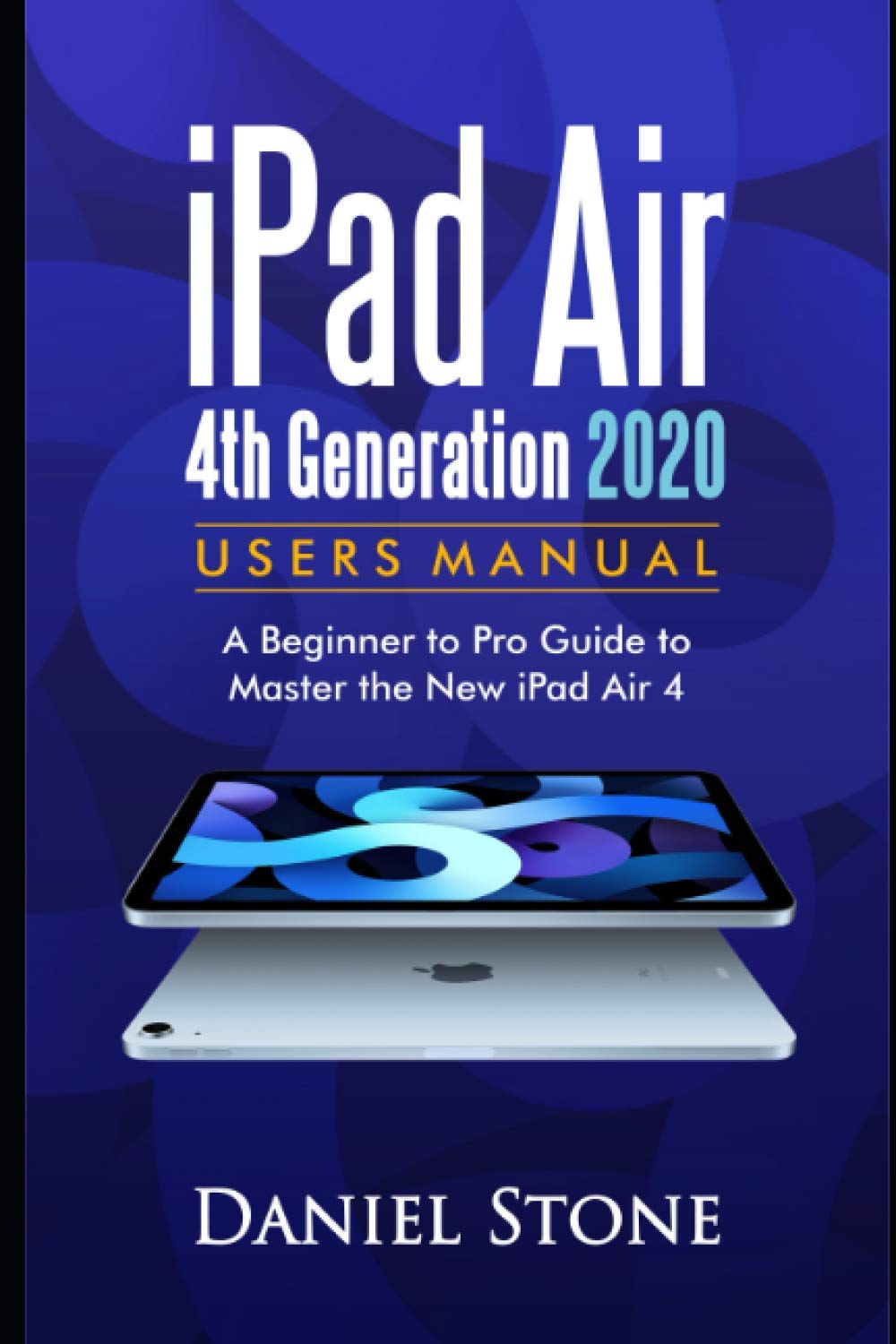
Image: Front cover of the iPad Air 4th Generation User Manual. This image displays the title and a brief description of the manual's content.
Opstelling
1. Uitpak en Aanvanklike Lading
Upon unboxing your iPad Air, ensure all components are present: iPad Air device, USB-C Charge Cable, and 20W USB-C Power Adapter. Connect the USB-C cable to the iPad and the power adapter, then plug it into a power outlet to fully charge the device before first use.
2. Skakel aan/af
- Om aan te skakel: Druk en hou die boonste knoppie in totdat die Apple-logo verskyn.
- Om af te skakel: Press and hold the Top button and either volume button simultaneously until the power off slider appears. Drag the slider to shut down the device. Alternatively, go to Settings > General > Shut Down.
3. Aanvanklike toestelopstelling
Follow the on-screen instructions to set up your iPad Air. This includes selecting your language and region, connecting to a Wi-Fi network, and setting up Face ID or Touch ID. You will also be prompted to sign in with your Apple ID or create a new one. If you have a previous device, you can transfer data during this process.
4. Touch ID Configuration
During initial setup, you will be guided to set up Touch ID. Place your finger on the Top button repeatedly, lifting and repositioning it as instructed, to register your fingerprint for unlocking the device and authorizing purchases.
Bedryf
1. Basic Navigation and Gestures
- Tuisskerm: Swipe up from the bottom edge of the screen to return to the Home Screen.
- Programwisselaar: Vee op vanaf die onderste rand en pouseer in die middel van die skerm om view maak toepassings oop.
- Beheersentrum: Swipe down from the top-right corner of the screen.
- Kennisgewingsentrum: Swipe down from the top-left corner of the screen.
2. Toepassingsbestuur
Download applications from the App Store. To organize apps, touch and hold an app icon until it jiggles, then drag it to a new location or into a folder. To delete an app, touch and hold it, then tap 'Remove App'.
3. Kamerafunksies
Open the Camera app to take photos and videos. Swipe left or right to switch between modes like Photo, Video, Pano, and Time-lapse. Tap the shutter button to capture. Use pinch gestures to zoom in or out.
4. Multitasking Features
- Verdeel View: Drag an app from the Dock to the right or left side of the screen to open two apps side-by-side.
- Slide Over: Drag an app from the Dock to the center of the screen to open it as a floating window.
5. Apple Pencil (2nd Generation)
The iPad Air 4th Generation supports the Apple Pencil (2nd Generation). To pair, attach the Apple Pencil to the magnetic connector on the side of your iPad. It will automatically pair and charge. Use it for drawing, writing, and navigating.
Onderhoud
1. Skoonmaakriglyne
To clean your iPad Air, use a soft, lint-free cloth. Avoid abrasive materials, aerosols, solvents, or ammonia-based cleaners. For stubborn marks, slightly dampen the cloth with water. Do not submerge the device in any cleaning agents.
2. Battery-optimalisering
To maximize battery life, keep your software updated, avoid extreme ambient temperatures, and enable Auto-Brightness. You can monitor battery usage in Instellings > Battery.
3. Sagteware-opdaterings
Regularly update your iPadOS to ensure optimal performance and security. Go to Instellings > Algemeen > Sagteware-opdatering om na beskikbare opdaterings te kyk en te installeer.
4. Data-rugsteun
Regularly back up your iPad data to iCloud or your computer using Finder (macOS Catalina or later) or iTunes (Windows or older macOS). This protects your information in case of device loss or damage.
Probleemoplossing
1. Toestel reageer nie
If your iPad Air becomes unresponsive, try a force restart:
- Press and quickly release the Volume Up button.
- Press and quickly release the Volume Down button.
- Druk en hou die boonste knoppie in totdat die Apple-logo verskyn.
2. Wi-Fi or Connectivity Issues
If you experience Wi-Fi or Bluetooth issues, try turning Wi-Fi/Bluetooth off and on again in Control Center or Settings. If the problem persists, restart your iPad and your router. You can also reset network settings via Settings > General > Transfer or Reset iPad > Reset > Reset Network Settings.
3. App Crashes or Freezes
If an app crashes or freezes, force quit the app by swiping up from the bottom of the screen to open the App Switcher, then swipe the problematic app's card upwards to close it. Reopen the app. If the issue continues, try deleting and reinstalling the app.
4. Fabrieksterugstelling
As a last resort for persistent software issues, you can erase all content and settings. Go to Settings > General > Transfer or Reset iPad > Erase All Content and Settings. Ensure you have a backup before proceeding.
Spesifikasies
| Kenmerk | Detail |
|---|---|
| Vertoon | 10.9-inch Liquid Retina IPS LCD, 2360 x 1640 pixels |
| Verwerker | Apple A14 Bionic-skyfie |
| Bergingsopsies | 64 GB, 256 GB |
| Agterste kamera | 12 MP, f/1.8, (wyd), PDAF |
| Voorste kamera | 7 MP, f/2.2, (standard) |
| Batterylewe | Tot 10 uur se navigeer die web on Wi-Fi or watching video |
| Konnektiwiteit | Wi-Fi 6 (802.11ax), Bluetooth 5.0, Optional LTE |
| Hawens | USB-C |
| Biometriese sekuriteit | Touch ID (integrated into Top button) |
| Afmetings | 247.6 x 178.5 x 6.1 mm (9.75 x 7.03 x 0.24 duim) |
| Gewig | Wi-Fi models: 458 g (1.01 lb); Wi-Fi + Cellular models: 460 g (1.01 lb) |
Waarborg en Ondersteuning
1. Waarborginligting
Your Apple iPad Air 4th Generation comes with a one-year limited warranty from Apple, covering manufacturing defects. This warranty is in addition to rights provided by consumer law. For full details, refer to the warranty information included with your device or visit Apple's official webwebwerf.
2. Contacting Apple Support
For technical assistance, service, or support, you can visit the official Apple Support website, use the Apple Support app, or contact Apple directly via phone. Ensure you have your device's serial number ready when seeking support.


