
1. Inleiding
This manual provides detailed instructions for the setup, operation, maintenance, and troubleshooting of your X9 Wired Ergonomic Keyboard. Designed for comfort and efficiency, this keyboard features a split ergonomic layout and an integrated wrist rest to promote natural hand and arm posture during extended use. Please read this manual thoroughly to ensure proper use and longevity of your device.

Figuur 1.1: The X9 Wired Ergonomic Keyboard, showcasing its split design and integrated wrist rest.
2. Produk verbyview
Sleutel kenmerke:
- Split Ergonomic Design: Promotes a natural hand and arm position, reducing strain and fatigue.
- Integrated Cushioned Wrist Rest: Provides essential support for comfortable typing.
- Full-Sized 110-Key Layout: Sluit 'n numeriese sleutelbord in vir verbeterde produktiwiteit.
- 17 Shortcut Keys: For quick access to common functions.
- Inprop-en-speel-konnektiwiteit: Simple USB-A wired connection, no drivers required.
- Verstelbare skopstand: Allows for customizable typing angles.

Figuur 2.1: Detailed breakdown of the X9 Ergonomic Keyboard's features, including its split layout, 110 keys, 17 shortcuts, padded wrist cushion, two spacebars, adjustable kickstands, and sloped design.

Figuur 2.2: Illustration of natural arm posture achieved with the X9 Ergonomic Keyboard, highlighting how the split design relieves wrist and arm strain.
3. Opstelinstruksies
The X9 Wired Ergonomic Keyboard is designed for simple plug-and-play functionality with compatible devices.
Koppel die sleutelbord:
- Locate an available USB-A port on your computer (desktop, laptop, or Chromebook).
- Steek die USB-A-aansluiting van die sleutelbordkabel in die USB-A-poort op jou rekenaar.
- Die bedryfstelsel sal outomaties die nodige drywers opspoor en installeer. Geen handmatige drywerinstallasie is nodig nie.
- Jou sleutelbord is nou gereed vir gebruik.
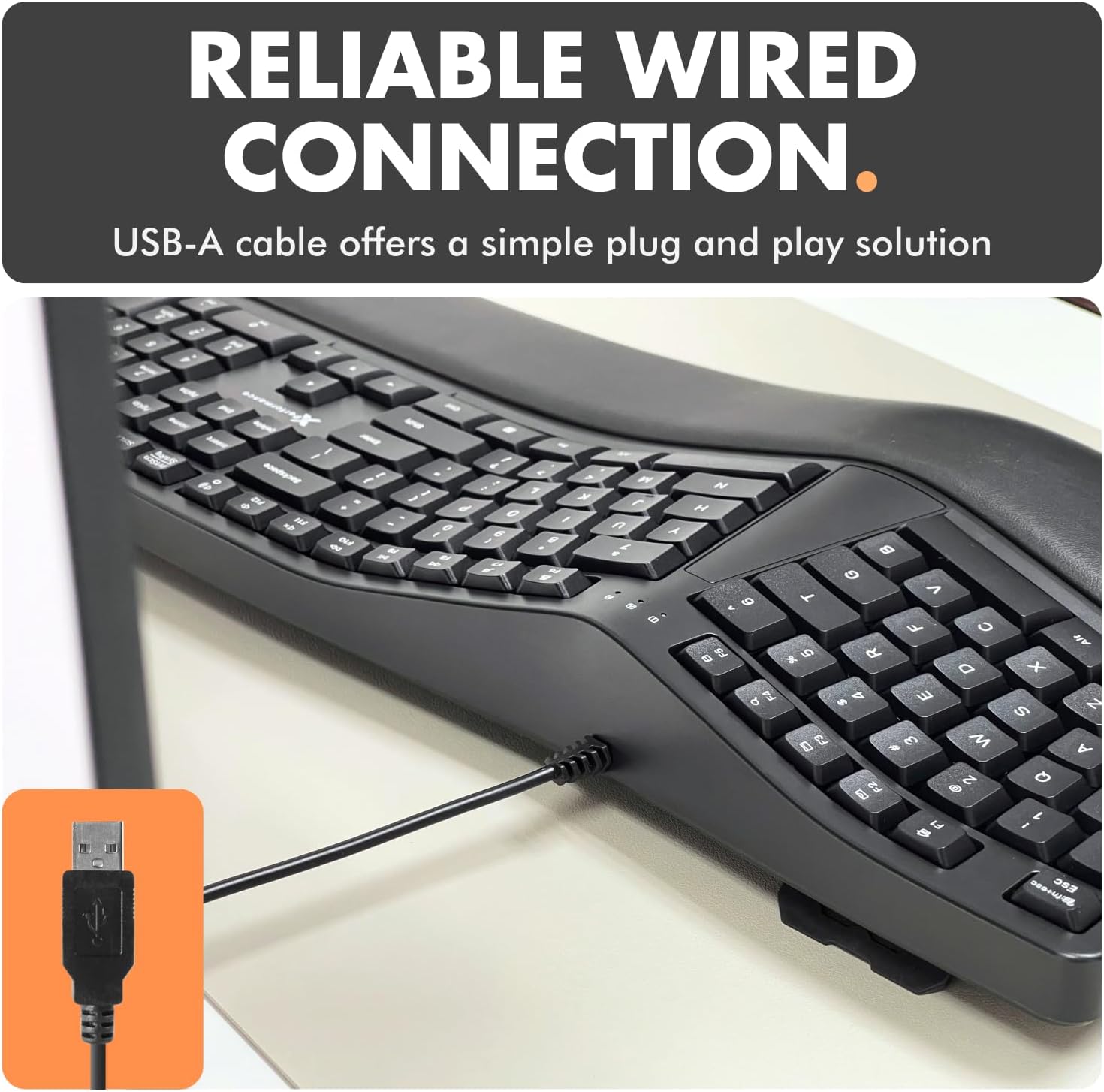
Figuur 3.1: The USB-A cable of the X9 Ergonomic Keyboard, ready for connection to a computer's USB port.
4. Bedryfsinstruksies
The X9 Wired Ergonomic Keyboard operates like a standard full-sized keyboard, with added ergonomic benefits and shortcut keys.
Typing Posture:
- Position the keyboard directly in front of you.
- Rest your wrists on the integrated cushioned wrist rest to maintain a neutral wrist position.
- Utilize the split key layout by keeping your hands aligned with their respective halves of the keyboard, allowing your arms to remain in a natural, relaxed posture.
- Adjust the kickstand at the back of the keyboard if you prefer an inclined typing angle.
Using Shortcut Keys:
The keyboard includes 17 dedicated shortcut keys for quick access to various functions. Refer to the keycap legends for specific functions such as media control, volume adjustment, and application shortcuts.
5. Onderhoud
Gereelde skoonmaak en behoorlike sorg sal help om die werkverrigting en voorkoms van jou sleutelbord te handhaaf.
Maak die sleutelbord skoon:
- Ontkoppel die sleutelbord van jou rekenaar voordat jy dit skoonmaak.
- Gebruik 'n sagte, pluisvrye lap liggies dampened with water or a mild cleaning solution to wipe the surface of the keyboard and wrist rest.
- Vir stof en puin tussen sleutels, gebruik saamgeperste lug.
- Vermy die gebruik van harde chemikalieë, skuurmiddels of oormatige vog, aangesien dit die sleutelbord kan beskadig.
Algemene sorg:
- Vermy die mors van vloeistowwe op die sleutelbord.
- Moenie die sleutelbord vir lang tye aan uiterste temperature of direkte sonlig blootstel nie.
- Handle the USB cable gently to prevent damage.
6. Probleemoplossing
If you encounter issues with your X9 Wired Ergonomic Keyboard, please refer to the following common solutions:
| Probleem | Moontlike oorsaak | Oplossing |
|---|---|---|
| Sleutelbord reageer nie | Loose USB connection, incorrect port, system error. | Ensure the USB cable is securely plugged into a working USB-A port. Try a different USB port or a different computer to isolate the issue. Restart your computer. |
| Sekere sleutels werk nie | Debris under keycap, software conflict. | Clean the affected keys with compressed air. Check for any software updates or conflicts on your operating system. |
| Ergonomic benefits not felt | Incorrect posture, adjustment needed. | Review the 'Typing Posture' section in this manual. Ensure your wrists are resting on the cushion and your arms are in a natural position. Adjust the keyboard's kickstand to find your optimal angle. |
If the problem persists after trying these solutions, please contact X9 Performance customer support for further assistance.
7. Spesifikasies
| Kenmerk | Detail |
|---|---|
| Modelnommer | X9ERGOKEY |
| Konnektiwiteit | Bedraad USB-A |
| Aantal sleutels | 110 |
| Spesiale kenmerke | Ergonomic Split Design, Integrated Wrist Rest, Adjustable Kickstand, Shortcut Keys |
| Versoenbare toestelle | Laptop, PC (Windows), Chromebook (Chrome OS) |
| Produk afmetings | 19 x 9.85 x 1.5 duim |
| Item gewig | 2.84 pond |
| Kabellengte | 5 voet (ongeveer) |
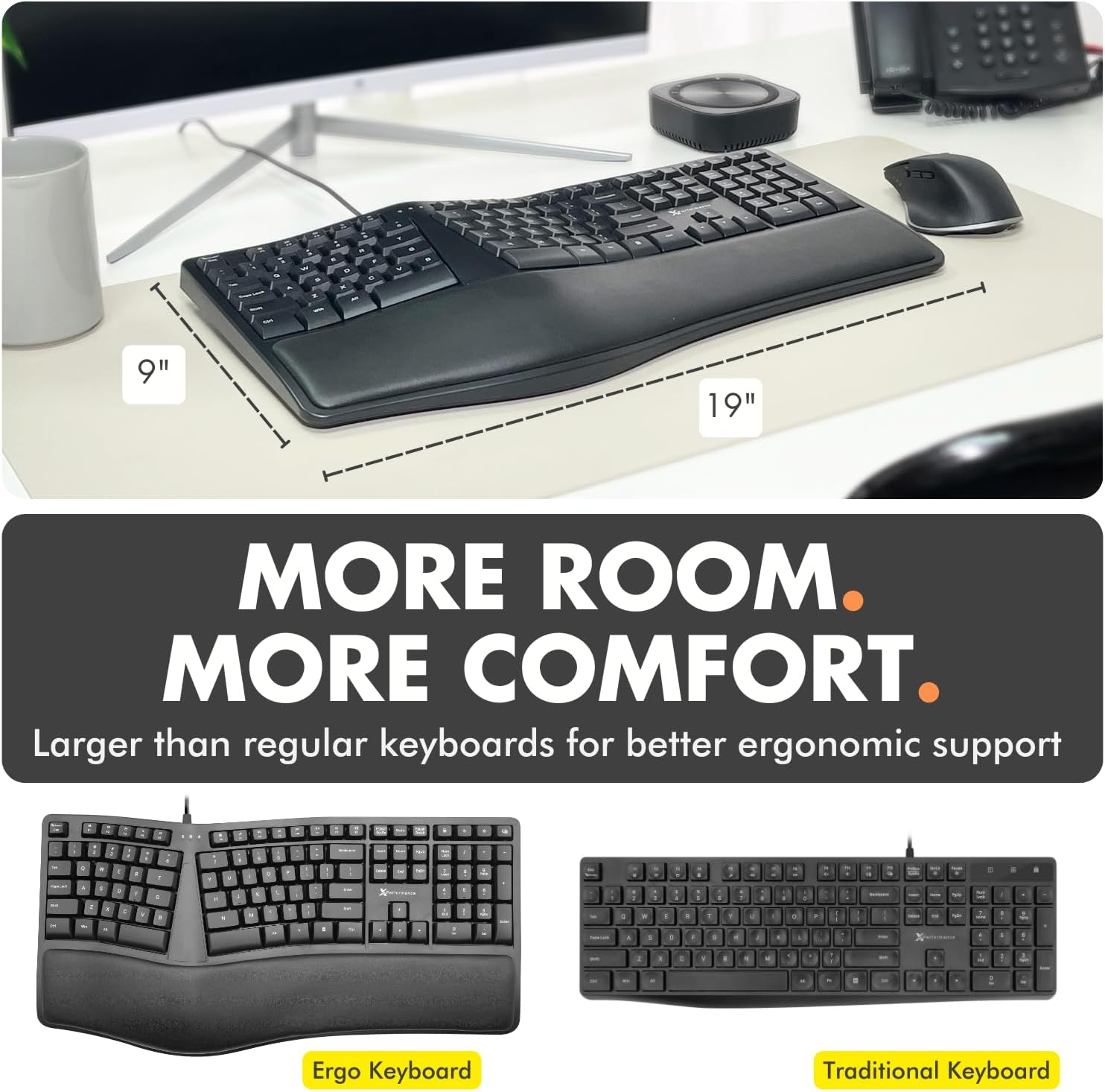
Figuur 7.1: Approximate dimensions of the X9 Ergonomic Keyboard (19 inches length, 9 inches width).
8. Waarborg en Ondersteuning
X9 Performance values your satisfaction. The X9 Wired Ergonomic Keyboard comes with a 2 jaar waarborg. In case of any issues or for support, please refer to the contact information provided with your product packaging or visit the official X9 Performance website for assistance and easy returns.
For the latest support information and FAQs, please visit the X9 Performance support page.