
1. Inleiding
This manual provides detailed instructions for the setup, operation, maintenance, and troubleshooting of your Sceptre Curved 27" FHD 1080p Gaming Monitor. Please read this manual thoroughly before using your monitor to ensure proper functionality and safety.

Image: Sceptre Curved 27" FHD 1080p Gaming Monitor in a typical desk setup.
2. Pakketinhoud
Verify that all items listed below are included in your package. If any items are missing or damaged, please contact Sceptre customer support.
- Sceptre Curved 27" FHD 1080p Gaming Monitor
- Monitorstaander (basis en arm)
- HDMI kabel
- Power Supply and Adapter
- Philips-hoofskroewedraaier
- Screws and Hardware Kit
- Gebruikershandleiding
- Warranty Information and Customer Service Card

Beeld: Oorview of all items included in the Sceptre monitor package, including the monitor, stand components, cables, tools, and documentation.
3. Vergadering
Volg hierdie stappe om die monitorstaander te monteer:
- Attach the metal stand arm to the plastic base. Align the tabs and gently twist until secure.
- Use the provided Philips head screwdriver and the designated base screw to fasten the stand arm to the base.
- Rig die gemonteerde staander met die monteerpunte aan die agterkant van die monitor.
- Insert the two remaining Philips head screws into the designated holes on the monitor's back and tighten them securely.
- Place the plastic cover over the screws on the stand arm.

Image: The Sceptre Curved 27" monitor with its dimensions labeled, showing the curved screen and the stand.
4. Verbindings
The monitor features various ports for connectivity. Ensure proper connection for optimal performance.
- DC IN: Koppel die kragadapter hier aan.
- Klankuitgang: Koppel eksterne luidsprekers of oorfone.
- Oudio-in: Connect an audio source for the built-in speakers.
- VGA: Connect to a computer's VGA port. Supports up to 75Hz refresh rate.
- HDMI 1.4 (x2): Connect to devices with HDMI output. Supports up to 75Hz refresh rate.
- Kensington Security Lock: Vir die beveiliging van die monitor.
Beeld: Gedetailleerd view of the monitor's rear panel, highlighting the DC IN, Audio In/Out, VGA, and two HDMI 1.4 ports.
5. Bedryfsinstruksies
The On-Screen Display (OSD) menu allows you to adjust various monitor settings. Use the buttons on the back of the monitor to navigate.
OSD-kieslysnavigasie
- Vinnige Begin: Adjust basic settings like preset modes, aspect ratio, source, volume, Blue Light Shift, and Adaptive Sync.
- Prent: Fine-tune image settings including brightness, contrast, DCR, aspect ratio, and sharpness.
- Kleur: Adjust color temperature, gamma, tint, saturation, and Blue Light Shift.
- Stelsel: Configure overdrive, Adaptive Sync, sleep mode, language, OSD position, timer, transparency, mute, and factory reset.
Video: A user demonstrates the Sceptre monitor's OSD menu, showing navigation through settings like volume and input source while displaying gameplay.
6. Vertoonkenmerke
- 1500R Geboë Skerm: The 1500R curvature immerses you into the content, providing a comfortable viewondervinding.
- 100Hz opdateringsfrekwensie: Experience smoother visuals with a refresh rate of up to 100Hz, reducing screen tearing.
- 98% sRGB: Offers a wider color gamut for deeper and more accurate colors.
- Blou Lig Verskuiwing: Reduces blue light emission to protect your eyes from fatigue and strain during extended use.
- Aanpasbare sinkronisering: Sinkroniseer die monitor se verversingstempo met jou grafiese kaart se raamtempo om skermskeuring en hakkeling uit te skakel.
- FPS-RTS Game Modes: Pre-set display modes optimized for First Person Shooter (FPS) and Real-Time Strategy (RTS) games.
- Ingeboude luidsprekers: Integrated speakers provide audio without needing external devices.

Image: Visual representation of the 1500R curvature, highlighting its immersive design.

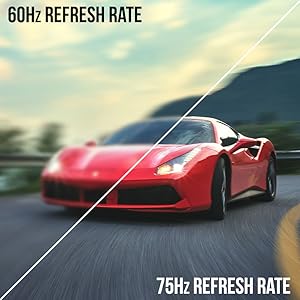
Image: A side-by-side comparison demonstrating the visual smoothness of 75Hz refresh rate versus 60Hz.

Image: A visual comparison highlighting the enhanced color accuracy of 98% sRGB compared to a conventional display.

Image: Split-screen view demonstrating the visual enhancements provided by FPS and RTS game modes.
7. Onderhoud
Om die lang lewensduur en optimale werkverrigting van u monitor te verseker, volg hierdie skoonmaakriglyne:
- Ontkoppel altyd die kragkabel voor skoonmaak.
- Gebruik 'n sagte, pluisvrye lap effens dampmet water of 'n sagte, nie-skurende skoonmaakmiddel afgespoel.
- Vermy die gebruik van alkohol, ammoniak of skuurmiddels, aangesien dit die skermoppervlak kan beskadig.
- Vee die skerm en buite-oppervlaktes liggies af. Moenie skoonmaakmiddel direk op die skerm spuit nie.
8. Probleemoplossing
Indien u enige probleme met u monitor ondervind, raadpleeg die volgende algemene oplossings:
- Geen krag: Ensure the power cable is securely connected to both the monitor and a working power outlet. Check the power adapter and outlet.
- Geen beeld: Verify that the video cable (HDMI or VGA) is securely connected to both the monitor and your computer/device. Ensure the correct input source is selected in the OSD menu.
- Flikkerende/Vervormde Beeld: Check the video cable for damage. Try a different cable or port. Ensure your graphics card drivers are up to date. Adjust refresh rate settings in your device's display settings.
- Geen oudio nie: Check the volume settings in the OSD menu and on your connected device. Ensure external speakers are properly connected if used.
- Knoppies reageer nie: Perform a factory reset through the OSD menu if accessible.
For further assistance, please refer to the full user manual or contact Sceptre customer support.
9. Spesifikasies
| Kenmerk | Spesifikasie |
|---|---|
| Skerm grootte | 27 duim |
| Resolusie | 1920 x 1080 (FHD 1080p) |
| Herlaaitempo | Up to 100Hz (75Hz via HDMI/VGA) |
| Kromming | 1500R |
| Reaksie Tyd | 3ms (GtG) |
| Paneel tipe | VA |
| Helderheid | 280 nits |
| Kleur Omvang | 98% sRGB |
| Video-insette | 2x HDMI 1.4, 1x VGA |
| Oudiopoorte | Audio In, Audio Out |
| Luidsprekers | Ingeboude |
| VESA Mount | 100 mm x 100 mm |
| Afmetings (LxBxH) | 15.09 x 19.97 x 7.02 duim |
| Gewig | 5.5 pond |
10. Spelervaring
The Sceptre Curved 27" monitor is designed to enhance your gaming experience with its high refresh rate, low response time, and immersive curvature.
Video: An official Sceptre video showcasing various gaming monitors, including the Curved 27" model, highlighting their features and performance in gaming scenarios.
For optimal gaming performance, ensure your device's display settings match the monitor's capabilities (e.g., 1920x1080 resolution at 75Hz).
11. Waarborg en Ondersteuning
Your Sceptre monitor comes with a 1-jaar beperkte produkwaarborg. For detailed terms and conditions, please refer to the included warranty information card in your package.
For technical support, troubleshooting, or warranty claims, please contact Sceptre Customer Service. Contact information is provided on the customer service card included with your monitor.