
Inleiding
This manual provides instructions for the MICROWARE HDMI USB Audio Game Capture Card. This device allows you to capture HDMI video and audio signals from various sources and transfer them to your computer via USB 2.0 for recording, streaming, or live broadcasting. It supports input resolutions up to 3840x2160@30Hz and output resolutions up to 1920x1080@30Hz.

Image: The MICROWARE HDMI USB Audio Game Capture Card, a compact black device with HDMI input and USB output ports.

Image: The capture card highlighting its features: pure hardware, small size, easy to carry, and suitability for game live broadcasts. Icons indicate HDMI cable, USB port, HD resolution, and wide applicability.
Opstelgids
The MICROWARE HDMI USB Audio Game Capture Card is designed for plug-and-play operation, requiring no driver installation for most operating systems.

Image: A diagram illustrating the 'plug and play' nature of the capture card, showing it connected to a laptop and various use cases like webcam, gaming, and video conferencing.
Pakketinhoud
- 1 x MICROWARE HDMI USB Audio Game Capture Card
Verbindingstappe
- Connect your HDMI source device (e.g., camcorder, game console, TV box, phone, DSLR) to the HDMI input port of the capture card using an HDMI cable.
- Connect the USB output port of the capture card to a USB 2.0 port on your computer (Windows, macOS, or Linux).
- Your computer should automatically recognize the capture card as a video and audio input device.
- Open your preferred video acquisition software (e.g., OBS Studio, VLC, Amcap) and select the capture card as your video and audio input source.

Image: Diagram illustrating how to connect various HDMI input devices (Video Recorder, Webcam, TV Box, Game Player, Phone) to the capture card's HDMI input, and the capture card's USB output to a computer.
Supported Operating Systems and Software
The capture card supports Windows (WIN10, WIN8.1, WIN8, WIN7), macOS, and Linux operating systems. It is compatible with most acquisition software that supports USB Video Class (UVC) and USB Audio Class (UAC) standards, including:
- OBS Studio
- VLC Media Player
- Amcap
- Zoom (for video conferencing)
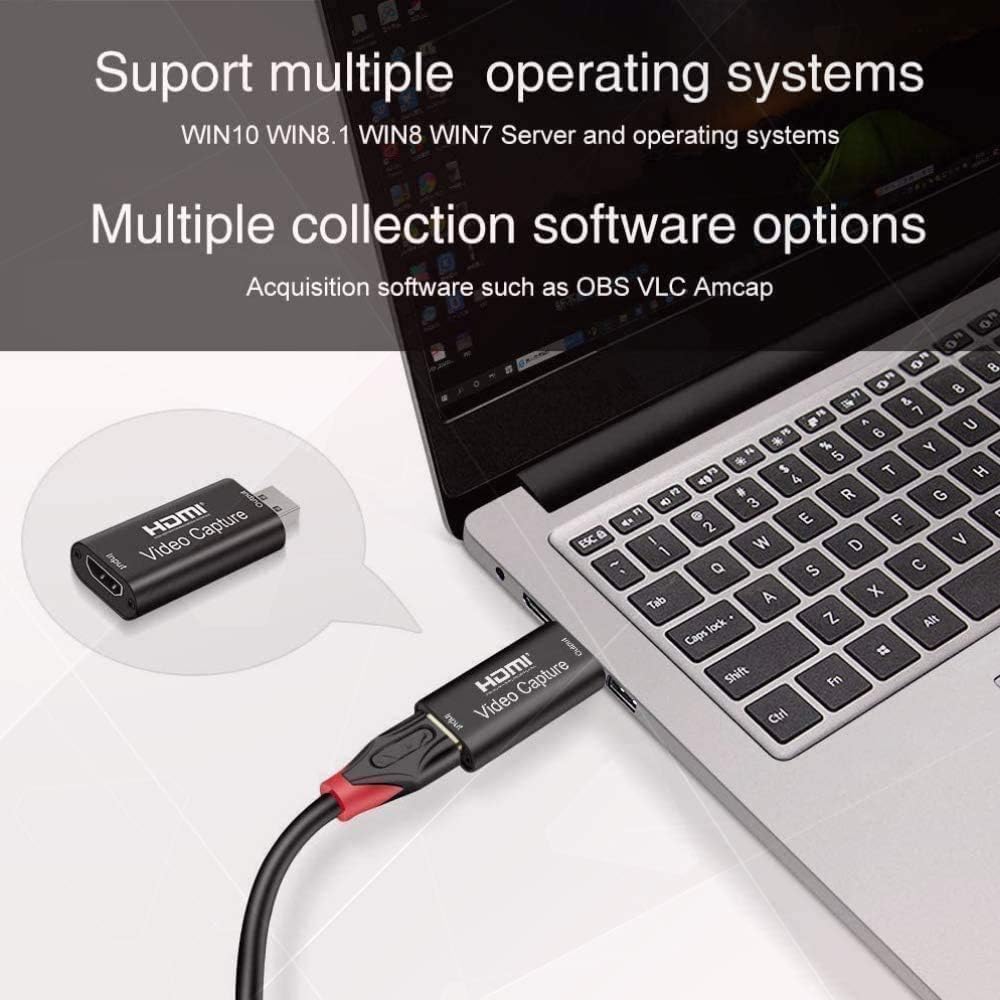
Image: The capture card connected to a laptop, with text indicating support for multiple operating systems (Windows, Mac, Linux) and acquisition software like OBS, VLC, and Amcap.
Bedryfsinstruksies
Once connected, the capture card functions as a bridge between your HDMI source and your computer.
Gebruik as 'n Webnok
You can use a DSLR camera, camcorder, or action camera as a professional webcam for your PC or Mac. Connect the camera's HDMI output to the capture card's HDMI input, then connect the capture card to your computer's USB port. In your video conferencing or streaming software, select the capture card as your camera source.
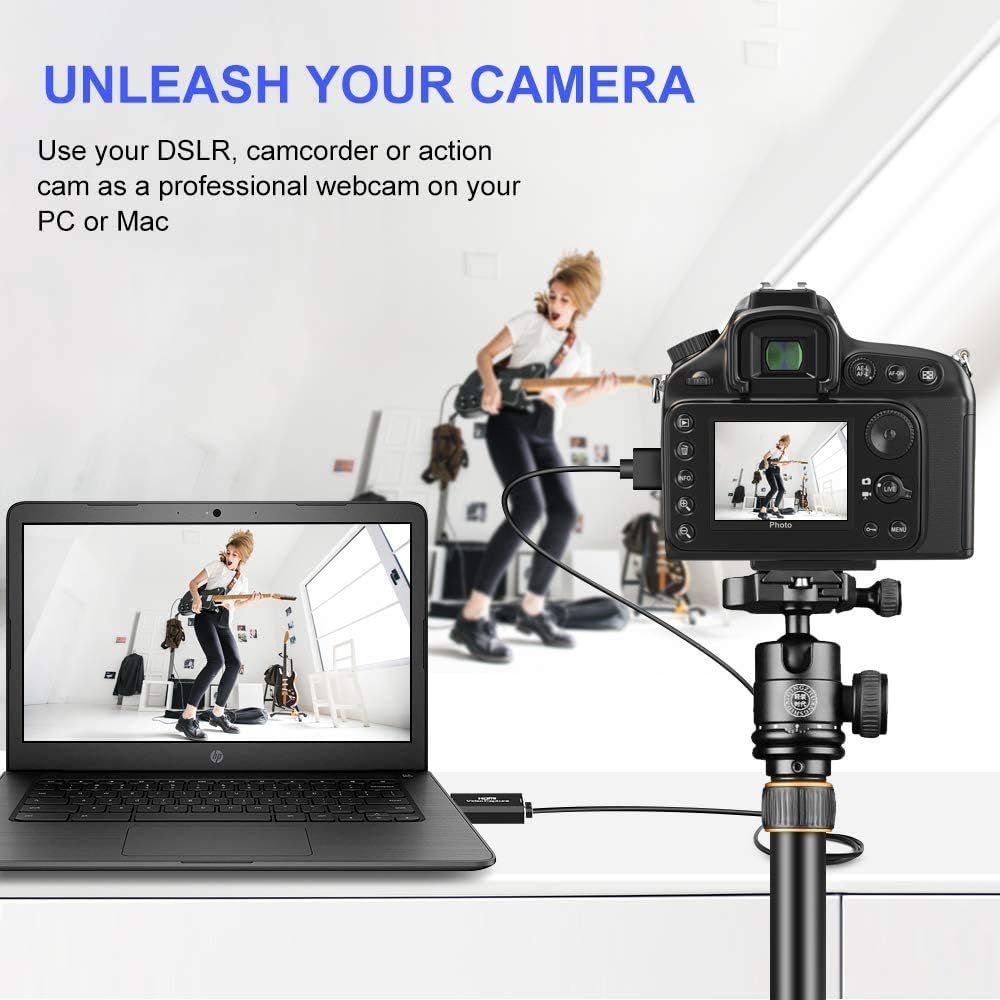
Image: A DSLR camera mounted on a tripod, connected via HDMI to the capture card, which is then connected to a laptop, demonstrating its use as a professional webkam.
Speletjies en stroom
Connect your game console (e.g., Xbox) to the HDMI input of the capture card. The card will transfer the game's video and audio to your computer, allowing you to record gameplay or stream live through compatible software. The USB 2.0 interface ensures smooth transfer for online and standalone games.

Image: A visual depicting the capture card's use in gaming, with a focus on smooth effects and HD capture quality.
Video en oudio spesifikasies
- Inset resolusie: Supports a maximum input resolution of 3840x2160 at 30Hz.
- Uitset resolusie: Supports a maximum output resolution of 1920x1080 at 30Hz.
- Kleurdiepte: Ondersteun 8/10/12-bis diep kleur.
- HDMI-kabellengte: Supports AWG26 HDMI standard cable up to 15 meters (for 1080P and lower resolutions).
- Kragtoevoer: Operates without an external power supply.
Onderhoud
To ensure the longevity and optimal performance of your capture card, follow these general maintenance guidelines:
- Hou die toestel skoon en stofvry. Gebruik 'n sagte, droë lap vir skoonmaak.
- Vermy die blootstelling van die toestel aan uiterste temperature, humiditeit of direkte sonlig.
- Moenie die toestel laat val of aan fisiese skok onderwerp nie.
- Berg die toestel op 'n koel, droë plek wanneer dit nie gebruik word nie.
- Verseker behoorlike ventilasie rondom die toestel tydens werking om oorverhitting te voorkom.
Probleemoplossing
If you encounter issues with your MICROWARE HDMI USB Audio Game Capture Card, refer to the following common problems and solutions:
- No Signal/Device Not Recognized:
- Maak seker dat alle HDMI- en USB-kabels stewig gekoppel is.
- Probeer 'n ander USB-poort op jou rekenaar.
- Test with a different HDMI cable or source device to rule out cable/source issues.
- Herbegin jou rekenaar en die brontoestel.
- Verify that your operating system and software are up to date.
- Video Lag or Choppy Playback:
- Maak seker dat jou rekenaar aan die minimum stelselvereistes vir video-opname en -stroom voldoen.
- Maak onnodige toepassings wat in die agtergrond loop toe om stelselbronne vry te maak.
- Check the USB port. While the device is USB 2.0, using a higher bandwidth port (if available) or a different USB 2.0 port might help.
- Reduce the output resolution or frame rate in your capture software settings.
- Oorverhitting:
- Ensure the device has adequate ventilation and is not covered.
- Avoid prolonged continuous use if overheating is a persistent issue.
- Consider using a USB extender if the device is tightly packed with other USB peripherals, as mentioned in some user feedback.
- Geen oudio nie:
- Check audio settings in your capture software to ensure the capture card's audio input is selected.
- Verify that the HDMI source device is outputting audio.
- Ensure your computer's audio drivers are up to date.
Spesifikasies
| Handelsmerk | MIKROWARE |
| Modelnommer | MMPL-HDMITOUSB3.0VDOCAPTURE |
| Hardeware-koppelvlak | USB 2.0, HDMI |
| Insetresolusie | Up to 3840x2160@30Hz |
| Uitset resolusie | Up to 1920x1080@30Hz |
| Kleurdiepte | 8/10/12-bis diep kleur |
| Ondersteunde bedryfstelsels | Windows (WIN10, WIN8.1, WIN8, WIN7), macOS, Linux |
| Aanbevole gebruike | Video Recording, Live Streaming, Video Conferencing |
| Item gewig | 0.634 onse (ongeveer 18 gram) |
| Produkafmetings (LxBxH) | 2.36 x 3.15 x 1.18 duim (ongeveer 6 x 8 x 3 cm) |
| Kragtoevoer | Geen eksterne krag benodig nie |
| Datum Eerste Beskikbaar | 7 Julie 2020 |

Image: A summary of the capture card's features including supported resolutions, deep color, cable length, software compatibility, and compact design.
Waarborg en Ondersteuning
For specific warranty information, please refer to the documentation provided at the time of purchase or contact your retailer.
For technical support or further assistance, please contact MICROWARE customer service through the platform where the product was purchased.