
1. Inleiding
Welcome to the user manual for your Orbic Journey V Verizon Postpaid 4G LTE Flip Phone. This guide provides essential information on setting up, operating, maintaining, and troubleshooting your device. The Orbic Journey V is a compact and reliable flip phone designed for clear communication and essential smart features, running on the KaiOS operating system and supporting 4G LTE connectivity.
Please read this manual thoroughly to ensure proper use and to maximize the performance and longevity of your phone.
2. Opstelling
2.1. Uitpak en Pakketinhoud
Upon opening your Orbic Journey V package, verify that all components are present:
- Orbic Journey V Flip Phone
- Herlaaibare litiumioonbattery
- Lader
2.2. Battery Installasie
- Vind die batteryklep aan die agterkant van die foon.
- Gently pry open the battery cover using the designated notch.
- Align the battery's gold contacts with the terminals inside the battery compartment.
- Druk die battery stewig af totdat dit in plek klik.
- Replace the battery cover, ensuring it is securely latched.
2.3. SIM-kaart installasie
Your Orbic Journey V requires a Nano-SIM card for cellular service. Ensure the phone is powered off before inserting or removing the SIM card.
- Remove the battery cover and the battery as described in Section 2.2.
- Locate the SIM card slot, typically near the battery compartment.
- Insert the Nano-SIM card into the slot with the gold contacts facing down and the notched corner aligned with the slot's guide.
- Gently push the SIM card until it locks into place.
- Plaas die battery en batterydeksel terug.
2.4. Aanvanklike aanskakeling en laai
To power on your phone for the first time, press and hold the Power/End Call button until the screen illuminates. It is recommended to fully charge the phone before first use.
- Koppel die laaier aan die foon se laaipoort.
- Prop die laaier in 'n standaard elektriese aansluiting.
- Die laai-aanwyser sal op die skerm verskyn.
- Sodra dit ten volle gelaai is, ontkoppel die laaier.
3. Bediening van jou foon
3.1. Phone Layout and Keys
Familiarize yourself with the physical components and buttons of your Orbic Journey V.
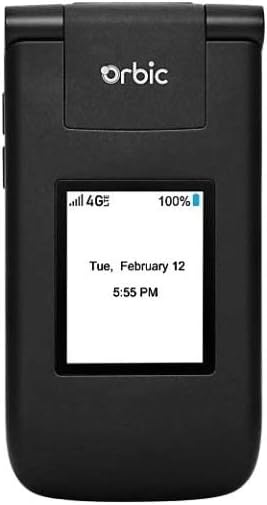
Figuur 3.1: Voorkant view of the Orbic Journey V, closed. The external display shows signal strength, battery level, and the current time and date.

Figure 3.2: Orbic Journey V in open position, revealing the main screen and the full alphanumeric keypad with navigation buttons.

Figuur 3.3: Agter view of the Orbic Journey V, highlighting the main camera lens and the Verizon branding.
- Eksterne vertoning: Shows time, date, notifications, and caller ID when the phone is closed.
- Internal Display: Main screen for navigating menus, viewing content, and interacting with applications.
- Navigation Key (D-Pad): Word gebruik om deur spyskaarte te beweeg en opsies te kies.
- Center Select Key: Bevestig keuses.
- Bel/Stuur-sleutel: Inisieer oproepe en beantwoord inkomende oproepe.
- Beëindig oproep/Aan/af-knoppie: Ends calls, returns to the home screen, and powers the phone on/off.
- Terug/Vee-sleutel: Returns to the previous screen or deletes characters.
- Volume sleutels: Adjusts call volume, media volume, and ringer volume.
- Kamerasleutel: Quick access to the camera function.
3.2. Basiese navigasie
The Orbic Journey V operates on KaiOS. Use the Navigation Key to scroll through menu options and the Center Select Key to open applications or confirm actions.
- From the home screen, press the Navigation Key (up, down, left, right) to access shortcuts or navigate the main menu.
- Press the Center Select Key to open the main application menu.
- Press the Back/Clear key to go back to the previous screen.
3.3. Maak en Ontvang Oproepe
- Om 'n oproep te maak: Enter the phone number using the keypad and press the Call/Send key. Alternatively, navigate to Contacts, select a contact, and press the Call/Send key.
- Om 'n oproep te beantwoord: When the phone rings, press the Call/Send key.
- Om 'n oproep te beëindig: Druk die Beëindig Oproep/Aan/Aan-knoppie.
3.4. Stuur en ontvang van boodskappe
- To Send a Message: From the main menu, select 'Messages'. Choose 'New Message', enter the recipient's number or select from contacts, type your message using the keypad, and press 'Send'.
- To Receive a Message: New messages will typically display a notification on the screen. Navigate to the 'Messages' application to view jou inkassie.
3.5. Kameragebruik
The Orbic Journey V is equipped with front and rear cameras. The rear camera is located on the upper-right back of the phone.
- Om Kamera Oop te Maak: Press the dedicated Camera key or navigate to the 'Camera' application from the main menu.
- Om 'n foto te neem: Frame your shot on the screen and press the Center Select key to capture the image.
- Viewing Foto's: Access your photos through the 'Gallery' application.
3.6. Connectivity (Bluetooth, Wi-Fi)
Your phone supports Bluetooth and Wi-Fi for wireless connectivity.
- Bluetooth: Go to 'Settings' > 'Network & Connectivity' > 'Bluetooth'. Turn Bluetooth on, and the phone will search for available devices. Select a device to pair.
- Wi-Fi: Go to 'Settings' > 'Network & Connectivity' > 'Wi-Fi'. Turn Wi-Fi on, select an available network, and enter the password if required.
4. Onderhoud
4.1. Skoonmaak van jou foon
To keep your phone in optimal condition, clean it regularly:
- Gebruik 'n sagte, pluisvrye lap om die skerm en liggaam af te vee.
- Vermy die gebruik van harde chemikalieë, skuurmiddels of aërosolspuitmiddels.
- Maak seker dat die foon afgeskakel en ontkoppel is voordat jy dit skoonmaak.
4.2. Batteryversorging
Proper battery care can extend its lifespan:
- Vermy uiterste temperature.
- Moenie die foon vir te lang tye laat laai nadat dit vol is nie.
- If the phone will not be used for an extended period, store it with a partial charge (around 50%).
4.3. Sagteware-opdaterings
Gereelde sagteware-opdaterings bied nuwe funksies, sekuriteitsverbeterings en foutoplossings.
- Koppel jou foon aan Wi-Fi.
- Go to 'Settings' > 'Device' > 'Software Update'.
- Volg die aanwysings op die skerm om te kyk vir enige beskikbare opdaterings en dit te installeer.
5. Probleemoplossing
This section addresses common issues you might encounter with your Orbic Journey V.
5.1. Foon skakel nie aan nie
- Ensure the battery is correctly installed and charged. Connect the charger and wait a few minutes before attempting to power on.
- Try removing and reinserting the battery, then attempt to power on again.
5.2. Poor Call Quality or No Signal
- Check your location for network coverage. Move to an area with better signal.
- Maak seker dat jou SIM-kaart behoorlik ingesit is.
- Herbegin die foon.
- Verify that your account with Verizon is active and in good standing.
5.3. Battery dreineer vinnig
- Maak ongebruikte toepassings wat in die agtergrond loop toe.
- Verminder die helderheid van die skerm.
- Skakel Wi-Fi, Bluetooth of GPS af wanneer dit nie gebruik word nie.
- Check for and install any available software updates, as these often include battery optimizations.
5.4. Software or Navigation Issues
- If the phone is unresponsive, try a soft reset by removing and reinserting the battery.
- Ensure the phone's software is up to date.
- If issues persist, consider a factory reset (Note: This will erase all data on the phone. Back up important information first.). Navigate to 'Settings' > 'Device' > 'Reset Phone'.
6. Spesifikasies
| Kenmerk | Detail |
|---|---|
| Model Naam | Orbic Journey V |
| Handelsmerk | Orbies |
| ASIN | B08971YYM1 |
| Bedryfstelsel | KaiOS |
| Draadlose draer | Verizon |
| Sellulêre Tegnologie | LTE |
| Verbindingstegnologieë | Bluetooth, WiFi |
| Vormfaktor | Flip |
| Kleur | Swart |
| Skerm grootte | 5.8 inches (Standing screen display size) |
| Resolusie | 1520 x 720 |
| Kamerakenmerke | Voor agter |
| Klankaansluiting | Geen koptelefoonaansluiting nie |
| Batterye | 1 Litium-ioonbattery (ingesluit) |
| Item gewig | 12.8 onse |
| Pakket afmetings | 5 x 3 x 3 duim |
| Datum Eerste Beskikbaar | 26 Mei 2020 |
7. Waarborg en Ondersteuning
For warranty information and technical support regarding your Orbic Journey V phone, please refer to the documentation provided with your purchase or contact Orbic directly. You can also visit the official Orbic webwebwerf vir ondersteuningsbronne.
For service-related inquiries, please contact your wireless carrier, Verizon.
- Vervaardiger: Orbies
- Draadlose diensverskaffer: Verizon