
Iproda T1045A
iProda T1045A 10.1 inch Android Tablet User Manual
Comprehensive instructions for your iProda T1045A Android Tablet.
1. Inleiding
This manual provides detailed instructions for the setup, operation, maintenance, and troubleshooting of your iProda T1045A 10.1 inch Android Tablet. Please read this manual thoroughly before using your device to ensure proper functionality and to maximize your user experience.
The iProda T1045A is a 10.1-inch tablet featuring an HD IPS display with 1280x800 resolution, powered by a 64-bit Quad-core processor running Android 9 Pie. It includes 3GB RAM, 64GB internal storage expandable up to 128GB via TF card, dual-band Wi-Fi, HDMI output, and a 5000mAh battery for extended use.
2. Produk verbyview
2.1 Pakketinhoud
Nadat u die pakkie oopgemaak het, maak seker dat alle items teenwoordig is:
- iProda T1045A 10.1 inch Android Tablet
- USB kabel
- Kragadapter
- Gebruikershandleiding (hierdie dokument)

Image: Contents of the iProda T1045A tablet package.
2.2 Toesteluitleg
Familiarize yourself with the physical components and ports of your tablet:
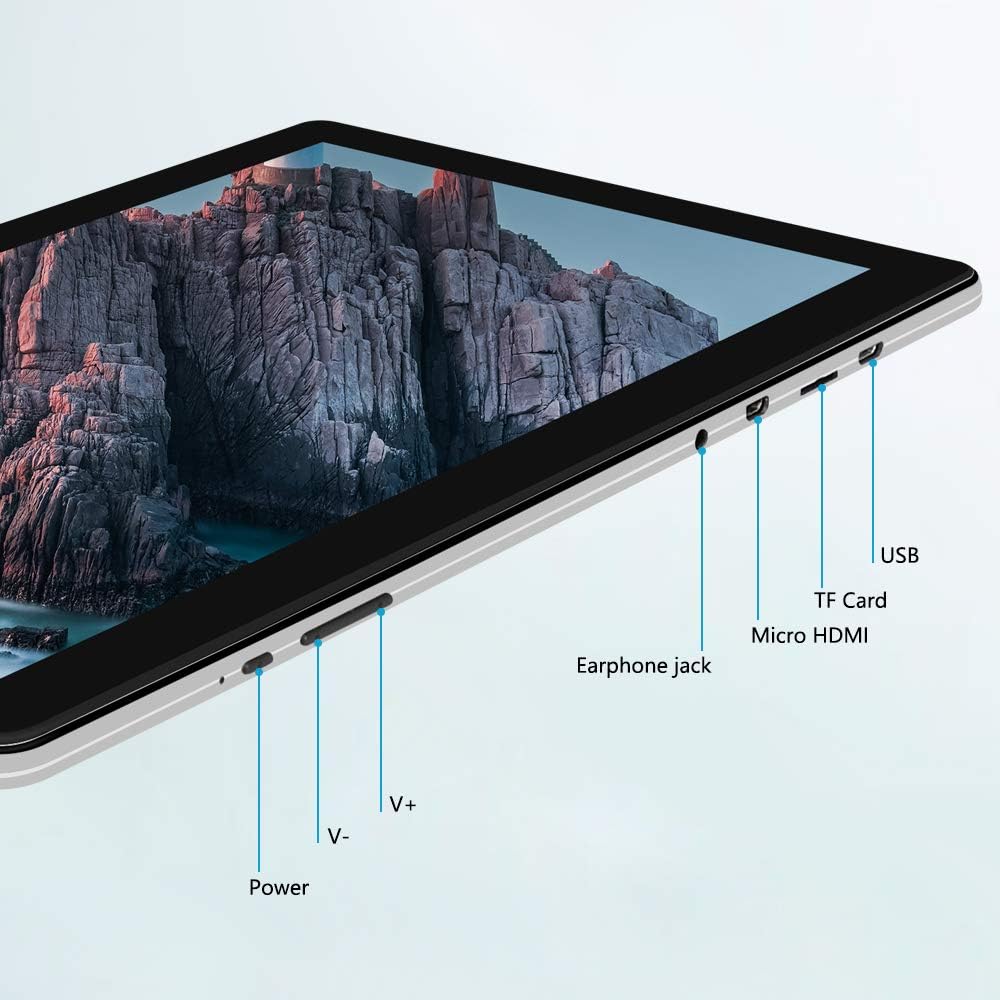
Beeld: Sykant view of the iProda T1045A tablet highlighting port locations.
- Kragknoppie: Press and hold to power on/off or restart the tablet. Short press to turn the screen on/off.
- Volume Buttons (V+, V-): Pas die klankvolume aan.
- Oortelefoonaansluiting: Koppel 3.5 mm -koptelefoon.
- TF-kaartgleuf: Insert a microSD card for expandable storage (up to 128GB).
- Mikro HDMI-poort: Connect to an external display using a Micro HDMI to HDMI cable.
- USB-poort: Connect to a computer for data transfer or for charging the device.
3. Opstelling
3.1 Aanvanklike laai
Before first use, fully charge the tablet. Connect the provided USB cable to the tablet's USB port and the power adapter, then plug the adapter into a wall outlet. The charging indicator will typically illuminate. A full charge may take several hours.
3.2 Aan-/afskakel
- Om aan te skakel: Hou die aan / uit -knoppie ingedruk totdat die skerm brand.
- Om af te skakel: Press and hold the Power button until a power menu appears on the screen. Select "Power off" and confirm.
- Om weer te begin: Kies "Herbegin" in die kragkieslys.
- Skerm aan/af: Briefly press the Power button to turn the screen off (sleep mode) or wake it up.
3.3 Aanvanklike Opstellingsassistent
The first time you power on the tablet, you will be guided through an initial setup process. Follow the on-screen prompts to:
- Kies jou voorkeurtaal.
- Koppel aan 'n Wi-Fi-netwerk.
- Set up your Google account (optional, but recommended for app downloads).
- Stel datum- en tydinstellings op.
3.4 Inserting a TF Card (MicroSD)
Om die tablet se berging uit te brei:
- Vind die TF-kaartgleuf aan die kant van die tablet.
- Carefully insert a microSD card (up to 128GB) into the slot with the gold contacts facing down until it clicks into place.
- Om te verwyder, druk die kaart liggies na binne totdat dit uitspring.
4. Bedryfsinstruksies
4.1 Basiese navigasie
The iProda T1045A uses a touch-sensitive screen for navigation:
- Tik: Kies 'n item of maak 'n toepassing oop.
- Tik en hou: Kry toegang tot kontekstuele spyskaarte of skuif ikone.
- Swiep: Blaai deur lyste of wissel tussen tuisskerms.
- Knyp: Zoem in of uit op beelde en web bladsye.
4.2 Wi-Fi-verbinding
Om aan 'n draadlose netwerk te koppel:
- Gaan na Instellings > Netwerk en internet > Wi-Fi.
- Wi-Fi wissel On.
- Kies jou verlangde netwerk uit die lys.
- Voer die wagwoord in indien gevra, en tik dan Koppel.
The tablet supports both 2.4G and 5G dual-band Wi-Fi for faster and more stable connections.
4.3 Bluetooth -koppeling
To pair with Bluetooth devices (e.g., headphones, speakers):
- Gaan na Instellings > Gekoppelde toestelle > Bluetooth.
- Wissel Bluetooth On.
- Maak seker dat jou Bluetooth-toestel in paringsmodus is.
- Select your device from the list of available devices and follow any on-screen prompts to complete pairing.
4.4 Gebruik van die kameras
The tablet is equipped with a 2MP front camera and a 5MP rear camera.
- Maak die oop Kamera application from the app drawer.
- Tik die kamera-ikoon om tussen die voorste en agterste kameras te wissel.
- Tap the shutter button to take photos or start/stop video recording.

Image: Tablet in use, showcasing its camera capabilities.
4.5 Connecting to an External Display (HDMI)
To display your tablet's screen on a larger monitor or TV:
- Connect one end of a Micro HDMI cable to the tablet's Micro HDMI port.
- Connect the other end of the cable to an HDMI input on your external display.
- Select the correct HDMI input source on your external display.
- The tablet's screen content should now be mirrored on the external display.
4.6 Toepassingsbestuur
The tablet runs Android 9 Pie and supports applications from the Google Play Store.
- Installeer toepassings: Maak die oop Play Winkel toepassing, soek vir jou verlangde toepassing en tik Installeer.
- Deïnstallering van programme: Tap and hold an app icon on the home screen or in the app drawer, then drag it to "Uninstall" or select "App info" and choose "Uninstall". Alternatively, go to Instellings > Toepassings en kennisgewings, kies die toepassing en tik Deïnstalleer.
5. Onderhoud
5.1 Die skoonmaak van die toestel
Om jou tablet skoon te maak:
- Power off the tablet before cleaning.
- Gebruik 'n sagte, pluisvrye lap, effens gedrupampmet water of 'n skermreiniger afgevee om die skerm en liggaam af te vee.
- Vermy die gebruik van harde chemikalieë, skuurmiddels of oormatige vog.
5.2 Sagteware-opdaterings
Periodically check for software updates to ensure optimal performance and security:
- Gaan na Instellings > Stelsel > Gevorderd > Stelselopdatering.
- Follow the on-screen instructions to download and install any available updates. Ensure your tablet is sufficiently charged or connected to power during updates.
5.3 Bergingbestuur
To manage internal storage and the TF card:
- Gaan na Instellings > Berging.
- Hier kan jy view storage usage, free up space, and manage files on both internal storage and the inserted TF card.
6. Probleemoplossing
This section addresses common issues you might encounter with your iProda T1045A tablet.
6.1 Toestel skakel nie aan nie
- Maak seker dat die tablet voldoende gelaai is. Koppel dit aan die kragadapter en laat dit vir ten minste 30 minute laai voordat jy dit weer probeer aanskakel.
- Try holding the Power button for 10-15 seconds to force a restart.
6.2 Wi-Fi-verbindingsprobleme
- Verify that Wi-Fi is enabled in Instellings.
- Maak seker dat jy die korrekte Wi-Fi-wagwoord invoer.
- Herbegin jou Wi-Fi-router en die tablet.
- Try connecting to a different Wi-Fi network to determine if the issue is with the tablet or the network.
6.3 Stadige Werkverrigting
- Maak onnodige agtergrondtoepassings toe.
- Vee kasgeheue-data uit vir programme in Instellings > Toepassings en kennisgewings > [Programnaam] > Berging en kasgeheue > Vee kas uit.
- Ensure sufficient free storage space. Uninstall unused apps or move large files to a TF card.
- Herbegin die tablet.
6.4 Battery dreineer vinnig
- Verminder die helderheid van die skerm.
- Deaktiveer Wi-Fi, Bluetooth en GPS wanneer dit nie gebruik word nie.
- Close background apps that consume significant power.
- Kontroleer batteryverbruik in Instellings > Battery om kraghongerige toepassings te identifiseer.
- Ensure the tablet is not allowed to run below 15% charge frequently, as this can impact battery longevity.
6.5 Fabrieksterugstelling
Indien aanhoudende probleme voorkom, kan 'n fabrieksherstel dit oplos. Waarskuwing: Dit sal alle data op jou tablet uitvee. Rugsteun belangrike data voordat jy voortgaan.
- Gaan na Instellings > Stelsel > Gevorderd > Stel opsies terug.
- Kies Vee alle data uit (fabriekterugstelling).
- Bevestig jou besluit en volg die aanwysings op die skerm.
7. Spesifikasies
Below are the technical specifications for the iProda T1045A tablet:
| Model Naam | T1045A |
| Bedryfstelsel | Android 9 Pie |
| Vertoon grootte | 10.1 duim |
| Vertoon resolusie | 1280 x 800 pixels (HD IPS) |
| Verwerker | MediaTek Quad-core 1.5Ghz |
| RAM | 3 GB |
| Interne berging | 64 GB SSD |
| Uitbreidbare berging | Up to 128 GB via TF Card (MicroSD) |
| Grafiese medeverwerker | ARM Mali-T720 MP2 |
| Agterste kamera | 5 MP |
| Voorste kamera | 2 MP |
| Battery kapasiteit | 5000 mAh litiumpolimeer |
| Gemiddelde batterylewe | Tot 8 uur |
| Draadlose konneksie | Dual-Band Wi-Fi (802.11a/b/g/n), Bluetooth 4.0 |
| Hawens | 1x USB 2.0, 1x Micro HDMI, 3.5mm Earphone Jack, TF Card Slot |
| Afmetings | 34.5 x 19.7 x 5.5 cm |
| Gewig | 550 g |

Beeld: Belangrike prestasiespesifikasies van die tablet.

Image: Tablet portability and battery details.
8. Waarborg en Ondersteuning
8.1 Produkwaarborg
The iProda T1045A tablet comes with a 12 maande waarborg vanaf die aankoopdatum. Hierdie waarborg dek vervaardigingsdefekte en wanfunksies onder normale gebruik. Dit dek nie skade wat veroorsaak word deur misbruik, ongelukke, ongemagtigde herstelwerk of normale slytasie nie.
8.2 Kliëntediens
If you encounter any issues not covered in the troubleshooting section or require further assistance, please contact iProda customer support. Refer to your purchase documentation or the iProda official webwebwerf vir kontakinligting.
When contacting support, please have your tablet's model number (T1045A) and purchase details readily available.
Ask a question about this manual
Ask about setup, troubleshooting, compatibility, parts, safety, or missing instructions. Manuals+ will review the question and use this page’s manual context to help answer it.