
MageGee Storm Pink
MageGee Pink Gaming Keyboard User Manual
Model: Storm Pink
Inleiding
Thank you for choosing the MageGee Pink Gaming Keyboard. This mechanical keyboard is designed to enhance your gaming and typing experience with its responsive blue switches, dynamic backlighting, and durable construction. This manual provides detailed instructions for setup, operation, maintenance, and troubleshooting to ensure optimal performance.

Opstelling
The MageGee Pink Gaming Keyboard is designed for simple plug-and-play functionality, requiring no additional drivers for most operating systems.
Koppel die sleutelbord
- Vind 'n beskikbare USB-poort op jou rekenaar (PC of Mac).
- Insert the USB connector of the keyboard into the USB port. The keyboard features a gold-plated USB port for stable data transmission.
- Wait for your operating system to recognize the device. This usually happens automatically within a few seconds.
- The keyboard's backlight will illuminate upon successful connection, indicating it is ready for use.

Bedryfsinstruksies
This section details the various functions and features of your MageGee Gaming Keyboard.
Sleutel kenmerke
- Professional Blue Switches: Equipped with linear, top-to-bottom switches that offer a smooth and responsive typing experience with a distinct tactile and audible click.
- N-key Rollover: Features 100% anti-ghosting across all 104 keys, ensuring that every simultaneous key press is registered accurately, crucial for fast-paced gaming.
- Dinamiese agtergrondlig: Offers 18 distinct backlight models to customize your typing environment.
- Uiterste duursaamheid: Built with a solid base and double injection ABS keycaps, designed for long-term use and resistance to wear.
- Wye verenigbaarheid: Supports Windows 10, Windows 8, Windows 7, Mac OS X, Windows XP, Windows VISTA, and other common operating systems.
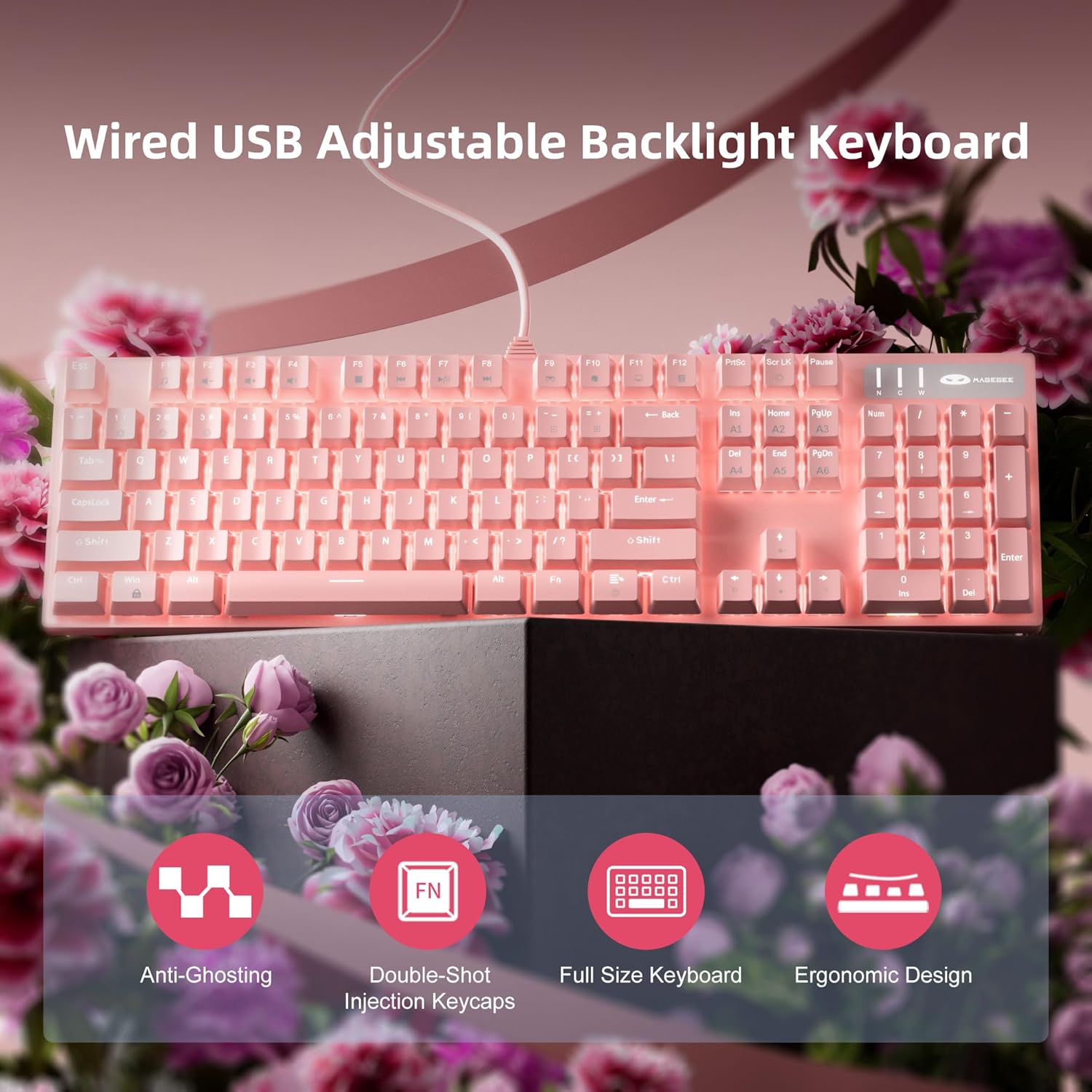
Agterligbeheer
The keyboard offers various backlight settings for customization:
- Pas Helderheid aan: Druk FN + Up Arrow Key om die helderheid van die agterlig te verhoog. Druk FN + Down Arrow Key om die helderheid van die agterlig te verminder.
- Verander agtergrondligmodus: The keyboard has 18 different backlight modes. Refer to the keyboard's function key combinations (e.g., FN + F1-F12, or specific keys) to cycle through these modes. Detailed mode switching instructions may vary; experimentation is encouraged.

Onderhoud
Behoorlike sorg sal die lewensduur van jou sleutelbord verleng en die werkverrigting daarvan handhaaf.
- Skoonmaak: Use a soft, dry cloth to wipe down the keyboard surface. For deeper cleaning, use compressed air to remove dust and debris from between the keycaps.
- Verwydering van sleuteldop: The double injection ABS keycaps are designed for durability. If you need to remove keycaps for cleaning or replacement, use a keycap puller to avoid damaging the switches. Gently pull straight up on the keycap.
- Vloeistofstortings: While the keyboard is designed to be splash-proof, avoid direct exposure to large amounts of liquid. In case of a spill, immediately disconnect the keyboard from your computer and allow it to dry completely before reconnecting.

Probleemoplossing
As jy probleme met jou sleutelbord ondervind, probeer die volgende oplossings:
| Probleem | Moontlike Oplossing |
|---|---|
| Sleutelbord reageer nie |
|
| Agterlig werk nie of is dof nie |
|
| Keys are not registering or double-typing |
|
Spesifikasies
| Kenmerk | Detail |
|---|---|
| Produk afmetings | 17 x 5 x 1.5 duim |
| Item gewig | 2.74 pond |
| Vervaardiger | MageGee |
| Modelnommer | Storm Pink |
| Verbindingstegnologie | USB |
| Sleutelbordbeskrywing | Meganies |
| Aanbevole gebruike | Speletjies |
| Spesiale kenmerk | Lighting, Multimedia Keyboard |
| Kleur | Pienk |
| Aantal sleutels | 104 (Full Size) |
| Ondersteuning vir agtergrondbeligtingkleur | RGB (Verstelbaar) |
| Styl | Moderne |
| Eerste Beskikbare Datum | 17 April 2020 |
Waarborg en Ondersteuning
MageGee products are built with quality and durability in mind. For specific warranty information, please refer to the warranty card included with your product or visit the official MageGee website. If you require technical assistance or have questions not covered in this manual, please contact MageGee customer support through their official channels.
Vir meer inligting en produkopdaterings, besoek die MageGee Store on Amazon.
Ask a question about this manual
Ask about setup, troubleshooting, compatibility, parts, safety, or missing instructions. Manuals+ will review the question and use this page’s manual context to help answer it.