
1. Inleiding
The Bernette 70 Deco is a specialized embroidery machine designed for decorating and personalizing various textile items. This manual provides essential information for setting up, operating, maintaining, and troubleshooting your machine to ensure optimal performance and longevity.
Sleutel kenmerke:
- 5-inch color touch screen for convenient motif editing.
- Easy and quick operation via multi-function knobs.
- Embroidery module with 3 hoops and automatic hoop detection.
- Maximum embroidery area of 260 x 160 mm for large designs.
- 208 preinstalled embroidery motifs.
- Compatibility with multiple design formats.
- Convenient upper and lower thread sensors.
2. Opstelling
2.1 Uitpak en plasing
Carefully remove the machine from its packaging. Place the Bernette 70 Deco on a stable, level surface with adequate space for the embroidery module and fabric. Ensure the area is well-lit and free from obstructions.
2.2 Kragverbinding
Connect the power cord to the machine's power input and then to a suitable electrical outlet. Use only the power cord supplied with the machine.
2.3 Attaching the Embroidery Module and Hoop
- Slide the embroidery module onto the machine until it clicks securely into place.
- Select the appropriate embroidery hoop for your design size.
- Hoop your fabric and stabilizer firmly, ensuring the fabric is taut and wrinkle-free.
- Attach the hooped fabric to the embroidery module carriage.

Image 1: The Bernette 70 Deco embroidery machine with its embroidery module and hoop correctly attached, ready for operation.
2.4 Die masjien insny
Follow the numbered guides on the machine for correct upper thread pathing. For the bobbin, ensure it is wound correctly and inserted into the bobbin case as per the machine's instructions. Incorrect threading can lead to skipped stitches or thread breaks.
3. Bedryfsinstruksies
3.1 Using the Touch Screen Interface
The 5-inch color touch screen is the primary interface for selecting and editing designs. Navigate through menus by touching the icons. Use the multi-function knobs for fine adjustments or scrolling.

Beeld 2: 'n Nabyskoot view of the Bernette 70 Deco's touch screen, showing various pre-installed embroidery design options available for selection.
3.2 Selecting and Editing Designs
- From the main menu, select 'Embroidery Designs' to browse the 208 preinstalled motifs.
- To upload custom designs, insert a USB flash drive into the designated port. Select 'USB' on the screen to access your files.
- Once a design is selected, use the editing tools on the touch screen to resize, rotate, mirror, or combine motifs.
- Adjust thread colors as needed for your project.

Image 3: The Bernette 70 Deco machine with its screen illuminated, displaying the interface for selecting and customizing embroidery designs.
3.3 Starting an Embroidery Project
- After selecting and positioning your design, ensure the fabric is correctly hooped and attached.
- Laat sak die persvoet.
- Press the start/stop button to begin the embroidery process.
- Monitor the machine during operation, especially for thread breaks or color changes. The machine will pause automatically for thread changes.
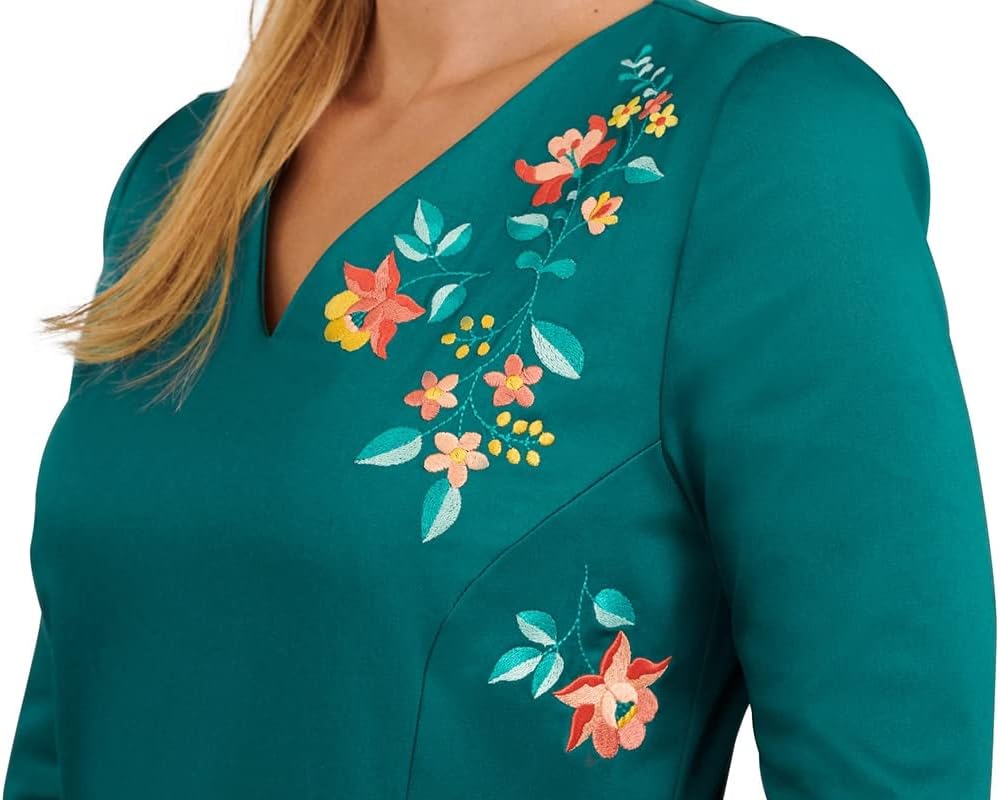
Beeld 4: 'n Eksample of a detailed floral embroidery design created using the Bernette 70 Deco, showcasing the machine's output quality on green fabric.
4. Onderhoud
Regular maintenance ensures the smooth operation and longevity of your Bernette 70 Deco.
4.1 Skoonmaak
- Masjien buitekant: Vee die buite-oppervlaktes af met 'n sagte, droë lap. Vermy skuurmiddels.
- Bobbin Area: Regularly remove the bobbin case and clean out any lint or thread residue using a small brush.
- Thread Path: Periodically clean the thread path to remove any accumulated lint that could affect tension.
4.2 Naaldvervanging
Replace the needle frequently, especially after several hours of embroidery or if you notice skipped stitches or poor stitch quality. Always use the correct needle type and size for your fabric and thread.

Image 5: The open accessory compartment of the Bernette 70 Deco, revealing various presser feet and tools essential for maintenance and different embroidery tasks.
5. Probleemoplossing
Hierdie afdeling bespreek algemene probleme wat u tydens die operasie kan teëkom.
5.1 Algemene kwessies en oplossings
- Thread Breaks: Check upper and lower threading, ensure thread is not tangled, replace needle if bent or dull, adjust tension if necessary.
- Oorgeslaande steke: Replace needle, ensure correct needle type for fabric, re-thread machine, check bobbin insertion.
- Design Misalignment: Ensure fabric is hooped tightly and evenly, check that the embroidery module is securely attached, verify design placement on the screen.
- Masjien begin nie: Check power connection, ensure presser foot is lowered, verify embroidery module is correctly attached.
If problems persist after attempting these solutions, consult a qualified service technician.
6. Spesifikasies
| Kenmerk | Detail |
|---|---|
| Handelsmerk | Bernette |
| Modelnommer | b70 |
| Produk afmetings | 20 x 27 x 24 inches (approximate shipping dimensions) |
| Item gewig | 42 pond |
| Kleur | Swart, Wit |
| Embroidery Area (Max) | 260 x 160 mm |
| Vertoon | 5-duim kleur raakskerm |
| Preinstalled Motifs | 208 |
| Konnektiwiteit | USB |
| Vervaardiger | Bernette |
| Datum Eerste Beskikbaar | 9 April 2020 |
7. Waarborg en Ondersteuning
For information regarding warranty coverage, service, or technical support for your Bernette 70 Deco embroidery machine, please refer to the official Bernette website or contact your authorized Bernette dealer. Keep your purchase receipt as proof of purchase for warranty claims.