
Inleiding
The myGEKOgear Orbit 960 is a 4K UHD dash camera designed to record your journeys with high clarity. Featuring a Sony STARVIS sensor for enhanced low-light performance, built-in Wi-Fi for mobile app connectivity, and GPS logging for location and speed data, this device provides comprehensive recording capabilities. It also includes advanced driver assistance systems (ADAS) such as Forward Collision Warning System (FCWS) and Lane Departure Warning System (LDWS) to promote safer driving habits.
Wat is in die boks
- Dash Camera
- 12 Volt Power Cable
- Kleefmiddel
- Suigbeker-berg
- 16 GB Micro SD Card & Card Reader
- Gebruikershandleiding
- Waarborgkaart
Produk verbyview

Figuur 1: Voorkant View of the Dash Cam

Figuur 2: Agter View with Screen and Controls
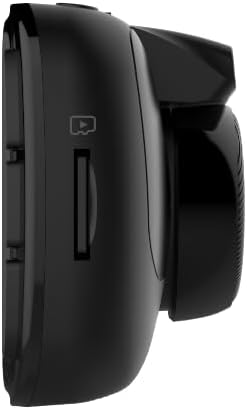
Figuur 3: Kant View with MicroSD Card Slot

Figuur 4: Bo View met Hawens
Opstelling
1. Monteer die Dash Cam
Kies 'n geskikte plek op jou voorruit, gewoonlik agter die agterkantview spieël, om 'n onbelemmerde view of the road. Clean the area thoroughly before applying the mount.
- Suigbekermontering: Attach the suction cup to the cleaned windshield and press firmly while engaging the locking mechanism to secure it.
- Kleefmiddel: Peel off the protective film from the adhesive pad and firmly press the mount onto the cleaned windshield for at least 30 seconds. Allow 24 hours for the adhesive to fully cure before attaching the dash cam.
Once the mount is secure, slide the dash cam onto the mount until it clicks into place.

Figure 5: Dash Cam Mounted in Vehicle
2. Plaas die MicroSD-kaart
Insert the provided 16GB MicroSD card (or your own, up to 512GB) into the MicroSD card slot on the side of the dash cam until it clicks. Ensure the card is inserted correctly to avoid damage.
3. Aanskakeling van die toestel
Connect the 12 Volt Power Cable to the dash cam's USB port and plug the other end into your vehicle's cigarette lighter socket. The dash cam will automatically power on and begin recording when your vehicle starts.
4. Initial Power-On and Basic Settings
Upon first power-on, the dash cam may prompt you to set the date and time. Use the control buttons on the side of the device to navigate the menu and adjust settings. It is recommended to format the MicroSD card through the dash cam's settings menu before first use.
5. Mobile App Connection (Wi-Fi)
Download the GEKO DVR app from your smartphone's app store. Enable Wi-Fi on your dash cam via the settings menu. On your smartphone, connect to the dash cam's Wi-Fi network (SSID typically starts with 'Orbit_960-'). The default password is '12345678'. Once connected, you can view leef footage, adjust settings, and transfer recordings directly to your phone.
Bedryfsinstruksies
1. Opnamemodusse
- Loop opname: The dash cam continuously records video in segments (e.g., 1, 3, or 5 minutes). When the MicroSD card is full, the oldest files word deur nuwe opnames oorgeskryf.
- Noodopname (G-sensor): In the event of a sudden impact or collision, the built-in G-Sensor automatically detects the event and locks the current video segment, preventing it from being overwritten.
2. Gebruik die mobiele toepassing
The GEKO DVR app allows for convenient control and management of your dash cam. After connecting via Wi-Fi, you can:
- View regstreekse video-voer.
- Kry toegang tot en laai opgeneemde video's en foto's af.
- Adjust various settings, including resolution, loop recording duration, and driver assistance features.
3. Driver Assist Features
The Orbit 960 includes several driver assistance features to enhance safety:
- Forward Collision Warning System (FCWS): Alerts you if you are approaching a vehicle too quickly.
- Baanverlatingswaarskuwingstelsel (LDWS): Notifies you if your vehicle drifts out of its lane without signaling.
- Headlight Reminder: Prompts you to turn on your headlights in low-light conditions.
- Driver Fatigue Alarm: Provides alerts to prevent drowsy driving during long trips.
These features can be enabled or disabled through the dash cam's settings menu or the mobile app.
4. GPS Logging
The built-in GPS module records your vehicle's speed and location data, which is embedded in the video files. This information can be viewed during playback using compatible software or the mobile app, providing crucial context for recorded events.
5. Parkeermodus
When enabled, parking mode allows the dash cam to monitor your vehicle while parked. If an impact is detected (via the G-Sensor), the dash cam will automatically record a short video segment. For continuous parking surveillance, the dash cam requires a constant power supply (e.g., hardwired installation).
Sleutel kenmerke
- 4K UHD Video & Sony STARVIS Sensor: Records videos at 3840 x 2160p at 30 fps, offering high clarity even in low-light conditions.
- 140° wyehoeklens: Vang 'n breë view van die pad, wat blinde kolle tot die minimum beperk.
- 2.7" LCD-skerm: Provides a clear interface for viewin lewende footage en navigasie-instellings.
- Wi-Fi geaktiveer: Laat gebruikers toe om view and transfer footage to a smartphone via the GEKO DVR app.
- GPS-registrasie: Records accurate speed and location information, vital for incident analysis.
- G-sensor: Automatically detects impacts and locks video files om oorskryf te voorkom.
- Bewegingsopsporing: Initiates recording when motion is detected in front of the vehicle, useful for parking surveillance.
- Driver Assist Features: Includes Speed Limit Alert, Lane Departure Warning System (LDWS), and Front Collision Warning System (FCWS) to promote safer driving.
- MicroSD kaart ondersteuning: Supports up to 512GB, with a 16GB card included for immediate use.
Video 1: Oorview of myGEKOgear Orbit 960 4K Dash Cam features, including Wi-Fi and GPS logging.
Spesifikasies
| Kenmerk | Detail |
|---|---|
| Produk afmetings | 7 x 5 x 3 duim |
| Item gewig | 3.5 onse |
| Item Modelnommer | GO96016G |
| Batterye | 1 Litium-ioonbatterye benodig (ingesluit) |
| Verbindingstegnologieë | Wi-Fi |
| GPS | GPS Built-In; Location Capture |
| Spesiale kenmerke | 4K Resolution, Auto Incident Recording, Built-in GPS logging, Night Vision, WiFi - Instant File Toegang |
| Kleur | Swart |
| Vervaardiger | myGEKOgear |
| Model Naam | Wentelbaan 960 |
| Video-opname-resolusie | 2160p |
| Montage tipe | Camera Mount (Suction Cup, Adhesive) |
| Veld van View | 140 grade |
Onderhoud
- SD-kaartformatering: Regularly format your MicroSD card (at least once a month) to ensure optimal performance and prevent data corruption. This can typically be done through the dash cam's settings menu or the mobile app.
- Skoonmaak: Keep the dash cam lens and screen clean using a soft, dry cloth. Avoid abrasive materials or harsh chemicals.
- Firmware -opdaterings: Check the myGEKOgear website or the GEKO DVR app periodically for available firmware updates. Keeping your device updated ensures access to the latest features and performance improvements.
Probleemoplossing
- Dashcam skakel nie aan nie: Maak seker dat die kragkabel stewig aan beide die paneelbordkamera en die voertuig se 12V-sok gekoppel is. Kontroleer of die voertuig se 12V-sok krag ontvang.
- SD-kaartfout: Format the MicroSD card. If the issue persists, try a different, high-quality MicroSD card (Class 10 or higher recommended).
- Wi-Fi-verbindingskwessies: Ensure Wi-Fi is enabled on the dash cam and your smartphone is connected to the correct dash cam network. Verify the Wi-Fi password.
- App Not Connecting/Functioning: Ensure location permissions are granted to the app on your smartphone. Restart both the dash cam and the app. Check for app updates.
- Swak videogehalte: Ensure the lens is clean and free from obstructions. Check the resolution settings in the dash cam or app.
For further assistance, refer to the detailed user manual included in the box or contact myGEKOgear customer support.
Waarborg en Ondersteuning
The myGEKOgear Orbit 960 Dash Cam comes with a manufacturer's warranty. Please refer to the Warranty Card included in your product packaging for specific terms and conditions. For technical support, product inquiries, or warranty claims, please visit the official myGEKOgear webwebwerf of kontak hul kliëntediensafdeling. Bewaar u aankoopbewys as bewys van aankoop vir waarborgdienste.