
Magnasonic FS81
Magnasonic FS81 Super 8/8mm Film Scanner
Instruksie Handleiding
Inleiding
The Magnasonic FS81 Super 8/8mm Film Scanner is designed to convert your cherished 3-inch, 5-inch, and 7-inch Super 8 and 8mm film reels into digital MP4 video files. This device offers a convenient way to preserve old home movies without the need for a computer during the scanning process. It features a built-in 2.3-inch LCD screen for immediate playback and allows for direct saving to an SD card.
1. Opstelling
1.1 Wat is ingesluit
Voordat u begin, maak seker dat alle komponente in die pakket teenwoordig is:
- Super 8/8mm Film Scanner (FS81 unit)
- 7-inch Take-up Reel
- TV Out Cable (RCA)
- Kragadapter
- USB kabel
- Reel Adapter (x2)
- Skoonmaakdoek

Image: All components included with the Magnasonic FS81 Film Scanner, laid out for inspection.
1.2 Connecting Power and SD Card
Connect the power adapter to the DC 12V port on the rear of the scanner and plug it into a power outlet. Insert an SD card (up to 32GB, not included) into the SD card slot on the rear panel. This card will store your digitized videos.

Image: The SD card slot on the back of the scanner, ready for video storage.
1.3 Laai van film
Place your film reel onto the left spindle and an empty take-up reel onto the right spindle. Thread the film through the scanner's film path, ensuring it passes through the gate and under the rollers as indicated by the diagram on the scanner. Use the provided reel adapters if necessary for smaller reels.

Beeld: Gedetailleerd view of the film path and scanning area on the Magnasonic FS81.

Image: The Magnasonic FS81 scanner set up with a film reel, demonstrating its capability to handle 3-inch, 5-inch, and 7-inch Super 8/8mm movie reels.
2. Bedryfsinstruksies
2.1 Skandeerproses
Once the film is loaded, power on the scanner. The device will automatically scan your film frame-by-frame, converting it into a digital MP4 video file. The scanning time varies depending on the reel size:
- 3-inch reel: Approximately 20 minutes scan time for 3 minutes of film.
- 5-inch reel: Approximately 60 minutes scan time for 7 minutes of film.
- 7-inch reel: Approximately 180 minutes scan time for 20 minutes of film.
The scanner digitizes video only; it does not capture audio.
2.2 Aanpassing van instellings
Use the control buttons on the scanner to adjust settings such as exposure, sharpness, and framing. These adjustments can be made directly on the device without needing a computer.
2.3 Viewing Scanned Videos
You can playback your scanned videos directly on the built-in 2.3-inch LCD screen. For a larger viewing experience, connect the scanner to a TV or monitor using the included RCA video out cable.

Image: The scanner's TV OUT port connected to a television for viewing digitized films.
2.4 Oordrag Files
After scanning, the MP4 video files are saved to the inserted SD card. To transfer these files to your computer, you can either remove the SD card and insert it into a card reader, or connect the scanner directly to your computer using the USB cable.
3. Onderhoud
Regular maintenance ensures optimal performance and longevity of your film scanner.
3.1 Skoonmaak van die filmpad
Dust and debris can accumulate on film reels, potentially affecting scan quality. Use the provided cleaning cloth or a soft brush to gently clean the film path and the scanning area before and after each use, especially when handling older films.
4. Probleemoplossing
If you encounter issues with your Magnasonic FS81 Film Scanner, refer to the following common solutions:
- Geen krag: Ensure the power adapter is securely connected to both the scanner and a working power outlet.
- Film Not Feeding: Check that the film is correctly threaded through the film path and that the reels are properly seated. Ensure the film is not damaged or excessively brittle.
- Swak beeldkwaliteit: Clean the film path and the scanner's lens. Adjust the exposure and sharpness settings via the scanner's menu. Ensure the original film is in good condition.
- SD-kaartfout: Verify the SD card is inserted correctly. Ensure the SD card is not full and is formatted to a compatible file system (e.g., FAT32). Try a different SD card if the issue persists.
- No Video on TV: Confirm the RCA cable is securely connected to both the scanner's TV OUT port and the TV's video input. Select the correct input source on your television.
For further assistance, please contact Magnasonic customer support.
5. Spesifikasies
| Kenmerk | Detail |
|---|---|
| Soort skandeerder | Film |
| Handelsmerk | Magnasonies |
| Model Naam | FS81 |
| Verbindingstegnologie | USB, Video Out TV cable |
| Produk afmetings | 5.1" D x 12.1" B x 7.5" H |
| Resolusie | 1080p (1440 x 1080) |
| Item gewig | 4.4 pond |
| Wattage | 5 watt |
| Minimum stelselvereistes | Windows 7 |
| UPC | 061783270448 |
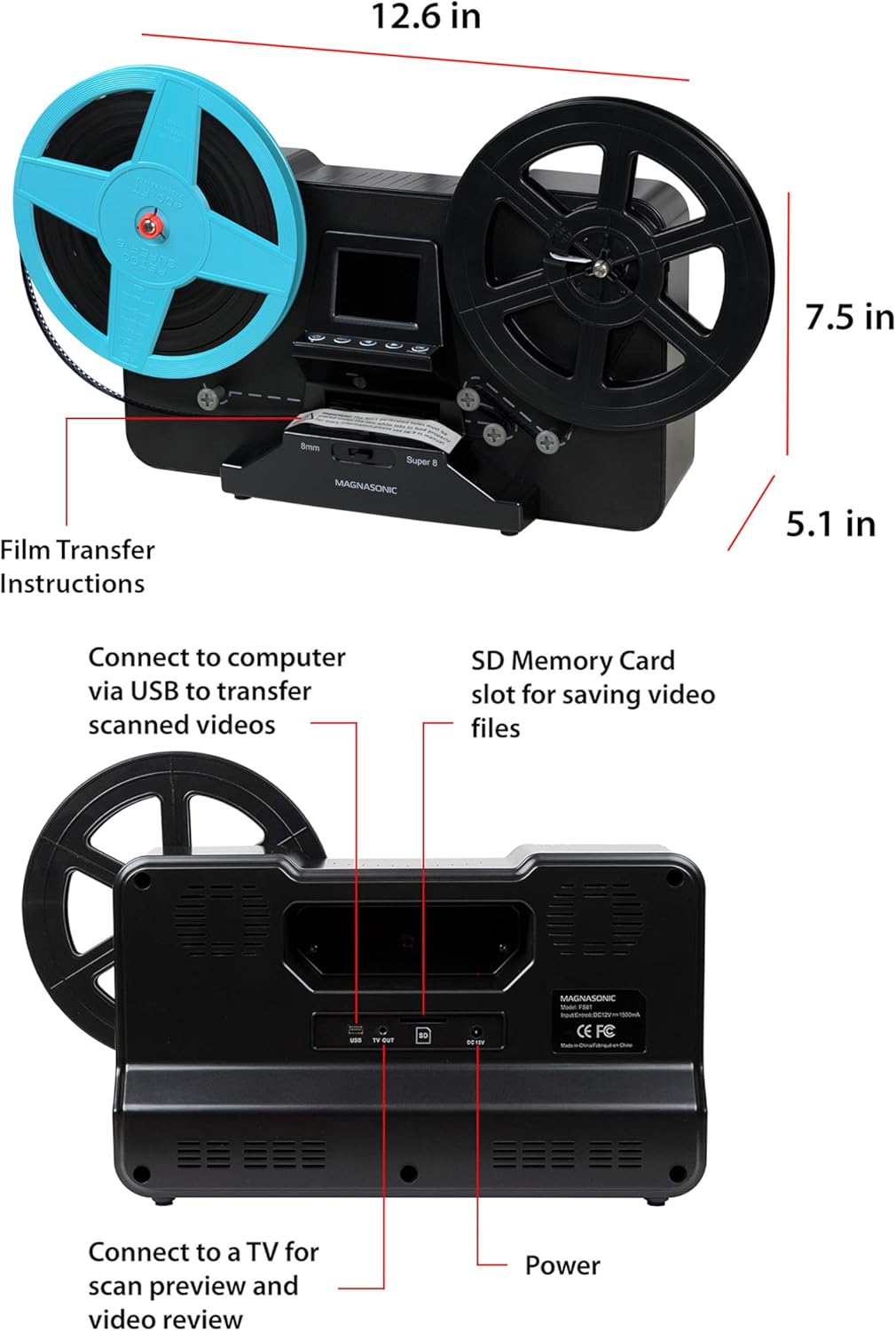
Beeld: Bo en agter views of the Magnasonic FS81 scanner, highlighting its dimensions and connectivity ports like USB, TV OUT, SD card slot, and DC 12V power input.
6. Waarborg en Ondersteuning
Magnasonic products come with a manufacturer's warranty. Please refer to the warranty card included in your product packaging for specific terms and conditions. For technical support, troubleshooting, or warranty claims, visit the official Magnasonic webwebwerf of kontak hul kliëntediensafdeling.