
Inleiding
This manual provides detailed instructions for the installation, operation, and maintenance of your ESX VN1015-MA-DAB-1DIN 1-DIN Touchscreen Navigation System. This advanced car multimedia unit features a 10.1-inch multi-angle touchscreen, Android operating system, DAB+ digital radio, Bluetooth hands-free and audio streaming, GPS navigation, and extensive media connectivity. Please read this manual thoroughly before using the device to ensure proper operation and to maximize your user experience.
Opstelling en installasie
Proper installation is crucial for the optimal performance of your ESX navigation system. It is recommended that installation be performed by a qualified professional.
1. Uitpak en inspeksie
- Verwyder alle komponente versigtig uit die verpakking.
- Verifieer dat alle gelyste bykomstighede teenwoordig is.
- Inspekteer die eenheid vir enige tekens van skade.
2. Bedradingsverbindings
Refer to the wiring diagram for detailed connections. Ensure all connections are secure to prevent malfunctions.
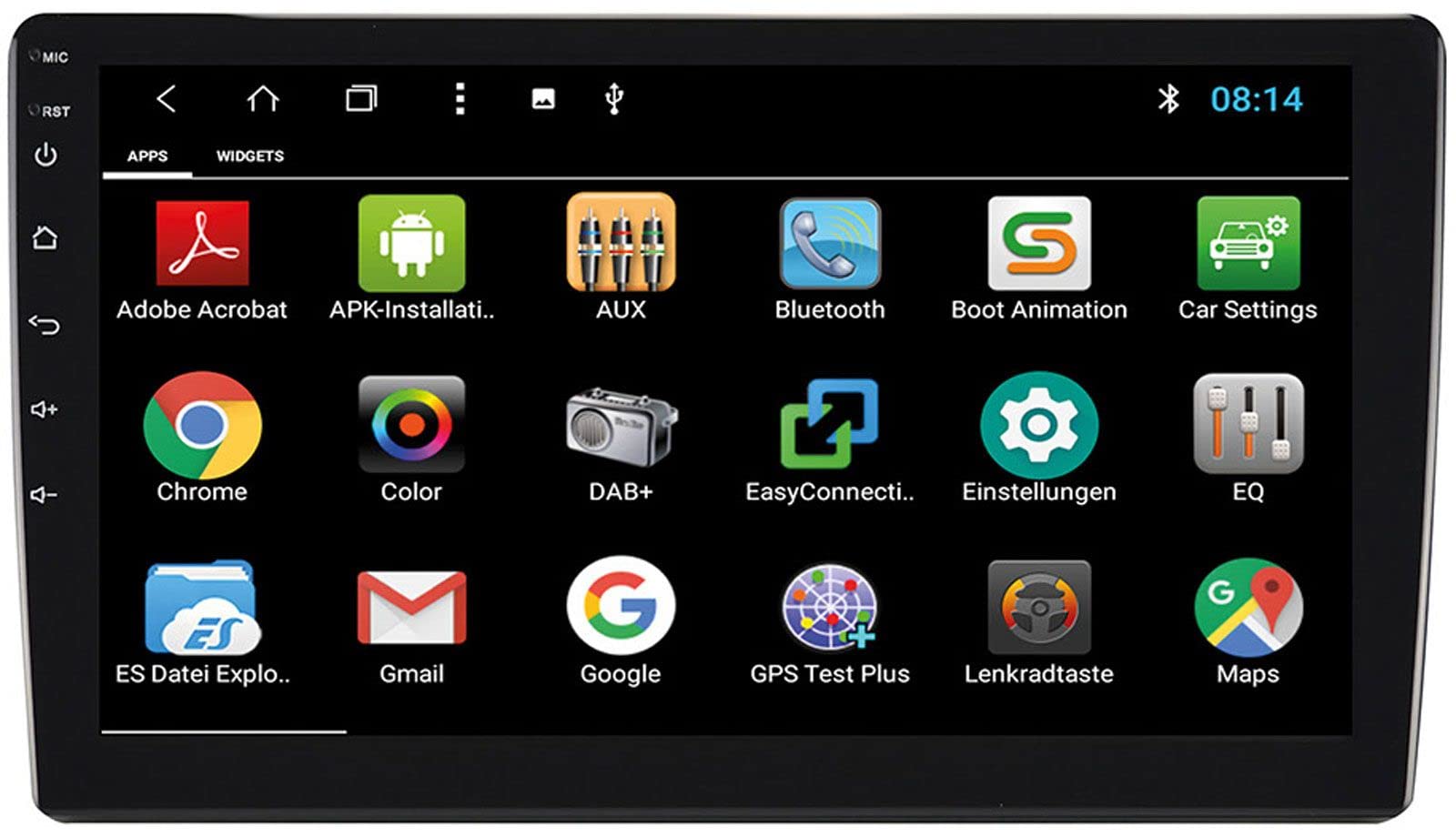
Image: Rear Connection Ports. This image displays the rear panel of the ESX VN1015-MA-DAB-1DIN unit, highlighting the various input and output ports. Key connections visible include GPS antenna input, WiFi antenna input, microphone input, USB ports, AV inputs, and the main power/speaker harness connector. A DAB+ antenna input is also present, along with a "PASSED" quality control sticker.
- Kragverbinding: Connect the main power harness to your vehicle's power supply (constant 12V, ignition 12V, and ground).
- Luidsprekerverbindings: Connect the speaker wires to your vehicle's speakers, ensuring correct polarity.
- GPS-antenna: Connect the GPS antenna to the dedicated GPS input. Position the antenna in a location with a clear view van die lug vir optimale seinontvangs.
- DAB+ Antenna: Connect the included DAB+ antenna to the DAB+ input. Ensure proper placement for best digital radio reception.
- WiFi-antenne: Connect the WiFi antenna for internet connectivity via a mobile hotspot.
- USB-poorte: Koppel USB-toestelle vir mediaweergawe of slimfoonlaai.
- Mikrofoon: Connect the internal microphone or an optional external microphone (VNA-MIC-AND) for Bluetooth hands-free calling.
- AUX/Video Input: Connect external audio/video sources.
- Kamera-invoer: Koppel 'n agterkantview camera to the camera input. The system supports adjustable parking lines.
- Voor-amp Uitsette: Koppel ekstern ampVersterkers vir voor-, agter- en subwooferkanale.
- Stuurwielbeheer: If your vehicle supports steering wheel controls, an optional adapter may be required. Connect the steering wheel control wires as per the adapter's instructions.
3. Monteer die eenheid
- Install the 1-DIN chassis into your vehicle's dashboard opening.
- Attach the 10.1-inch touchscreen display to the chassis. The display is multi-angle adjustable (height and viewing angle) for optimal visibility.
- Secure the unit firmly to prevent movement during driving.
4. Aanvanklike Aanskakeling
- After all connections are made, turn on your vehicle's ignition.
- The unit should power on and display the ESX logo.
- Follow any on-screen prompts for initial setup, such as language selection and time zone.
Bedryfsinstruksies
Your ESX navigation system runs on an Android operating system, offering a familiar and intuitive user interface.
1. Aanraakskerm-koppelvlak
The 10.1-inch high-resolution touchscreen allows for easy control of all functions. Tap, swipe, and pinch-to-zoom gestures are supported.
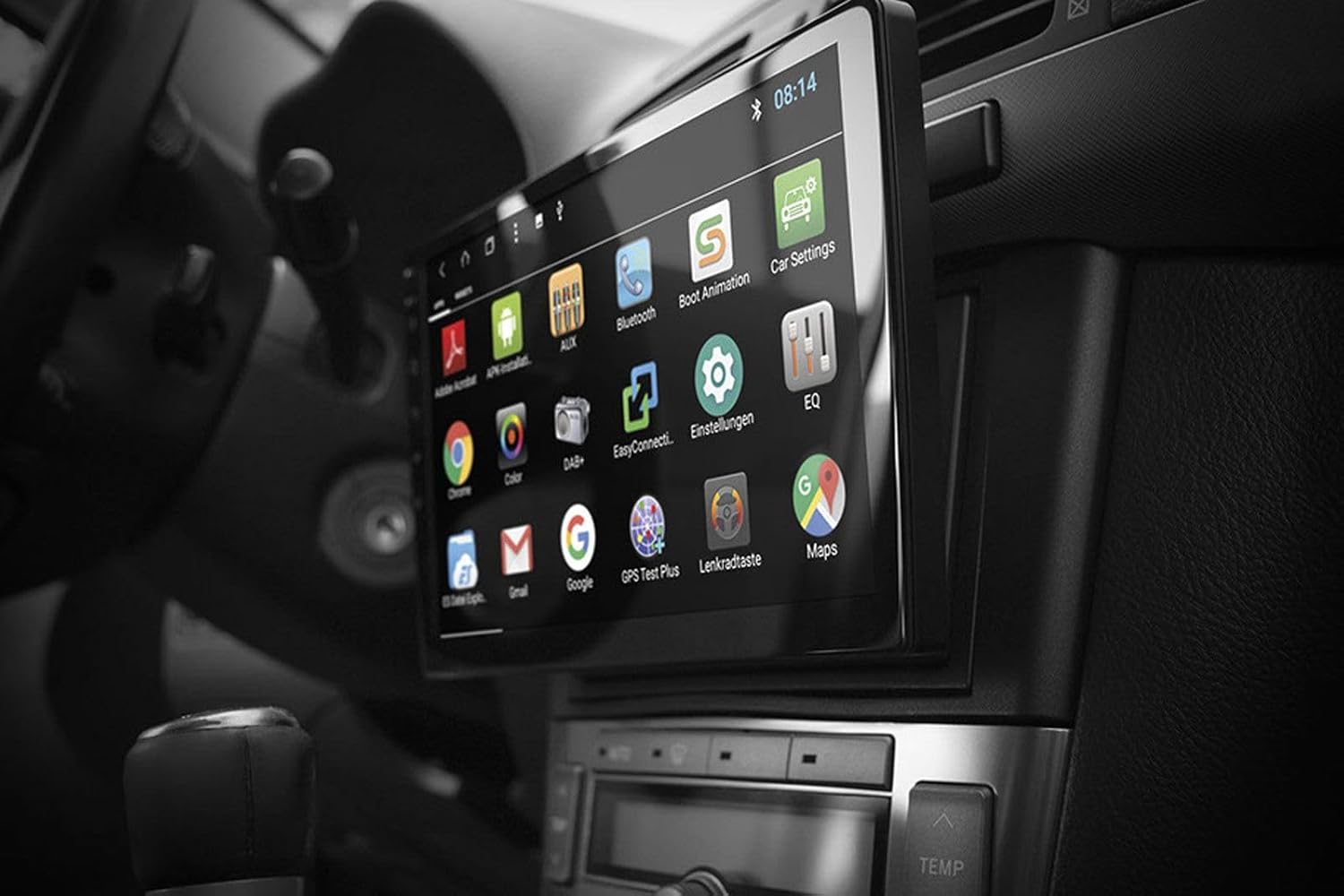
Image: Android App Interface. This image shows the ESX VN1015-MA-DAB-1DIN unit installed in a car, with its screen displaying a grid of Android application icons. Visible apps include Bluetooth, DAB+, EQ, Google, Maps, and various system settings, indicating the unit's smart functionality.
2. Navigation (GPS)
- The system uses Google Maps for navigation, supporting both online and offline modes.
- Ensure the GPS antenna is properly connected and positioned.
- For offline maps, download the required map data via a WiFi connection.
- To start navigation, open the Maps application and enter your destination.

Image: Navigation Display. This image illustrates the ESX VN1015-MA-DAB-1DIN unit's screen showing a detailed navigation map. The map displays street names and routes, indicating active GPS guidance within a vehicle's interior.
3. Radio Functions (DAB+/AM/FM)
- DAB+ Digitale Radio: Access high-quality digital radio broadcasts. The system displays station logos. Ensure the DAB+ antenna is connected.
- AM/FM-radio: Tune into analog radio stations. RDS (Radio Data System) functionality provides station information.
- To switch between radio modes, select the appropriate option in the radio application.
- Scan for stations and save your favorites for quick access.

Image: Radio Interface. This image shows the ESX VN1015-MA-DAB-1DIN unit's screen displaying the FM radio interface. It features a frequency tuner, station presets, and controls for functions like REG, TA, AF, and PTY, indicating comprehensive radio capabilities.
4. Bluetooth-verbinding
- Saambinding: Go to the Bluetooth settings on the unit and your smartphone. Soek vir available devices and select "ESX VN1015-MA-DAB-1DIN" (or similar). Enter the PIN if prompted (usually 0000 or 1234).
- Handvrye oproepe: Once paired, you can make and receive calls directly from the unit. Use the internal microphone or an optional external microphone for clear communication.
- Oudio-stroom (A2DP): Stream music from your smartphone to the unit wirelessly.
5. Mediaterugspeel
- USB/MikroSD: Insert USB drives or MicroSD cards containing audio or video files into the respective ports. The system will automatically detect and allow playback through the media player application.
- AUX-invoer: Connect external audio/video devices via the AUX input.
- Slimfoonverbinding: Connect Android or iPhone devices via USB for charging. Some Android devices may support mirroring or data transfer depending on the phone and app.
6. Stelselinstellings
- Access the Android settings menu to customize various aspects of the unit, including display, sound, network, and system information.
- You can adjust display brightness, sound equalizer settings, and connect to a WiFi hotspot for internet access.
- Customize boot logos and background images from the settings.
Onderhoud
Regular maintenance ensures the longevity and optimal performance of your ESX navigation system.
- Skoonmaak van die skerm: Gebruik 'n sagte, pluisvrye lap om die raakskerm saggies af te vee. Vir hardnekkige vlekke, vee dit effens af.ampMaak die lap skoon met water of 'n skermveilige skoonmaakmiddel. Vermy harde chemikalieë of skuurmiddels.
- Sagteware-opdaterings: Periodically check for software updates from the manufacturer's website or through the unit's system settings (if available). Updates can improve performance and add new features.
- Algemene sorg: Vermy blootstelling van die eenheid aan uiterste temperature, direkte sonlig vir lang tye, of oormatige vog. Verseker behoorlike ventilasie rondom die eenheid.
Probleemoplossing
If you encounter issues with your ESX navigation system, refer to the following common problems and solutions.
| Probleem | Moontlike Oplossing |
|---|---|
| Eenheid skakel nie aan nie. | Check all power connections (constant 12V, ignition 12V, ground). Verify the vehicle's fuse box and the unit's inline fuse. Ensure the ignition is on. |
| Geen klank nie. | Check speaker connections. Ensure volume is not muted or set too low. Verify amplifier connections if external amplifiers are used. Check audio source selection. |
| GPS signal is weak or unavailable. | Ensure the GPS antenna is securely connected and placed in a location with a clear view of the sky (e.g., dashboard, under windshield). Avoid obstructions. |
| Bluetooth not connecting or unstable. | Ensure Bluetooth is enabled on both the unit and your smartphone. Delete previous pairings and try re-pairing. Move the phone closer to the unit. Restart both devices. |
| DAB+ radio reception is poor. | Check the DAB+ antenna connection and its placement. Ensure you are in an area with DAB+ coverage. Rescan for stations. |
| Raakskerm reageer nie. | Perform a soft reset of the unit (refer to the system settings for a reset option, or press and hold the power button if available). Ensure the screen is clean and free of debris. |
Spesifikasies
Key technical specifications for the ESX VN1015-MA-DAB-1DIN navigation system:
- Vertoon: 10.1-inch high-resolution multi-angle LCD touchscreen
- Bedryfstelsel: Android
- Navigasie: Google Maps (online and offline)
- Verbinding: WiFi Hotspot (requires compatible smartphone), Bluetooth (hands-free, audio streaming), USB (2 ports), MicroSD card slot (for navigation and media), AUX/Video input, AUX/Audio input
- Radio: DAB+ Digital Radio (with station logos, DAB antenna included), AM/FM Radio (with RDS function)
- Klankuitsette: Front/Rear/Subwoofer pre-amp uitsette
- Insette: 1 Camera input (adjustable lines), 1 AUX/Video input, 1 AUX/Audio input
- Spesiale kenmerke: Adjustable boot logos and background images, Internal microphone, Connector for optional external microphone (VNA-MIC-AND), Steering wheel control support (optional adapter required)
- Beheer metode: Raakskerm
- Voertuigdienstipe: Kar
- Vervaardiger: ESX
- Land van oorsprong: China
Waarborg inligting
The ESX VN1015-MA-DAB-1DIN unit includes a Certificate of Authenticity. For specific warranty terms and conditions, please refer to the documentation provided with your purchase or contact your retailer. Information regarding spare parts availability and guaranteed software updates is not explicitly provided.
Kliënte ondersteuning
If you require further assistance or have questions not covered in this manual, please contact your authorized ESX dealer or the retailer from whom you purchased the product. They can provide specialized support and service.