
1. Inleiding
Thank you for choosing the Moonka 10.1-inch Wi-Fi Digital Photo Frame. This device allows you to easily share and display your cherished photos and videos with family and friends from anywhere in the world. Featuring a vibrant 10.1-inch IPS touch screen, Wi-Fi connectivity, and 32GB of internal storage, this frame offers a convenient way to relive your memories. This manual will guide you through the setup, operation, and maintenance of your new digital photo frame.
2. Belangrike veiligheidsinligting
Lees asseblief alle veiligheidsinstruksies sorgvuldig deur voordat u die produk gebruik. Versuim om hierdie instruksies te volg, kan lei tot elektriese skok, brand of skade aan die toestel.
- Kragbron: Use only the provided power adapter. Using an incompatible adapter may damage the device and void your warranty.
- Water en vog: Do not expose the device to water, rain, or excessive moisture. Keep it away from sinks, bathtubs, and other wet areas.
- Hitte: Hou die toestel weg van hittebronne soos verkoelers, hitteregisters, stowe of ander hitteproduserende toestelle.
- Ventilasie: Verseker behoorlike ventilasie. Moenie enige ventilasie-openinge blokkeer nie.
- Skoonmaak: Unplug the device before cleaning. Use a soft, dry cloth. Do not use liquid cleaners or aerosol cleaners.
- Diens: Moenie probeer om hierdie produk self te onderhou nie. Verwys alle diens na gekwalifiseerde dienspersoneel.
- Plasing: Place the frame on a stable, flat surface to prevent it from falling.
3. Pakketinhoud
Verifieer dat alle items in jou pakket ingesluit is:
- Moonka 10.1-inch Wi-Fi Digital Photo Frame
- Kragadapter
- Afneembare staander
- Gebruikershandleiding

Figure 3.1: Digital Photo Frame and Accessories
4. Produk verbyview
4.1 Voorkant View

Figuur 4.1: Voorkant View of the Digital Photo Frame
The front of the frame features a 10.1-inch IPS touch screen display. The screen provides a wide viewing angle and clear image quality.
4.2 Agter View en Hawens

Figuur 4.2: Agter View and Port Layout
- Krag AAN/AF: Knoppie om die toestel aan of af te skakel.
- HERSTEL: Small hole for resetting the device (use a pin).
- Mini-USB: Vir die koppeling aan 'n rekenaar of ander USB-toestelle.
- Micro SD -kaartgleuf: Insert a Micro SD card for additional storage.
- GS-kraginvoer: Koppel die kragadapter hier aan.
- Wall Mount Hole: Vir die montering van die raam teen 'n muur.
- Hakie: Detachable stand for tabletop placement.
5. Opstelling
5.1 Step 1: Power On
- Connect the power adapter to the DC Power Input port on the back of the frame.
- Steek die kragadapter in 'n muuraansluiting.
- Press the Power ON/OFF button to turn on the frame.
5.2 Step 2: Initial Configuration
Upon first power-on, the frame will guide you through initial settings:
- Kies jou voorkeurtaal.
- Stel die tydsone in.
- Connect to your Wi-Fi network by selecting it from the list and entering the password. The frame supports 2.5GHz Wi-Fi.
5.3 Step 3: Download the "SSA WiFi Frame" App
To easily upload and manage photos and videos, download the free "SSA WiFi Frame" app on your smartphone or tablet.
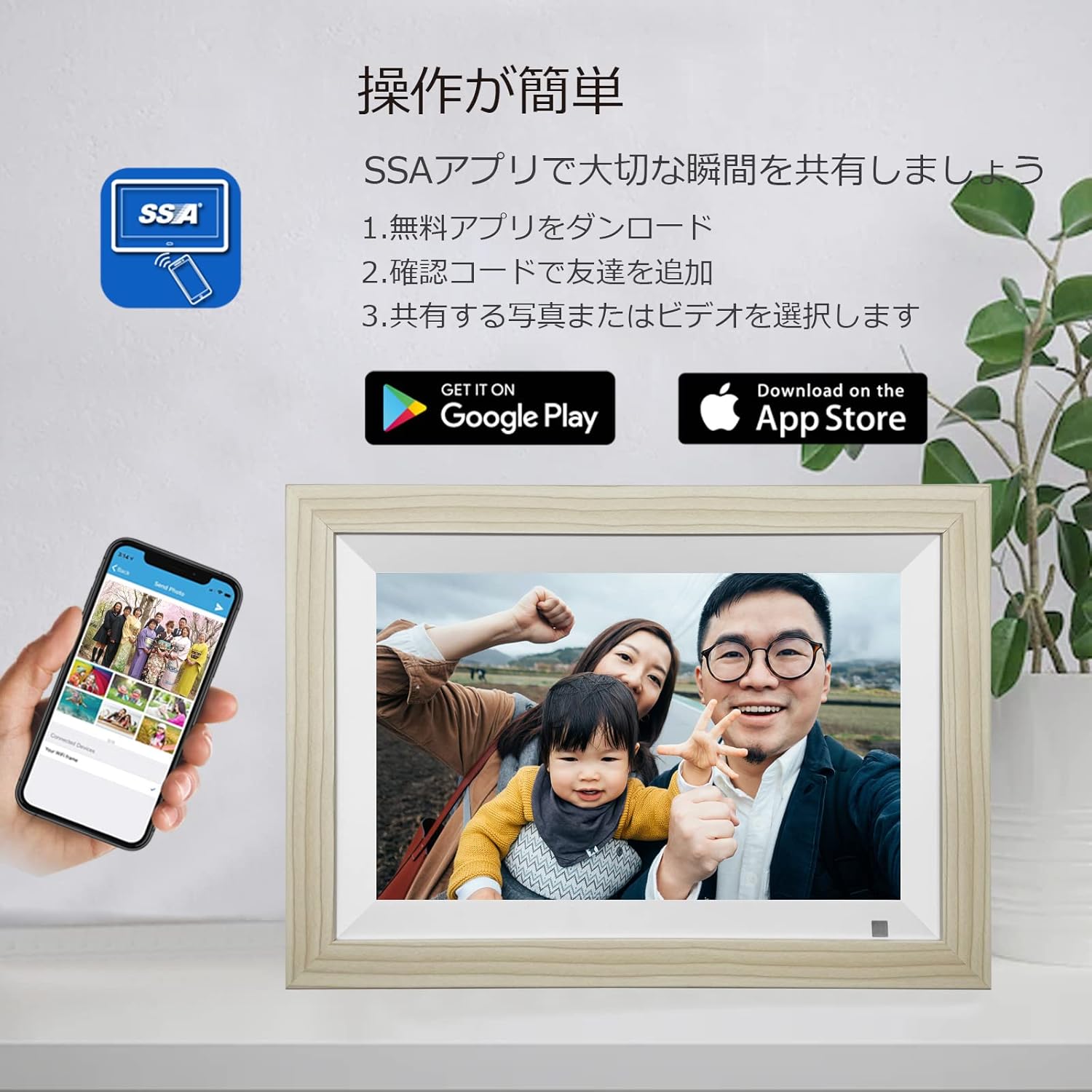
Figure 5.1: SSA WiFi Frame App Download
- Scan the QR code displayed on the frame or in the manual, or search for "SSA WiFi Frame" in your device's app store (Google Play for Android, App Store for iOS).
- Installeer die app en skep 'n rekening.
- Follow the in-app instructions to pair your smartphone with the digital photo frame using the unique device ID provided on the frame.
6. Bedryfsinstruksies
6.1 Oplaai van foto's en video's
6.1.1 Via "SSA WiFi Frame" App
The app allows for real-time sharing of photos and short videos (up to 15 seconds) directly to your frame.
- Open the "SSA WiFi Frame" app on your smartphone.
- Select the photos or videos you wish to upload.
- Tap the upload button to send them to your connected digital photo frame.
- Photos and videos will appear on the frame almost instantly, allowing family and friends to share moments regardless of distance.
6.1.2 Via Micro SD Card or USB Drive
You can also transfer media files directly using a Micro SD card or a USB drive.
- Insert a Micro SD card into the Micro SD Card Slot or a USB drive into the Mini USB port on the back of the frame.
- Navigate to the 'Files' or 'Gallery' section on the frame's touch screen.
- Select the external storage device and choose the files you want to copy to the frame's internal memory.
6.2 Viewfoto's en video's
6.2.1 Slideshow Mode
The frame automatically starts a slideshow of all uploaded photos and videos. You can customize slideshow settings such as transition effects and display time per image in the settings menu.
6.2.2 Manual Browsing
Tap the screen to pause the slideshow and browse through your media manually. Swipe left or right to navigate between photos and videos. Tap on a video to play it.
6.3 Aanpassing van instellings
Access the settings menu by tapping the screen and selecting the 'Settings' icon. Here you can customize various aspects of your frame:
- Vertoon: Adjust brightness, contrast, and screen orientation (the frame also supports automatic rotation).
- Slaap stelling: Set schedules for the frame to automatically turn on/off.
- Bewegingsensor: Enable or disable the human motion sensor. When enabled, the frame will automatically turn on when motion is detected and turn off after a period of inactivity.
- Datum en tyd: Manually set or synchronize date and time via Wi-Fi.
- Volume: Adjust the volume for video playback.

Figure 6.1: Motion Sensor in Action
6.4 Bykomende kenmerke
The Moonka digital photo frame offers several convenient features:
- Kalender: View the current date and month.
- Horlosie: Wys die huidige tyd.
- Weer: Get real-time weather updates for your selected location (requires Wi-Fi connection).
7. Onderhoud
- Skoonmaak van die skerm: Vee die skerm liggies af met 'n sagte, pluisvrye lap. Vir hardnekkige vlekke, vee dit effens af.ampMaak die lap skoon met water of 'n skermskoonmaakoplossing. Vermy harde chemikalieë.
- Algemene sorg: Keep the frame in a dry environment. Avoid extreme temperatures and direct sunlight.
8. Probleemoplossing
| Probleem | Moontlike oorsaak | Oplossing |
|---|---|---|
| Raam skakel nie aan nie. | Geen krag, foutiewe adapter. | Kontroleer die kragaansluiting. Maak seker dat die adapter stewig ingeprop is. Probeer 'n ander aansluiting. |
| Kan nie aan Wi-Fi koppel nie. | Incorrect password, out of range, 5GHz network. | Verify Wi-Fi password. Move frame closer to router. Ensure your network is 2.5GHz. |
| Foto's/video's verskyn nie. | App not connected, incorrect file format, storage full. | Check app connection status. Ensure files are in supported formats (JPEG, MP4). Check available storage. |
| Skerm reageer nie. | Tydelike sagtewarefout. | Restart the frame. If issue persists, use the RESET button. |
9. Spesifikasies
| Kenmerk | Detail |
|---|---|
| Handelsmerk | moonka |
| Modelnommer | ZN-DP1002 |
| Skerm grootte | 10.1 duim |
| Resolusie | 1280x800 |
| Tipe vertoon | IPS raakpaneel |
| Interne geheue | 32 GB |
| Eksterne berging | Supports Micro SD card (up to 32GB, sold separately) |
| Konnektiwiteit | Wi-Fi (2.5GHz) |
| Ondersteun File Formate | JPEG, JPG (photos); MPEG-1, MPEG-2, MPEG-4, H.263 (videos) |
| Produk afmetings | Approximately 4 x 3 x 2.51 cm (frame thickness) |
| Produk Gewig | Ongeveer 930 g |
10. Waarborg en Ondersteuning
Your Moonka Digital Photo Frame comes with a 1-year quality guarantee from the date of purchase. If you encounter any issues or have questions regarding your product, please contact our customer support team. We offer 24-hour Japanese customer support.
Kontakinligting:
- Please refer to your Amazon order history: Go to "Account Service" > "Order History" > "Seller" > "Ask a Question" to send us an email.
- Our team will respond promptly within 24 hours.
We are committed to providing high-quality products and services to ensure your satisfaction.