
Star Micronics 39651110
Star Micronics mC-Print3 Termiese POS-drukker Gebruikershandleiding
Model: 39651110
1. Inleiding
This manual provides comprehensive instructions for the setup, operation, maintenance, and troubleshooting of your Star Micronics mC-Print3 3-inch Ethernet (LAN) / USB / Lightning Thermal POS Printer. Designed for efficiency and reliability, the mC-Print3 is a compact and fast thermal printer suitable for various point-of-sale environments.
The mC-Print3 features a printing speed of 250 mm/sec and incorporates Print-Flat Technology for consistent receipt quality. It offers extensive software compatibility across Windows, iOS, Android, web, and cloud platforms. Connectivity options include USB and Ethernet LAN, with advanced features like CloudPRNT and a peripheral hub. Its splash-proof enclosure ensures durability in demanding settings.
2. Veiligheidsinligting
Please read all safety instructions carefully before operating the printer. Failure to do so may result in injury or damage to the device.
- Ensure the printer is connected to a power source that matches the specified voltage vereistes.
- Do not expose the printer to excessive moisture or extreme temperatures. The splash-proof design offers protection against splashes, but it is not fully waterproof.
- Vermy die blokkering van ventilasie-openinge om oorverhitting te voorkom.
- Moenie probeer om die drukker self uitmekaar te haal of te herstel nie. Verwys alle diens na gekwalifiseerde personeel.
- Use only recommended paper types and sizes to prevent paper jams and ensure optimal print quality.
- Keep hands clear of the paper cutter during operation.

3. Wat is in die boks
Upon unboxing your Star Micronics mC-Print3 printer, verify that all the following items are included:
- mC-Print3 Printer
- Test Paper Roll
- USB kabel
- Kragtoevoer
4. Opstelling
4.1. Fisiese Opstelling
Before connecting the printer, ensure it is placed on a stable, flat surface.

4.2. Laai papier
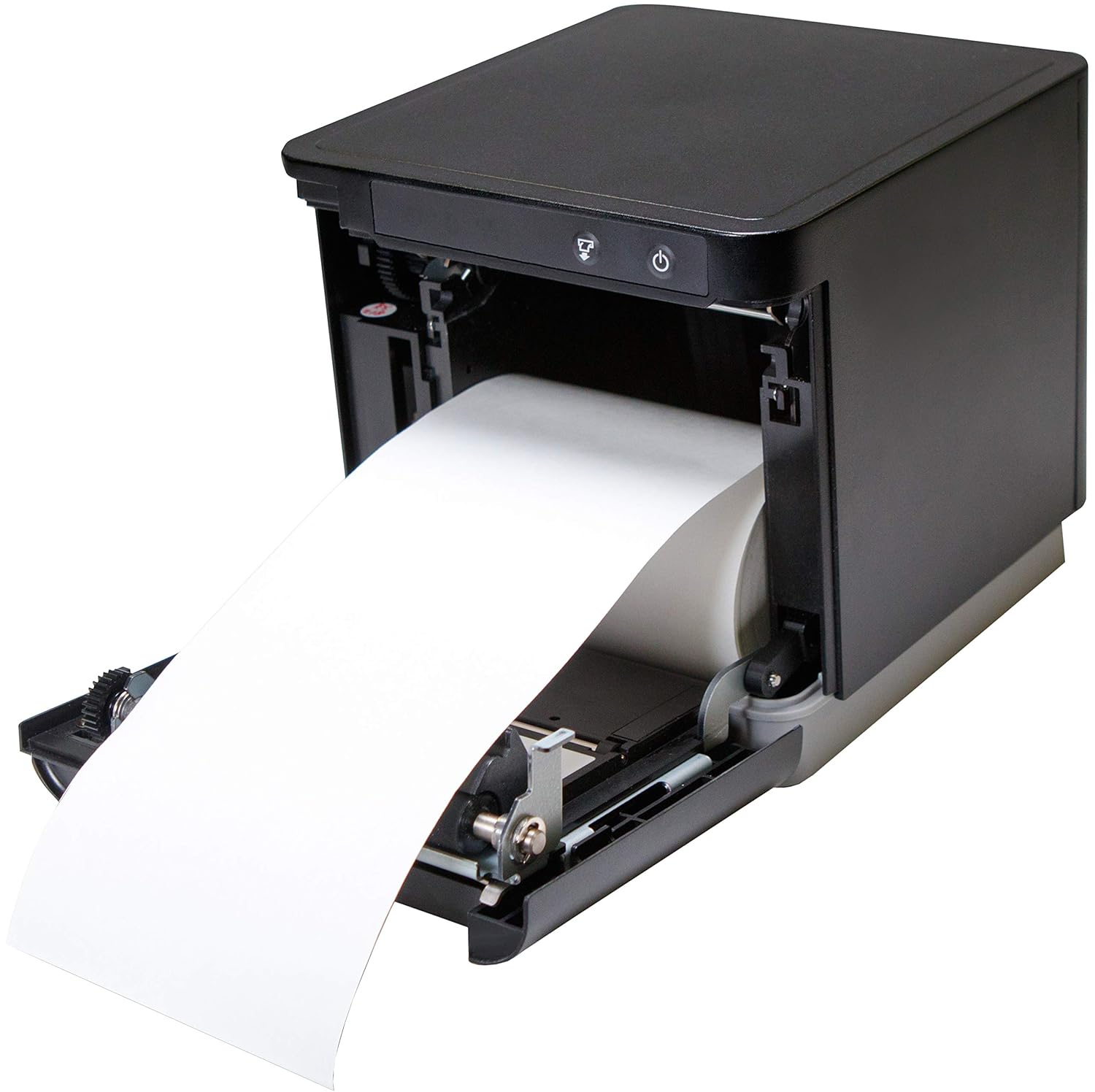
The mC-Print3 features a convenient front-loading paper mechanism.
- Maak die voorblad van die drukker oop.
- Insert the thermal paper roll, ensuring the paper feeds from the bottom of the roll.
- Pull a small amount of paper past the cutter and close the cover firmly until it clicks.
4.3. Aansluitkabels
The mC-Print3 offers multiple connectivity options. Connect the power supply and your chosen interface cable (USB or Ethernet LAN) to the rear of the printer. The printer also features a peripheral hub for connecting other POS devices.


4.4. Sagteware en drywer installasie
The mC-Print3 supports a wide range of operating systems including Windows, iOS, Android, web, and cloud environments. Drivers and SDKs are available from the Star Micronics website to facilitate integration with your POS system.
For iOS devices, the unique SteadyLAN™ technology allows for internet connection to the tablet via the USB cable, eliminating the need for Wi-Fi or Bluetooth for network access.
Video 4.1: This video demonstrates the SteadyLAN technology, showing how an iPad can receive internet connectivity and power directly through the printer's USB connection, simplifying POS setup.
5. Bedryfsinstruksies
5.1. Basiese Drukwerk
Once connected and configured with your POS software, the printer will automatically receive print commands. The mC-Print3's fast printing speed of 250 mm/sec ensures quick transaction processing.

5.2. Peripheral Hub Functionality
The integrated peripheral hub allows you to connect various devices such as barcode scanners, customer displays, and RFID readers directly to the printer, streamlining your POS setup.
Video 5.1: This video highlights the mC-Print series' compact design and superior connectivity, including the peripheral hub that supports various POS devices like customer displays and barcode scanners.
6. Onderhoud
6.1. Maak die drukker skoon
Gereelde skoonmaak help om die drukkwaliteit te handhaaf en die lewensduur van jou drukker te verleng.
- Turn off the printer and disconnect the power cable before cleaning.
- Gebruik 'n sagte, pluisvrye lap dampened with a mild, non-abrasive cleaner to wipe the exterior.
- For the thermal print head and platen roller, use an alcohol-based cleaning pen or a cotton swab lightly dampmet isopropylalkohol behandel. Laat dit heeltemal droog word voor gebruik.
6.2. Papierrolvervanging
Replace the paper roll as described in Section 4.2 when the paper low sensor is activated or print quality degrades.
7. Probleemoplossing
This section addresses common issues you might encounter with your mC-Print3 printer.
| Probleem | Moontlike oorsaak | Oplossing |
|---|---|---|
| Drukker skakel nie aan nie | Power cable disconnected; faulty power supply. | Check power connections; try a different outlet; replace power supply if necessary. |
| Geen drukwerkuitvoer nie | Paper jam; out of paper; incorrect driver/software settings; connectivity issue. | Clear paper jam and reload paper; install correct drivers; verify USB/Ethernet connection. |
| Swak drukkwaliteit | Dirty print head; incorrect paper type; worn-out print head. | Clean the print head; ensure correct thermal paper is used; contact support if print head is worn. |
| Paper getting stuck/hole in receipt | Paper not loaded correctly; internal mechanism issue. | Ensure paper is loaded straight and cover is closed properly. If issue persists, contact Star Micronics support. |
8. Spesifikasies
- Model Naam: mC-Druk3
- Produk afmetings: 5.5 x 5.25 x 5 duim
- Item gewig: 2.8 pond
- Druktegnologie: Termies
- Maksimum drukspoed: 250 mm/sec (Monochrome)
- Verbindingstegnologie: Wired Connectivity (USB, Ethernet LAN)
- Kleur: Swart
- Vervaardiger: Star Micronics America, Inc
- Spesiale kenmerk: Ethernet, Peripheral Hub, CloudPRNT, SteadyLAN™
9. Waarborg en Ondersteuning
The Star Micronics mC-Print3 printer typically comes with a manufacturer's limited warranty. For specific warranty terms and conditions, please refer to the documentation included with your purchase or visit the official Star Micronics webwebwerf.
Vir tegniese ondersteuning, dryweraflaaie en bykomende hulpbronne, besoek asseblief die Star Micronics Store on Amazon or their official support portal.