
Microsoft QJW-00001
Microsoft Surface Pro Keyboard User Manual
Model: QJW-00001
Inleiding
This manual provides essential information for the setup, operation, maintenance, and troubleshooting of your Microsoft Surface Pro Keyboard. Designed for seamless integration with Surface Pro X and Surface Pro 8 devices, this keyboard offers a full mechanical keyset, backlit keys, and a large trackpad for an optimal typing experience.
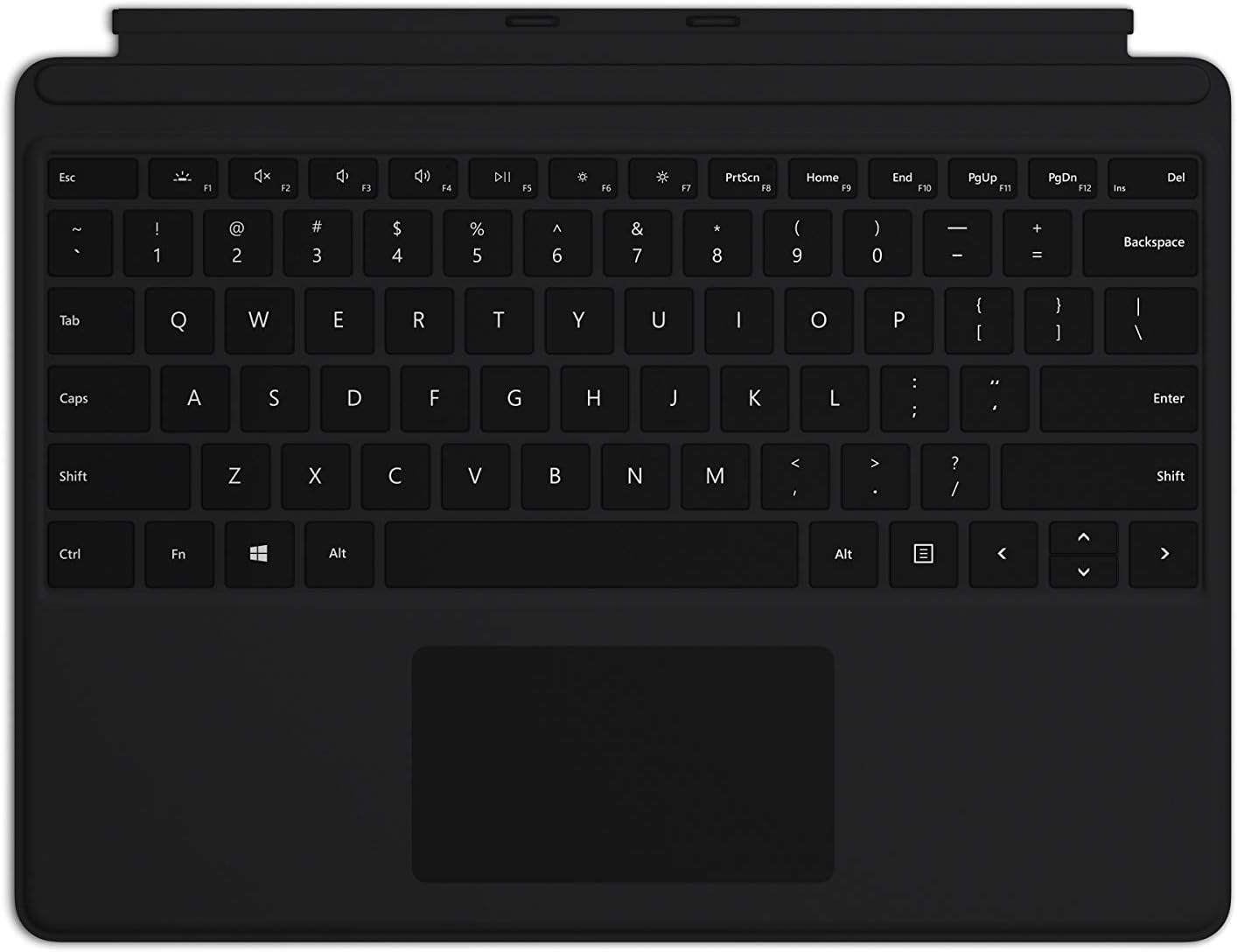
Image: The Microsoft Surface Pro Keyboard in black, showcasing its full QWERTY layout and integrated trackpad.
Opstelling
Pakketinhoud
- Surface Pro-sleutelbord
Koppel die sleutelbord
The Microsoft Surface Pro Keyboard connects instantly to your compatible Surface device via magnetic stability. Ensure your Surface Pro X or Surface Pro 8 device is powered on.
- Align the magnetic connector edge of the keyboard with the corresponding port at the bottom edge of your Surface Pro X or Surface Pro 8 device.
- Gently push the keyboard towards the device until it clicks securely into place. The magnetic connection will guide it.
- Once connected, the keyboard will be recognized automatically by your Surface device.
The keyboard is designed to adjust to almost any angle, providing a stable typing experience. It also serves as a protective cover for your screen when closed, helping to conserve battery life.

Beeld: 'n Bo-na-onder view of the Microsoft Surface Pro Keyboard, illustrating its compact design and how it integrates with a Surface device.
Bedien die sleutelbord
Tik en Navigasie
The keyboard features a full mechanical keyset with optimal key spacing for fast and fluid typing. The large trackpad provides precise navigation and control, supporting multi-touch gestures as configured in your Surface device's settings.
Verligte sleutels
The keys are backlit, allowing for comfortable use in low-light conditions. The backlight intensity can typically be adjusted through your Surface device's display settings or via dedicated function keys (if present on your specific model).
Protective and Power Saving Features
When not in use, fold the keyboard over the screen of your Surface device. This action protects the screen from scratches and helps conserve battery power by putting the device into a low-power state. To use your Surface as a tablet, fold the keyboard completely back behind the device.
Onderhoud
Skoonmaak
To maintain the appearance and functionality of your keyboard, clean it regularly:
- Gebruik 'n sagte, pluisvrye lap effens dampened with water or a mild cleaning solution (e.g., isopropyl alcohol diluted with water) to wipe the surface of the keys and trackpad.
- Vermy om vloeistowwe direk op die sleutelbord te spuit.
- Vir stof en puin tussen sleutels, gebruik saamgeperste lug.
- Ensure the keyboard is completely dry before reattaching it to your Surface device.
Berging
When storing the keyboard separately from your Surface device, keep it in a clean, dry environment away from extreme temperatures and direct sunlight.
Probleemoplossing
Sleutelbord reageer nie
- Kontroleer verbinding: Ensure the keyboard is securely attached to your Surface device. Detach and reattach it firmly.
- Herbegin toestel: Restart your Surface Pro X or Surface Pro 8. This can often resolve minor software glitches.
- Kyk vir opdaterings: Ensure your Surface device's operating system and drivers are up to date. Go to Windows Update settings.
- Toets op 'n ander toestel: If possible, test the keyboard with another compatible Surface device to determine if the issue is with the keyboard or the device.
Agterlig werk nie
- Pas Helderheid aan: Try adjusting the backlight brightness using the function keys or through Windows display settings.
- Kragbesparingsmodus: Ensure your device is not in a power-saving mode that might disable the backlight.
Probleme met die raakvlak
- Maak die raakvlak skoon: Maak seker dat die oppervlak van die raakvlak skoon en vry van puin is.
- Gaan instellings na: Verify trackpad settings in Windows (Settings > Devices > Touchpad).
- Herinstallasie van drywer: In Device Manager, try uninstalling and reinstalling the trackpad driver.
Spesifikasies
| Kenmerk | Detail |
|---|---|
| Handelsmerk | Microsoft |
| Modelnommer | QJW-00001 |
| Versoenbare toestelle | Surface Pro X, Surface Pro 8 |
| Verbindingstegnologie | Magnetic (Physical Connection) |
| Sleutelbordbeskrywing | Full mechanical keyset, backlit keys, large trackpad |
| Kleur | Swart |
| Item gewig | 11.8 onse (ongeveer 334.5 gram) |
| Produkafmetings (LxBxH) | 11.38 x 8.71 x 0.2 duim (ongeveer 28.9 x 22.1 x 0.5 cm) |
| Aantal sleutels | 79 |
| Sleutelbord agtergrondbeligting | Enkele kleur LED |
Waarborg en Ondersteuning
For warranty information and technical support, please refer to the documentation included with your Surface Pro X or Surface Pro 8 device, or visit the official Microsoft Support website. You can typically find support resources, FAQs, and contact options at ondersteuning.microsoft.com.
Behou asseblief jou aankoopbewys vir waarborgeise.