
Inleiding
The NEDIS Universal Programmable Remote Control (model TVRC1140BK) is designed to manage up to 4 different devices. This remote can be programmed via a personal computer (PC) to replace original remote controls for various electronic devices, including televisions (TV), video cassette recorders (VCR), digital versatile disc players (DVD), and digital video broadcasting terrestrial receivers (DVB-T). It is engineered to replicate most functions of your original remotes, providing a consolidated control solution.
Veiligheidsinligting
- Do not expose the remote control to direct sunlight, heat, or moisture.
- Vermy om die afstandbeheerder te laat val of aan harde impakte bloot te stel.
- Moenie probeer om die afstandbeheerder uitmekaar te haal of te wysig nie. Dit sal die waarborg ongeldig maak.
- Hou batterye buite bereik van kinders. Indien ingesluk, soek onmiddellike mediese hulp.
- Gooi gebruikte batterye weg volgens plaaslike regulasies. Moenie batterye in die vuur gooi nie.
- Use only the specified battery type (2x AAA Alkaline).
Pakketinhoud
Kontroleer asseblief die pakket vir die volgende items:
- NEDIS Universal Programmable Remote Control (TVRC1140BK)
- USB-programmeringskabel
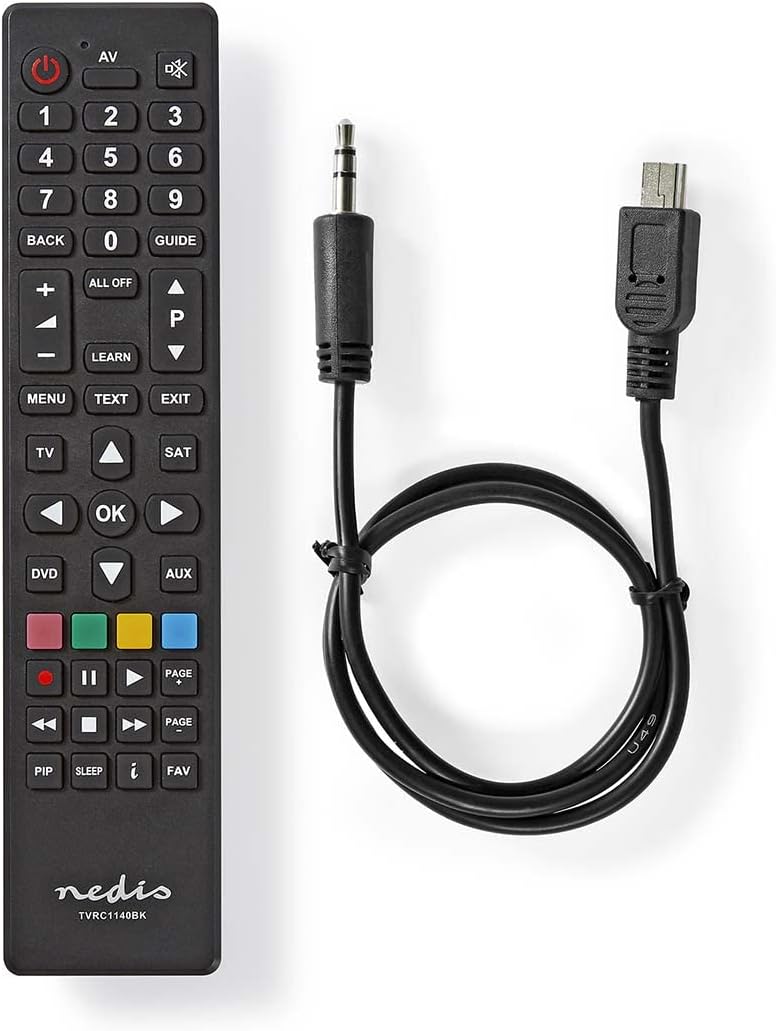
Image: The NEDIS Universal Remote Control TVRC1140BK shown alongside its USB programming cable.
Produk verbyview
The remote control features a clear button layout for intuitive operation. Familiarize yourself with the various buttons and their functions before use.

Beeld: Voorkant view of the NEDIS Universal Remote Control TVRC1140BK, displaying all control buttons.
Sleutelknoppies en funksies:
- Kragknoppie (): Turns devices on or off.
- Device Selection Buttons (TV, DVD, SAT, AUX): Selects the device you wish to control.
- Numeriese sleutelbord (0-9): For channel selection and data input.
- Volume op/af (+/-): Pas die volume aan.
- Channel Up/Down (P/P): Verander kanale.
- Navigasieknoppies (Op, Af, Links, Regs, OK): Vir menu-navigasie en -keuse.
- Kieslys/uitgang: Accesses or exits device menus.
- Leer-knoppie: Used for programming functions from an original remote.
- Gekleurde knoppies (rooi, groen, geel, blou): Often used for specific functions in menus or teletext.
Opstelling
1. Battery Installasie
- Maak die deksel van die batterykamer aan die agterkant van die afstandbeheerder oop.
- Insert two (2) AAA Alkaline batteries, ensuring the correct polarity (+ and -) as indicated inside the compartment.
- Maak die batterykompartement se deksel stewig toe.
2. Rekenaarprogrammering
The NEDIS TVRC1140BK remote control is programmed using dedicated software on a PC. This method allows for comprehensive device code loading and customization.
- Sagteware aflaai: Visit the official NEDIS support website to download the latest programming software for the TVRC1140BK model.
- Sagteware installasie:
- If you have previously installed an older version of the software, uninstall it completely before proceeding.
- For new users, install the downloaded software directly by following the on-screen instructions.
- Koppel die afstandsbediening: Use the provided USB programming cable to connect the remote control to an available USB port on your PC.
- Programming Process: Follow the instructions within the software to select your device types (TV, DVD, VCR, DVB-T, etc.) and load the appropriate control codes onto the remote. The software typically guides you through the process of assigning functions to buttons.
Let wel: For optimal performance and access to the latest device codes, always use the most current version of the programming software available from the manufacturer.
Bedien die afstandbeheer
Once programmed, the remote control functions similarly to your original device remotes.
- Kies Toestel: Druk die ooreenstemmende toestelknoppie (bv. TV, DVD, SAT, AUX) to select the device you wish to control. The indicator light on the remote may illuminate to confirm selection.
- Point and Operate: Point the remote control directly at the device's infrared receiver.
- Use Functions: Press the desired function buttons (e.g., Power, Volume, Channel, Menu, Play, Pause) to control your selected device.
Onderhoud
- Skoonmaak: Vee die afstandbeheerder af met 'n sagte, droë lap. Moenie skuurmiddels of oplosmiddels gebruik nie.
- Battery vervanging: Replace batteries when the remote's performance degrades or if the indicator light does not illuminate. Always replace both batteries at the same time with new AAA Alkaline batteries.
- Berging: Indien die afstandbeheerder nie vir 'n lang tydperk gebruik gaan word nie, verwyder die batterye om lekkasie te voorkom.
Probleemoplossing
- Afstandsbediening reageer nie:
- Kontroleer of die batterye korrek geplaas is en voldoende gelaai is. Vervang indien nodig.
- Ensure there is a clear line of sight between the remote control and the device's infrared receiver.
- Verify that the correct device mode (TV, DVD, etc.) is selected on the remote.
- Device functions not working correctly after programming:
- The device code may be incorrect or incomplete. Re-program the remote using the PC software, ensuring you select the correct manufacturer and model for your device.
- Some specific functions might not be available if the original remote had unique features not supported by the universal remote's code database.
- Consult the NEDIS support website for updated software or additional programming tips.
- PC programming software issues:
- Ensure you have uninstalled any previous versions of the software before installing the latest one.
- Check your PC's operating system compatibility with the software.
- Try using a different USB port or restarting your computer.
Spesifikasies
| Handelsmerk | NEDIS |
| Modelnommer | TVRC1140BK |
| Verbindingstegnologie | Infrarooi |
| Maksimum ondersteunde toestelle | 4 |
| Versoenbare toestelle | TV, DVD/Blu-ray Player, Set-top Box, VCR |
| Tipe beheerder | Knoppie beheer |
| Maksimum reeks | 10 meter |
| Batterye benodig | 2x AAA Alkaline (nie ingesluit nie) |
| Kleur | Swart |
Waarborg en Ondersteuning
For warranty information, please refer to the terms and conditions provided by your retailer at the time of purchase or contact NEDIS customer support directly. For technical assistance, software updates, and additional resources, please visit the official NEDIS webwebwerf.