
1. Inleiding
This manual provides essential information for the proper use and maintenance of your Zentality C-710 10-inch Dual SIM Tablet. Please read this guide thoroughly before operating the device to ensure optimal performance and longevity. Keep this manual for future reference.
2. Produk verbyview
The Zentality C-710 is a 10-inch Android tablet designed for communication and multimedia. It features dual SIM card support for cellular connectivity, a Quad-Core processor, 1GB RAM, and 16GB of internal storage. The device includes front and rear cameras, Bluetooth, and a vibrant IPS LCD display.
2.1 Toestelkomponente
Familiarize yourself with the tablet's physical features and controls.

Prent 1: Voor en agter view of the Zentality C-710 Tablet, showing the screen, cameras, and rear casing.
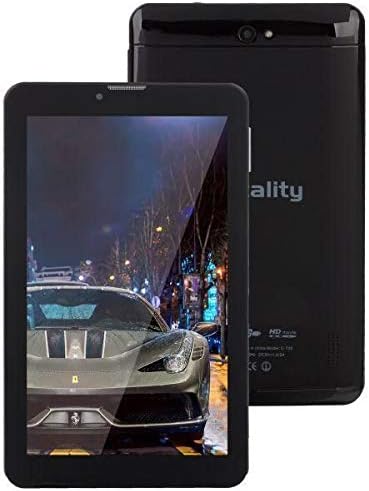
Prent 2: Voorkant view of the Zentality C-710 Tablet with the screen displaying an image, highlighting the display area.
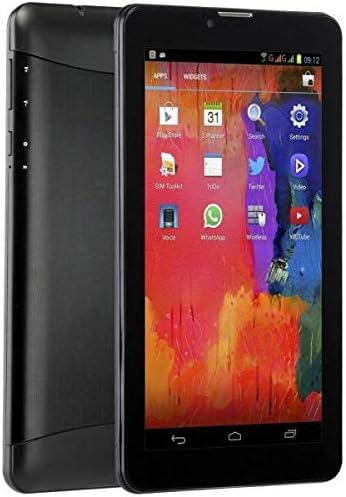
Prent 3: Kant view of the Zentality C-710 Tablet, illustrating the placement of physical buttons and ports.
3. Opstelling
3.1 Laai die battery
Before first use, fully charge the tablet's battery. Connect the provided charger to the tablet's charging port and plug it into a power outlet. The battery indicator on the screen will show charging status. A full charge typically takes several hours.
3.2 SIM-kaarte insit
The Zentality C-710 supports dual SIM cards for cellular network access. Locate the SIM card slot(s) on the side or back of the tablet. Carefully insert your standard or micro SIM cards into the designated slots, ensuring they are correctly oriented as indicated by the diagram near the slot. Close the tray securely.
3.3 Invoeging van 'n MicroSD-kaart
To expand storage, insert a microSD card (up to 32GB, not included) into the dedicated slot. Ensure the card is oriented correctly before gently pushing it in until it clicks into place.
3.4 Aan-/afskakel
To power on, press and hold the Power button until the Zentality logo appears. To power off, press and hold the Power button until the power options menu appears, then select 'Power off'.
3.5 Aanvanklike opstelling
Upon first power-on, follow the on-screen prompts to select your language, connect to a Wi-Fi network, set up your Google account, and configure other basic settings.
4. Bedryf
4.1 Touchscreen Gestures
Navigate your tablet using standard Android touchscreen gestures:
- Tik: Kies 'n item of maak 'n toepassing oop.
- Tik en hou: Kry toegang tot kontekstuele spyskaarte of skuif ikone.
- Swiep: Blaai deur skerms of lyste.
- Knyp: Zoem in of uit op beelde en web bladsye.
4.2 Koppel aan Wi-Fi
Gaan na Instellings > Netwerk en internet > Wi-Fi. Turn Wi-Fi on, then select your desired network from the list and enter the password if required.
4.3 Koppel aan Bluetooth-toestelle
Gaan na Instellings > Verbonde toestelle > Bluetooth. Turn Bluetooth on, then select 'Pair new device' and choose your device from the list to connect.
4.4 Making Calls (3G)
With an active SIM card, you can make and receive calls. Open the 'Phone' application, dial the number, and press the call button.
4.5 Gebruik van die kamera
Open the 'Camera' application. Tap the shutter button to take photos. Switch between front and rear cameras using the camera toggle icon. Adjust settings like flash and mode as needed.
4.6 Bestuur van toepassings
Download new applications from the Google Play Store. To uninstall an app, tap and hold its icon on the home screen or app drawer, then drag it to the 'Uninstall' option.
5. Onderhoud
5.1 Skoonmaak van die tablet
Use a soft, lint-free cloth to clean the screen and body of the tablet. Avoid using harsh chemicals or abrasive materials, which can damage the display or finish. For stubborn smudges, slightly dampMaak die lap skoon met water of 'n skermreiniger wat vir elektronika ontwerp is.
5.2 Batterysorg
To prolong battery life, avoid extreme temperatures. Do not leave the tablet charging for extended periods after it's full. If storing the tablet for a long time, ensure the battery is charged to about 50%.
5.3 Sagteware-opdaterings
Kontroleer gereeld vir stelselopdaterings en installeer dit om te verseker dat jou tablet die nuutste kenmerke, sekuriteitsopdaterings en werkverrigtingverbeterings het. Gaan na Instellings > Stelsel > Stelselopdatering.
6. Probleemoplossing
6.1 Tablet skakel nie aan nie
Ensure the battery is sufficiently charged. Connect the charger and wait a few minutes before attempting to power on again. If the issue persists, try a different charger or contact support.
6.2 Wi-Fi-verbindingsprobleme
Check if Wi-Fi is enabled in settings. Restart your tablet and your Wi-Fi router. Ensure you are entering the correct password. If the problem continues, try forgetting the network and reconnecting.
6.3 Stadige Werkverrigting
Close unnecessary background applications. Clear cache data from apps in Settings > Apps & notifications > [App Name] > Storage & cache > Clear cache. Consider uninstalling unused apps or performing a factory reset as a last resort (back up your data first).
6.4 App Crashes
Ensure the app is updated to its latest version. Clear the app's cache and data (this will reset the app). If the issue persists, uninstall and reinstall the app.
7. Spesifikasies
| Kenmerk | Spesifikasie |
|---|---|
| Handelsmerk | Zentality |
| Model Naam | C-710 |
| Vertoon Skerm Grootte | 10 duim |
| Tipe vertoon | IPS LCD |
| Bedryfstelsel | Android |
| Verwerker | Vierkern |
| Geïnstalleerde RAM-grootte | 1 GB |
| Geheue berging kapasiteit | 16 GB |
| Cellular Network Technology | 3G |
| Number of SIM Cards | Dubbele SIM |
| Verbindingstipe | Sellulêr, Bluetooth |
| Agterkamera-resolusie | 5 megapixels |
| Voorkant Webcam resolusie | 1.3 megapixels |
| Battery kapasiteit | 4000 mAh |
| Kleur | Swart |
| Item gewig | 940 gram |
| Pakket afmetings | 27.4 x 27 x 3.8 cm |
| Datum Eerste Beskikbaar | 23 Julie 2019 |
8. Waarborg en Ondersteuning
For warranty information and technical support, please refer to the documentation included with your purchase or visit the official Zentality webwebwerf. Bewaar u bewys van aankoop vir waarborgeise.