
1. Inleiding
This manual provides comprehensive instructions for the installation, operation, and maintenance of your Intel 3168NGW Dual Band Wireless-AC 3168 WiFi Card. Please read this manual thoroughly before installation and use to ensure proper functionality and to prevent damage.
The Intel 3168NGW is a compact M.2 2230 form factor card designed to provide high-speed 802.11ac Wi-Fi and Bluetooth 4.2 connectivity to compatible systems.
2. Veiligheidsinligting
- Ontkoppel altyd die krag van jou rekenaar voordat jy enige interne komponente installeer of verwyder.
- Handle the card by its edges to avoid touching the gold connectors or sensitive components. Electrostatic discharge (ESD) can damage the card.
- Ensure proper grounding when working inside your computer.
- Hou die kaart weg van vog en uiterste temperature.
- This product is intended for installation by qualified personnel.
3. Pakketinhoud
Verifieer dat alle items in jou pakket teenwoordig is:
- Intel 3168NGW Dual Band Wireless-AC 3168 WiFi Card
- (Antennas and mounting screw may be included depending on retailer/kit)
4. Opstelling en installering
This section outlines the general steps for installing the Intel 3168NGW WiFi Card. Specific steps may vary depending on your computer's make and model.
4.1. Voorinstallasiekontrolelys
- Compatible M.2 2230 slot (Key E) on your motherboard or laptop.
- Small Phillips head screwdriver.
- Antistatiese polsband (aanbeveel).
- Internet access (for driver download).
4.2. Installasiestappe
- Skakel af en ontkoppel: Shut down your computer completely and disconnect the power cord and any other peripherals.
- Oop rekenaarkas: Open your computer's case or access panel to expose the motherboard. Refer to your computer's manual for specific instructions.
- Vind M.2-gleuf: Identify an available M.2 2230 slot (often labeled "Key E" or "WiFi").
- Insert WiFi Card: Carefully align the Intel 3168NGW card with the M.2 slot. Insert the card at a slight angle (approximately 30 degrees) and gently push it into the slot until it is fully seated.
- Beveilig die kaart: Once seated, push the card down towards the motherboard. Secure it with the small screw provided with your computer or the card (if included).
- Attach Antennas (if applicable): If your system uses external antennas, carefully connect the antenna cables to the corresponding connectors on the WiFi card (Main and Aux). Ensure a secure connection.
- Maak rekenaarkas toe: Replace the computer's access panel or close the case.
- Herkoppel krag: Reconnect the power cord and other peripherals.
- Krag aan: Skakel jou rekenaar aan.
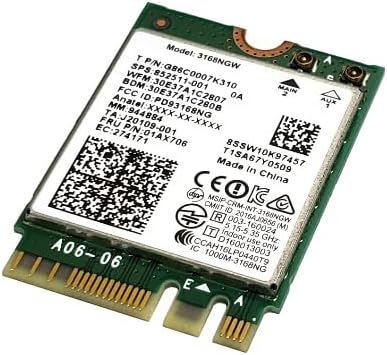
Image 1: Intel 3168NGW Dual Band Wireless-AC 3168 WiFi Card. This image displays the Intel 3168NGW WiFi card, an M.2 2230 form factor component. The card features a green PCB with a white label detailing the model number (3168NGW), part numbers (G86C0007K310, 852511-001), and regulatory information. Two small gold antenna connectors are visible at one end, labeled "MAIN" and "AUX". The M.2 connector pins are visible at the opposite end.
5. Bedryfsinstruksies
5.1. Bestuurder Installasie
After physical installation, you will need to install the appropriate drivers for the WiFi and Bluetooth functionalities.
- Aanvanklike opstart: Upon booting your computer, the operating system may automatically detect the new hardware and attempt to install generic drivers.
- Download Latest Drivers: For optimal performance and stability, it is highly recommended to download the latest drivers directly from the official Intel support webwebwerf. Soek vir "Intel Wireless-AC 3168 drivers" and "Intel Bluetooth 4.2 drivers".
- Installeer drywers: Run the downloaded driver installation packages and follow the on-screen prompts. You may need to restart your computer after installation.
- Verifieer installasie: Open Device Manager (Windows) or System Information (macOS/Linux) to confirm that the Intel Wireless-AC 3168 and Bluetooth 4.2 devices are recognized and functioning correctly.
5.2. Koppel aan 'n Wi-Fi-netwerk
- Ensure Wi-Fi is enabled in your operating system settings.
- Klik op die Wi-Fi-ikoon in jou stelselbalk (Windows) of menubalk (macOS).
- Kies jou verlangde Wi-Fi-netwerk uit die lys van beskikbare netwerke.
- Voer die netwerkwagwoord in (indien nodig) en klik "Verbind".
5.3. Koppel Bluetooth-toestelle
- Maak seker dat Bluetooth in jou bedryfstelselinstellings geaktiveer is.
- Plaas jou Bluetooth-toestel in paringsmodus (verwys na die toestel se handleiding).
- Go to your computer's Bluetooth settings and search for new devices.
- Kies jou toestel uit die lys en volg enige aanwysings op die skerm om die paringsproses te voltooi.
6. Onderhoud
- Bestuurderopdaterings: Gaan gereeld die Intel-ondersteuning na website for updated drivers to ensure optimal performance and security.
- Fisiese inspeksie: Periodically inspect the card and antenna connections for any signs of damage or loose connections.
- Skoonmaak: If necessary, gently clean any dust accumulation on the card using compressed air. Ensure the computer is powered off and disconnected before cleaning.
7. Probleemoplossing
7.1. Wi-Fi or Bluetooth Not Detected
- Gaan Fisiese verbinding na: Ensure the card is properly seated in the M.2 slot and secured.
- Antenna verbindings: Verify that antenna cables are securely attached to the card.
- Toestelbestuurder: Check Device Manager (Windows) for any yellow exclamation marks or unknown devices. Reinstall drivers if necessary.
- BIOS/UEFI-instellings: Some motherboards may have an option to enable/disable M.2 slots or wireless functionality in the BIOS/UEFI settings. Ensure it is enabled.
7.2. Poor Wi-Fi Performance or Disconnections
- Bestuurderopdatering: Ensure you have the latest drivers installed from Intel.
- Router Nabyheid: Move closer to your Wi-Fi router or access point.
- Inmenging: Other electronic devices (cordless phones, microwaves) can cause interference. Try changing your router's Wi-Fi channel.
- Antenna plasing: If using external antennas, ensure they are positioned for optimal signal reception.
7.3. Bluetooth Pairing Issues
- Toestelversoenbaarheid: Ensure the Bluetooth device you are trying to pair is compatible with Bluetooth 4.2.
- Paringsmodus: Confirm the Bluetooth device is in pairing mode.
- Restart Bluetooth Service: Try disabling and re-enabling Bluetooth in your computer's settings.
- Remove Existing Pairings: If you've previously paired the device, remove it from your computer's Bluetooth list and try pairing again.
8. Spesifikasies
| Kenmerk | Spesifikasie |
|---|---|
| Model | Intel 3168NGW |
| Onderdeelnommers | G86C0007K310, 852511-001, 01AX706, SW10K97457, J20109-001, 84811-002, 11S01AX706, 8SSW10K97457 |
| Draadloos standaard | 802.11a/b/g/n/ac |
| Frekwensiebande | Dubbelband (2.4 GHz en 5 GHz) |
| Data-oordragtempo | Tot 433 Mbps |
| Bluetooth Standaard | Bluetooth 4.2 |
| Koppelvlak | PCI-Express (M.2 2230, Key E) |
| Vormfaktor | M.2 2230 |
| Versoenbare toestelle | Desktop (with compatible M.2 slot) |
| Vervaardiger | Intel |
| Item gewig | 2 pond (Note: This weight might refer to shipping weight, actual card weight is minimal) |
| UPC | 735899008645 |
9. Waarborg en Ondersteuning
Vir waarborginligting en tegniese ondersteuning, verwys asseblief na die amptelike Intel-webwerf. website or contact your point of purchase. Intel provides comprehensive support resources, including driver downloads, troubleshooting guides, and customer service contacts.
Intel Ondersteuning Webwebwerf: www.intel.com/ondersteuning