
1. Produk verbyview
The BrosTrend AC1200 WiFi Extender is designed to expand the coverage of your existing wireless network, eliminating Wi-Fi dead zones and providing reliable internet access throughout your home. It supports dual-band Wi-Fi (5GHz and 2.4GHz) for speeds up to 1200 Mbps and offers versatile operating modes including Repeater, Access Point, and WiFi Bridge.
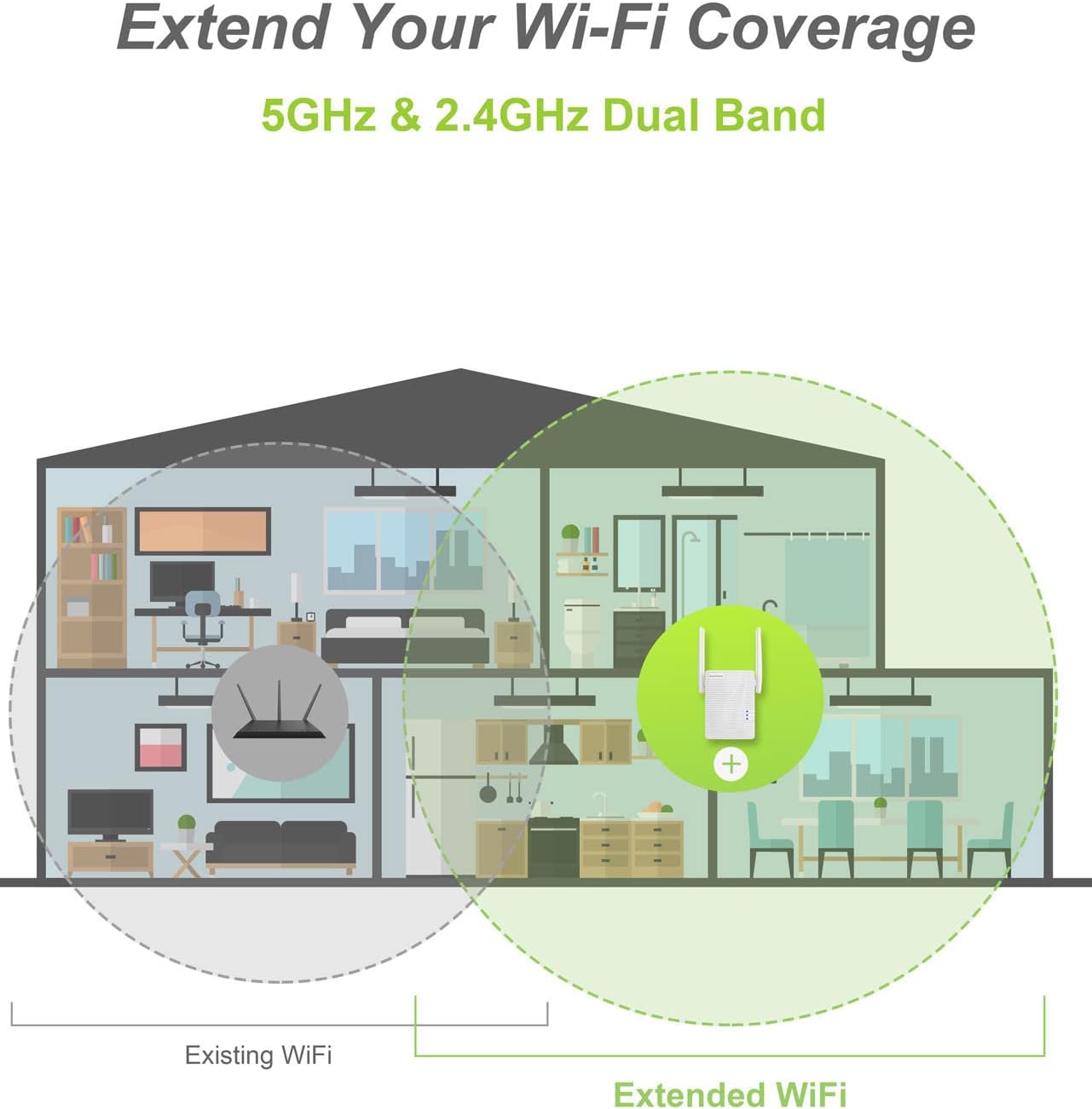
Image: The BrosTrend AC1200 WiFi Extender boosts Wi-Fi coverage across multiple rooms in a home, supporting both 5GHz and 2.4GHz bands.
Sleutel kenmerke:
- Uitgebreide dekking: Boosts Wi-Fi signal up to 1300 sq. ft., eliminating dead spots.
- Dual-Band Speed: Up to 867Mbps on 5GHz and 300Mbps on 2.4GHz for smooth streaming and gaming.
- Toestelverbinding: Supports 20+ devices including smartphones, tablets, PCs, smart home devices, and more.
- Veelvuldige modusse: Functions as a Wi-Fi Repeater, Access Point, or Wi-Fi Bridge.
- Ethernet-poort: Connects wired devices like TVs, game consoles, and printers.
- Maklike opstelling: Quick installation via WPS button or web blaaier.
- Universele verenigbaarheid: Works with 99% of Wi-Fi routers and gateways (IEEE 802.11 ac/a/b/g/n standards).
2. Opstelling en installering
The BrosTrend AC1200 WiFi Extender offers two primary methods for setup: via Web User Interface or using the WPS (Wi-Fi Protected Setup) button. It is recommended to perform the initial setup in the same room as your existing router.
Method 1: Setup via Web User Interface (Recommended for detailed control)
- Inprop: Plug the extender into an electrical outlet in the same room as your router. Wait for the Power LED to light up solid blue.
- Koppel aan Extender: On your smartphone, tablet, or PC, connect to the extender's default Wi-Fi network, usually named "BrosTrend_EXT". No password is required for the initial connection.
- Toegang Web Interface: Maak oop a web blaaier en voer in re.brostrend.com in die adresbalk.
- Create Login Password: For security, create a login password (5-32 characters) for the extender's administration page. It is recommended to write this down for future reference.
- Kies netwerk: The extender will scan for nearby Wi-Fi networks. Select the name of your existing router's Wi-Fi network that you wish to extend.
- Voer wagwoord in: Input the correct Wi-Fi password for your existing router's network and click "Extend".
- Bevestiging: Wait for the extender to configure. Once "Extended successfully!" appears, your network is extended. The extended networks will typically have names like "[Your_Router_SSID]_EXT" and "[Your_Router_SSID]_5GEXT".
Method 2: Setup via WPS Button (Quick Setup)
This method is suitable if your existing router has a WPS button.
- Inprop: Plug the extender into an electrical outlet in the same room as your router. Wait for the Power LED to light up solid blue.
- Press Router WPS: Press the WPS button on your existing Wi-Fi router. The WPS LED on your router should change its status (e.g., start blinking).
- Press Extender WPS: Within two minutes, press the WPS button on the BrosTrend extender. The WPS LED on the extender will blink as it attempts to pair.
- Verbinding bevestiging: Once the Signal LED on the extender lights up solid blue, the connection is established, and the initial setup is complete.

Image: Visual guide for the one-touch WPS setup process, illustrating pressing the WPS button on the router, then on the extender, and finally enjoying expanded Wi-Fi.
Videogids:
Video: A detailed guide on how to install the BrosTrend AC1200 WiFi Extender, demonstrating both Web UI and WPS setup methods.
3. Optimizing Extender Placement
After initial setup, relocate the extender to an optimal position to maximize Wi-Fi coverage and signal strength. The ideal location is halfway between your router and the Wi-Fi dead zone.
Sein LED-aanwyser:
- Soliede blou: Best connection. The extender is in a proper position and boosting Wi-Fi signal effectively.
- Vaste rooi: Poor connection. Move the extender closer to your router to improve the connection quality.
- Af: Not connected. Ensure the extender is within the Wi-Fi coverage of your router and repeat the setup process if necessary.

Image: The BrosTrend AC1200 WiFi Extender effectively extends Wi-Fi signal, even through obstacles like walls, ensuring broader coverage.
Moving the extender closer to your existing router will improve the connection between the extender and router but may reduce the extender's overall coverage area. Conversely, moving it farther away will increase coverage but might weaken the connection to the router. Find a balance where the Signal LED is solid blue, indicating a strong link to the router while providing desired coverage.
4. Bedryfswyses
The BrosTrend AC1200 WiFi Extender supports various operating modes to suit your network needs.
Repeater Mode (Default)
In Repeater Mode, the extender wirelessly connects to your existing router and re-broadcasts the signal, extending its range. This is the most common use case for eliminating Wi-Fi dead zones.
Toegangspunt (AP) -modus
AP Mode allows the extender to create a new Wi-Fi network from a wired Ethernet connection. This is useful for converting a wired network into a wireless one, or for creating a separate Wi-Fi network in a specific area.

Image: The BrosTrend AC1200 WiFi Extender operating in Access Point mode, connected to a wired internet source via its Ethernet port to create a new Wi-Fi network.
Wi-Fi Bridge Function
The built-in Ethernet port allows you to connect a wired device (such as a smart TV, game console, desktop PC, or printer) to the extender, providing it with network access via the extended Wi-Fi signal. This is ideal for devices without built-in Wi-Fi capabilities.
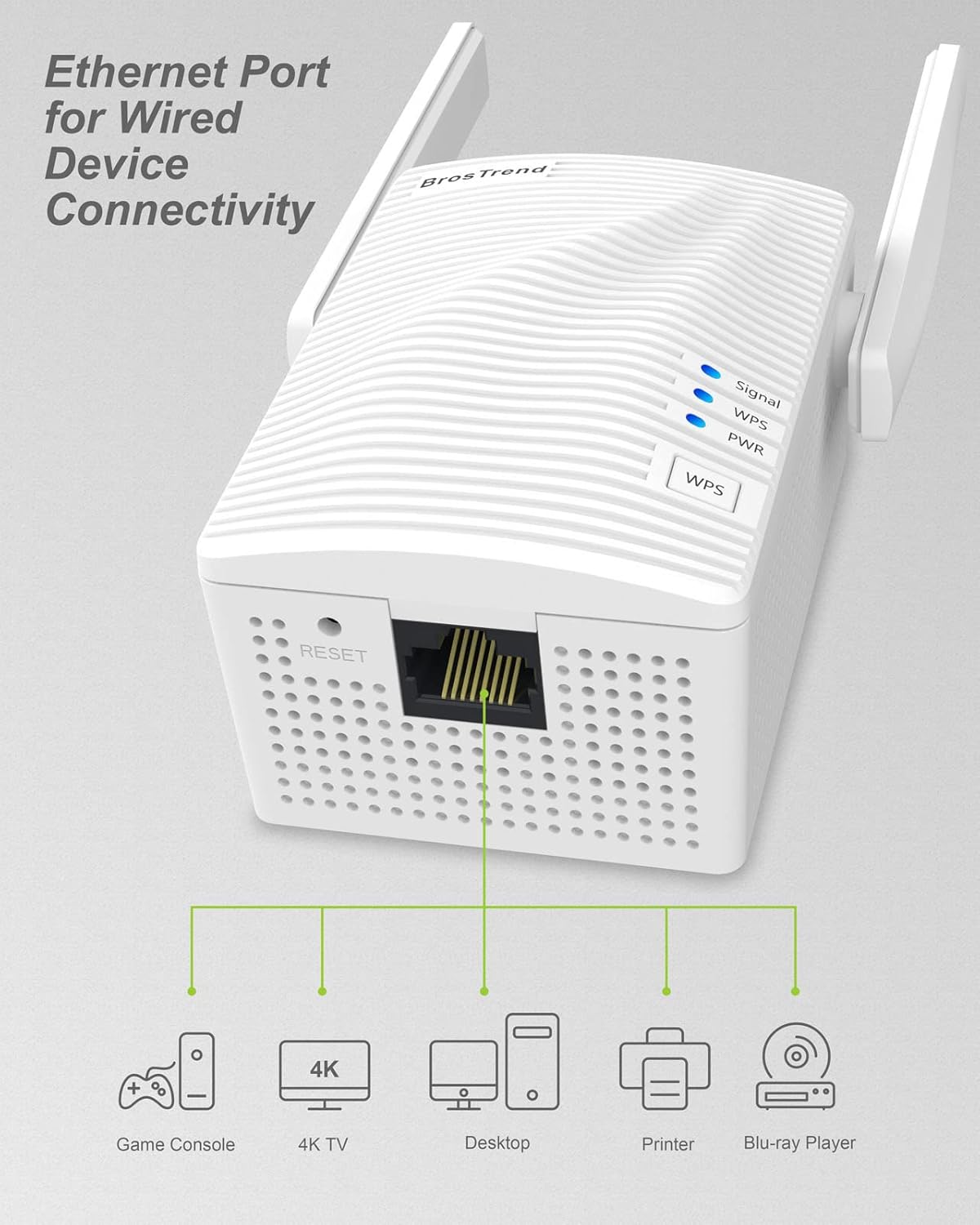
Image: The Ethernet port on the BrosTrend AC1200 WiFi Extender allows for wired connectivity to devices like game consoles, 4K TVs, desktops, printers, and Blu-ray players.
5. Spesifikasies
| Kenmerk | Beskrywing |
|---|---|
| Handelsmerk | BrosTrend |
| Modelnommer | Répéteur-V2 |
| Draadlose kommunikasie standaard | 802.11a/b/g/n/ac, 2.4 GHz Radio Frequency, 5 GHz Radio Frequency |
| Data-oordragtempo | 1200 Megabits Per Second (867Mbps on 5GHz, 300Mbps on 2.4GHz) |
| Frekwensiebandklas | Dubbelband |
| Spesiale kenmerke | Dual Band, WiFi Bridge Function, Access Point Mode Supported, Universal Compatibility, WPS Button Functionality |
| Versoenbare toestelle | Roeter |
| Reeks | 1300 vierkante voet |
| Connector Tipe | RJ45 to RJ45, RJ45 to WiFi |
| Item gewig | 163.6 gram |
| Kleur | Wit |
6. Probleemoplossing
If you encounter issues with your BrosTrend AC1200 WiFi Extender, consider the following troubleshooting steps:
- No Signal LED / Not Connected: Ensure the extender is plugged into a working electrical outlet. If the Signal LED is off, the extender is not receiving a signal from your router. Move the extender closer to your router and ensure it is within the router's Wi-Fi coverage.
- Red Signal LED: A red Signal LED indicates a poor connection between the extender and your router. Relocate the extender to a position closer to your router until the Signal LED turns solid blue.
- Kan nie toegang kry nie Web Interface: Double-check that your device is connected to the extender's Wi-Fi network ("BrosTrend_EXT") and that you are entering re.brostrend.com correctly in your browser. Try clearing your browser's cache or using a different browser.
- Forgotten Login Password: If you forget the administrator login password for the extender, you may need to perform a factory reset. Refer to the "Factory Reset" section in the full user manual (if available) or contact support.
- Stadige snelhede op uitgebreide netwerk: Ensure the extender is placed optimally (solid blue Signal LED). Interference from other electronic devices or physical obstructions can also affect performance. Try changing Wi-Fi channels on your main router if possible.
- No Internet Access on Extended Network: Verify that your main router has an active internet connection. Ensure the correct Wi-Fi password for your main router was entered during the extender setup.
- Fabrieksinstelling: To reset the extender to its factory default settings, use a paperclip or pin to press and hold the "RESET" button (usually a small hole) for about 5-10 seconds while the extender is powered on. The LEDs will flash, indicating a successful reset. You will then need to reconfigure the extender.
7. Waarborg en Ondersteuning
Waarborg inligting
The BrosTrend AC1200 WiFi Extender comes with a 2 jaar waarborg. For extended warranty options, please refer to the product packaging or contact BrosTrend support.
Tegniese Ondersteuning
BrosTrend offers 24/7 technical support. If you require assistance with setup, troubleshooting, or any other product-related queries, please contact BrosTrend support directly. Contact details are typically provided in the Quick Installation Guide included with your product or on the official BrosTrend webwebwerf.
Video: 'n Kort oorsigview of the BrosTrend AC1200 WiFi Extender for home use, highlighting its features and ease of use.