
Microsoft Surface Pro 2017
Microsoft Surface Pro 2017 Gebruikershandleiding
Model: Surface Pro 2017 (7Y30)
Inleiding
This manual provides essential instructions for setting up, operating, maintaining, and troubleshooting your Microsoft Surface Pro 2017. The Surface Pro 2017 is a versatile 2-in-1 device designed to function as both a powerful laptop and a portable tablet, offering a seamless computing experience.
Please read this manual thoroughly to ensure proper use and to maximize the lifespan of your device. Keep this manual for future reference.
Wat is in die boks
Upon unboxing your Microsoft Surface Pro 2017, verify that all components are present:
- Microsoft Surface Pro 2017 device
- Wisselstroomadapter
Note: Additional accessories such as the Surface Pen, Type Cover, or Surface Dial are sold separately and may not be included with your device.
Opstelling
1. Aanvanklike aanskakeling en laai
- Koppel die kragadapter: Plug the AC power adapter into a wall outlet and then connect the magnetic charging connector to the charging port on your Surface Pro. The LED indicator on the connector will illuminate when charging.
- Krag aan: Press and hold the power button located on the top edge of the device for a few seconds until the Microsoft logo appears on the screen.
2. Windows-opstelling
Follow the on-screen prompts to complete the initial Windows setup. This process typically includes:
- Kies u streek en taal.
- Koppel aan 'n Wi-Fi-netwerk.
- Aanvaarding van die lisensieooreenkoms.
- Skep of aanmeld met 'n Microsoft-rekening.
- Setting up security features like Windows Hello (facial recognition) or a PIN.
3. Koppel aan Wi-Fi
- During Windows setup, you will be prompted to connect to a network. Select your desired Wi-Fi network from the list and enter the password if required.
- If you need to connect later, go to Begin > Instellings > Netwerk en internet > Wi-Fi. Turn Wi-Fi on, select your network, and click Koppel.
Bedryfsinstruksies
Basic Device Orientation and Controls
The Surface Pro 2017 features a 12.3-inch PixelSense display with multi-touch support. Key physical controls include:
- Kragknoppie: Located on the top edge, used to turn the device on/off, sleep, or wake.
- Volume knoppies: Located on the side, used to adjust audio volume.
- Skopstand: Integrated on the back, allows for multiple viewhoeke.
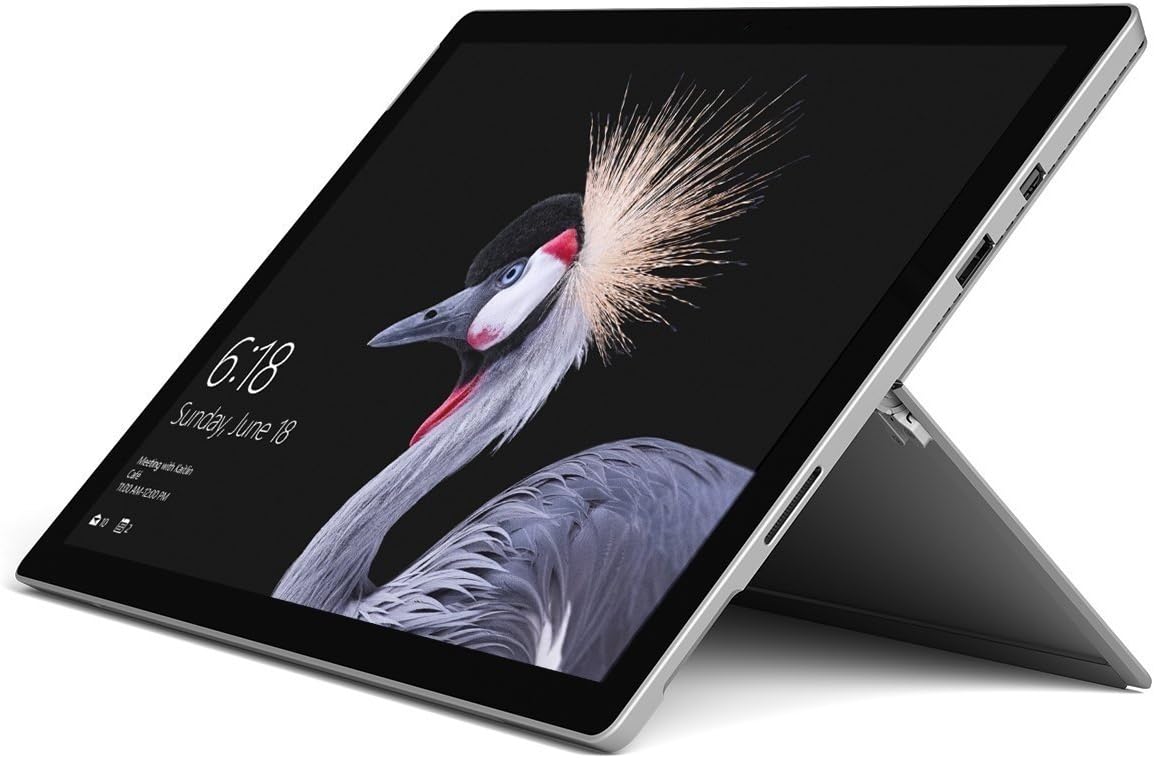
Image: Microsoft Surface Pro 2017 in laptop mode with its kickstand extended, showcasing the device's display.
Gebruik die Kickstand
The integrated kickstand allows you to position your Surface Pro at various angles for comfortable viewing, typing, or drawing. Gently pull the kickstand out from the back of the device until it reaches your desired angle.
Kragbestuur
- Slaap stelling: Briefly press the power button to put the Surface Pro into sleep mode. Press it again to wake the device.
- Sluit af: Gaan na Begin > Krag > Sluit af.
- Herbegin: Gaan na Begin > Krag > Herbegin.
Verbind randapparatuur
The Surface Pro 2017 includes various ports for connecting external devices:
- USB 3.0-poort: For connecting USB drives, keyboards, mice, and other compatible accessories.
- Mini DisplayPort: Vir die koppeling aan eksterne monitors of projektors.
- microSD-kaartleser: Vir die uitbreiding van berging of oordrag files van geheue kaarte.
- Oppervlakkoppelpoort: For power and connecting to Surface Dock accessories.
- 3.5 mm koptelefoonaansluiting: Vir oudio-uitvoer.
Bluetooth: Om Bluetooth-toestelle (bv. oorfone, muise) te koppel, gaan na Begin > Instellings > Toestelle > Bluetooth en ander toestelle. Ensure Bluetooth is turned on, then select "Add Bluetooth or other device" and follow the pairing instructions.

Beeld: Syprofile of the Microsoft Surface Pro 2017, highlighting the various ports available for connectivity.
Onderhoud
Cleaning Your Surface Pro
- Skerm: Gebruik 'n sagte, pluisvrye lap effens dampened with water or an approved screen cleaner. Avoid harsh chemicals or abrasive materials.
- Liggaam: Wipe the exterior with a soft, dry cloth. Do not allow liquids to enter openings.
- Poorte: Keep ports free of dust and debris. Use compressed air carefully if needed, holding the can upright.
Battery sorg
- Vermy uiterste temperature, aangesien dit die batterylewe kan verminder.
- Vir optimale batterygesondheid, vermy om die battery voortdurend heeltemal te ontlaai of dit vir lang tye 100% gelaai te hou.
- Use only the official Microsoft AC power adapter or a compatible charger.
Sagteware-opdaterings
Regularly update your Windows operating system and device drivers to ensure optimal performance, security, and compatibility. Go to Begin > Instellings > Opdatering en sekuriteit > Windows Update om vir opdaterings te kyk en te installeer.
Probleemoplossing
This section addresses common issues you might encounter with your Surface Pro 2017.
Device Will Not Turn On
- Ensure the device is charged. Connect the power adapter and wait a few minutes before attempting to power on.
- Perform a two-button shutdown: Press and hold the volume-up button and the power button simultaneously for at least 15 seconds, then release both. Wait 10 seconds, then press the power button again to turn on the Surface.
Screen Not Responding to Touch
- Herbegin die toestel.
- Maak seker dat die skerm skoon en vry van puin is.
- Check for available Windows updates, as driver updates can resolve touch issues.
Wi-Fi-verbindingsprobleme
- Maak seker dat Wi-Fi geaktiveer is in Instellings > Netwerk en internet > Wi-Fi.
- Restart your Surface Pro and your Wi-Fi router.
- Forget the network and reconnect: Go to Instellings > Netwerk en internet > Wi-Fi, click on your network, then Vergeet. Reconnect and enter the password.
Spesifikasies
| Kenmerk | Spesifikasie |
|---|---|
| Model Naam | Surface Pro 2017 |
| Item Modelnommer | 7Y30 |
| Skerm grootte | 12.3 duim |
| Skermresolusie | 2736 x 1824 piksels |
| Verwerker | Intel Core m3-7Y30 (1 GHz Intel_Mobile_CPU) |
| RAM | 4 GB DDR4 SDRAM |
| Berging | 128 GB SSD |
| Grafiese kaart | Geïntegreerde (Intel) |
| Bedryfstelsel | Vensters |
| Draadlose tipe | 802.11abg |
| Item gewig | 1.89 pond |
| Produk afmetings | 11.5 x 7.9 x 0.3 duim |
| Kleur | Silwer |
Waarborg en Ondersteuning
For detailed warranty information, please refer to the warranty card included with your purchase or visit the official Microsoft support webwebwerf. Waarborgbepalings en -voorwaardes kan wissel na gelang van streek en kleinhandelaar.
For technical support, driver downloads, and additional resources, please visit the official Microsoft Support webwebwerf: support.microsoft.com/surface