
Veidoo T10
Veidoo 10-inch Android Tablet PC User Manual
Model: T10
1. Inleiding
This user manual provides detailed instructions for the safe and efficient operation of your Veidoo 10-inch Android Tablet PC. Please read this manual thoroughly before using the device and retain it for future reference. This tablet is designed for various uses, including communication, entertainment, and productivity.

This image shows the Veidoo 10-inch Android Tablet PC. The front of the tablet displays the home screen with the current time, date, and various application icons such as Camera, Gallery, Settings, and Music. The rear of the tablet, visible behind the front, is black with a subtle textured design and features the rear camera module.
2. Veiligheidsinligting
- Moenie die toestel blootstel aan uiterste temperature, direkte sonlig of hoë humiditeit nie.
- Vermy om die toestel te laat val of aan sterk impakte te onderwerp.
- Gebruik slegs laaiers en bykomstighede wat deur die vervaardiger goedgekeur is.
- Moenie probeer om die toestel self uitmekaar te haal of te herstel nie. Raadpleeg gekwalifiseerde dienspersoneel.
- Hou die toestel weg van kinders en troeteldiere.
- Gooi die toestel en sy battery verantwoordelik weg volgens plaaslike regulasies.
3. Produk verbyview
3.1 Fisiese kenmerke
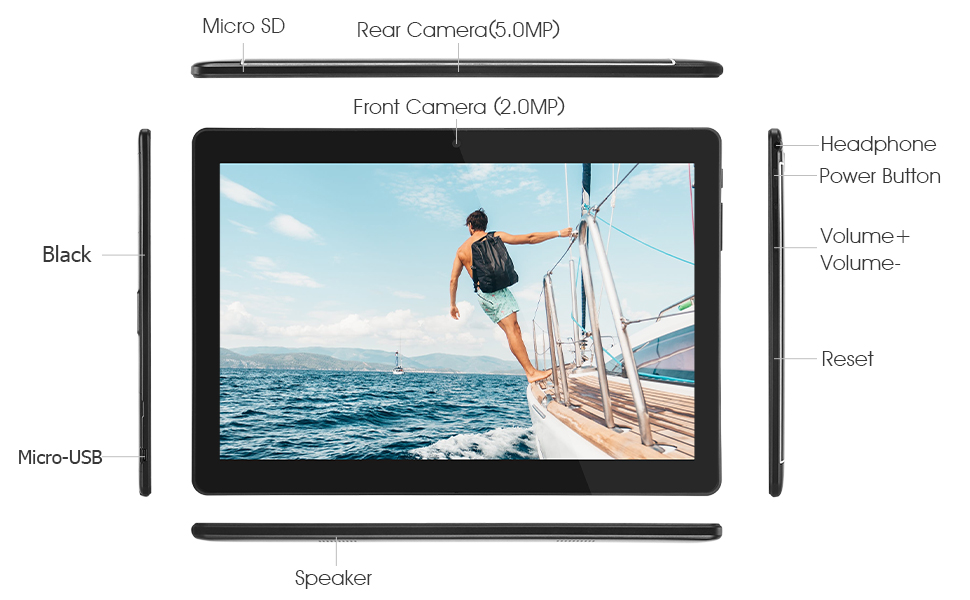
Familiarize yourself with the various ports and buttons on your Veidoo Tablet PC:

This diagram illustrates the various physical components and ports of the Veidoo 10-inch Android Tablet PC. It clearly labels the Micro SD card slot, the 5.0MP rear camera, the 2.0MP front camera, the headphone jack, the power button, the volume up and down buttons, the reset pinhole, the Micro-USB charging port, and the speaker.
- Micro SD-gleuf: Vir uitbreibare berging.
- Rear Camera (5.0MP): Vir die neem van foto's en video's.
- Voorkamera (2.0MP): Vir video-oproepe en selfies.
- Koptelefoonaansluiting: Koppel 3.5 mm -koptelefoon.
- Kragknoppie: Press and hold to power on/off, short press to sleep/wake.
- Volume knoppies: Pas die klankvolume aan.
- Stel Pinhole terug: Use a thin object to reset the device if unresponsive.
- Mikro-USB-poort: Vir laai en data-oordrag.
- Spreker: Oudio-uitvoer.
3.2 Pakketinhoud
Maak seker dat alle items in jou produkboks teenwoordig is:

This image displays the items typically found inside the Veidoo 10-inch Android Tablet PC product box. It includes the tablet itself, a black protective case, a power adapter (wall charger), a USB charging and data cable, a service warranty card, and a leaflet containing frequently asked questions and support information.
- Veidoo 10-inch Android Tablet PC
- Kragadapter
- USB kabel
- Protective Case (optional, may vary by package)
- Gebruikershandleiding (hierdie dokument)
- Dienswaarborgkaart
- FAQ Leaflet
4. Opstelling
4.1 Laai die battery
Before first use, fully charge the tablet. Connect the USB cable to the tablet's Micro-USB port and the other end to the power adapter. Plug the adapter into a wall outlet. The charging indicator will show the charging status. A full charge typically takes 3-4 hours.

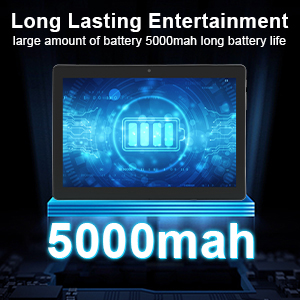
This image focuses on the Veidoo 10-inch Android Tablet PC's battery capacity, prominently displaying a battery icon and '5000mAh'. This signifies the tablet's 5000mAh battery, designed to provide extended usage time for entertainment and productivity.
4.2 Aan-/afskakel
- Om aan te skakel: Press and hold the Power button until the Veidoo logo appears on the screen.
- Om af te skakel: Druk en hou die aan/af-knoppie in totdat 'n kieslys verskyn. Kies "Skakel af" en bevestig.
- Slaap/wakker: Druk kortliks die aan/af-knoppie om die tablet aan die slaap te maak of wakker te maak.
4.3 Inserting SIM and Micro SD Cards
The tablet supports dual SIM cards for 3G phone calls and a Micro SD card for expandable storage.
- Locate the SIM/SD card slot on the side of the tablet.
- Carefully open the slot cover.
- Insert the SIM card(s) and/or Micro SD card into the designated slots with the gold contacts facing down. Ensure they are correctly seated.
- Maak die gleufdeksel stewig toe.
This image demonstrates the storage capabilities of the Veidoo 10-inch Android Tablet PC, showing multiple applications and content open. It highlights the device's 16GB internal storage (ROM) and its ability to expand storage up to 32GB via a Micro SD card, allowing for ample spasie vir programme, foto's en video's.
4.4 Aanvanklike opstelling
Wanneer die tablet vir die eerste keer aangeskakel word, sal dit jou deur die aanvanklike opstellingsproses lei:
- Kies jou voorkeurtaal.
- Koppel aan 'n Wi-Fi-netwerk.
- Meld aan met jou Google-rekening of skep 'n nuwe een. Dit is nodig om programme van die Google Play Winkel af te laai.
- Stel skermslot op (PIN, patroon, wagwoord).
- Review en aanvaar die bepalings en voorwaardes.
5. Bediening van die tablet
5.1 Basiese navigasie
- Tik: Kies 'n item of maak 'n toepassing oop.
- Tik en hou: Kry toegang tot kontekskieslyste of skuif ikone.
- Swiep: Blaai deur skerms of lyste.
- Knyp-om-te-Zoem: Zoem in of uit op beelde en web bladsye.
5.2 Konnektiwiteit (Wi-Fi en Bluetooth)
- Wi-Fi: Gaan na Instellings > Netwerk en internet > Wi-Fi. Turn Wi-Fi on, select your network, and enter the password.
- Bluetooth: Gaan na Instellings > Verbonde toestelle > Bluetooth. Turn Bluetooth on, scan for devices, and pair with your desired accessory.
5.3 Making Phone Calls (3G)
With a valid SIM card inserted, you can make and receive 3G phone calls:

This image shows a group of four individuals participating in a video call using the Veidoo 10-inch Android Tablet PC. This illustrates the tablet's capability for video conferencing and its 3G phone call functionality, allowing users to connect with others remotely.
- Maak die oop Telefoon app.
- Dial the number using the keypad or select a contact.
- Tik die oproepknoppie om die oproep te begin.
5.4 Gebruik van die kameras
The tablet is equipped with a front and rear camera for photos and videos.
- Maak die oop Kamera app.
- Wissel tussen voor- en agterkameras deur die kamera-ikoon te gebruik.
- Tik die sluiterknoppie om 'n foto te neem of video-opname te begin/stop.
5.5 Bergingbestuur
Jy kan view and manage your tablet's internal and external storage:
- Gaan na Instellings > Berging.
- Here you can see storage usage and free up space by deleting unnecessary files or uninstalling apps.
5.6 Installing and Uninstalling Apps
This image features the Veidoo 10-inch Android Tablet PC showcasing its Android 10 operating system with a multitude of application icons. This highlights that the device is GMS (Google Mobile Services) certified, ensuring access to Google Play Store and other Google services.
- Installeer: Maak die oop Google Play Winkel toepassing, soek vir jou verlangde toepassing en tik Installeer.
- Deïnstalleer: Gaan na Settings > Apps & notifications > See all apps. Select the app you wish to uninstall and tap Deïnstalleer.
6. Onderhoud
- Skoonmaak: Gebruik 'n sagte, pluisvrye lap om die skerm en liggaam skoon te maak. Vermy skuurmiddels of oplosmiddels.
- Sagteware-opdaterings: Kontroleer gereeld vir stelselopdaterings in Instellings > Stelsel > Stelselopdatering om optimale werkverrigting en sekuriteit te verseker.
- Batterysorg: To prolong battery life, avoid fully discharging the battery frequently. Store the tablet in a cool, dry place when not in use for extended periods.
- Data-rugsteun: Regularly back up important data to a cloud service or external storage device to prevent data loss.
7. Probleemoplossing
| Probleem | Moontlike Oplossing |
|---|---|
| Tablet skakel nie aan nie | Ensure the battery is charged. Connect the charger and wait a few minutes before attempting to power on. If unresponsive, try pressing the reset pinhole. |
| Skerm reageer nie | Restart the tablet by holding the Power button. If that doesn't work, use the reset pinhole. Ensure the screen is clean and dry. |
| Kan nie aan Wi-Fi koppel nie | Check if Wi-Fi is enabled in settings. Ensure the Wi-Fi password is correct. Restart your router and the tablet. |
| Programme stort vas of vries | Maak die toepassing toe en heropen dit. Maak die toepassing se kasgeheue skoon in Instellings> Programme en kennisgewings. Update the app or uninstall and reinstall it. Ensure sufficient storage space. |
| Swak batterylewe | Reduce screen brightness. Close unused apps running in the background. Turn off Wi-Fi, Bluetooth, and GPS when not in use. Limit background data usage. |
8. Spesifikasies
Key technical specifications for the Veidoo 10-inch Android Tablet PC (Model T10):

This image provides a visual summary of the Veidoo Tablet PC's key specifications. It highlights features such as 1GB RAM, a 2MP front and 5MP rear camera setup, a 10.1-inch IPS HD display with 1280x800 resolution, 16GB of internal storage, Android 10 operating system, Wi-Fi connectivity, a Quad-Core CPU, and dual SIM card support.
| Kenmerk | Detail |
|---|---|
| Model Naam | Touch (T10) |
| Staande skerm vertoon grootte | 10.1 duim |
| Skermresolusie | 800 x 1280 (IPS) |
| RAM | 1 GB (DDR3 SDRAM) |
| Hardeskyf- / Flash-geheuegrootte | 16 GB (expandable up to 32GB via Micro SD) |
| Draadlose tipe | 802.11b, 802.11b/g (Wi-Fi), Bluetooth |
| Gemiddelde batterylewe | 6 Hours (5000mAh Lithium Polymer) |
| Hardeware Platform | Android |
| Bedryfstelsel | Android 6.0 Marshmallow (GMS Certified) |
| Item gewig | 2.86 pond |
| Produk afmetings | 9.49 x 6.69 x 0.37 duim |
| Agter Webcam resolusie | 5 MP |
| Voorkant Webcam resolusie | 2 MP |
| Aantal verwerkers | 4 (Vierkern) |
| Kragbron | Batteryaangedrewe, elektries met koord |
9. Waarborg en Ondersteuning
Your Veidoo Tablet PC comes with a service warranty. Please refer to the included Service Warranty Card for specific terms and conditions, including warranty period and coverage details.
For technical support, troubleshooting assistance, or warranty claims, please contact Veidoo customer service. Contact information can typically be found on the warranty card or the official Veidoo website. When contacting support, please have your model number (T10) and purchase information ready.
You can also visit the official Veidoo store on Amazon for more information and support resources: Veidoo Store
Ask a question about this manual
Ask about setup, troubleshooting, compatibility, parts, safety, or missing instructions. Manuals+ will review the question and use this page’s manual context to help answer it.